tencent cloud

TDSQL-C for MySQL

Release Notes and Announcements
Release Notes
Product Announcements
Beginner's Guide
Product Introduction
Overview
Strengths
Use Cases
Architecture
Product Specifications
Instance Types
Product Feature List
Database Versions
Regions and AZs
Common Concepts
Use Limits
Suggestions on Usage Specifications
Kernel Features
Kernel Overview
Kernel Version Release Notes
Optimized Kernel Version
Functionality Features
Performance Features
Security Features
Stability Feature
Analysis Engine Features
Inspection and Repair of Kernel Issues
Purchase Guide
Billing Overview
Product Pricing
Creating Cluster
Specification Adjustment Description
Renewal
Payment Overdue
Refund
Change from Pay-as-You-Go to Yearly/Monthly Subscription
Change from Pay-as-You-Go to Serverless Billing
Value-Added Services Billing Overview
Viewing Billing Statements
Getting Started
Database Audit
Overview
Viewing Audit Instance List
Enabling Audit Service
Viewing Audit Logs
Log Shipping
Post-Event Alarm Configuration
Modifying Audit Rule
Modifying Audit Service
Disabling Audit Service
Audit Rule Template
Viewing Audit Task
Authorizing Sub-User to Use Database Audit
Serverless Service
Serverless Introduction
Creating and Managing a Serverless Cluster
Elastic Scaling Management Tool
Serverless Resource Pack
Multi-AZ Deployment
Configuration Change
FAQs
Serverless Cost Estimator
Operation Guide
Operation Overview
Switching Cluster Page View in Console
Database Connection
Instance Management
Configuration Adjustment
Instance Mode Management
Cluster Management
Scaling Instance
Database Proxy
Account Management
Database Management
Database Management Tool
Parameter Configuration
Multi-AZ Deployment
GD
Backup and Restoration
Operation Log
Data Migration
Parallel Query
Columnar Storage Index (CSI)
Analysis Engine
Database Security and Encryption
Monitoring and Alarms
Basic SQL Operations
Connecting to TDSQL-C for MySQL Through SCF
Tag
Practical Tutorial
Classified Protection Practice for Database Audit of TDSQL-C for MySQL
Upgrading Database Version from MySQL 5.7 to 8.0 Through DTS
Usage Instructions for TDSQL-C MySQL
New Version of Console
Implementing Multiple RO Groups with Multiple Database Proxy Connection Addresses
Strengths of Database Proxy
Selecting Billing Mode for Storage Space
Creating Remote Disaster Recovery by DTS
Creating VPC for Cluster
Data Rollback
Solution to High CPU Utilization
How to Authorize Sub-Users to View Monitoring Data
White Paper
Security White Paper
Performance White Paper
Troubleshooting
Connection Issues
Performance Issues
API Documentation
History
Introduction
API Category
Making API Requests
Instance APIs
Multi-Availability Zone APIs
Other APIs
Audit APIs
Database Proxy APIs
Backup and Recovery APIs
Parameter Management APIs
Billing APIs
serverless APIs
Resource Package APIs
Account APIs
Performance Analysis APIs
Data Types
Error Codes
FAQs
Basic Concepts
Purchase and Billing
Compatibility and Format
Connection and Network
Features
Console Operations
Database and Table
Performance and Log
Database Audit
Between TDSQL-C for MySQL and TencentDB for MySQL
Service Agreement
Service Level Agreement
Terms of Service
TDSQL-C Policy
Privacy Policy
Data Privacy and Security Agreement
General References
Standards and Certifications
Glossary
Contact Us

Setting Event Alarms

PDF
Focus Mode
Font Size
Last updated: 2025-12-29 14:40:59
TDSQL-C for MySQL supports the event alarming feature. After you set an event rule, target, and recipient, if this feature detects an abnormal event, it will send alarm notifications to the recipient through various channels. This document describes how to set an event alarm.

Step 1. Activate EventBridge

EventBridge uses CAM to manage permissions. CAM is a permission and access management service that helps you securely manage the access permissions of resources under your Tencent Cloud account. With CAM, you can create, manage, and terminate users and user groups and use identity and policy management to control user access to Tencent Cloud resources. To use EventBridge with a root account or sub-account, you need to activate it first as instructed in Activating EventBridge.

Step 2. Configure event alarm push for TDSQL-C for MySQL

Note:
Ops events generated in TDSQL-C for MySQL such as alarms and audits will all be published to the Tencent Cloud service event bus by default, which cannot be changed or edited.
After EventBridge is activated, it will automatically create a default Tencent Cloud service event bus in Guangzhou region, to which alarm events generated by TDSQL-C for MySQL will be automatically published.

Method 1: Configuring the Event Bus

1. Log in to the EventBridge console.
2. Select the Guangzhou region at the top.
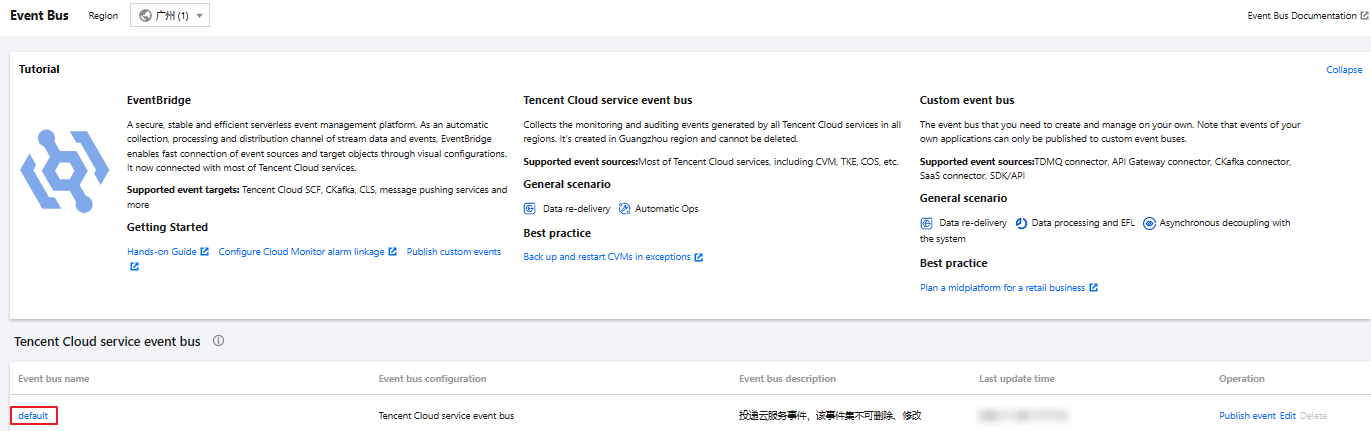
3. Click the default event bus below Tencent Cloud service event bus.


4. On the default event bus details page, click Manage Event Rules. Upon navigating to the designated page, click Create (this instruction uses the creation of a new event rule as an example; if an event rule already exists, it can be directly modified without the need for recreation).
5. On the Create event rule page, set the following configuration items and click Next.


Parameter
Description
Rule name
Enter the rule name, which can contain 2–60 letters, digits, underscores, and hyphens. It must start with a letter and end with a digit or letter.
Rule description
Enter the rule description, which can contain up to 200 digits, letters, and symbols.
Tag
Select whether to enable tag. After tag is enabled, you can add tags to the event rule.
Data conversion
Data conversion processes the content of the event (extracting, parsing, and re-mapping fields) before the event is published to the target.
Event sample
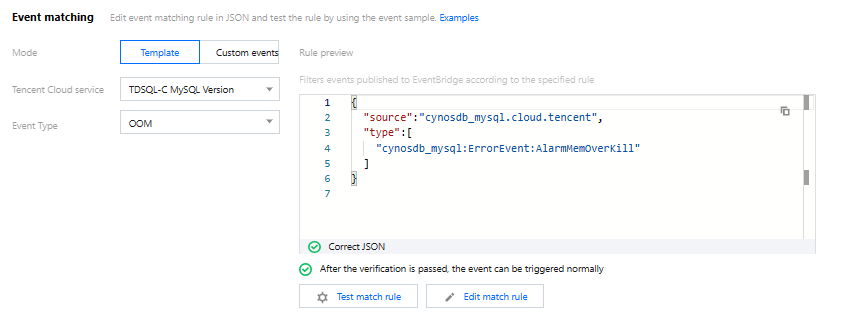
A sample event structure is provided as a reference for configuring the event match rule. You can find the target template below. Select the cloud service type: TDSQL-C for MySQL.
Mode
Form mode (recommended) and custom event are supported.
Tencent Cloud service
Select TDSQL-C for MySQL.
Event Type
Select one or multiple alarm event types.
Subject to match
Select the matching object for event alarms, with options to choose all instances or specify target instances.
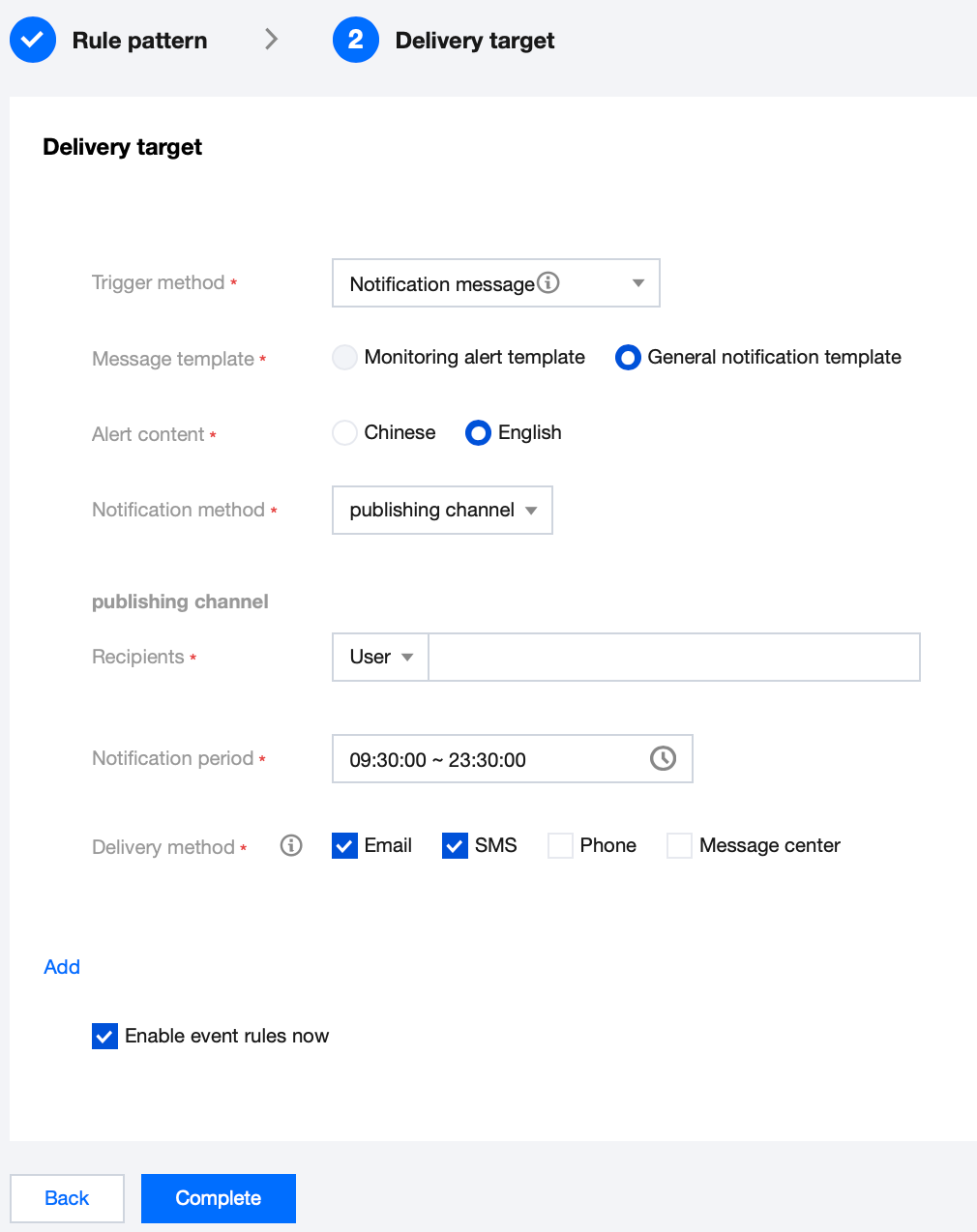
6. On the Event Target page, complete the relevant settings, check Enable event rules now, and click Complete. (There are various trigger methods available, and you can choose as needed. The following figure takes "Message Push" as an example for the trigger method. Channel Push will be sent to the designated contacts. Recipients must be set individually at Recipient, and the Notification Period should be confirmed with the Account User. The receiving channels can include Email, message center, SMS, and telephone)
Note:
To configure multiple event targets, click Add.

7. Once the event message push is set up, if the configured event alarm information occurs, the system will notify through the receiving channels you set for the recipients.

Method 2: TCOP Alarm Policy Configuration

Create an alarm policy
1. Log in to the TCOP Console, and select Alert Management > Alarm Policy in the left navigation bar.
2. On the Alarm Policy List Page, click Create Policy.

3. On the Policy Creation page, complete the settings for basic information, alarm rules, and alarm notifications.
Policy Type: Divided into host monitoring and standby machine monitoring, each applicable to different types of instances.
Alarm Object: The object instance can be found by selecting the region where the object is located or searching for the instance ID of the object.
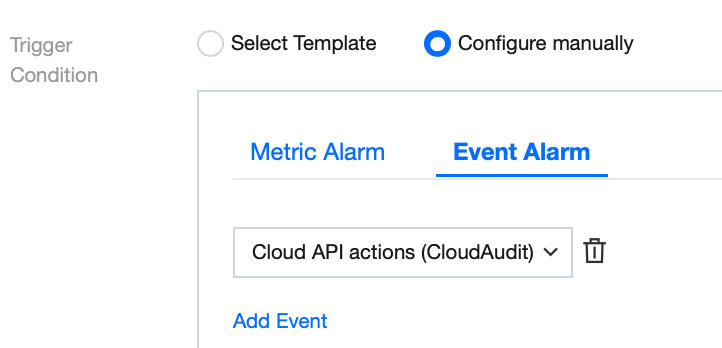
Trigger Condition: Find the event alarm, click Add Event, and add alarm events as needed for your business.

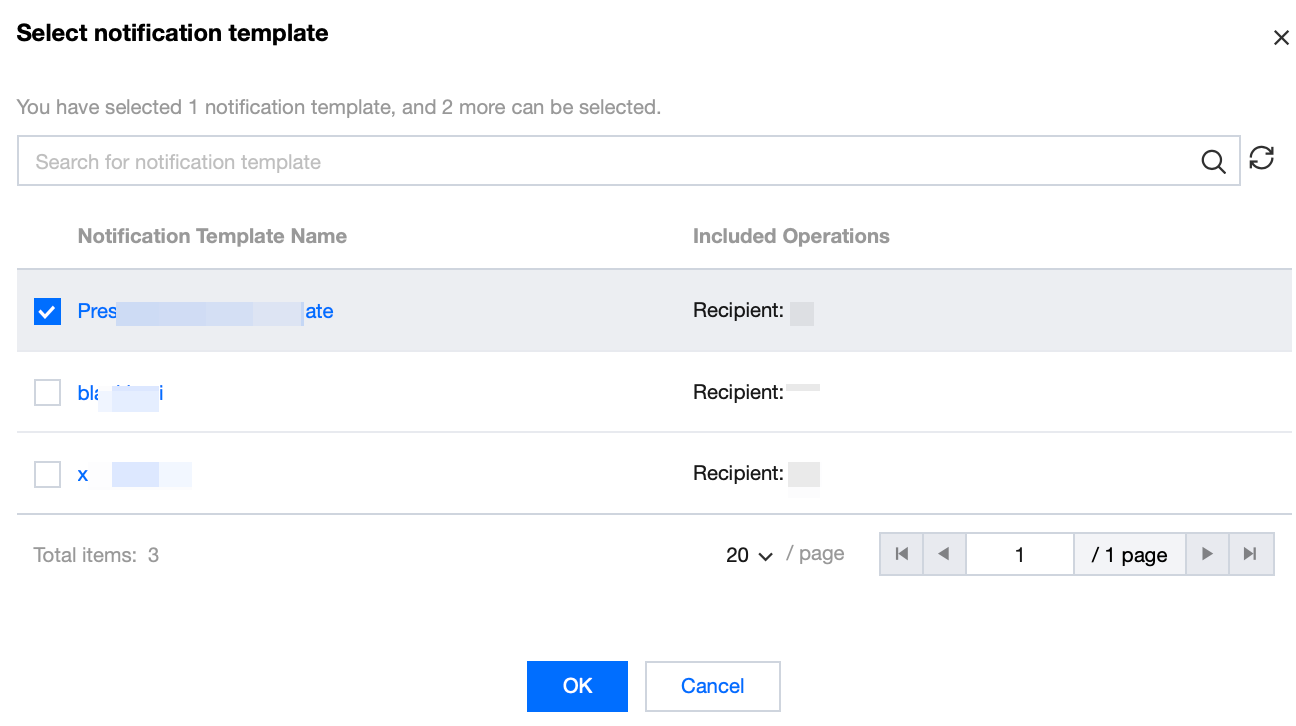
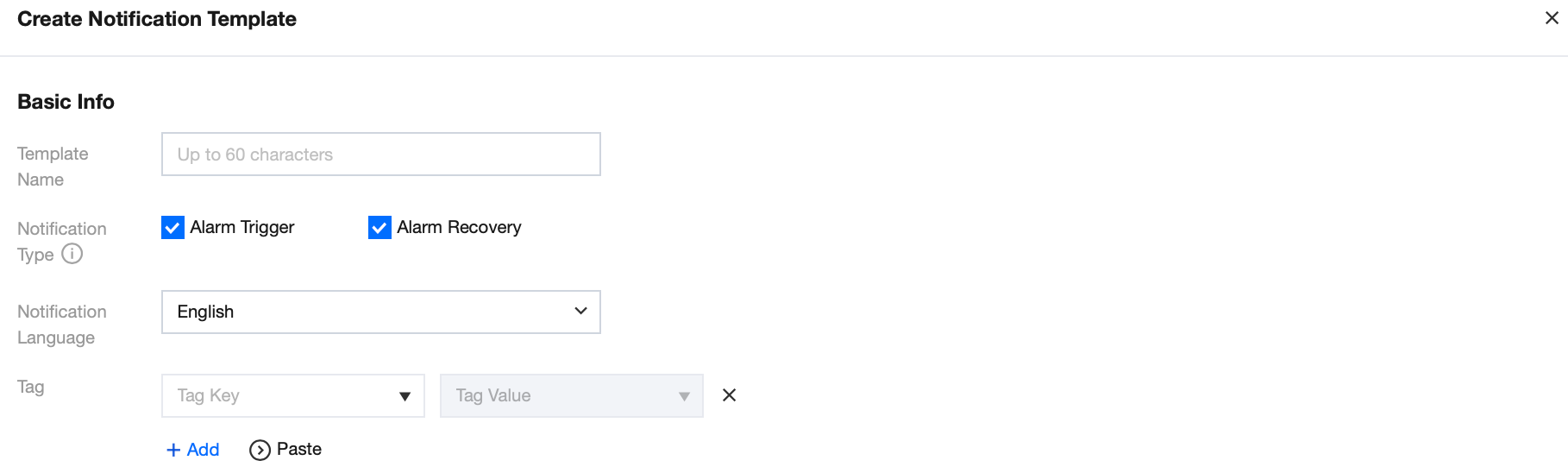
Configuring Alarm Notification: Supports choosing system preset notification templates and user-defined notification templates, with each alarm policy being able to be bound to a maximum of three notification templates. For user-defined notification templates, see Create New Notification Template.
Select system preset templates

Creating a template

4. After confirming there are no errors, click Complete.
Associate Alarm Objects
After creating an alarm policy, you can also associate it with other alarm objects (other instances that require this alarm policy). An alarm will be sent when the object meets the alarm trigger condition.
1. On the Alarm Policy List Page, click Alarm Policy Name to enter the Manage Alarm Policy Page.
2. In the Alarm Object column on the Manage Alarm Policy page, click Add Object.
3. In the pop-up dialog box, select the alarm object you need to associate, and click OK to associate the alarm object.

Help and Support

Was this page helpful?

Help us improve! Rate your documentation experience in 5 mins.

Feedback