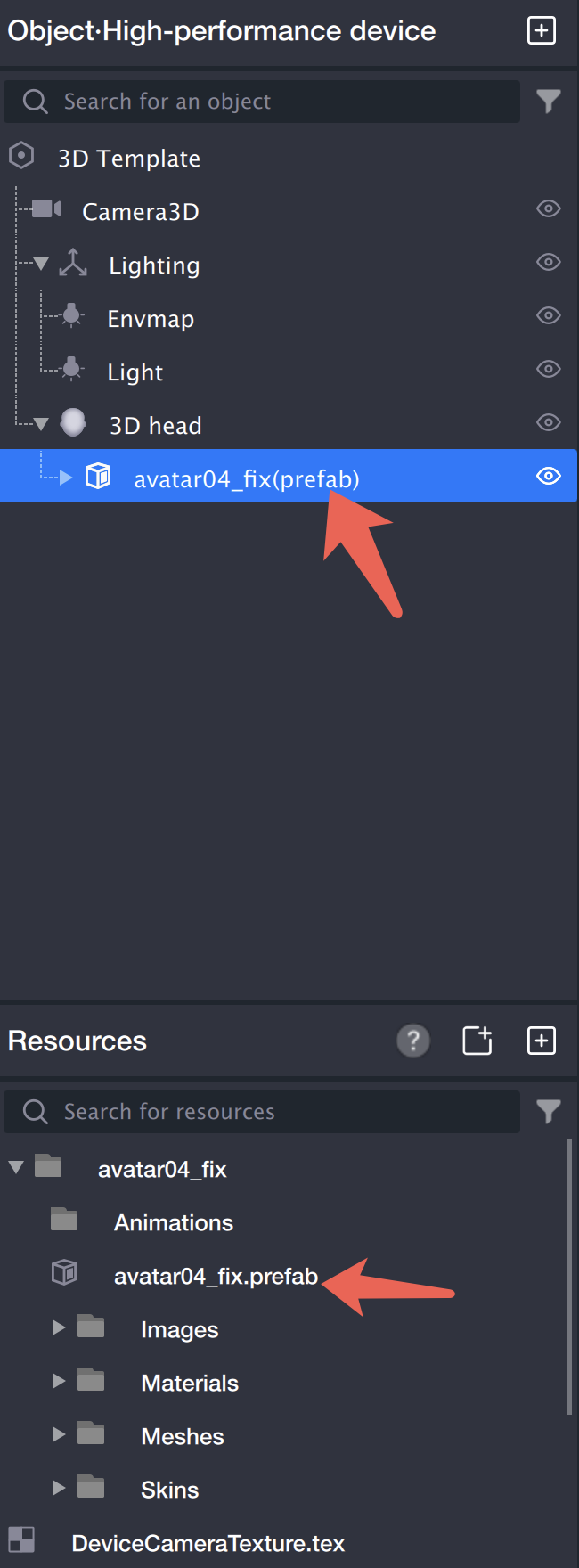
To add a 3D Head object, go to GameObject > Effects > 3D Head in the menu, or right-click in the Hierarchy panel and select "3D Head". Next, import your model into the Assets panel. Drag the prefab file from the generated folder into the child node of the 3D Head object.
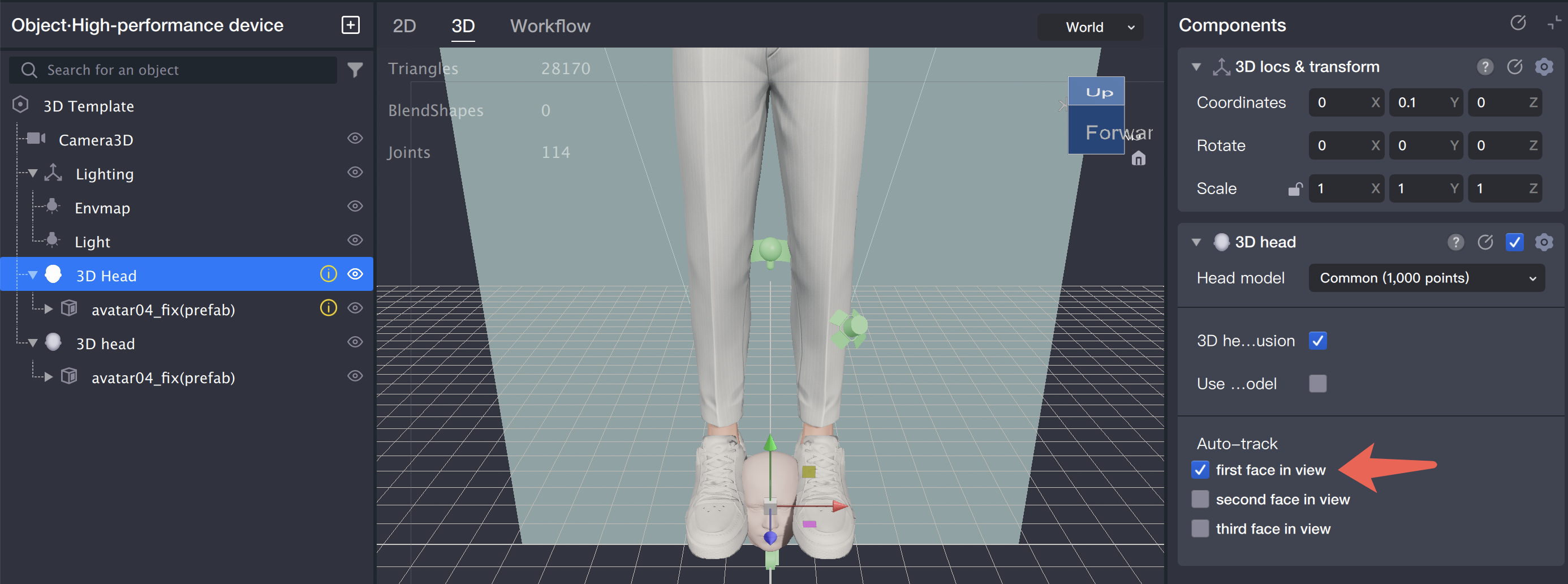
If you need multiple models to track the head, group them together under the 3D Head object.
3D Head Panel Overview
Head Model Selection
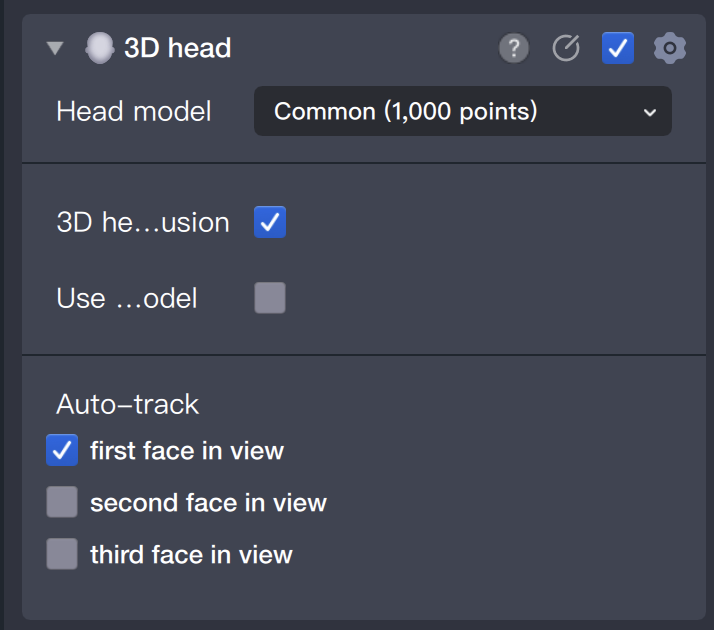
Both standard head models (Youtu Head Model) and high-precision head models (3DMM Head Model) are supported. High-precision head models contain more feature points, which ensures a more accurate fit to the user's face. For beauty effects, we recommend using the high-precision head model for optimal results.
3D Head Occlusion
Enable this option to hide models positioned behind the head. When occlusion is enabled, any model blocked by the head will not be rendered. If occlusion is disabled, models can appear in front of or cover the head.
Auto Tracking
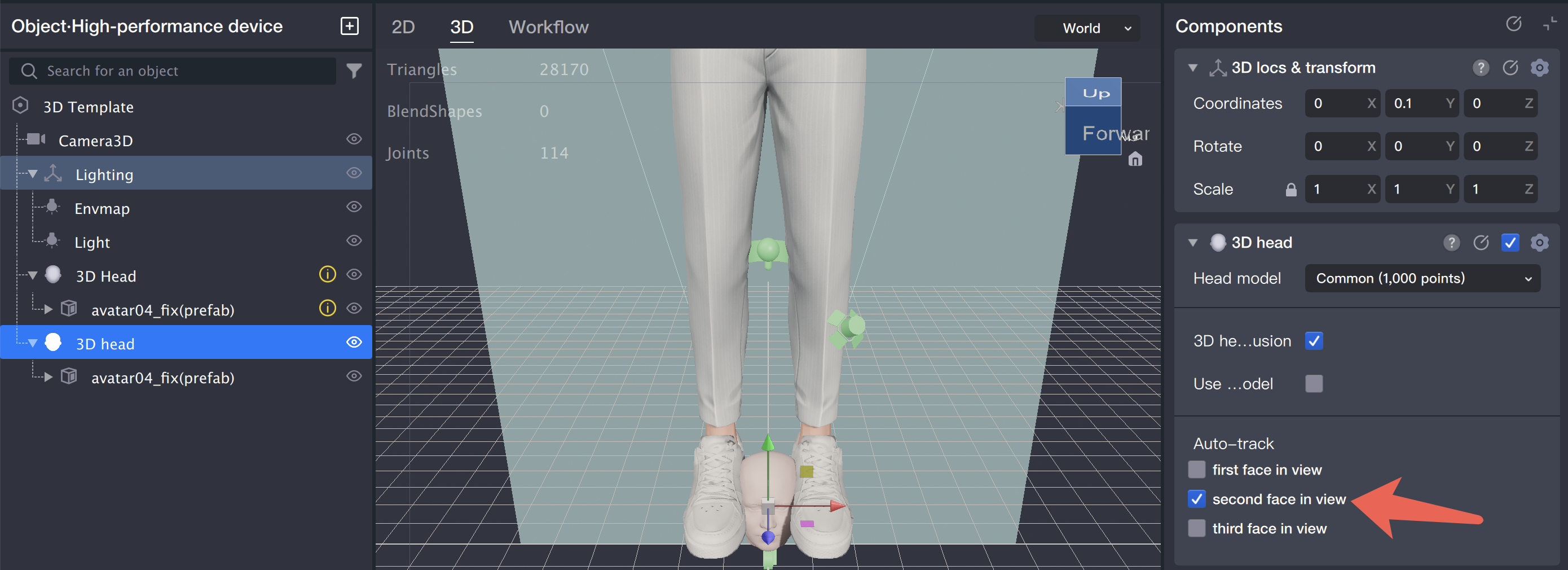
Auto Tracking determines which detected head in the camera view the 3D Head object should follow, prioritizing the order in which heads appear. To support multiple faces, add multiple model instances under the 3D Head object, assigning each model to a specific head. For example, to target the second detected face, select the corresponding model, find the 'Auto Tracking' component in the Inspector panel, and set its tracking target to "Head 2".