Resetting CVD Instances
Download
Focus Mode
Font Size
Scenarios
If you need to reinitialize the system disk of a Cloud Virtual Desktop (CVD) instance, you can reset the instance. This document describes how to reset CVD instances.
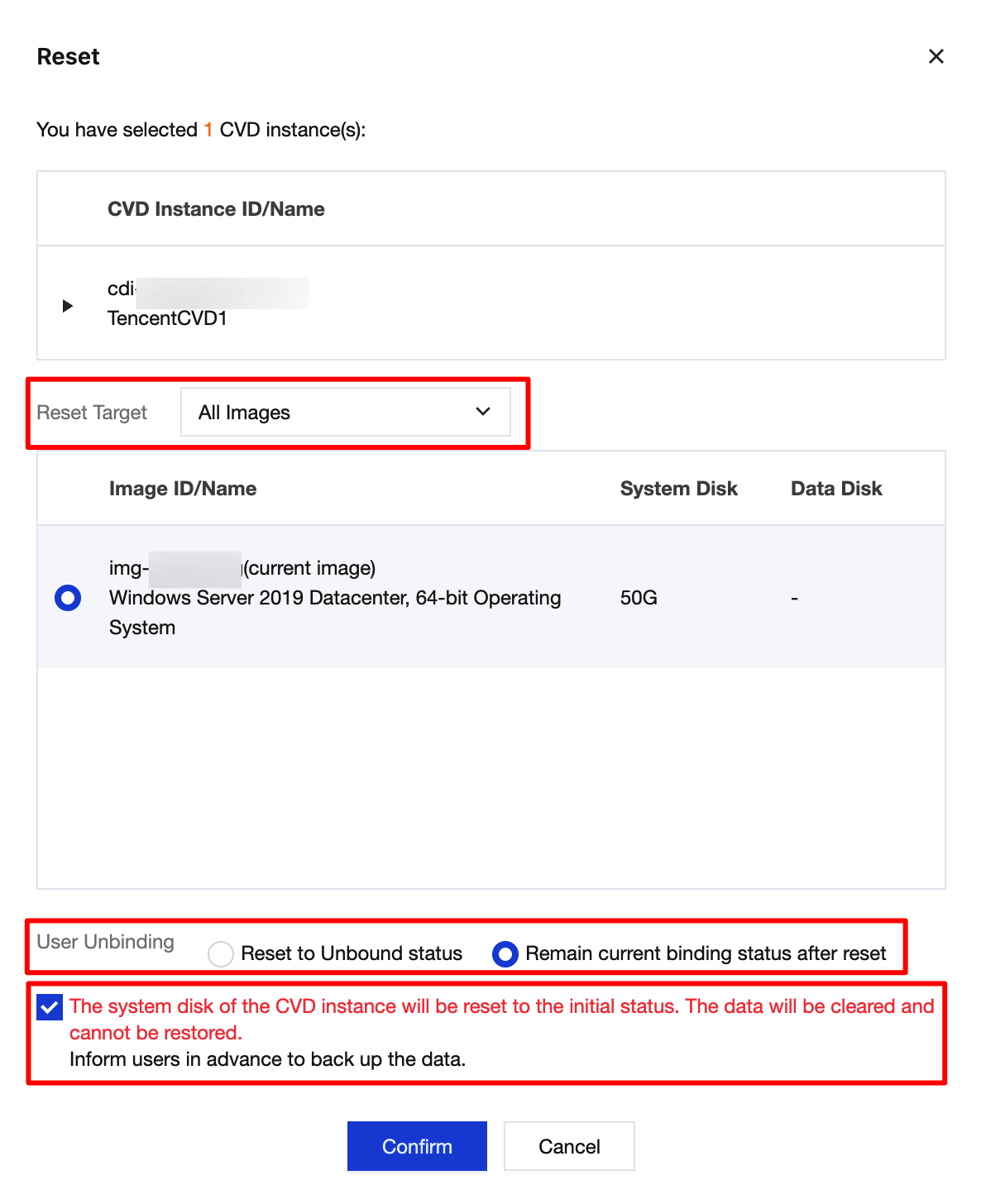
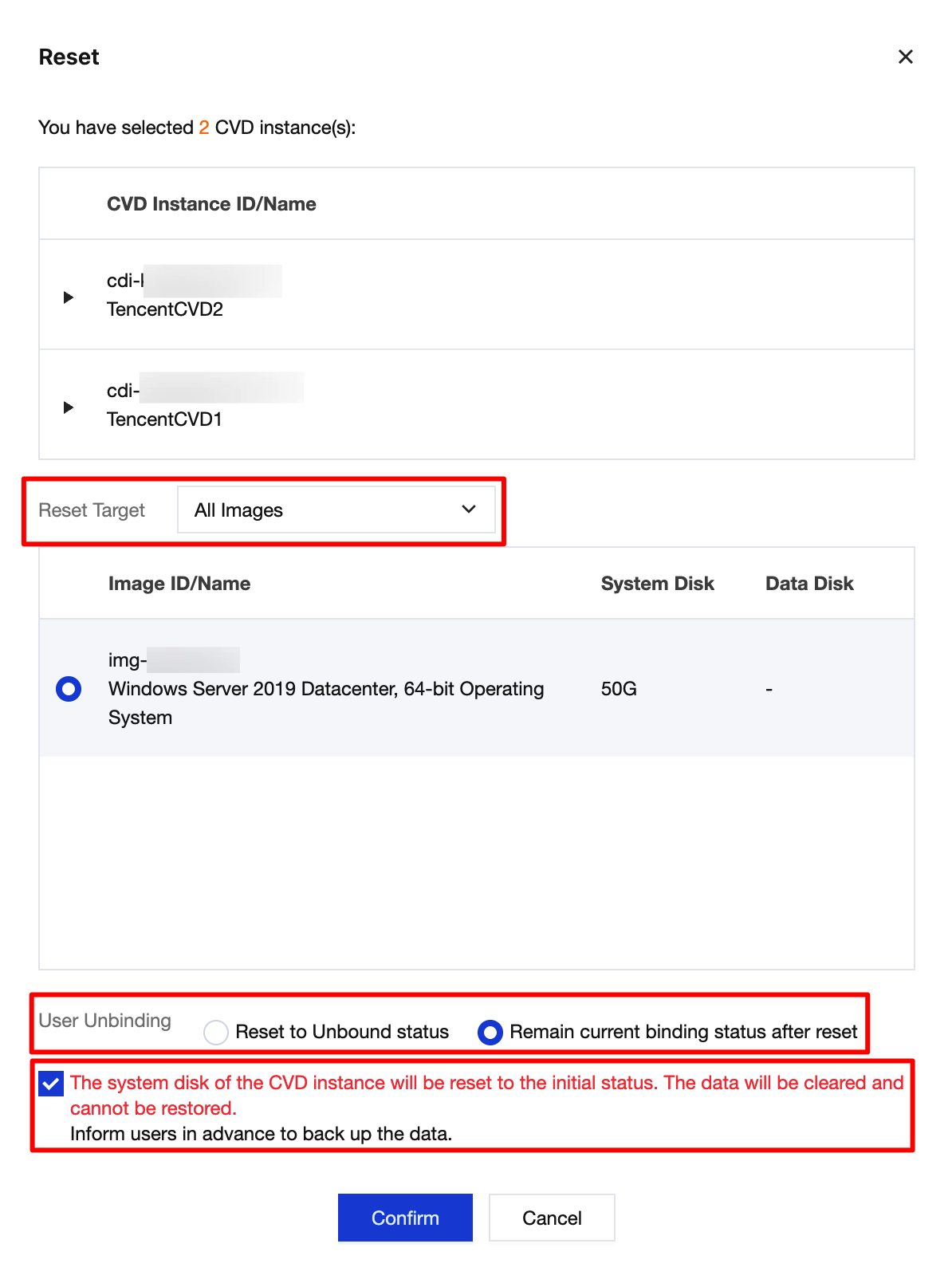
When resetting a CVD instance, you are provided with the option to unbind the instance. You can select Reset to unbound status or Keep the current bound status after reset based on your needs.
Must-Knows
After a CVD instance is reset, the system disk of the instance will be restored to its initial status. Data will be cleared and cannot be recovered. Inform the user in advance to back up data.
Note:
Data disks (if any) will not be affected.
Batch reset cannot be performed because Standard and Graphics CVD instances have different images.
After a CVD instance is reset, the system disk snapshots created for this CVD instance will be automatically deleted.
Operation Limits
Windows CVD instances support being reset to Windows system images but currently do not support being reset to Ubuntu system images.
Ubuntu CVD instances support being reset to Windows system images but currently do not support being reset to Ubuntu system images.
Operation Steps
Resetting a Single CVD Instance
1. Log in to the CVD console.
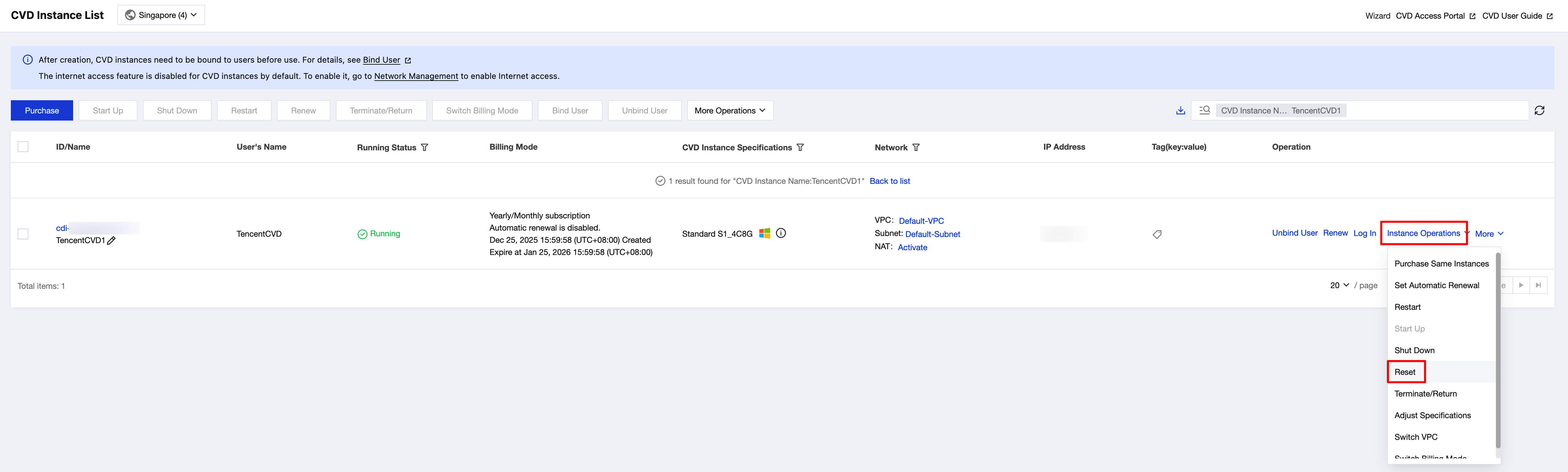
2. On the CVD Instance List page, select the CVD instance that you want to reset, and then click More Operations > Reset in the operation bar at the top or choose Instance Operations > Reset in the operation column on the right.
3. Select options based on your requirements and click Confirm.
Resetting CVD Instances in Batches
1. Log in to the CVD console.
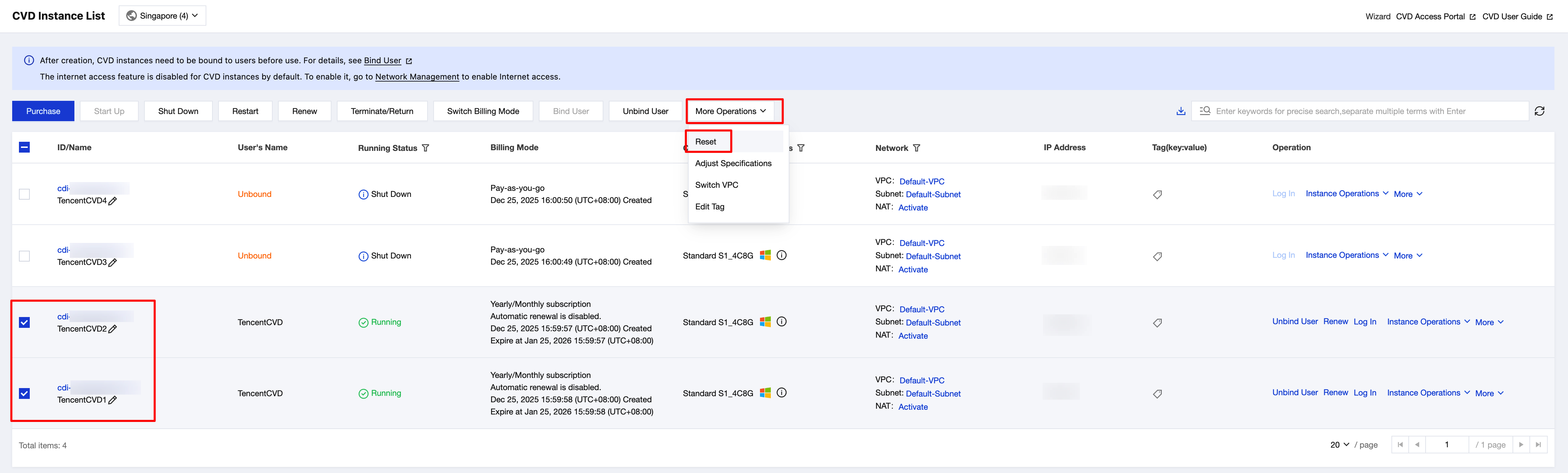
2. Select the CVD instances that you want to reset, and click Reset at the top of the list.
3. Select options based on your requirements and click Confirm.
Help and Support
Was this page helpful?
You can also Contact sales or Submit a Ticket for help.
Help us improve! Rate your documentation experience in 5 mins.
Feedback