A Cloud Virtual Desktop (CVD) instance is a cloud-based virtual desktop that can replace a traditional physical desktop. It contains an operating system, computing resources, storage space, and software applications. You can perform daily tasks just as you would on a traditional desktop.
How Do I Access the CVD Portal?
You can access the URL of the CVD portal from any supported device, including various terminal devices such as Windows and Mac. If your browser supports HTML5 (such as Chrome and Firefox web browsers), you can quickly access CVD resources through the browser.
What Should I Do If I Forget My Login Password?
You can use the Forgot Password option on the login portal and choose a reset method based on your account setup. Alternatively, you can contact your administrator to reset your password. In this case, you will be required to change the password upon first login.
Why Is My Account Locked?
To ensure login security, your administrator has enabled login verification. After consecutive invalid login attempts, your account will be locked and you cannot log in. If self-service unlock is enabled by the administrator, you can unlock your account through email or security questions. If self-service unlock is not allowed, contact your administrator to unlock it for you.
Why Am I Unable to Log In with My Account?
The CVD portal supports multiple login policies. If you encounter login restriction issues, contact the administrator for account login management.
Access Process for CVD End Users
The access process for CVD end users is as follows:
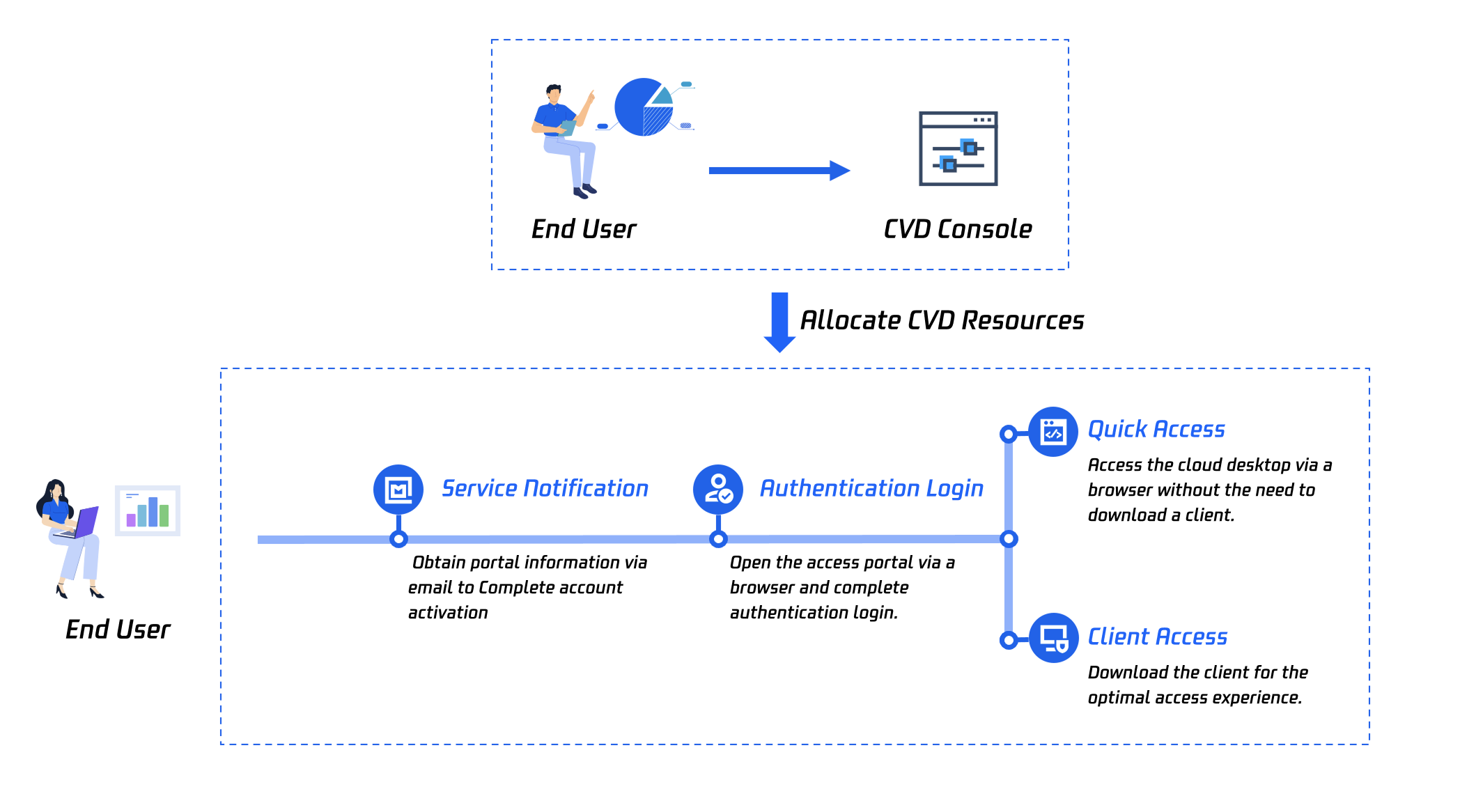
1. As an end user, you will receive an email or Short Message Service (SMS) notification. Follow the prompts to activate your account. For detailed operations, see Activating a CVD Account.
2. You need to access the CVD portal. After logging in to the CVD portal, you will be able to access CVD resources. For detailed operations, see Logging In to the CVD Portal.
3. After obtaining the desktop list, you can select the method for accessing CVD based on your requirements. For detailed operations, see Accessing the CVD System.
Accessing CVD Instances
What Is Client Access?
This method launches the CVD instance by invoking a local client, providing the best graphical performance and an immersive desktop experience. Ensure the client is installed. If the client prompts for account setup or a username, simply close the prompt. If the client is already installed on your computer, no re-download is needed. For specific steps, see Accessing the CVD System.
Why Am I Unable to Access a CVD Instance Using a Browser?
Check your local network quality and ensure your browser supports HTML5. If the issue persists, your browser may be blocking pop-up windows. Adjust the settings to allow pop-up windows.
Why Am I Unable to Download the Client?
If clicking the download link produces no response, your browser is blocking the pop-up window for client download. You will receive a browser message indicating a blocked pop-up. Whether pop-up windows are allowed depends on your browser settings.
After Downloading the Client, Why Am I Unable to Launch My CVD Instance Through Client Access?
Check whether the client has been installed. After confirming the installation is complete, click Client Access again. The CVD portal will automatically invoke the client plugin to launch the CVD instance. If your system is Windows 11, download the latest client and try again.
How Soon Can I Use My CVD Instance After Login?
If your CVD instance is running, you can connect almost instantly. If your CVD instance is shut down or restarting, start it or wait for the restart to complete before accessing.
What Should I Do If an Error Is Displayed When I Access the CVD Instance?
The CVD instance may be damaged due to incorrect operations. Contact your administrator for desktop repair.
What Is Browser Access?
Browser access provides lightweight access to a CVD instance using HTML5 via a browser. This requires no client download or installation, allowing for quick launch and use. This method has some limitations. For example, each file uploaded to the CVD instance is limited to under 2 GB, each file downloaded from the CVD instance to the local terminal is limited to under 250 MB, and some peripheral drivers cannot be mapped to the CVD instance.
CVD Instance Usage
Can I Personalize My CVD Instance During Use?
By default, you can personalize items such as wallpaper, icons, and shortcut keys in the CVD operating system. These settings are saved. The CVD instance administrator can also control permissions at the backend.
How Do I Transfer Files Between the Local Terminal and the CVD Instance?
You can transfer files between the CVD instance and the local terminal through copy and paste. If you are unable to perform this operation, contact the CVD instance administrator to adjust security policies. The administrator can manage policies for clipboard transfer at the backend.
Can I Access Local Terminal Files from Within the CVD Instance?
You can view local disks in the File Explorer of the CVD instance. If you are unable to perform this operation, contact the CVD instance administrator to adjust security policies. The administrator can manage policies for file redirection at the backend.
What Content Is Displayed in the CVD Watermark?
If the administrator enables the watermark feature, you will see watermark information on the CVD screen. The CVD watermark displays the unique instance ID or the time the connection was initiated.
Why Cannot My CVD Instance Recognize USB Devices Such as U Disks or Other Peripherals?
CVD supports plug-and-play for peripherals. If you are unable to perform this operation, contact the administrator to adjust the policies for peripheral redirection. The administrator can manage policies for USB redirection at the backend.
Does My CVD Instance Support Dual Monitors?
CVD supports dual-screen display. In browser access, select multiple monitors from the toolbar to enable dual-screen display. In client access, drag the CVD window to the junction of two screens and click Full Screen to enable dual-screen display.
Can I Access Multiple CVD Instances Simultaneously?
If you have two or more CVD instances, you can access and operate all of them simultaneously.
How Do I Install Applications in a CVD Instance?
You can run application installation packages normally within the CVD instance to complete the installation. Obtain the installation package through file transfer or by downloading it from the Internet within the CVD instance. For software that involves modifying network configurations, contact Tencent Cloud technical consultants for evaluation.
Note:
Using VPN or firewall-type network tools may cause CVD connection exceptions. Install and use them with caution.
Can My CVD Instance Access the Internet?
Internet access for a CVD instance depends on administrator configuration. Contact your administrator for adjustments.
Will My Temporary Data Be Saved If I Disconnect or Close the Desktop Interface?
The CVD instance runs in the cloud. Your temporary data is saved when you disconnect. Upon next login, you can still view unsaved temporary data from the previous session.
Will My Temporary Data Be Saved If I Shut Down or Restart My CVD Instance?
If you shut down or restart your CVD instance, unsaved temporary data will be discarded. Ensure that files are archived before you perform such operations.
Does My CVD Instance Support Devices with High-DPI Screens?
The CVD instance automatically adjusts the resolution to match the DPI settings of your local device, ensuring a good experience.
Does My CVD Instance Support Resolution Adjustment?
In browser access, you can specify the resolution through the toolbar. In client access, the CVD instance automatically adjusts the display resolution based on the window size and local resolution to ensure optimal user experience.
Does My CVD Instance Support Touch Screen Devices?
Yes. You can still obtain a good interactive experience on touch screens. You can also invoke the mouse and keyboard with two or three-finger gestures.
How to Monitor Network Quality in Real Time in My CVD Instance?
The network monitoring tool in the lower-right toolbar displays real-time RTT and latency, using color cues to indicate changes in your local terminal's network quality.
In Browser Access, How Do I Resolve Scroll Bars Appearing on the Desktop?
The display settings of your browser may limit the size of the virtual desktop window. If this happens, the CVD interface may start scrolling when it exceeds the window size. Go to your browser settings and select Auto Adjust or Auto Resize.
Why Cannot My CVD Instance Recognize My Local Printer?
Ensure the Print Spooler service and the Citrix Print Manager service are running within the CVD instance. It is recommended to set these services to start automatically on boot.
What Should I Do If an Error Occurs When I Mount an NFS File System?
If the error code returned after a failed mount is 1272, you need to modify the registry. Under the path [HKEY_LOCAL_MACHINE\\SYSTEM\\CurrentControlSet\\Services\\LanmanWorkstation\\Parameters], change the value of AllowInsecureGuestAuth to 1. Back up the registry before making changes to facilitate rollback in case of misoperations.
Must-Knows
CVD Uses Port 80 by Default
Port 80 is used by CVD instances for communication with backend management components and is occupied by default. When you use a CVD instance, prevent applications within the instance from occupying port 80 to avoid connection failures.
Must-Knows for Using VPN in CVD Instances
Exercise caution when using VPN or firewall-type network tools in CVD instances, as they may cause connection exceptions.
Must-Knows for Network Configuration in CVD Instances
Do not perform network operations such as disabling the NIC or changing routes in CVD instances, as this may cause connection failures.
Promptly Saving Data in CVD
Save your data promptly while using a CVD instance to avoid unnecessary losses caused by accidental data loss or corruption.