How to Restrict CVD Access to Specific IP Addresses Only
Download
Focus Mode
Font Size
Scenarios
In Ops management of Cloud Virtual Desktop (CVD), if you need to restrict CVD end users to accessing a CVD instance only from specific public IP addresses, you can refer to this document for configuration.
Operation Limits
Only public IP addresses can be restricted. Private IP addresses cannot be restricted.
The administrator account should be excluded. Otherwise, the administrator will be unable to access the User Management page.
Operation Steps
1. Log in to the CVD console and go to the Manage Users page.
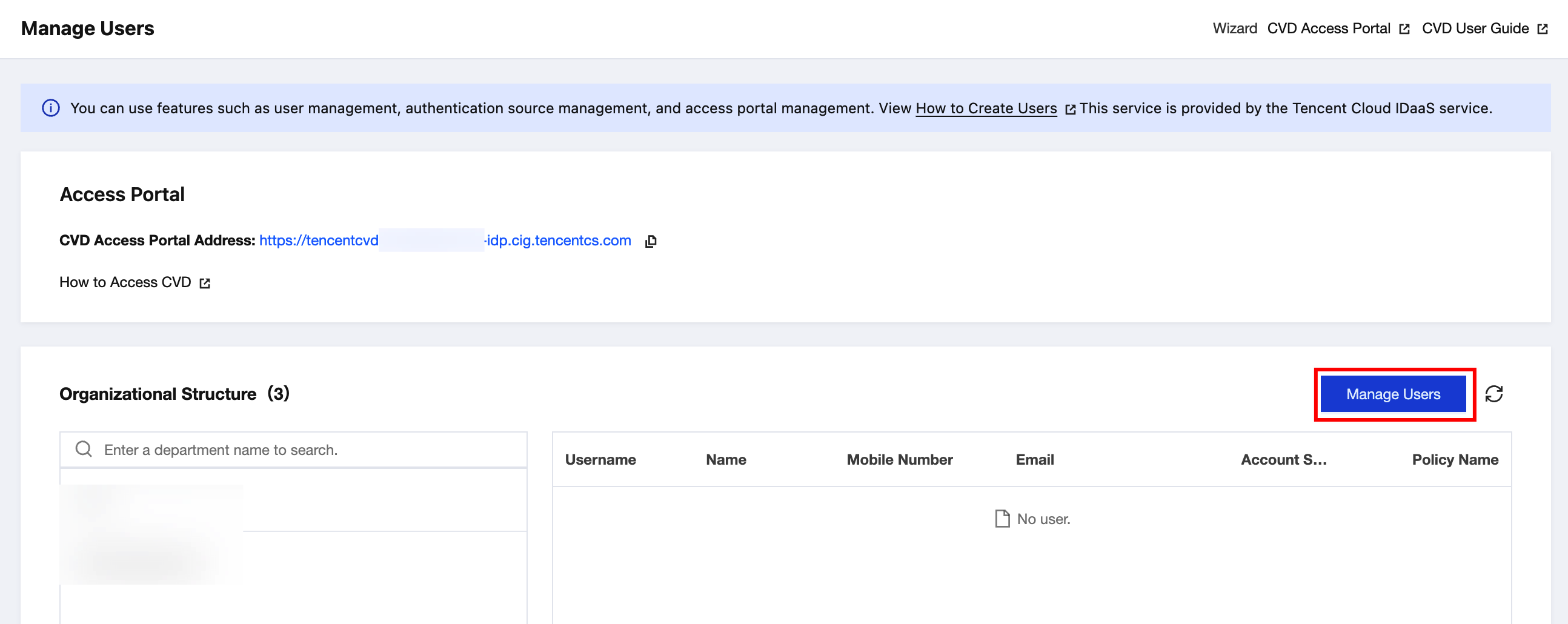
2. Click Manage Users in the upper-right corner of the list, and you are redirected to the Tencent Cloud IDaaS console.
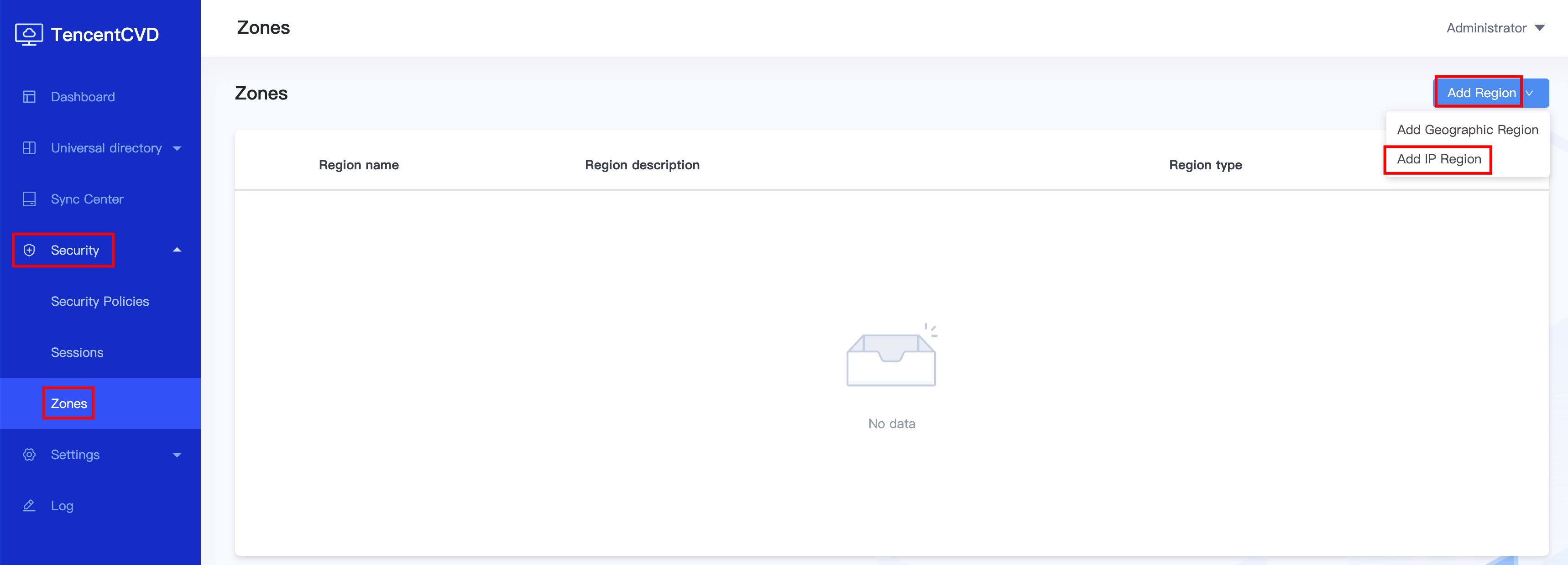
3. Choose Security > Zones, and then choose Add Region > Add IP Region.
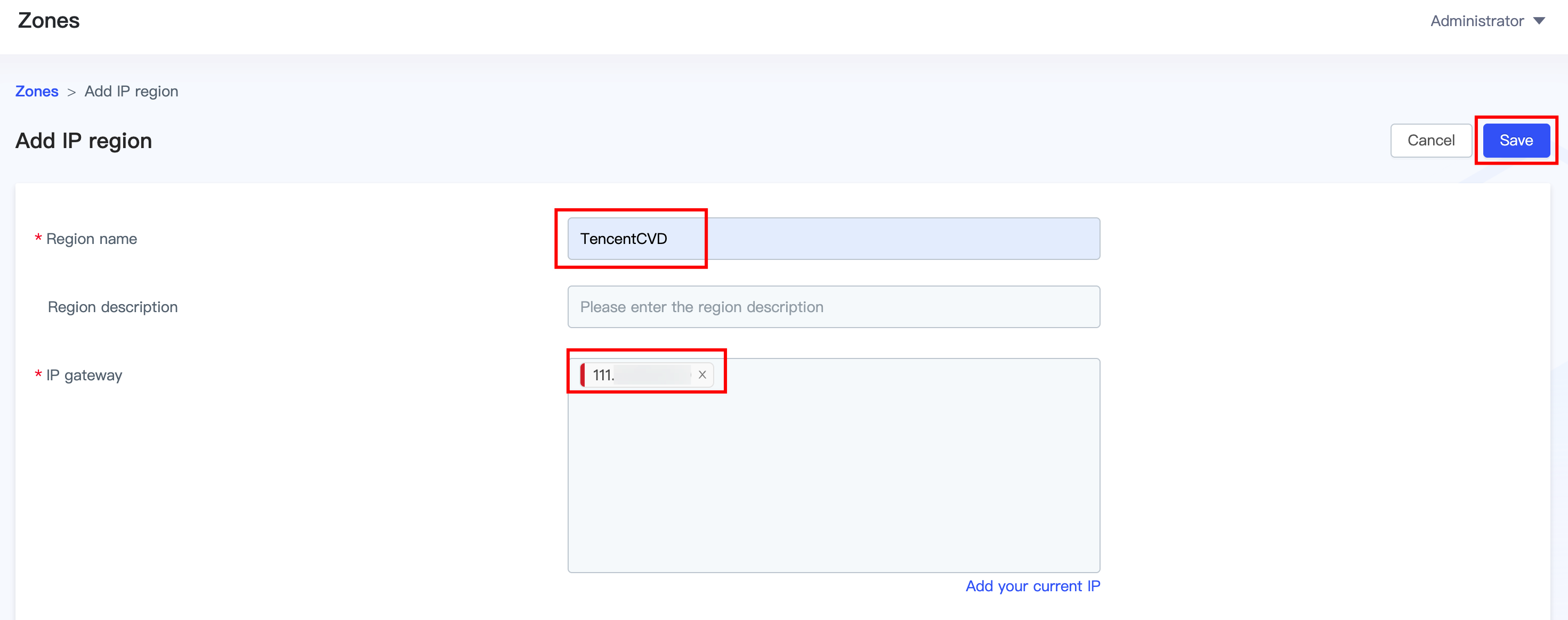
4. Enter a region name and description. In the IP Gateway field, enter the public IP addresses to be restricted. To restrict multiple public IP addresses, enter them all. After you complete the operation, click Save.
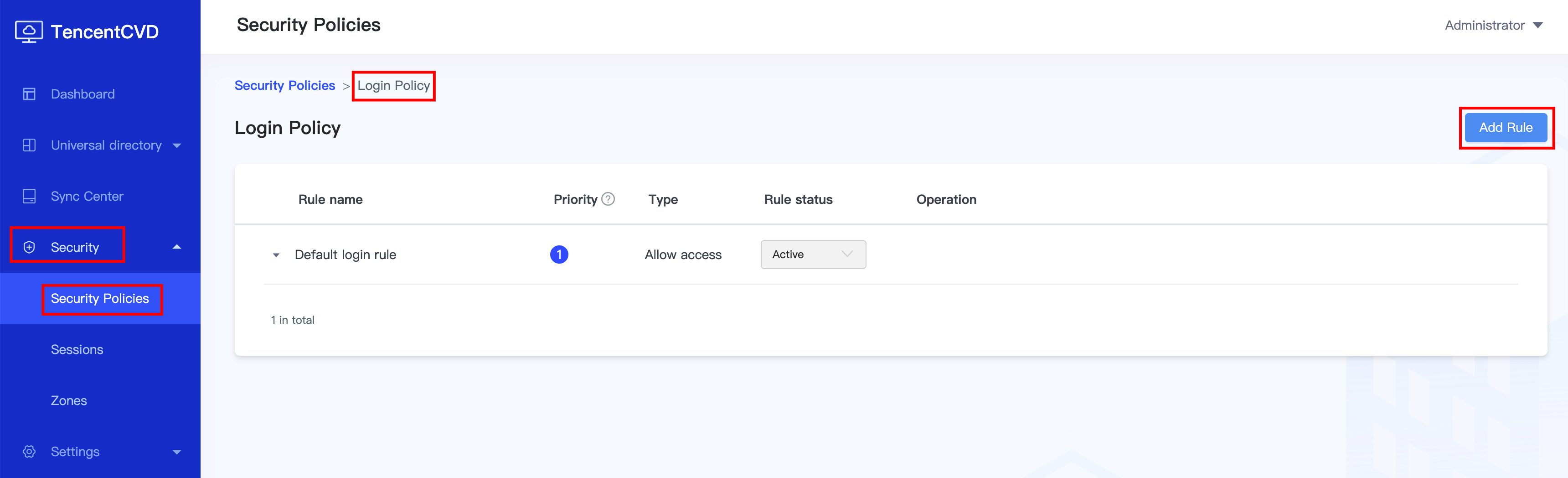
5. Choose Security > Security Policies, click Login Policy to go to the page, and then click Add Rule.
6. Specify the information for the login rule.
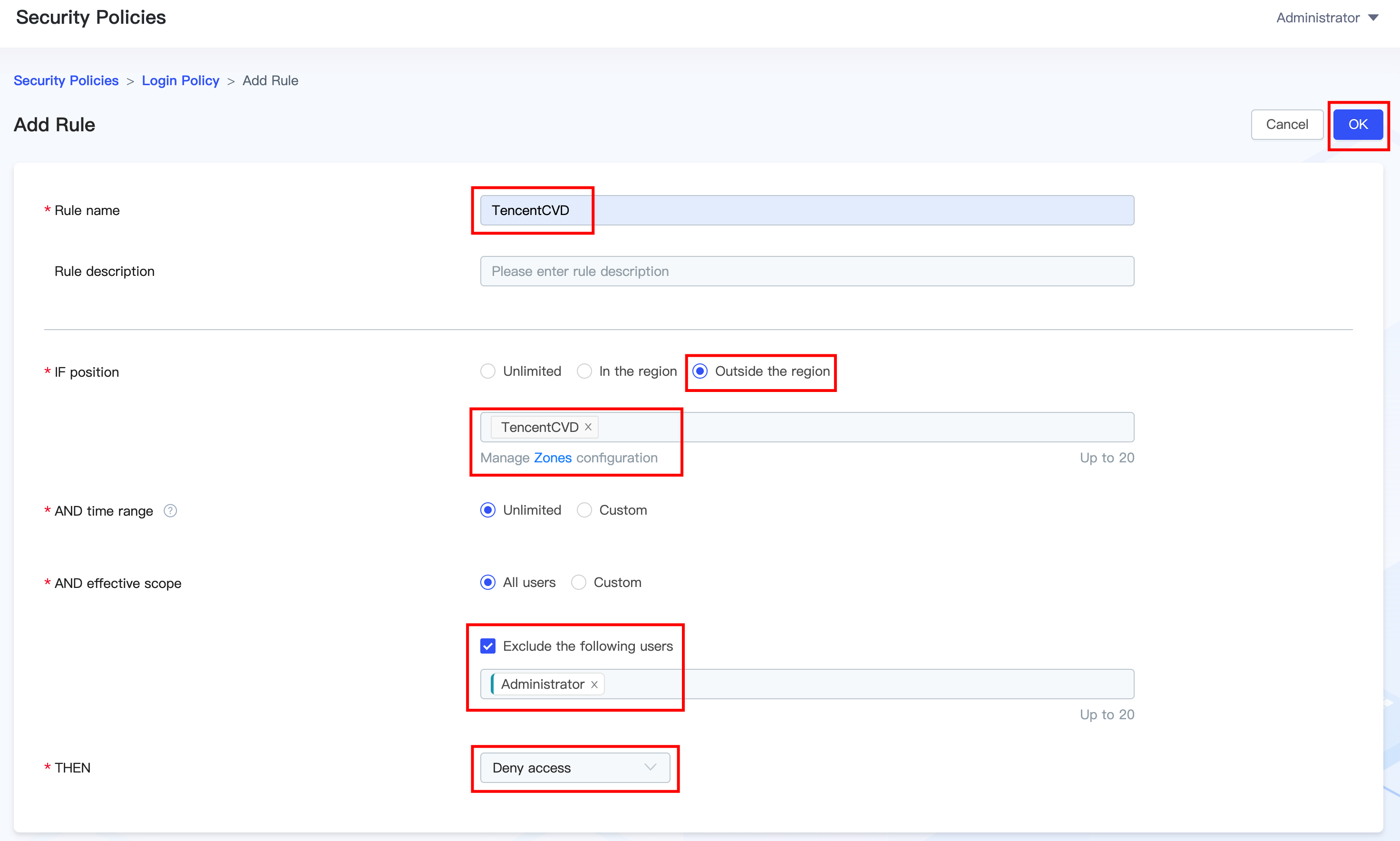
Enter the rule name and rule description.
Select Outside the Region for IF Location, and select the newly created IP region in the Region field.
Select Unrestricted or Custom for AND Time Range.
AND Effective Scope:
Select All Users or Custom.
Select Exclude the Following Users, and search for and enter Administrator or the Tencent Cloud UIN.
Select Deny Access for THEN.
Click OK to complete adding the login rule.
Warning:
If you select All Users for the effective scope, you must select Exclude the Following Users and exclude the administrator account (search for Administrator or the Tencent Cloud UIN). If the administrator account cannot be excluded, change the effective scope to Custom and select only the users to whom the rule should apply. Otherwise, the administrator will be unable to access the User Management page for related tasks.
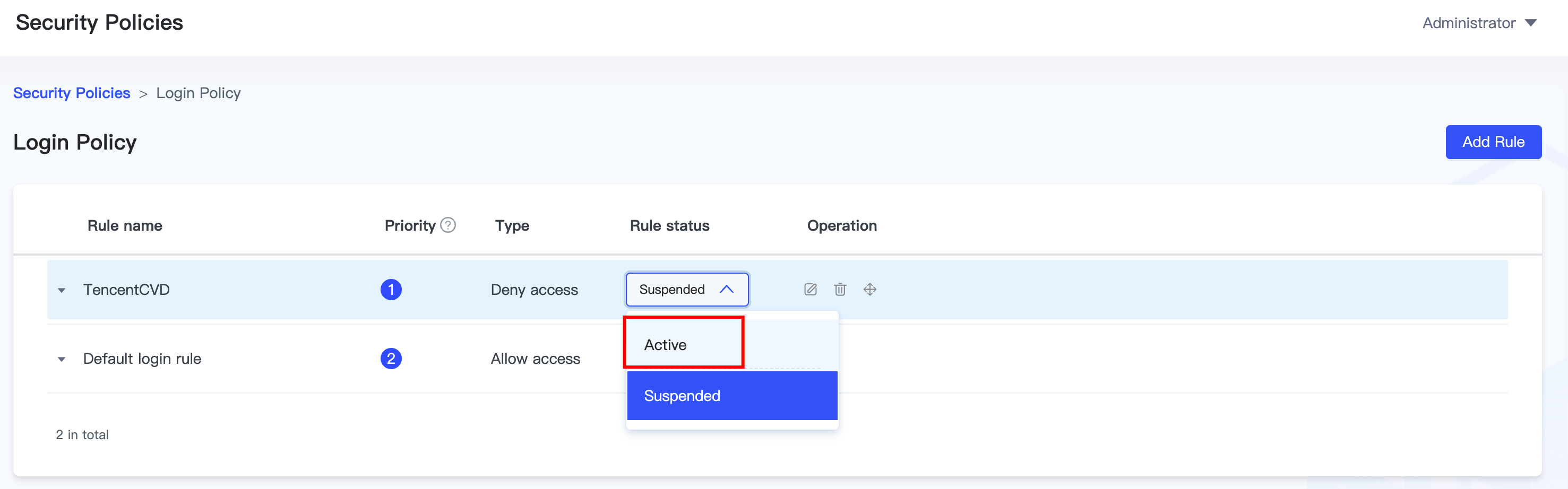
7. After the login rule is added, the rule status is set to Disabled by default. You need to switch it to Enabled to enable the login policy.
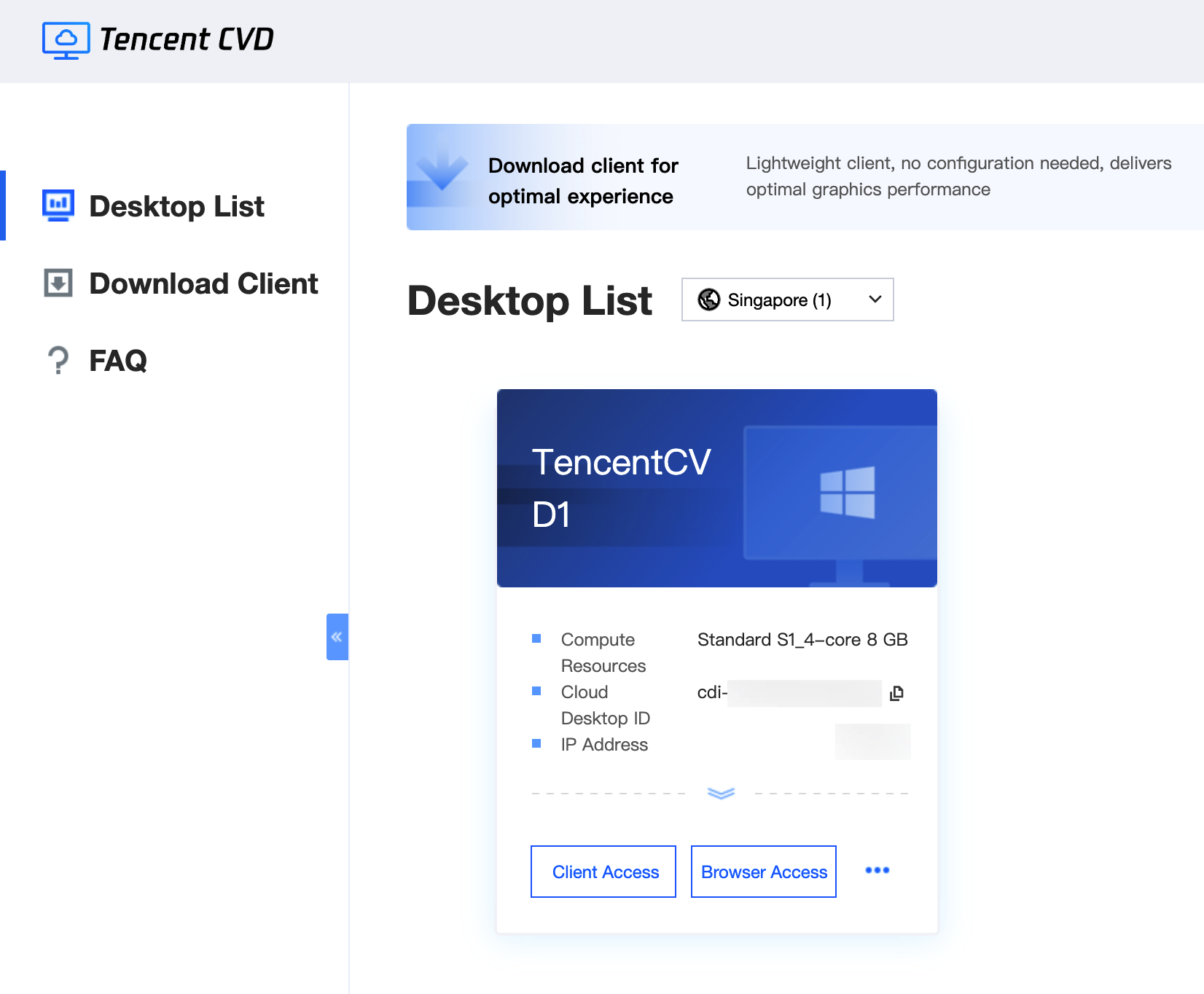
8. Perform login verification.
When logging in to the CVD portal from within the defined IP region, you can log in normally, and the CVD instance list is displayed.
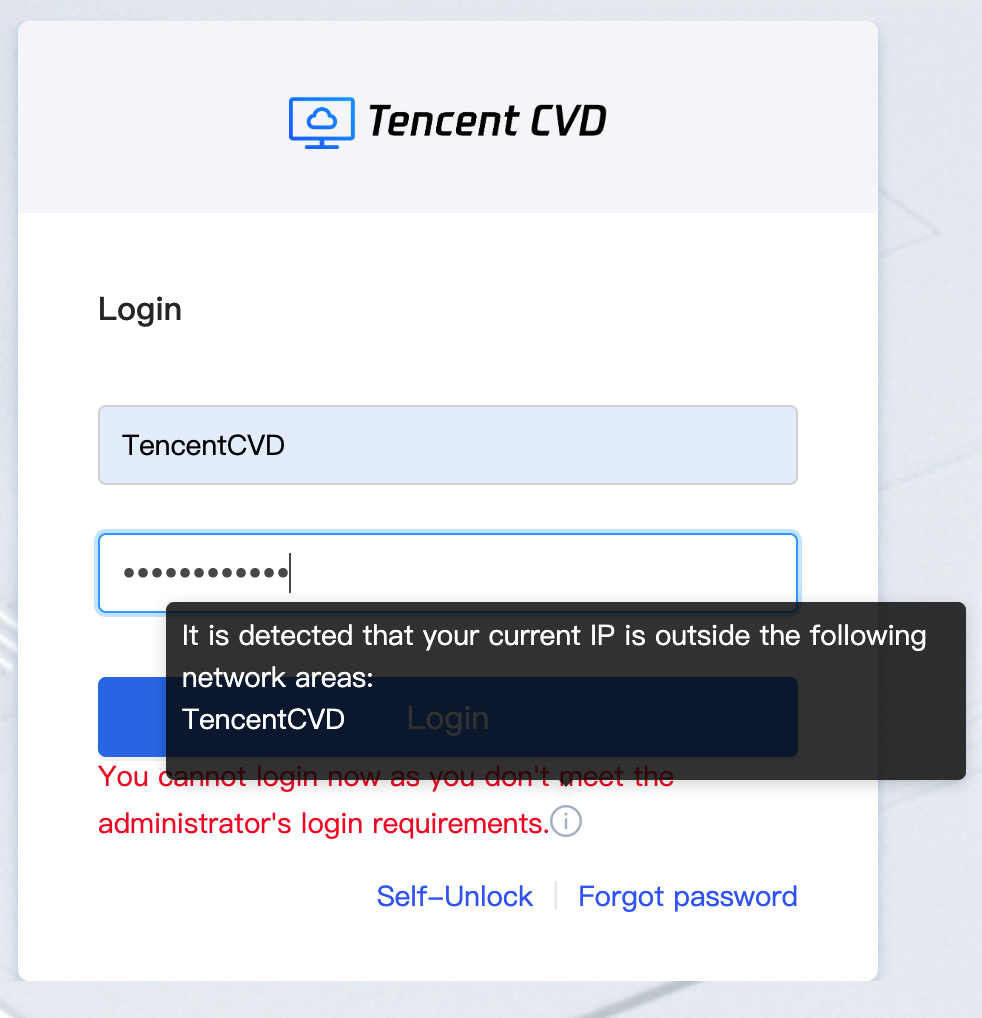
When logging in to the CVD portal from outside the defined IP region, the prompt "You cannot login now as you don't meet the administrator's login requirements" appears, denying the login attempt.
Help and Support
Was this page helpful?
You can also Contact sales or Submit a Ticket for help.
Help us improve! Rate your documentation experience in 5 mins.
Feedback