Accessing a CVD Instance from Mobile Devices
Download
Focus Mode
Font Size
Scenarios
Tencent Cloud Virtual Desktop (CVD) supports access and usage from mobile devices (such as Android and iOS). This document describes how users can access and use a CVD instance on mobile devices.
Prerequisites
You have a CVD account and have activated the CVD account.
The administrator has assigned a CVD instance to your user account.
Operation Steps
1. Download and install the Citrix Workspace client software on your mobile device.
Click Download Android Client to download the installation file for the client APK and import it to your mobile device for installation.
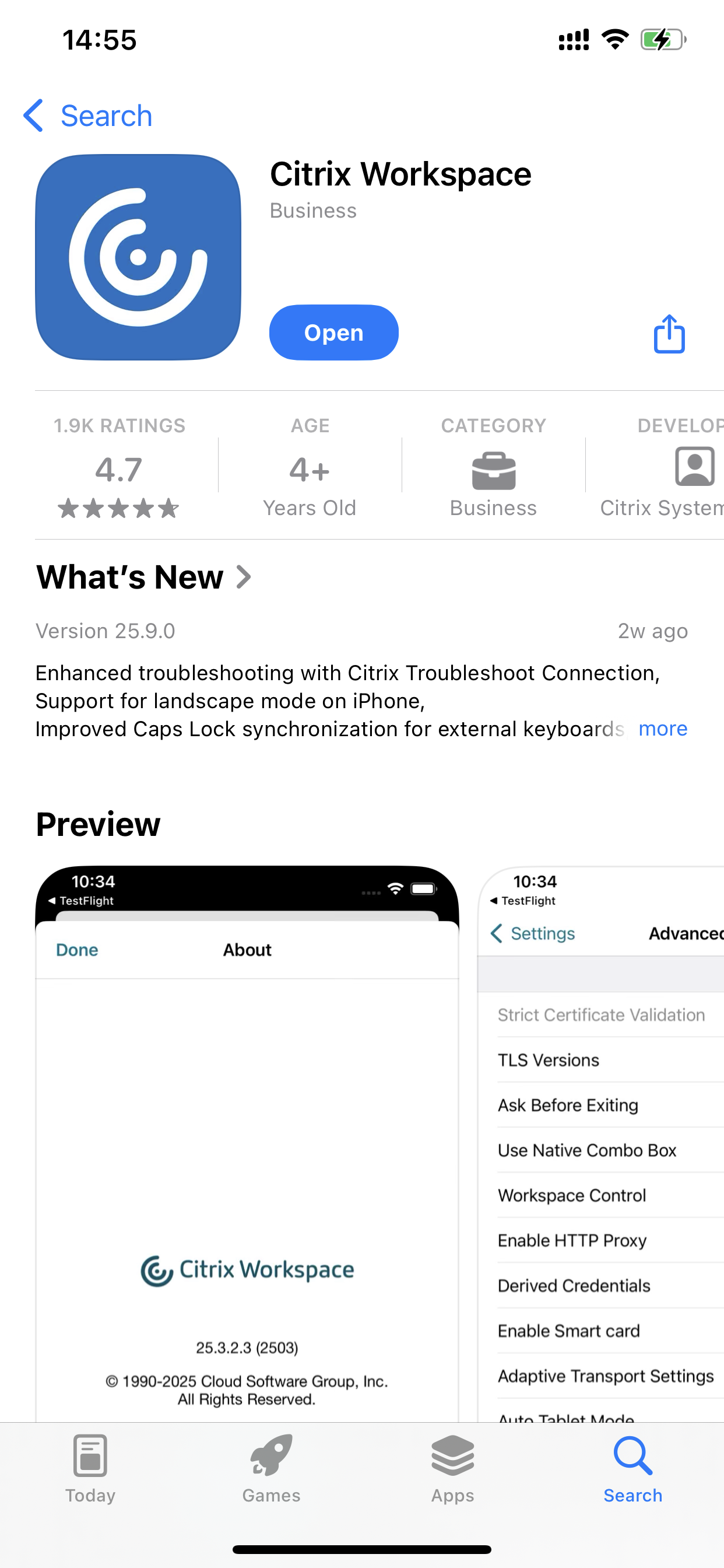
Search for Citrix Workspace in the App Store and install it.
Note:
After the client installation is complete, close the client. You will use a browser to log in later, which will then invoke the client to launch the CVD instance.
After the client is installed, if it prompts you to set up an account or enter a username, simply close the prompt.
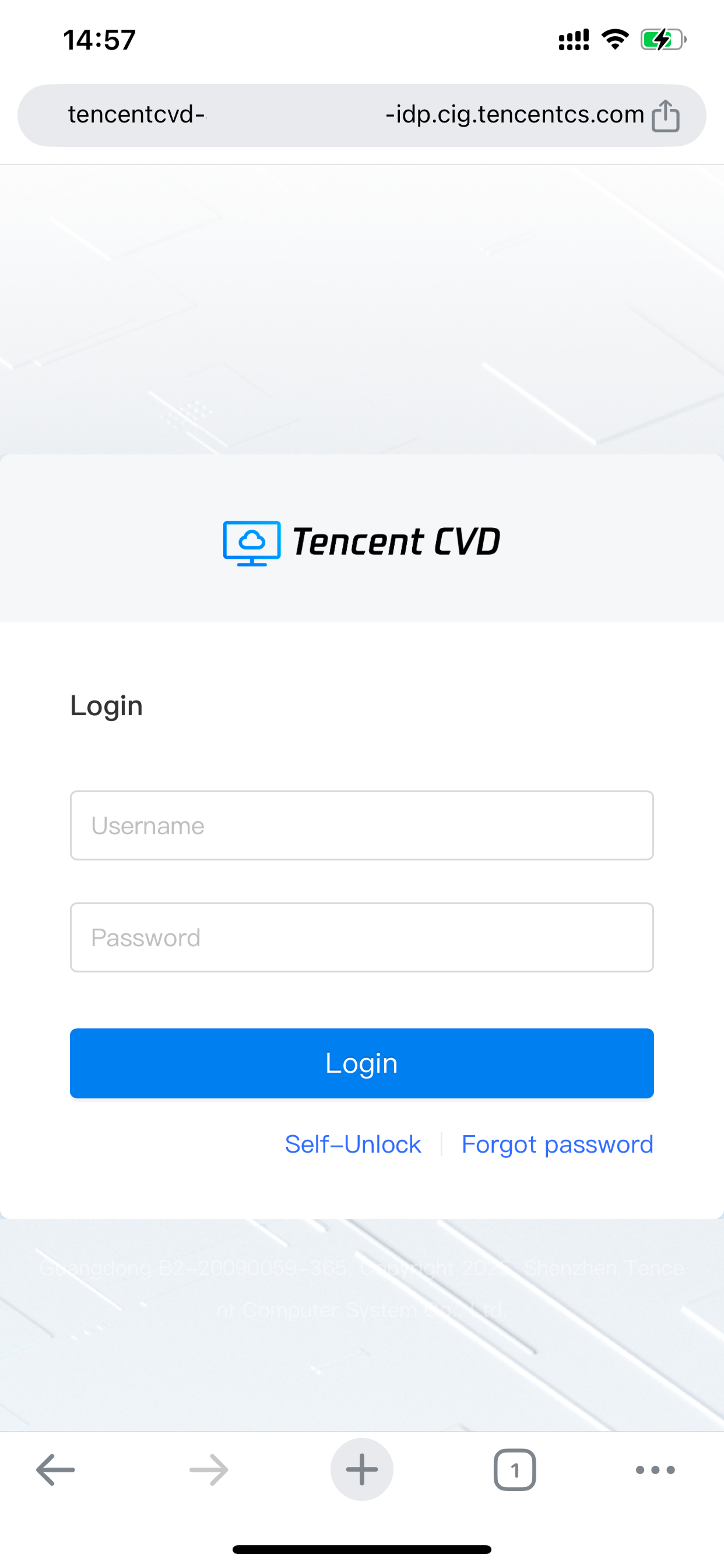
2. Obtain the login address for the CVD portal. Then, open the CVD portal in a browser on your mobile device (Chrome is recommended), and log in with your username and password.
3. After logging in, you can access the CVD instance through browser access or client access.
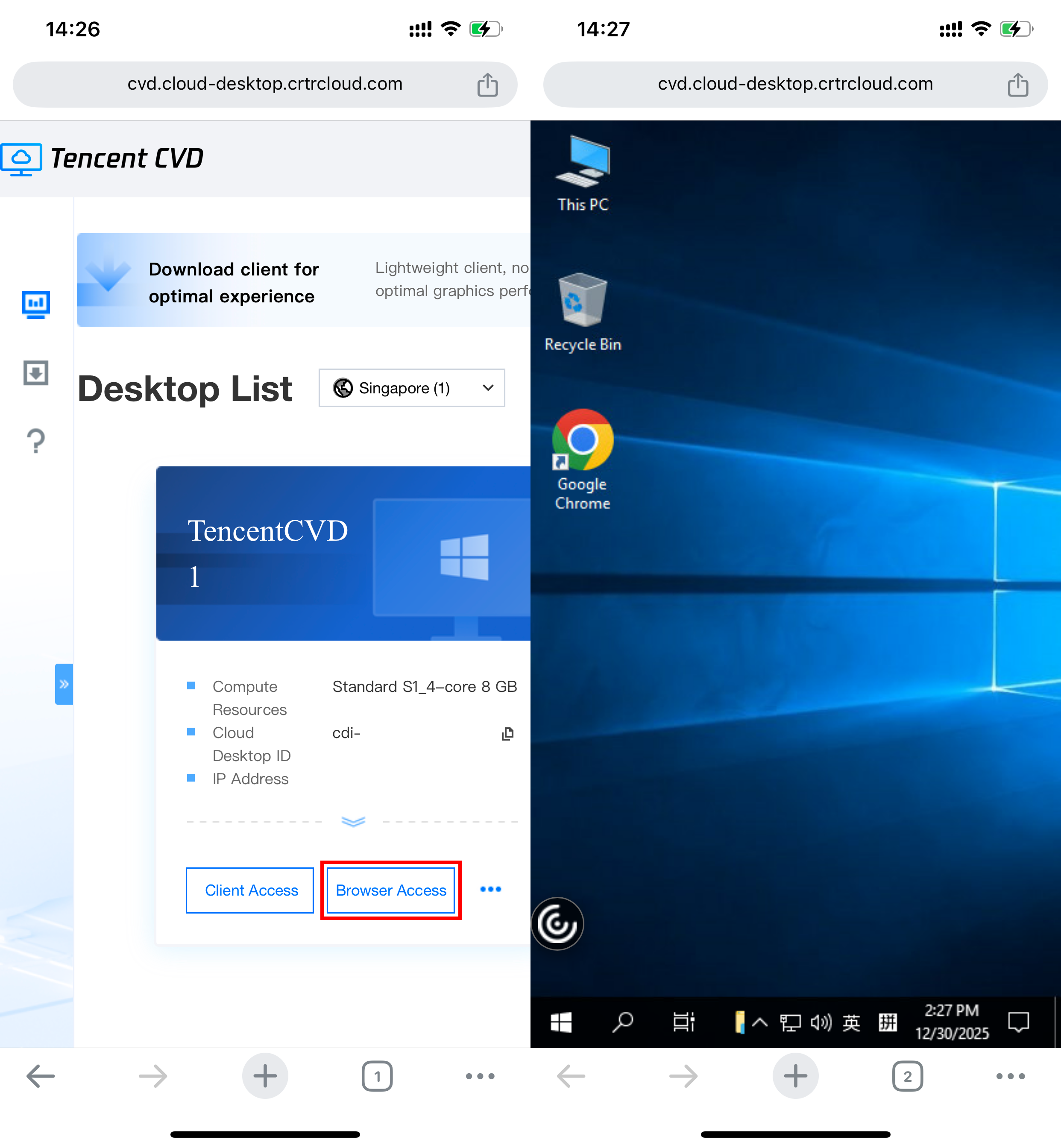
Browser access: In the CVD instance list, click Browser Access to launch the CVD instance in a browser page (you need to allow browser pop-up windows).
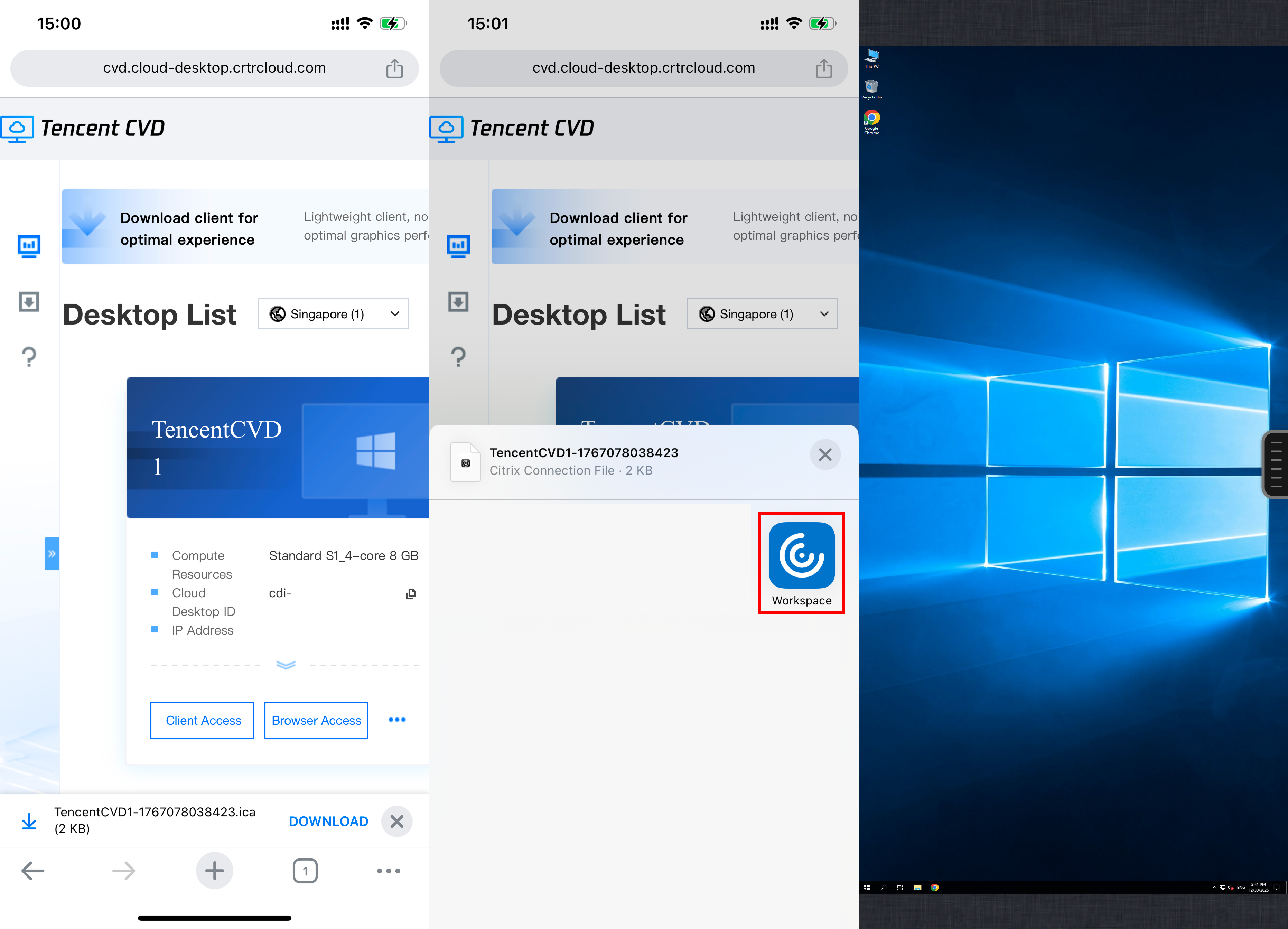
Client access: In the CVD instance list, click Client Access. Then, download the access ticket and choose to open it with the Workspace client. This redirects to the Workspace client and launches the CVD instance.
Help and Support
Was this page helpful?
You can also Contact sales or Submit a Ticket for help.
Help us improve! Rate your documentation experience in 5 mins.
Feedback