Shutting Down Pay-as-You-Go Instances to Avoid Charges
Download
Focus Mode
Font Size
No Charges When Shut Down means you will not be charged for instances (CPU, memory) after you select the No Charges When Shut Down option to shut down pay-as-you-go instances. Components such as cloud disks (system disks and data disks) and images will still be billed.
Use Limits
The CVM no charge when shut down feature only applies to pay-as-you-go instances with both system and data disks being cloud disks.
The CVM no charge when shut down feature does not apply to the following scenarios:
Shutting down an instance after login.
Instances attached with local disks.
Spot instances.
Instances shut down due to overdue payments are not applicable.
When Ops operations, such as configuration adjustments, disk adjustments, or system reinstallation, are performed on an instance, it needs to be shut down. The CVM no charge when shut down policy is not applied during the shutdown period.
During the No Charges When Shut Down period, pay-as-you-go instances support for the tiered pricing (see Billing Overview) no longer calculate the usage period. After the instance is restarted, its usage period will continue to count.
If a batch shutdown operation involve instances that are eligible for no charges when shut down and others that are not, then:
For eligible instances, CPU and memory will not be charged after shutdown;
Ineligible instances will still be charged after shutdown.
Impacts After Enabling the Feature
After the CVM no charge when shut down feature is enabled and when the instance is shut down,
Impacts on resources are as follows:
Resource | Impact | Description |
CPU and memory | Released | The instance restart may fail due to insufficient resources. You can try starting the instance again later. If the operation still fails, you can try changing the instance specifications. For details, see Configuring the Instance Specifications. |
Public IP address | Released | If you do not want to change the public IP address, you can convert your public IP address to an EIP instance before shutting down the instance. The EIP bound to the instance is retained after the shutdown or restart. After the shutdown, the idle EIP is not charged. |
Other impacts:
During shutdown, most operations other than starting the instance are not supported, such as configuration adjustments, disk adjustments, network adjustments, system reinstallation, instance restart, password resetting, renewal, and renaming. Start the instance before performing these operations.
Operation Guide
1. Log in to the CVM console of Tencent Cloud.
2. On the instance management page, you can shut down one or multiple instances at a time as needed:
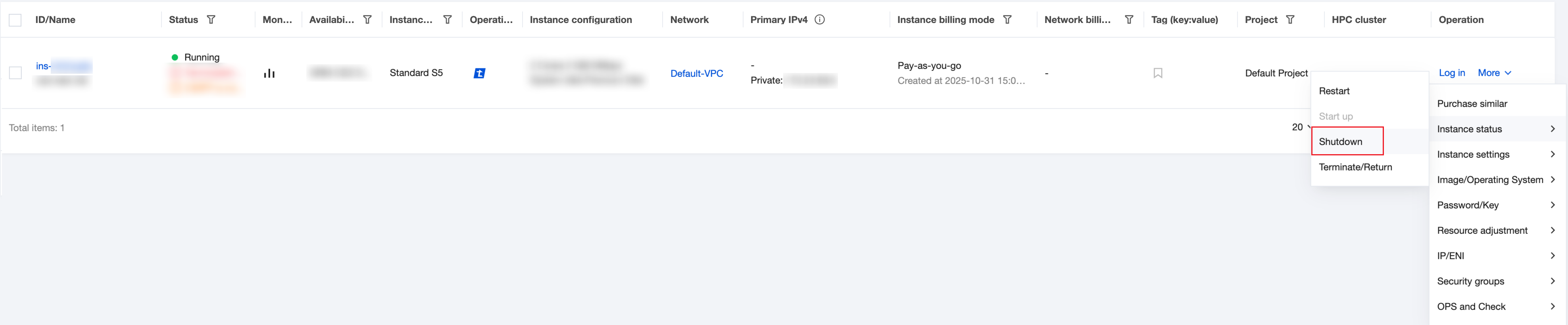
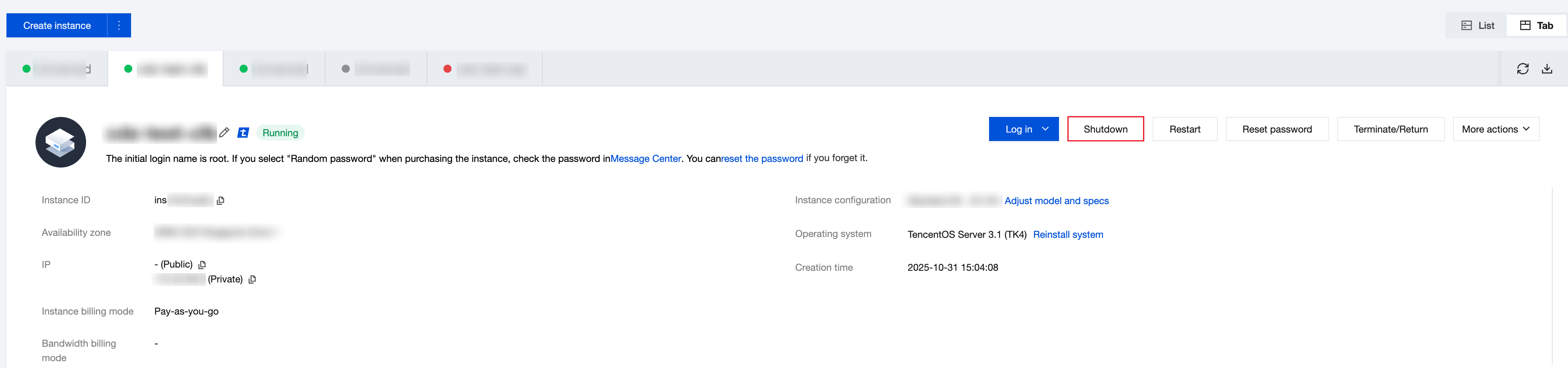
Shut down one instance: You can select the List or Tab view in the upper right corner on the list page, and perform operations based on the view mode actually used.
List: Select the instance to be shut down. In the operation column on the right, choose More > Instance status > Shutdown as shown in the following figure:
Tab: On the page of the instance to be shut down, click Shutdown in the upper right corner as shown in the following figure:
Shut down multiple instances: Select all instances to be shut down. At the top of the list, click Shutdown as shown in the following figure:

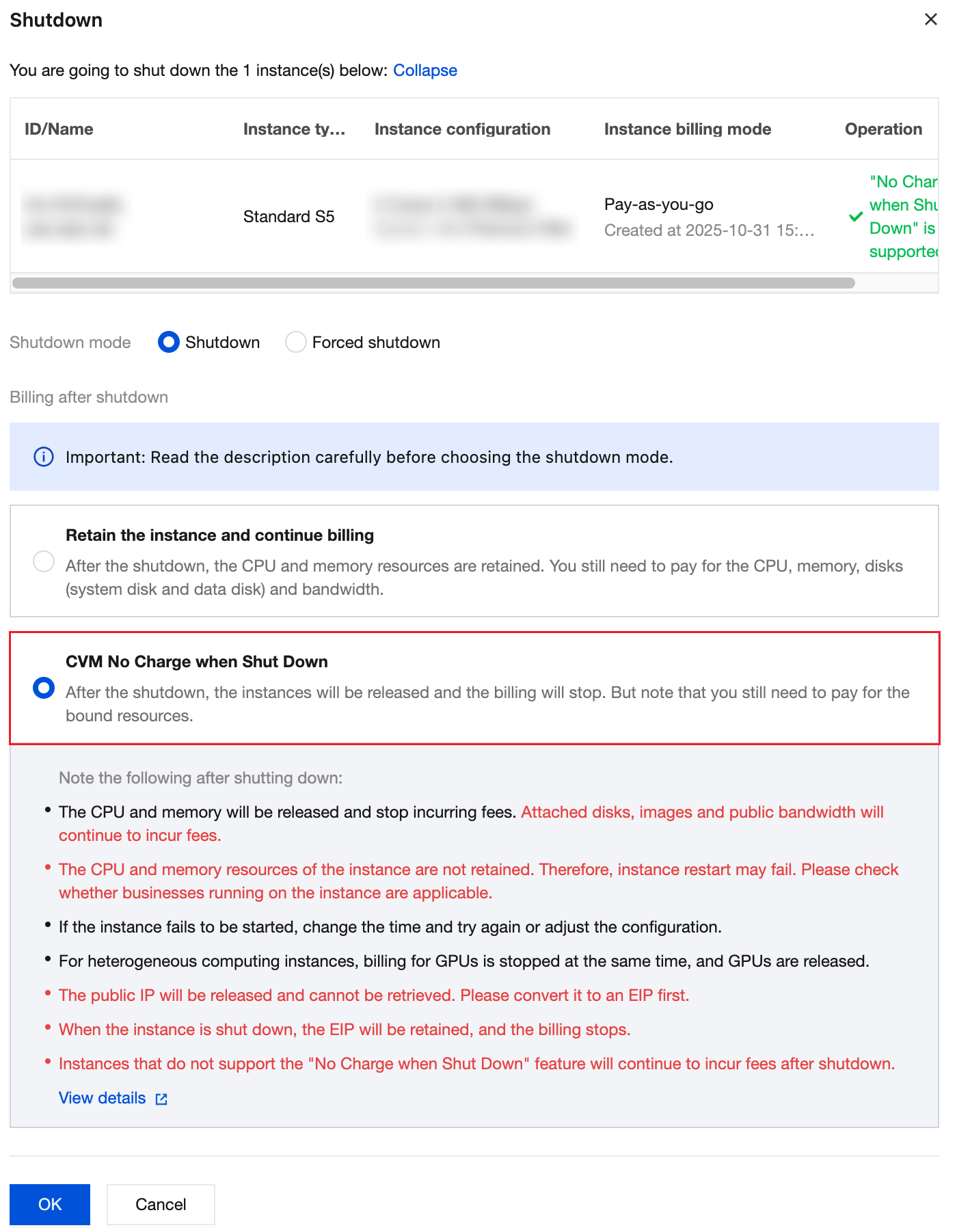
3. In the pop-up Shutdown window, you can select the Shutdown Mode as needed.
To avoid charges during shutdown, select CVM No Charge When Shutdown and click OK as shown in the following figure:
Parameter Name | Required | Type | Description |
StoppedMode | No | String | Billing mode for pay-as-you-go instances after shutdown. Value range: KEEP_CHARGING: billing continues after shutdown. STOP_CHARGING: billing stops after shutdown. Default value: KEEP_CHARGING. |
Help and Support
Was this page helpful?
You can also Contact sales or Submit a Ticket for help.
Help us improve! Rate your documentation experience in 5 mins.
Feedback