This document describes how to encrypt a video and use VOD's player to play the encrypted video.
Before you go on, make sure you have read Stage 1. Play back a source video. You will be using the account registered and the video uploaded in stage 1.
Step 1. Encrypt a Video
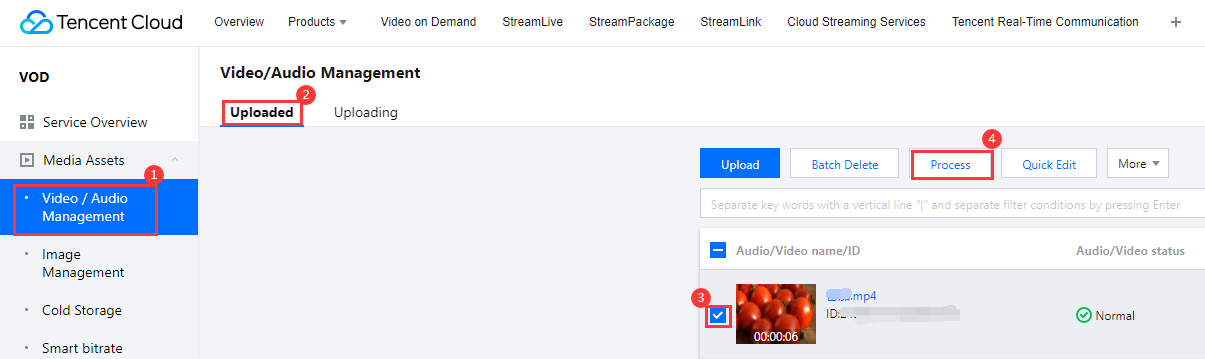
1. In the VOD console, select Application Management on the left sidebar and select the target application. On the Media Assets > Video/Audio Management page, select the target video, and click Task Flow.
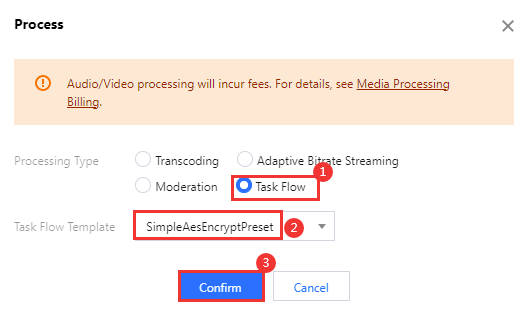
2. Complete the following settings:
Select Task Flow as the Processing Type.
Select the SimpleAesEncryptPreset task flow template.
Note:
SimpleAesEncryptPreset is a preset task flow, which uses the adaptive bitrate streaming template 12, thumbnail generation template 10, and image sprite generation template 10.
The adaptive bitrate streaming template 12 outputs encrypted multi-bitrate streams.
3. Click Confirm. Go to Task Center. If the status of the task changes from "Processing" to "Completed", the processing of the video is finished.
4. Go to Media Assets > Video/Audio Management, find your video, and click Manage on the right.
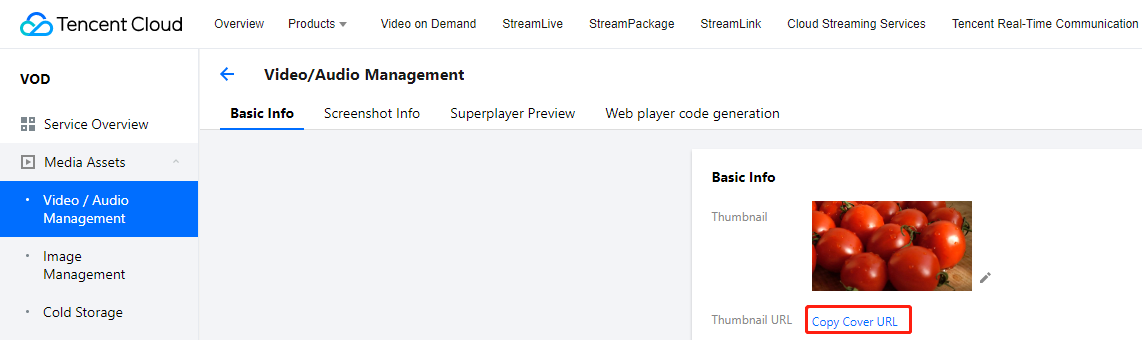
4.1 In the Basic Info area:
You can view the thumbnail generated and the outputs of adaptive bitrate streaming (template ID: 12).
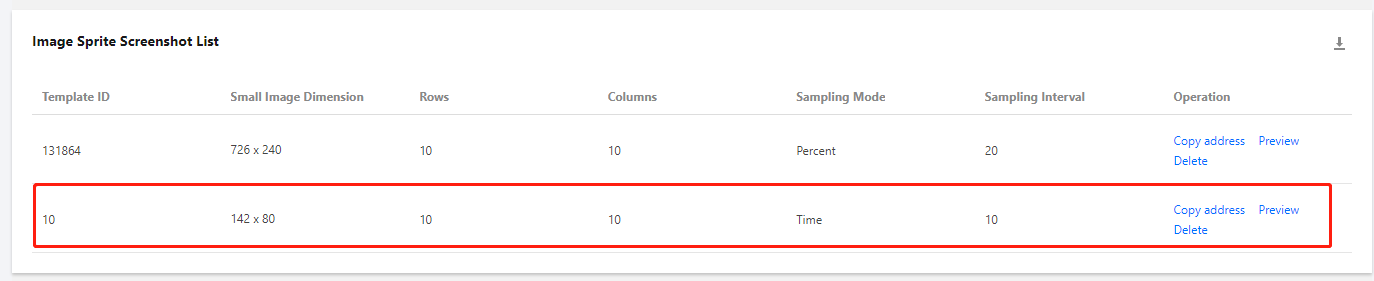
4.2 Select the Screenshots tab:
You can view the image sprite generated (template ID: 10).
Step 2. Generate a Player Signature
In this step, you can use the signature tool to quickly generate a signature for the player to play back the video.
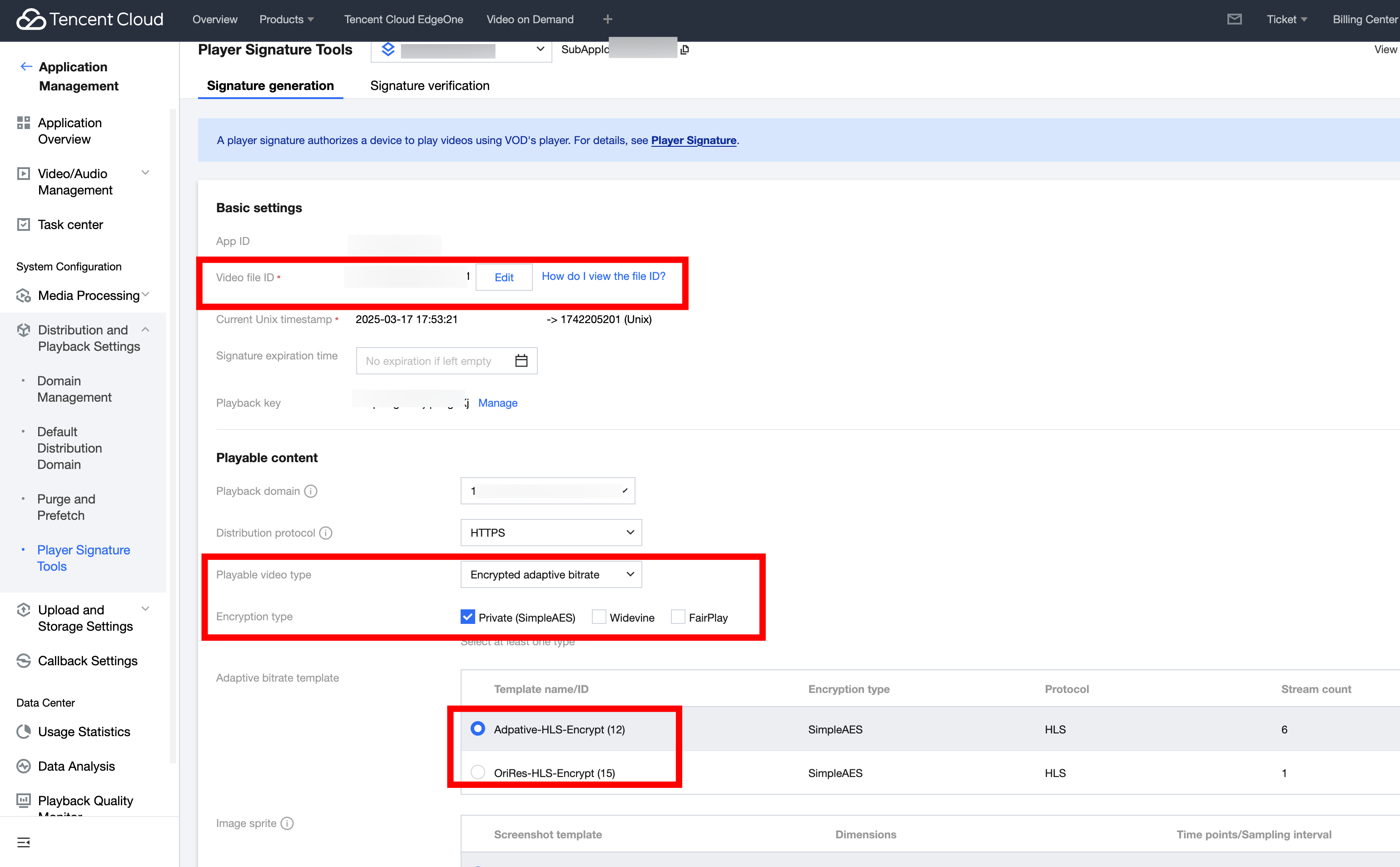
1. In the VOD console, select Application Management on the left sidebar and select the target application. Go to Distribution and Playback > Player Signature Tools and complete the following settings:
Video file ID: Enter the file ID generated in Step 1.
Signature expiration time: Enter the player signature expiration time. If you leave it empty, the signature will never expire.
Playable video type: Select Encrypted adaptive bitrate.
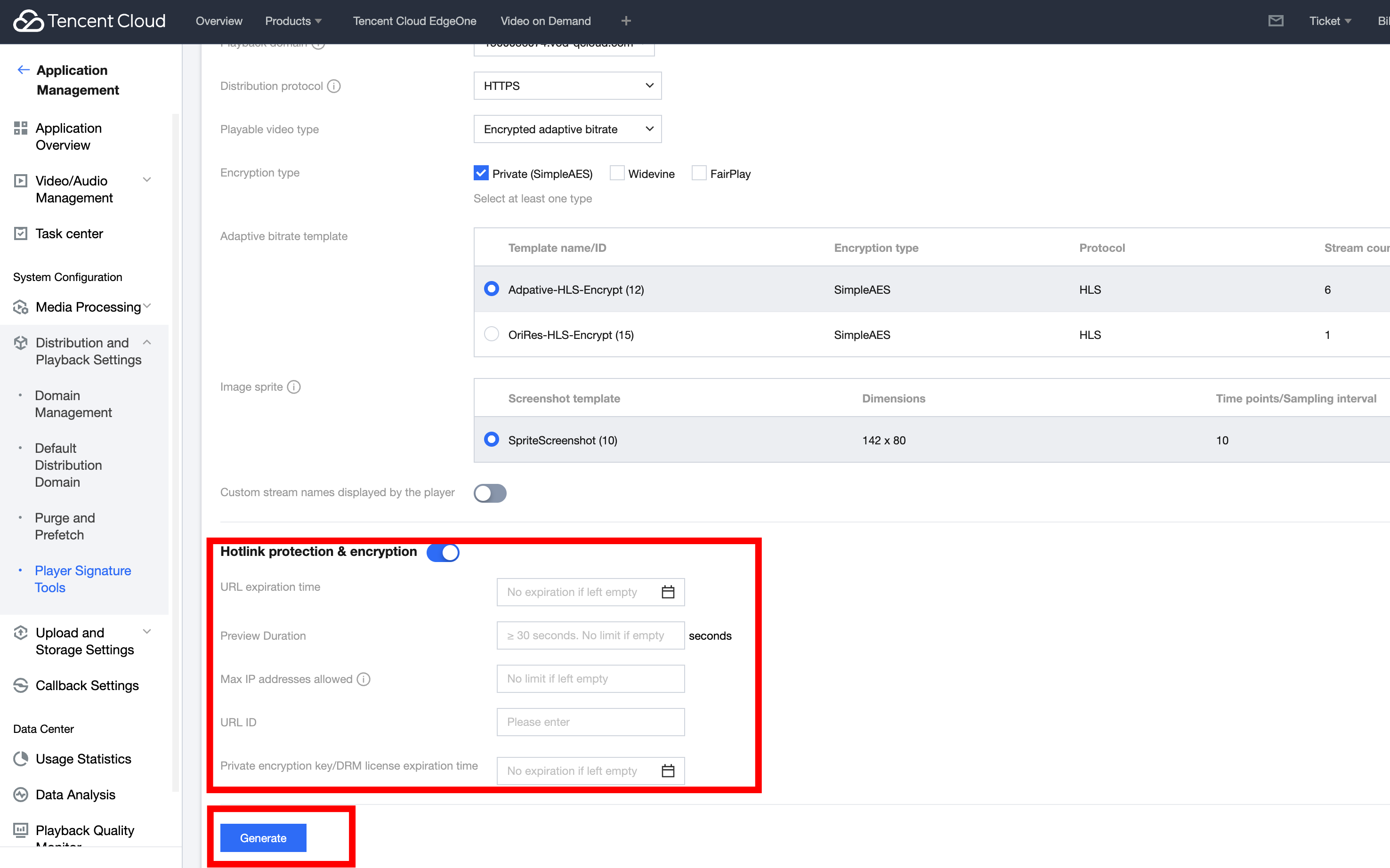
2. Turn on the Hotlink protection & encryption switch and click Generate to get the signature string.
Step 3. Play the Video
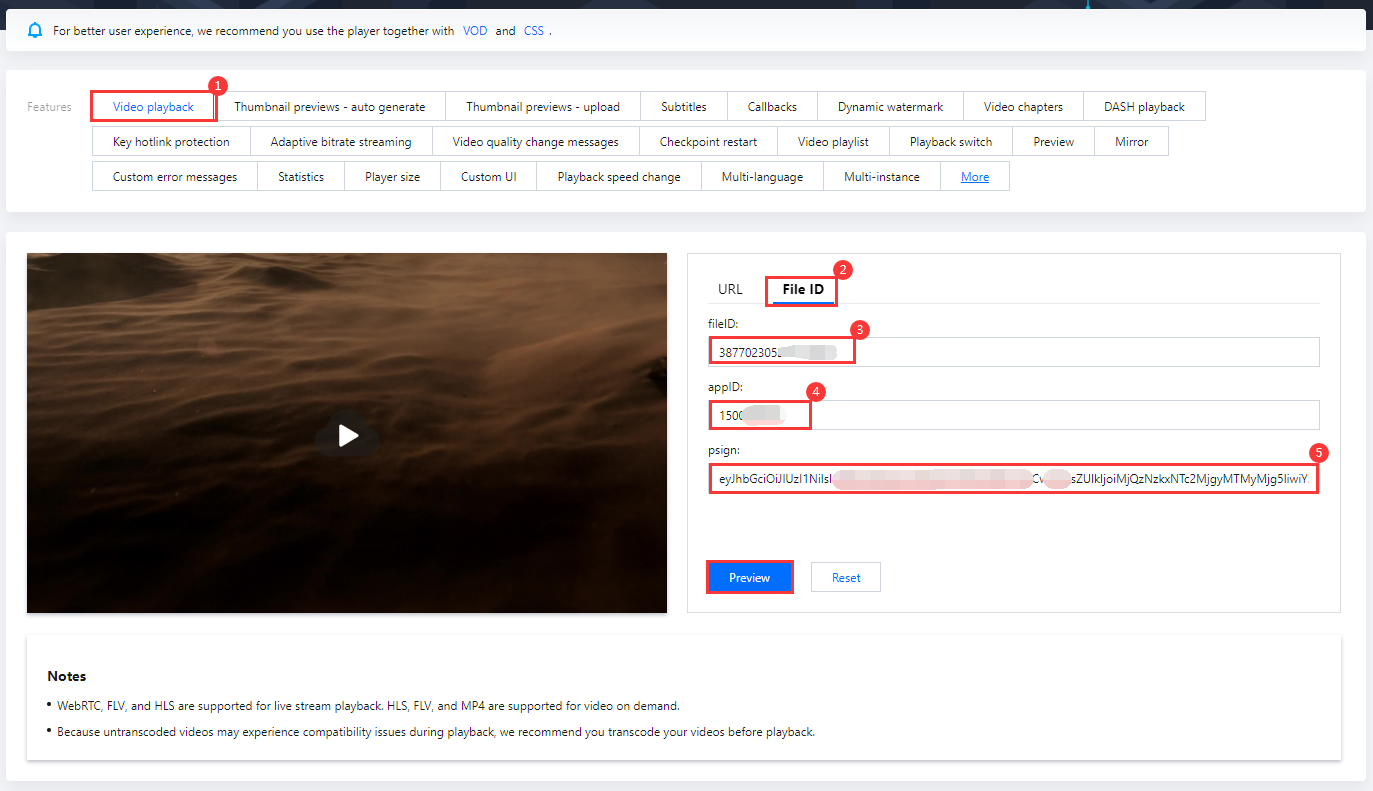
After step 2, you have obtained the three parameters needed for video playback: appId, fileId and psign (player signature). The following describes how to play back the video on the web.
fileID: Enter the same file ID in the previous step.
appID: Enter the ID of the VOD application to which the file belongs (which is also the App ID displayed on the signature generation page in the previous step).
psign: Enter the signature string generated in the previous step.
2. Click Preview to play the video.
Multi-platform player demos
After generating the player signature, you can use our player demos for web, Android, and iOS to play the video. For details, see the source code for the demos.
Summary
At this point, you have understood how to encrypt a video and use the player to play it back.