This document describes how to use the player to play back long videos common on audio/video platforms. It covers the web, iOS, and Android versions of the player and also details the features of key hotlink protection, adaptive bitrate streaming, video thumbnail preview, and video timestamping.
Overview
After reading this document, you will know:
How to configure key hotlink protection, which allows you to set the validity period, number of viewers, playback duration, etc.
How to output adaptive bitstreams in VOD (a player can dynamically select the most appropriate bitrate for playback based on the current bandwidth).
How to set video timestamps.
How to use an image sprite as a thumbnail in VOD.
How to use the player.
Before reading this document, make sure that you have read Stage 1. Play back a video with Player in the Player Guide and understand the concept of fileid in VOD.
Directions
Step 1. Enable key hotlink protection
The following takes enabling key hotlink protection for the default distribution domain name under your account as an example:
Note:
Do not directly enable hotlink protection for the domain name in your production environment; otherwise, playback of videos in the production environment may fail.
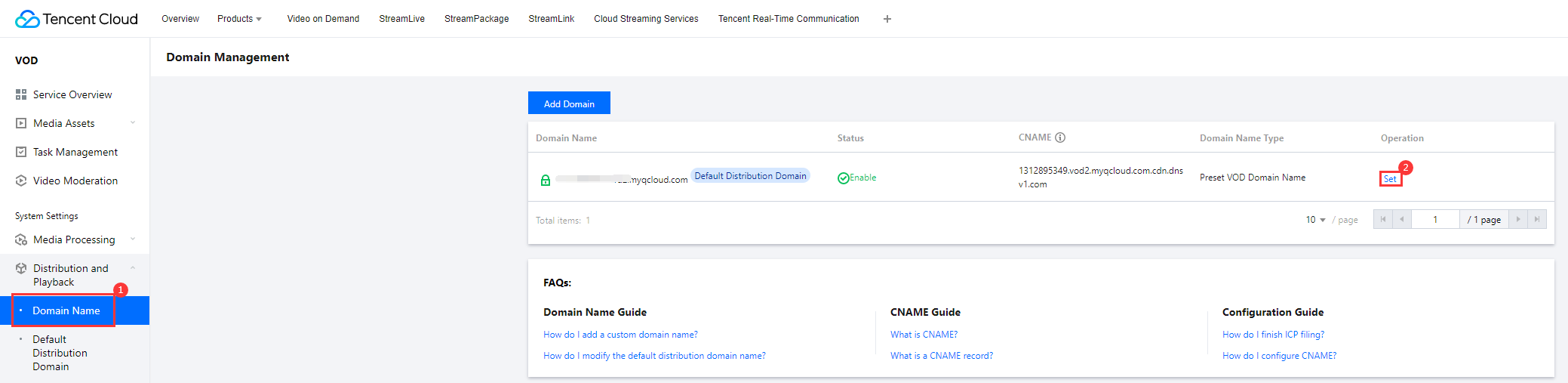
1. Log in to the VOD console, select Distribution and Playback > Domain Name to enter the settings page.
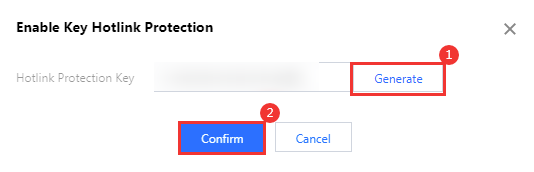
2. Click the Access Control tab, find Key Hotlink Protection, click the gray button to enable it, click Generate in the pop-up window to generate a random key, and click OK to save the configuration and make it take effect.
Step 2. Output adaptive bitstream and image sprite
This step describes how to transcode a video to adaptive bitstream and output image sprite.
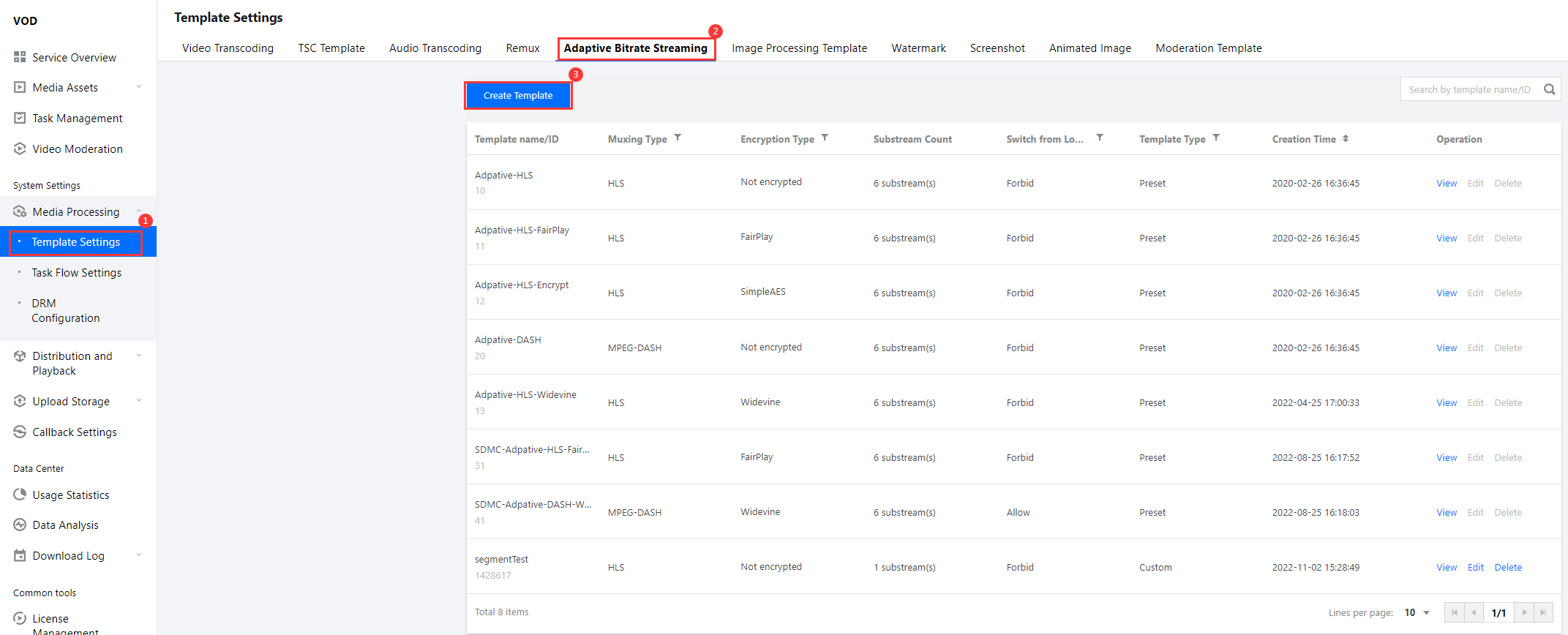
1. Log in to the VOD console, select Video Processing Settings > Template Settings > Adaptive Bitrate Streaming Template, and click Create Template.
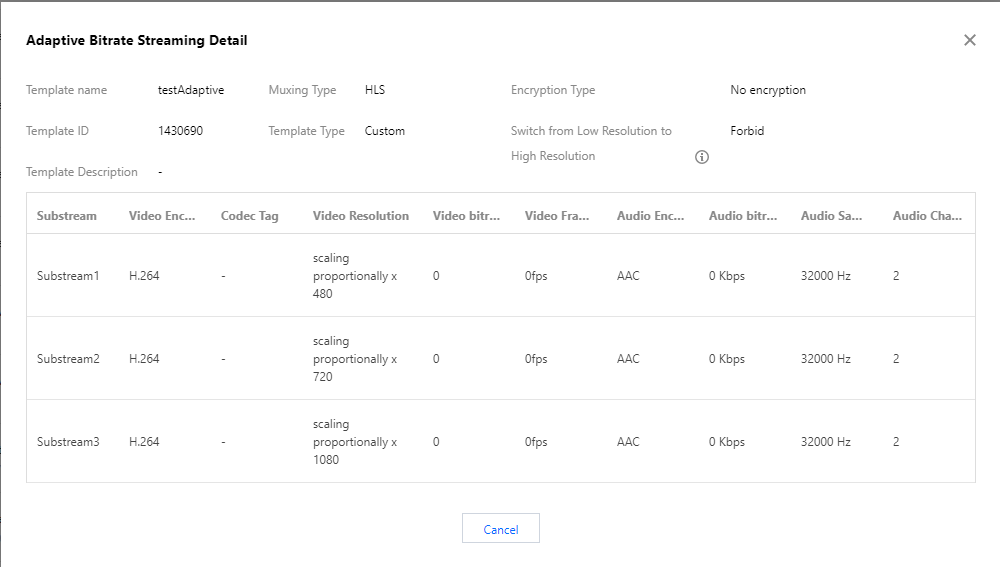
Create the adaptive bitstream through the template as needed. The following example shows an adaptive bitrate streaming template named testAdaptive, which contains three substreams with a resolution of 480p, 720p, and 1080p. The video bitrate, video frame rate, and audio bitrate are the same as the original video.
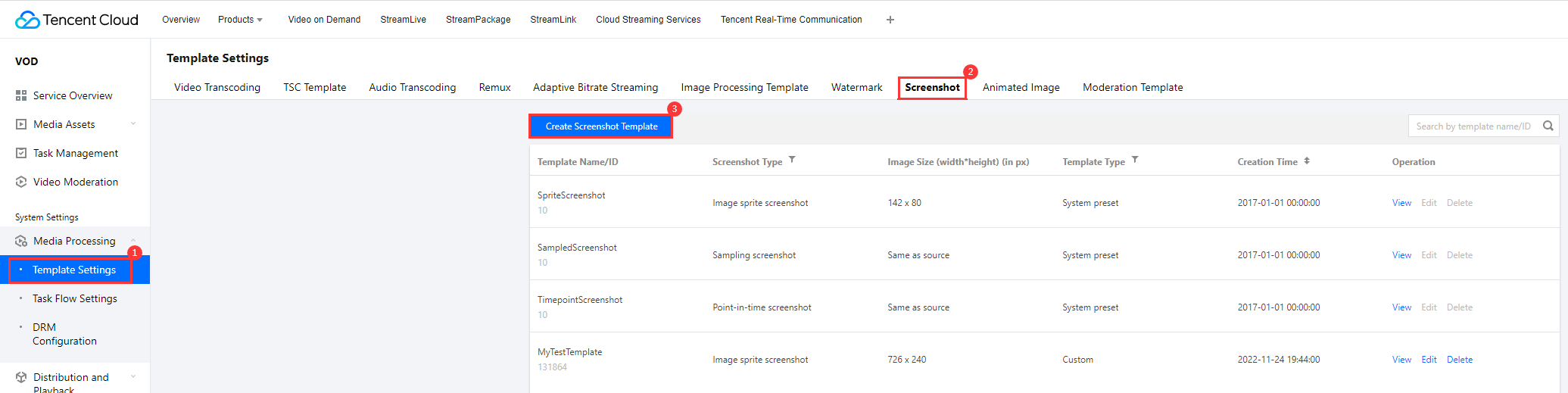
2. Select Video Processing Settings > Template Settings > Screenshot Template and click Create Template.
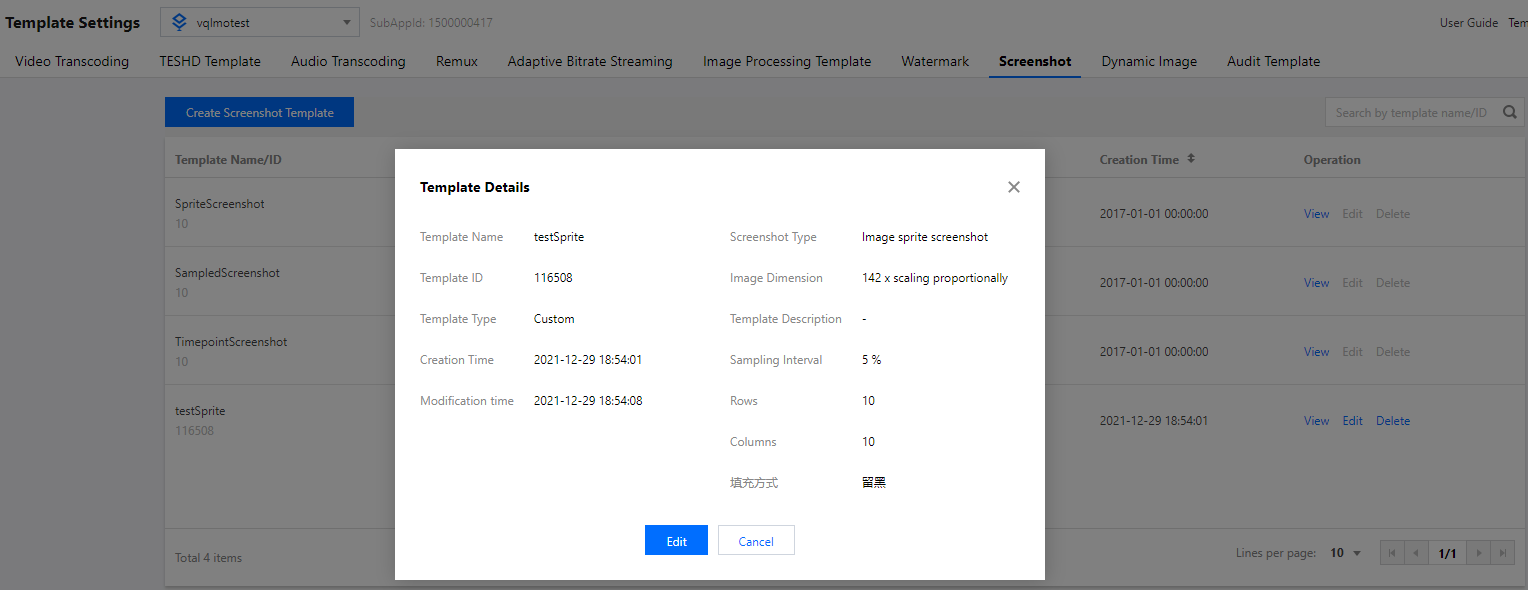
Create the image sprite through the template as needed. The following example shows an image sprite template named testSprite, with a sampling interval of 5%, 10 rows, and 10 columns.
3. Add the adaptive bitrate streaming and image sprite templates through the task flow.
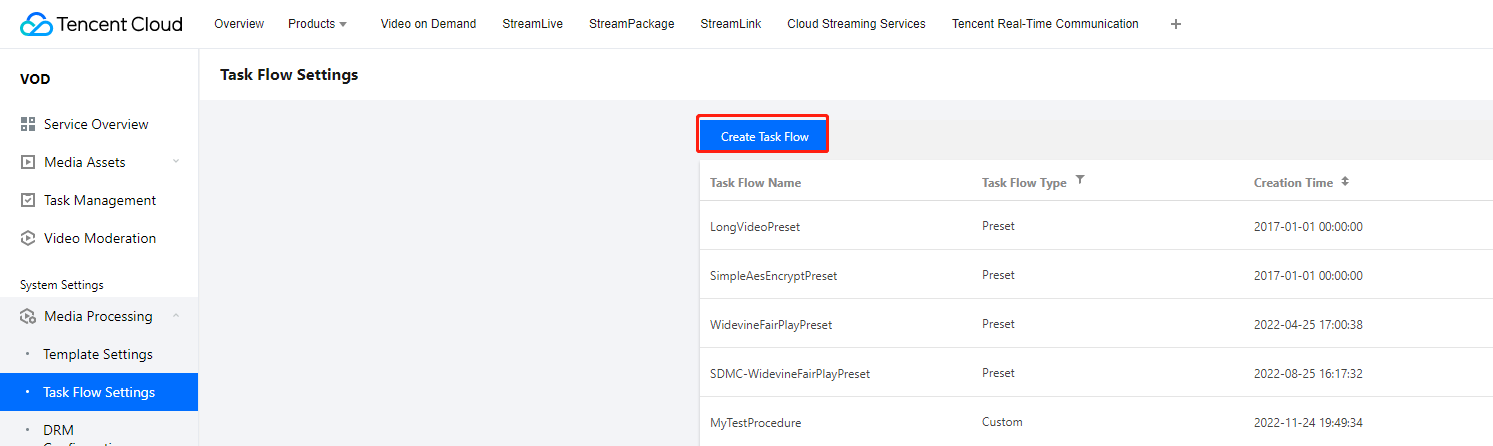
Select Video Processing > Task Flow Settings and click Create Task Flow.
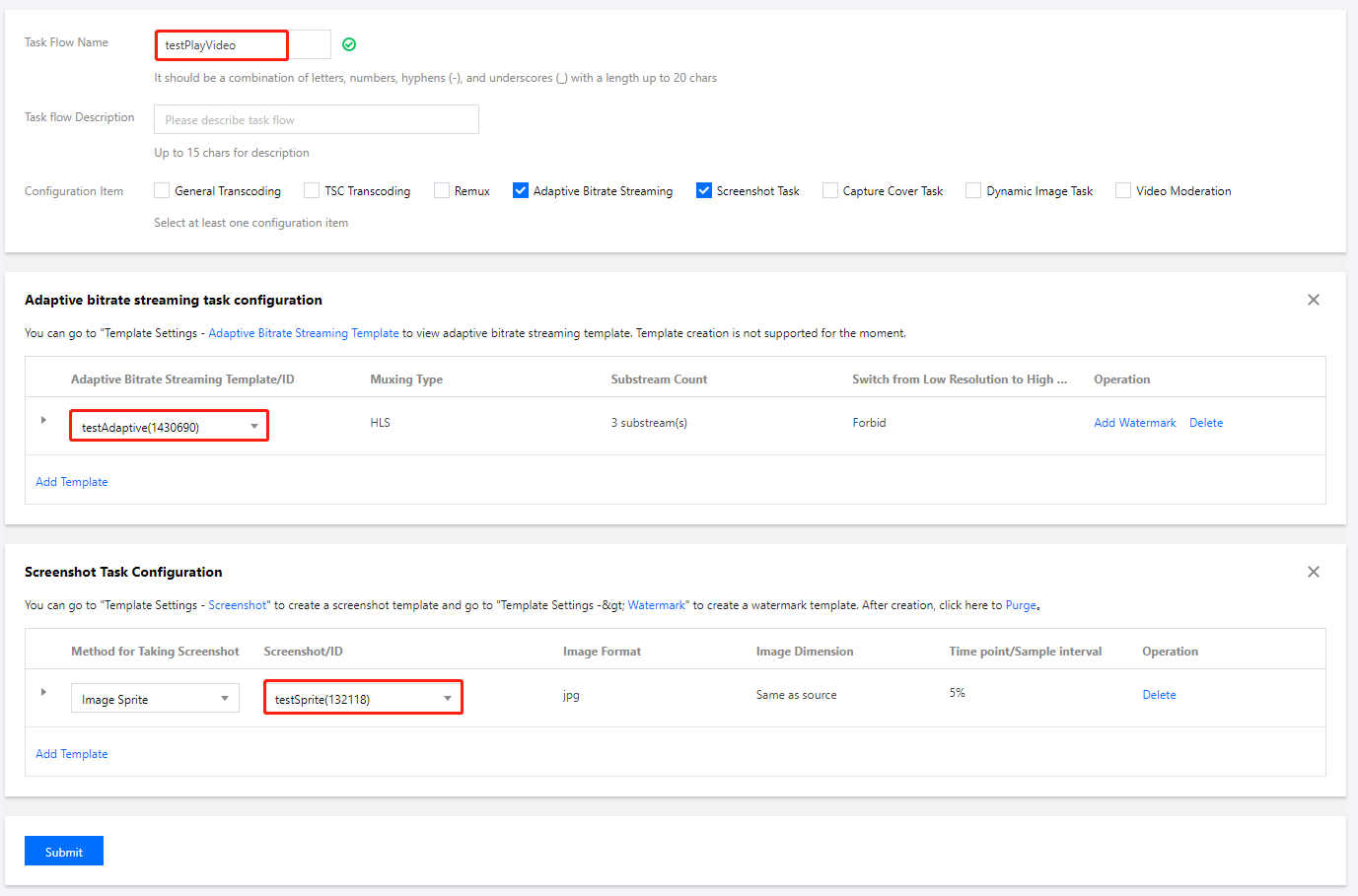
Add a task through the task flow as needed. The following example shows a task flow named testPlayVideo, which only adds the adaptive bitrate streaming and image sprite templates from the previous examples.
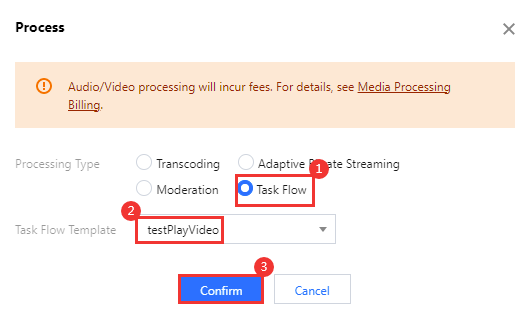
4. Select Media Assets > Video/Audio Management, select the target video (FileId: 387xxxxx8142975036), click Task Flow, and select a task flow template to start the task.
5. At this point, you can view the task execution status in the Task Managment page and get the task result after completion.
Step 3. Add video timestamps
This step describes how to add a set of video timestamps.
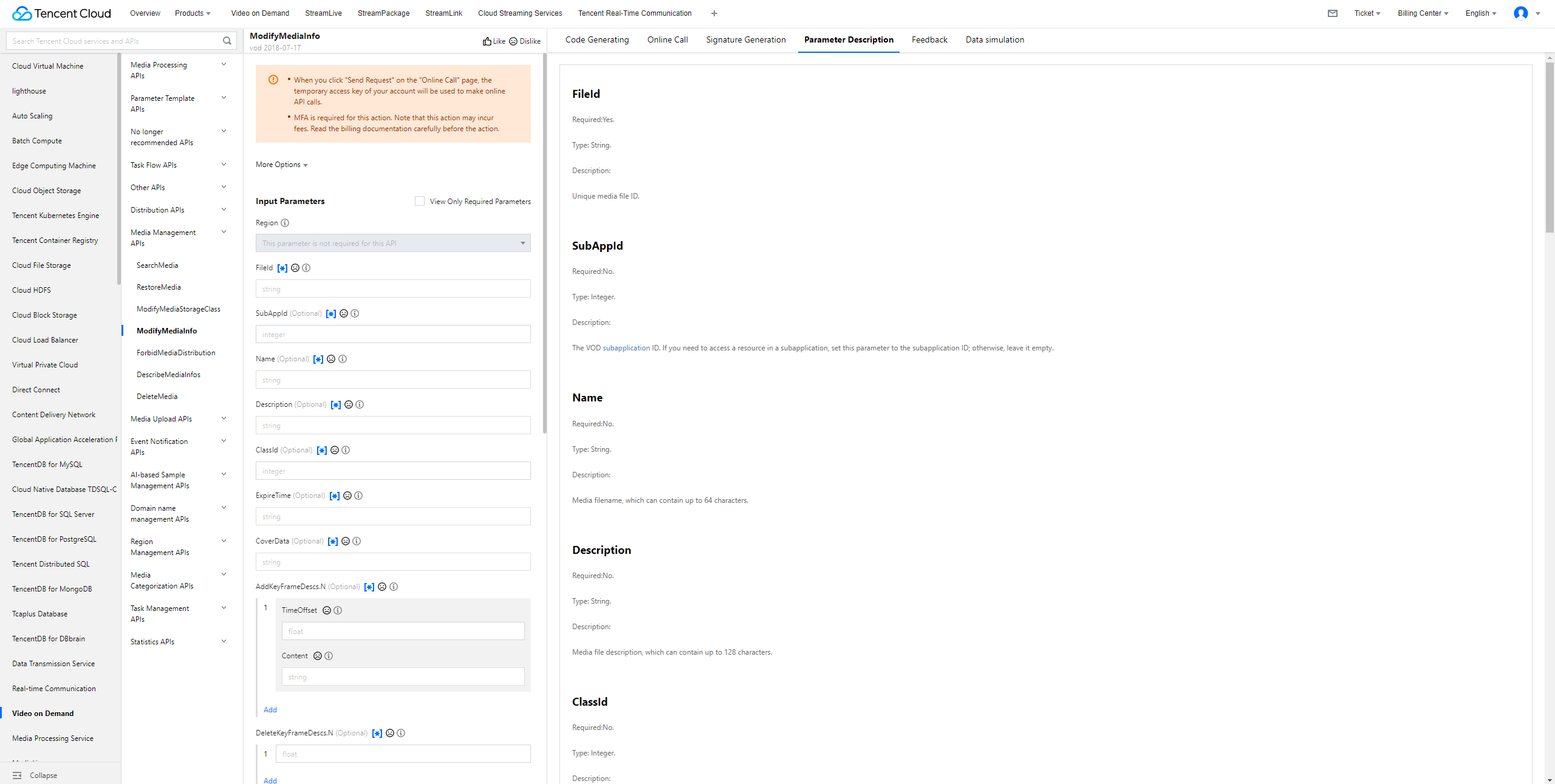
1. Go to VOD Server APIs > Media Asset Management APIs > ModifyMediaInfo and click Debug to enter the TencentCloud API console for debugging.
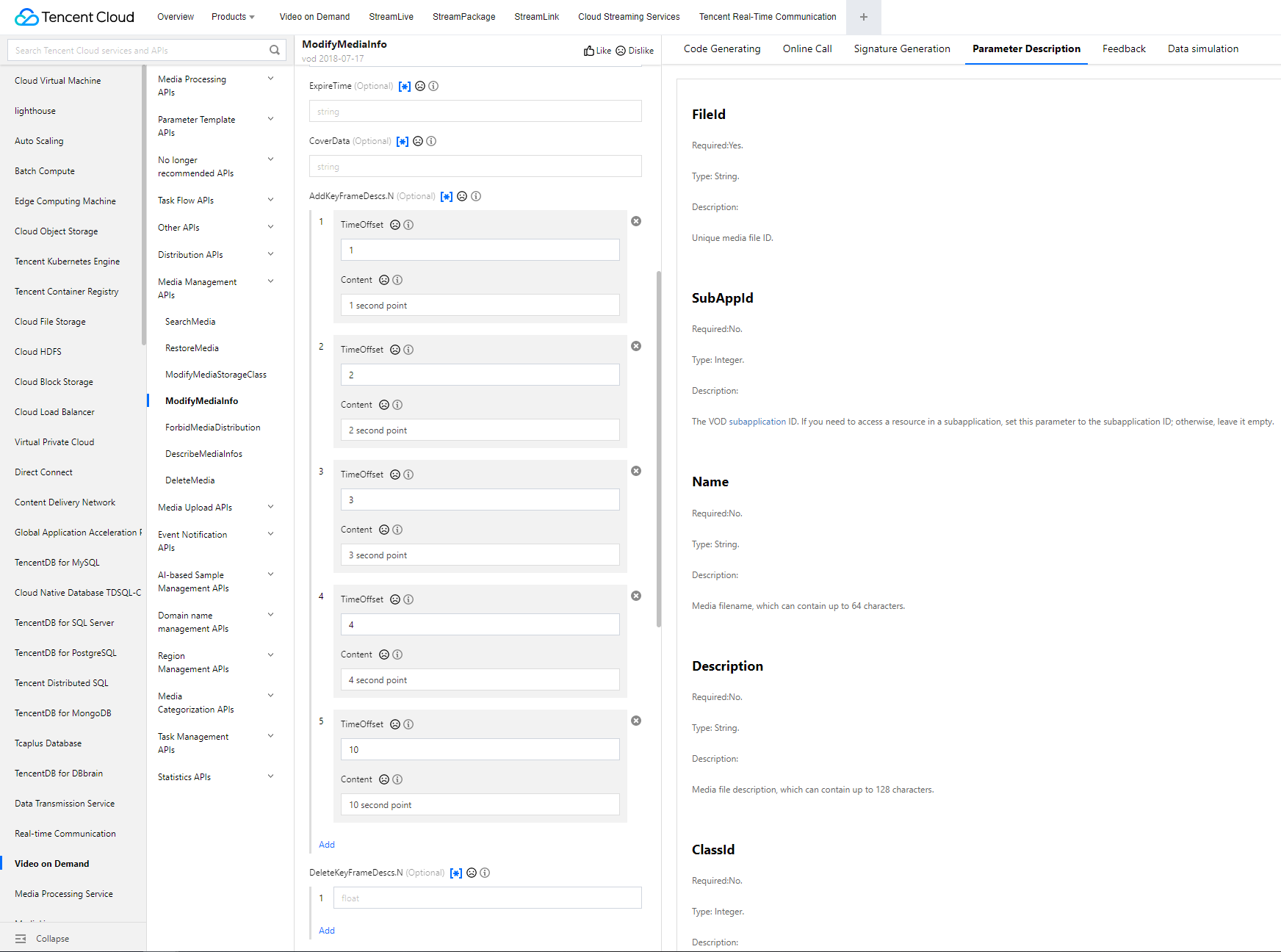
2. Add the specified video timestamps through the AddKeyFrameDescs.N parameter.
At this point, you have completed the operation in the cloud, output the adaptive bitstreams and image sprite, and added the video timestamps.
Step 4. Generate a player signature
In this step, you can use the signature tool to quickly generate a signature for the player to play back the video.
Select Distribution and Playback > Player Signature Tools and enter the following information:
Video file ID: Enter the FileId (387xxxxx8142975036) used in step 2.
Signature expiration time: Enter the player signature expiration time. If you leave it empty, the signature will never expire.
Playable video type: Select Unencrypted adaptive bitrate.
Image sprite template for thumbnail preview: Select testSprite (131353).
Hotlink protection and encryption: Toggle it on and configure as follows:
Link expiration time: Set it to the expiration time of the obtained hotlink protection signature.
Maximum playback IPs: Set the maximum number of IPs allowed for playback.
Click Generate to get the signature string.
Step 5. Integrate the player
After step 4, you have obtained the three parameters needed for video playback: appId, fileId and psign (player signature).
This step describes how to play back the adaptive bitstreams, thumbnails, and timestamps in the player for web, iOS, and Android.
Web
iOS
Android
You need to integrate the RT-Cube Player as instructed in Web integration. After importing the player's SDK file, you can play back the video by using the appId, fileId, and psign.
The construction method of the player is TCPlayer, which can be used to create a player instance for playback.
1. Place the player container in the HTML file
Place the player container in the desired place on the page. For example, add the following code to index.html (the container ID, width, and height can be customized).
Add the following initialization script to the index.html page initialization code to pass in the obtained fileID and appID for playback.
var player = TCPlayer('player-container-id', { // player-container-id is the player container ID, which must be the same as that in HTML
fileID: '387xxxxx8142975036', // `fileID` of the video to be played back
appID: '1400329073', // `appID` of the VOD account to play back the video
psign:'psignxxxx' // `psign` is a player signature. For more information on the signature and how to generate it, see [Player Signature](https://www.tencentcloud.com/document/product/266/38099).
});
You need to integrate the RT-Cube Player as instructed in iOS Integration. Then, you can play back the video by using the appId, fileId, and psign.
The main class of the player is SuperPlayerView, and videos can be played back after it is created.
// Import the header file
#import <SuperPlayer/SuperPlayer.h>
// Create a player
_playerView = [[SuperPlayerView alloc] init];
// Set a delegate for events
_playerView.delegate = self;
// Set the parent view. _playerView will be automatically added under holderView.
// `pSign` is a player signature. For more information on the signature and how to generate it, see [Player Signature](https://www.tencentcloud.com/document/product/266/38099).
model.videoId.pSign = @"psignxxxx";
[_playerView playWithModelNeedLicence:model];
[_playerView playWithModel:model];
You need to integrate the RT-Cube Player as instructed in Android integration. Then, you can play back the video by using the appId, fileId, and psign.
The main class of the player is SuperPlayerView, and videos can be played back after it is created.
// `pSign` is a player signature. For more information on the signature and how to generate it, see [Player Signature](https://www.tencentcloud.com/document/product/266/38099).
model.videoId.pSign ="psignxxxx";
mSuperPlayerView.playWithModel(model);
Summary
At this point, you can play back media files with hotlink protection enabled, view the image sprite and video timestamps, and automatically switch dynamic adaptive bitstreams in the player.
For more features, see Feature Description.