tencent cloud

Cloud GPU Service

Release Notes and Announcements
Release Notes
Announcements
Product Introduction
Overview
Strengths
Scenarios
Notes
Instance Types
Computing Instance
Rendering Instance
Billing
Billing Overview
Renewal
Getting Started
User Guide
Logging In to Instances
Restarting Instances
Installing NVIDIA Driver
Uninstalling NVIDIA Driver
Upgrading NVIDIA Driver
Using GPU Monitoring and Alarm
Use Cases
Installing NVIDIA Container Toolkit on a Linux Cloud GPU Service
Using Windows Cloud GPU Service to build a Deep Learning Environment
Implementing Image Quality Enhancement with GN7vi Instances
Using Docker to Install TensorFlow and Set GPU/CPU Support
Using GPU Instance to Train ViT Model
Troubleshooting
GPU Instance Troubleshooting Guide
Troubleshooting Common Xid Errors
Collecting Log for GPU Instances
GPU Usage Shows 100%
VNC Login Failures
FAQs
Related Agreement
Special Terms for Committed Sales Model
Contact Us

VNC Login Failures

PDF
포커스 모드
폰트 크기
마지막 업데이트 시간: 2024-01-11 17:11:13

Problem Description

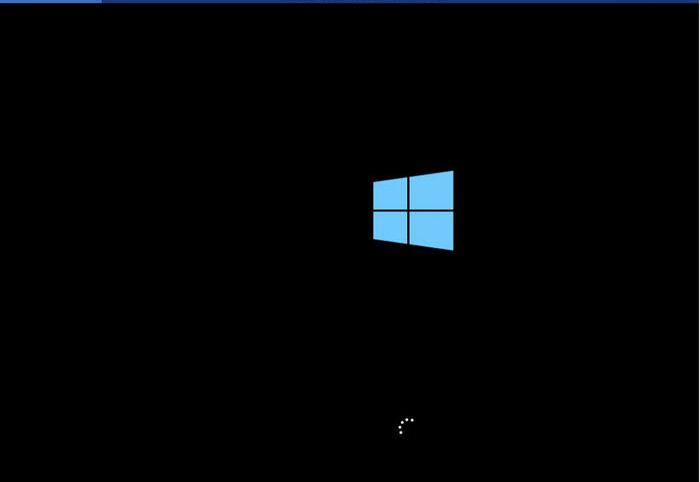
When you attempt to log in to a Windows instance via VNC or log in to a Linux instance via VNC, you may not be prompted to log in, but instead encounter a black screen or the blue Windows logo, as shown below:


Possible Reasons

1. Your GPU instance is installed with a graphics driver.
When you log in to a GPU instance via VNC, the VGA device emulated by QEMU is accessed by default to obtain the framebuffer of the operating system for login. After you install a graphics driver on the GPU instance, the framebuffer will no longer be handled by the VGA device. As a result, you cannot log in to the operating system via VNC.
2. The operating system failed to start due to other causes. For example, third-party software that conflicts with the operating system is installed on the GPU instance.

Solution

1. If the GPU instance is installed with a graphics driver, install a VNC server on the instance so that you can log in to the GPU instance via a local VNC client.
You need to obtain the VNC server and the client installation packages by yourself.
2. Check the installed third-party software and analyze why the software leads to login failures. We recommend that you uninstall the conflicting third-party software or reinstall the operating system.
도움말 및 지원

문제 해결에 도움이 되었나요?

피드백