Installing NVIDIA Container Toolkit on a Linux Cloud GPU Service
Download
포커스 모드
폰트 크기
Scenarios
In Docker, containers cannot access the host GPU resources by default. To address this limitation, NVIDIA provides an official NVIDIA Docker container support solution that maps the host GPU runtime environment into containers. This solution has evolved through multiple stages—from the early nvidia-docker and nvidia-docker2 to today’s NVIDIA Container Toolkit.
NVIDIA Container Toolkit is a set of tools for container runtime environments that enables containers to use NVIDIA GPUs. This document describes how to install NVIDIA Container Toolkit on a Linux Cloud GPU Service using Tencent Cloud mirrors.
Procedure
Instance Environment Preparation
1. Check whether the GPU driver is installed.
Log in to the instance and run the following command to confirm whether the GPU driver is properly installed:
nvidia-smi
If GPU device information is returned normally, it indicates that the driver is installed; if the prompt
nvidia-smi: command not found is returned, it indicates that the driver is not installed, and you need to refer to NVIDIA Driver Installation Guide to install the NVIDIA GPU driver.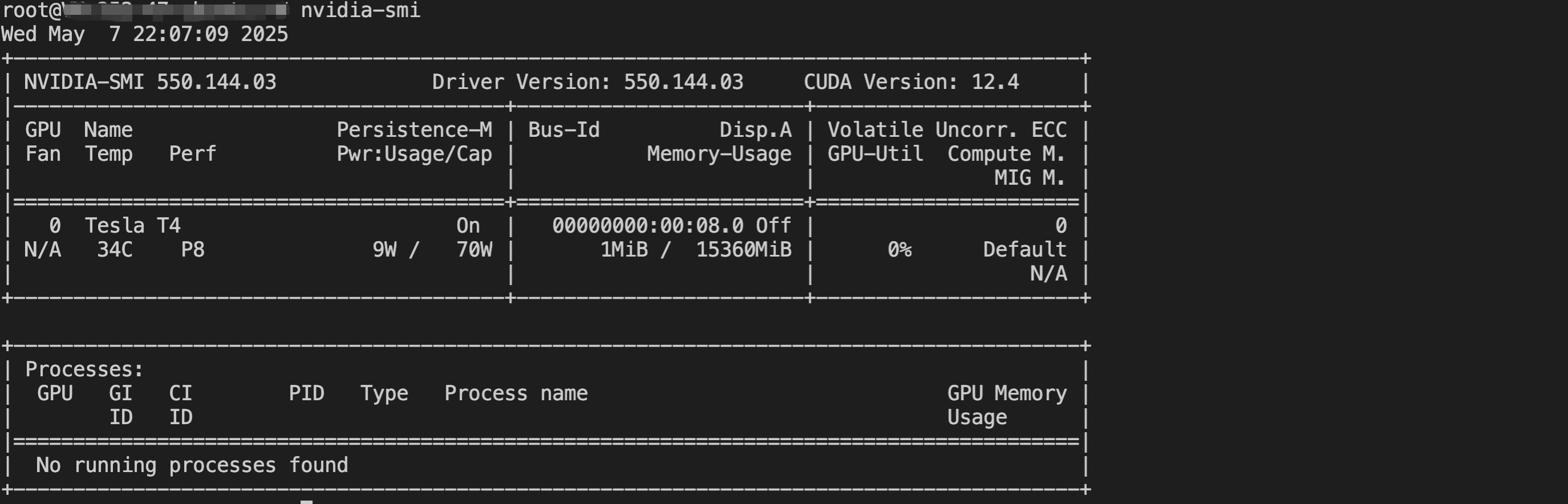
2. Ensure Docker is installed and running.
Run the following command to verify Docker installation and that the Docker service is running:
docker ps
If the output is similar to the screenshot, Docker is installed and running. If not, refer to Building the Docker to install Docker.

3. Check whether NVIDIA Container Toolkit has not been installed.
Try to start the GPU container by running the following command:
dockerrun --gpus all[image name]
If you receive the error
docker: Error response from daemon: could not select device driver "" with capabilities: [[gpu]], it indicates that NVIDIA Container Toolkit is not installed. The system lacks the required GPU runtime configuration and cannot recognize or allocate GPU resources to containers.Install NVIDIA Container Toolkit
1. This section uses Tencent Cloud TencentOS Server, CentOS, RHEL, Rocky Linux, Ubuntu, and Debian GPU server environments as examples. For other operating systems, refer to Installing the NVIDIA Container Toolkit.
curl -s -L https://mirrors.tencentyun.com/libnvidia-container/stable/rpm/nvidia-container-toolkit.repo | sudo tee /etc/yum.repos.d/nvidia-container-toolkit.repo #Configure the nvidia-container-toolkit sourcesed -i 's/nvidia.github.io/mirrors.tencentyun.com/g' /etc/yum.repos.d/nvidia-container-toolkit.repo #Modify the nvidia-container-toolkit source to Tencent Cloud sourcesudo yum install -y nvidia-container-toolkit #Install nvidia-container-toolkit using yum on TencentOS 2.4/CentOS 7/RHEL 7sudo dnf install -y nvidia-container-toolkit #Install nvidia-container-toolkit using dnf on TencentOS 3.1/TencentOS 4/CentOS 8/RHEL 8/RHEL 9/Rocky Linux 8/Rocky Linux 9sudo rpm -qa | grep nvidia-container-toolkit #Check whether NVIDIA Container Toolkit is installed successfully. If related software information of nvidia-container-toolkit is displayed, it indicates successful installation.
curl -fsSL https://mirrors.tencentyun.com/libnvidia-container/gpgkey | sudo gpg --dearmor -o /usr/share/keyrings/nvidia-container-toolkit-keyring.gpg \\&& curl -s -L https://mirrors.tencentyun.com/libnvidia-container/stable/deb/nvidia-container-toolkit.list | \\sed 's#deb https://#deb [signed-by=/usr/share/keyrings/nvidia-container-toolkit-keyring.gpg] https://#g' | \\sudo tee /etc/apt/sources.list.d/nvidia-container-toolkit.list #Configure the nvidia-container-toolkit sourcesed -i -e '/experimental/ s/^#//g' /etc/apt/sources.list.d/nvidia-container-toolkit.list #Enable the experimental repositorysed -i 's/nvidia.github.io/mirrors.tencentyun.com/g' /etc/apt/sources.list.d/nvidia-container-toolkit.list #Modify the nvidia-container-toolkit source to Tencent Cloud sourcesudo apt-get update #Update the package listsudo apt-get install -y nvidia-container-toolkit #Install the NVIDIA Container Toolkit packagesudo dpkg -l | grep nvidia-container-toolkit #Check whether NVIDIA Container Toolkit is installed successfully. If related software information of nvidia-container-toolkit is displayed, it indicates successful installation.
2. Run the following command to restart the docker service for NVIDIA Container Toolkit to take effect.
sudo systemctl restart docker
피드백