Log configuration
Download
Focus Mode
Font Size
This document introduces the log configuration feature of the Log Analysis service. This feature includes the visual monitoring of storage usage and the operational steps for configuring storage policies by product and log type.
Feature Overview
The Log Configuration feature provides users with the capability for global monitoring and fine-grained configuration of log storage.
Prerequisites
1. An account that has purchased the Log Analysis Service.
2. The current logged-in account is an account that has been granted shared storage capacity.
Storage Monitoring
1. Log in to the CSC console. In the left-side navigation pane, click Log analysis.
2. On the Log Analysis page, click Log Configuration in the upper-right corner.
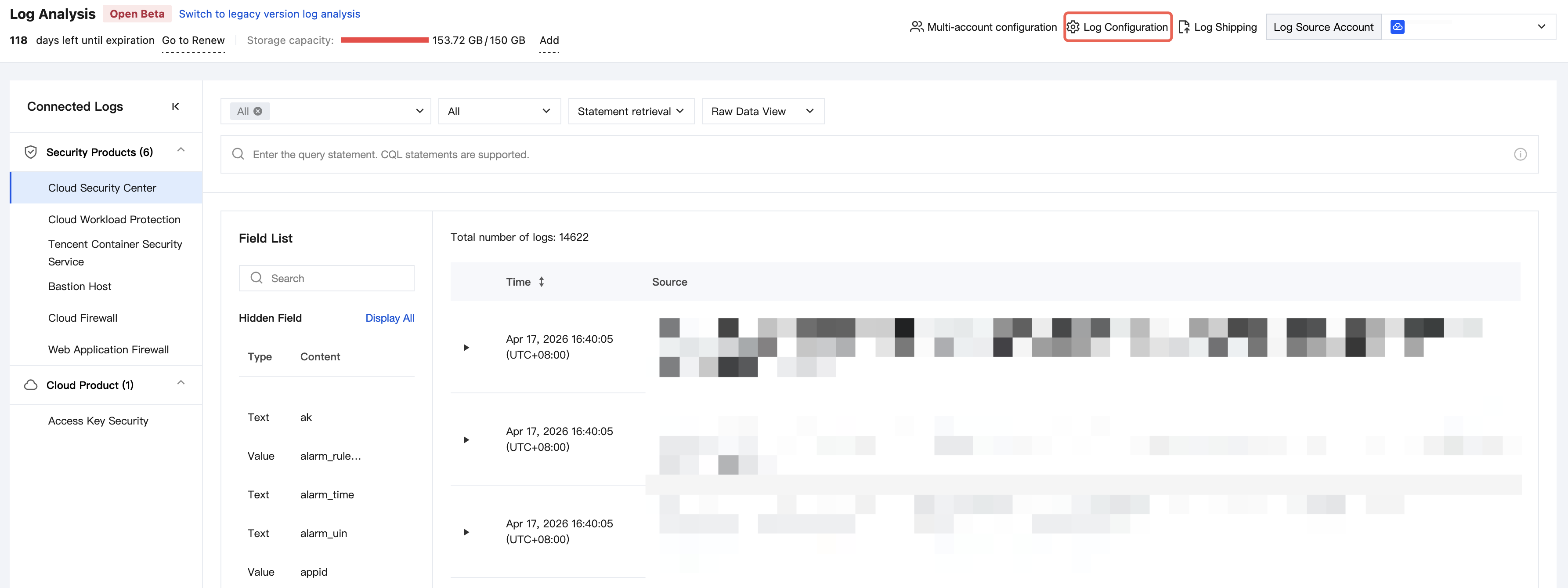
3. The Log Configuration page is generally divided into two sections. The upper section displays the visual monitoring of storage usage, and the lower section contains the storage configuration for each product.
Visual Monitoring
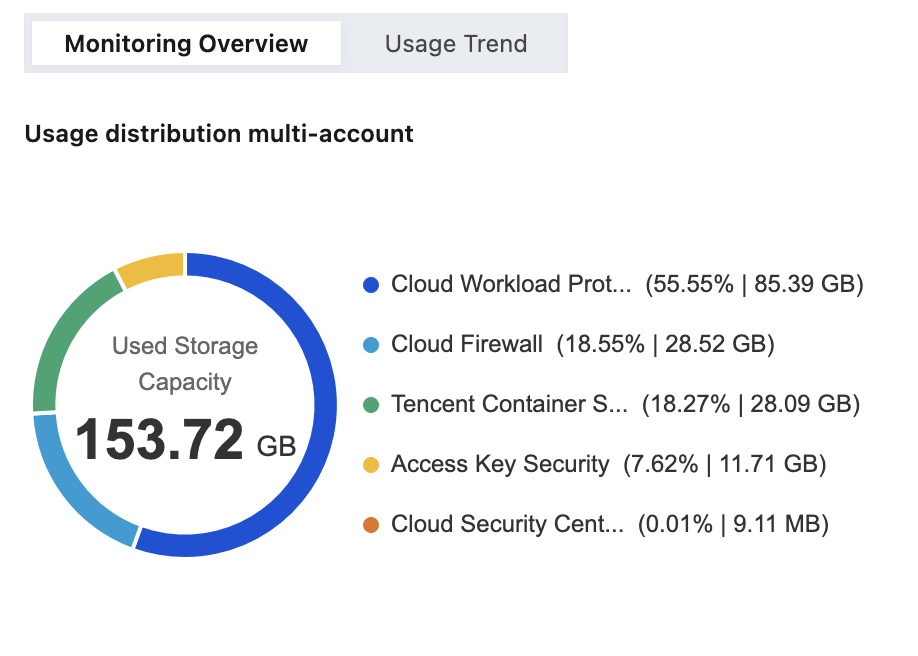
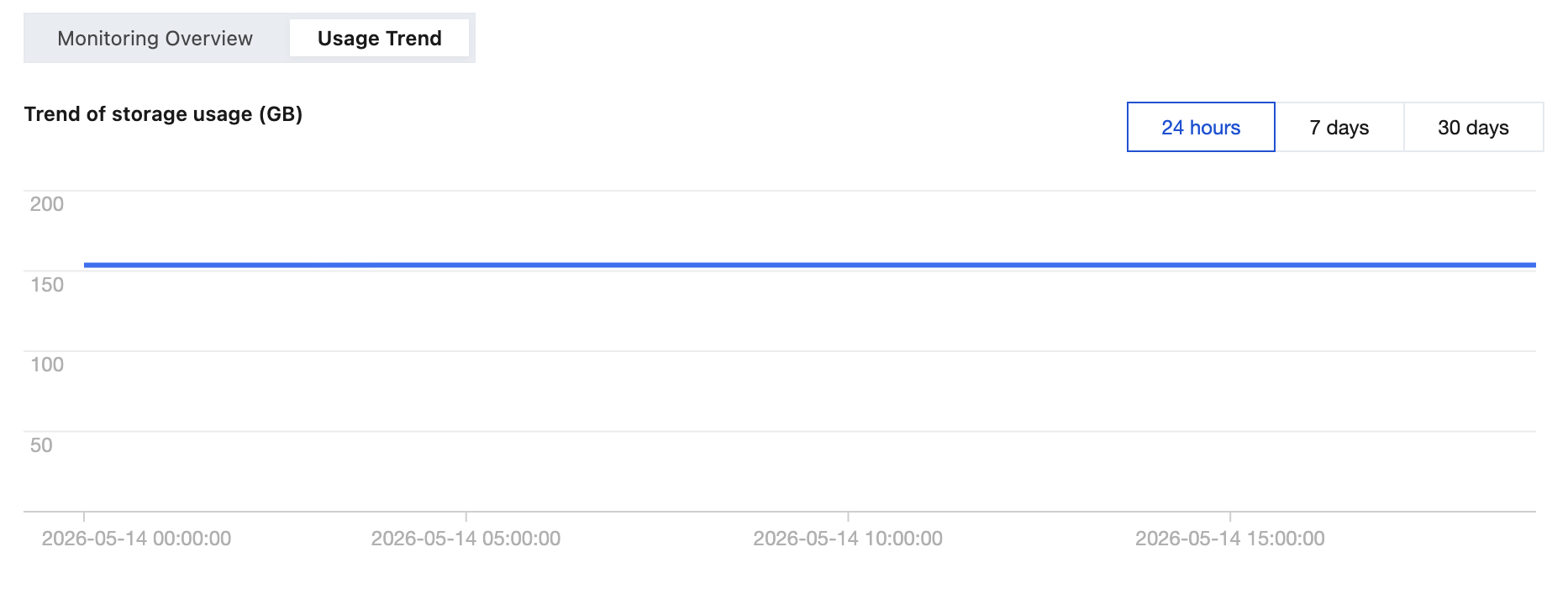
In the visual monitoring section, you can view the Monitoring Overview and Usage Trends.
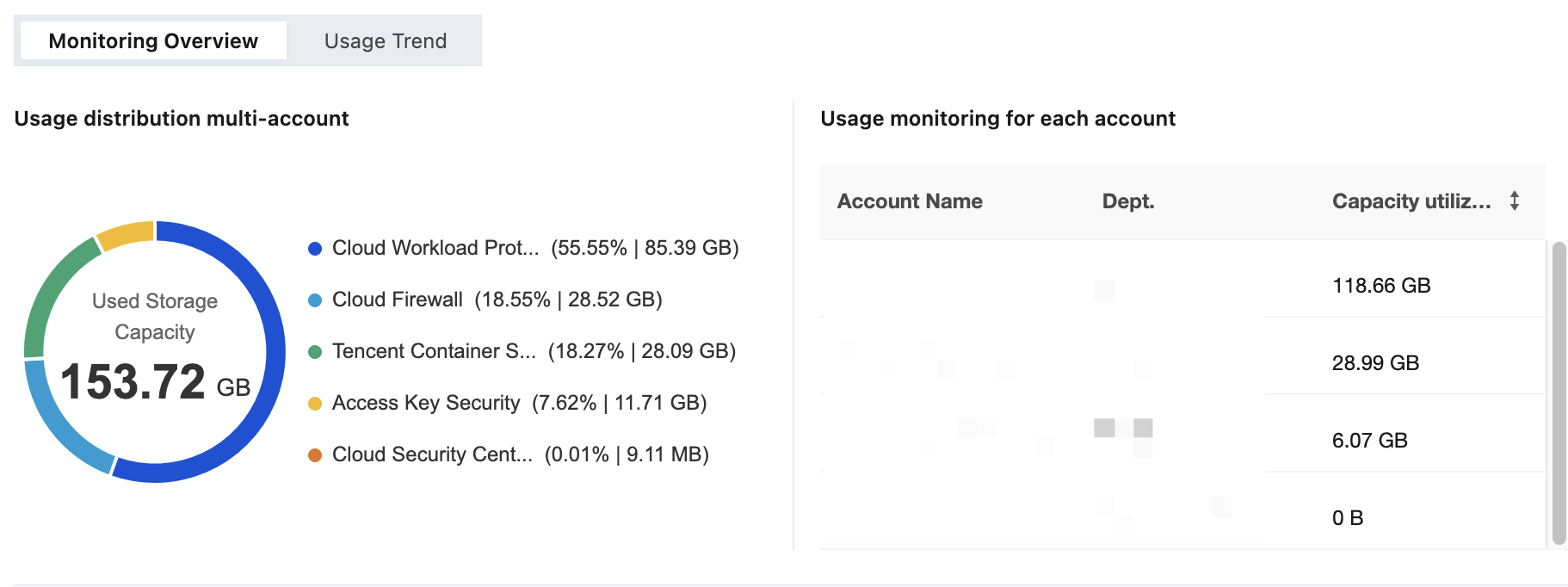
Monitoring Overview: Displays the total amount of storage used and the distribution of storage usage across products.
Usage Trends: You can view storage usage trends over a period of time. Usage trends for the last 24 hours are displayed by default. You can switch to "Last 7 days" or "Last 30 days" in the upper-right corner.
Storage Policy Configuration
1. In the Storage Policy Configuration section, select the product on the left for which you need to configure a storage policy.
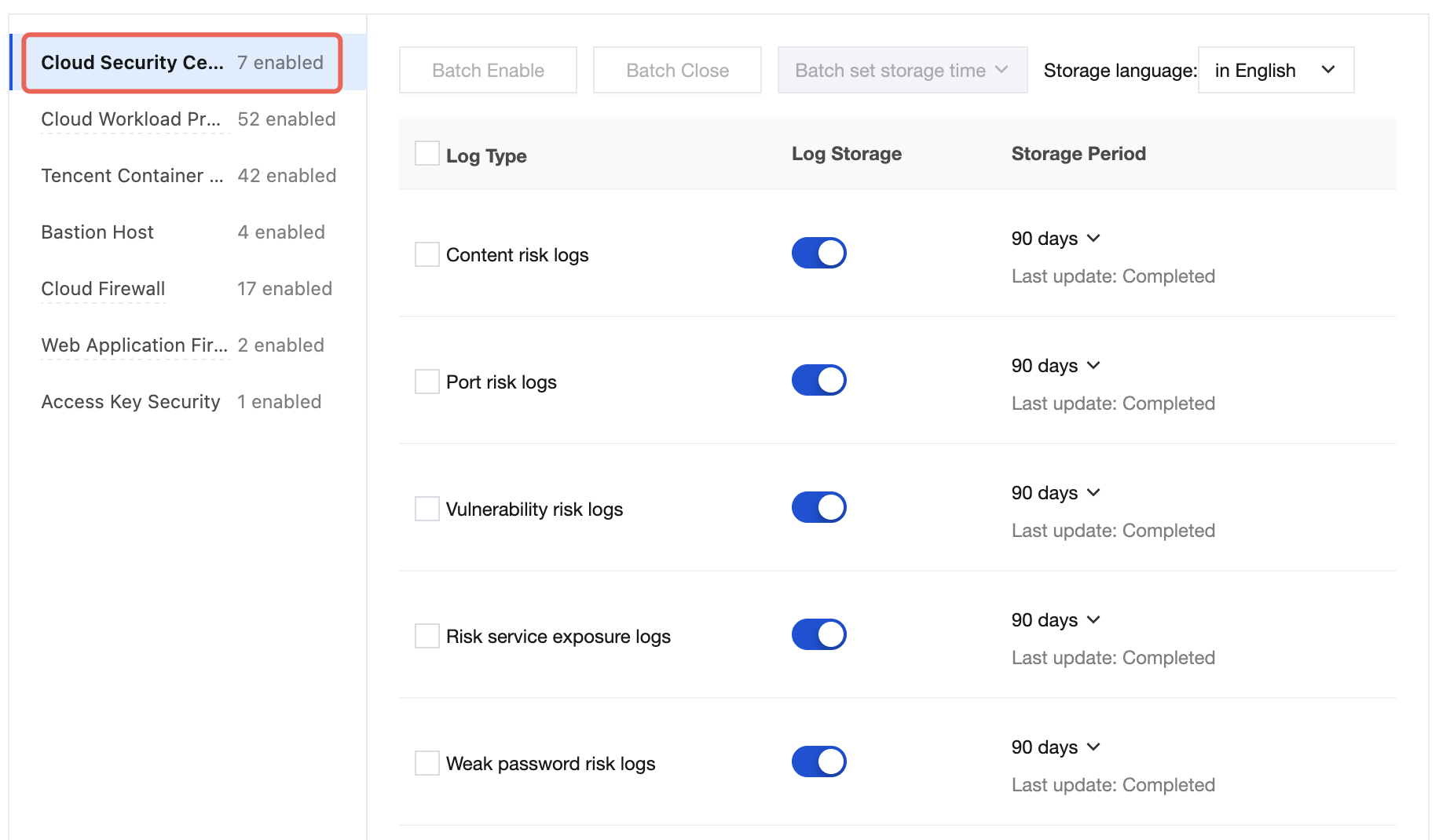
2. In the log list, the log types for which storage can be configured for this product are displayed. You can configure whether to store logs and the storage duration for each log type.
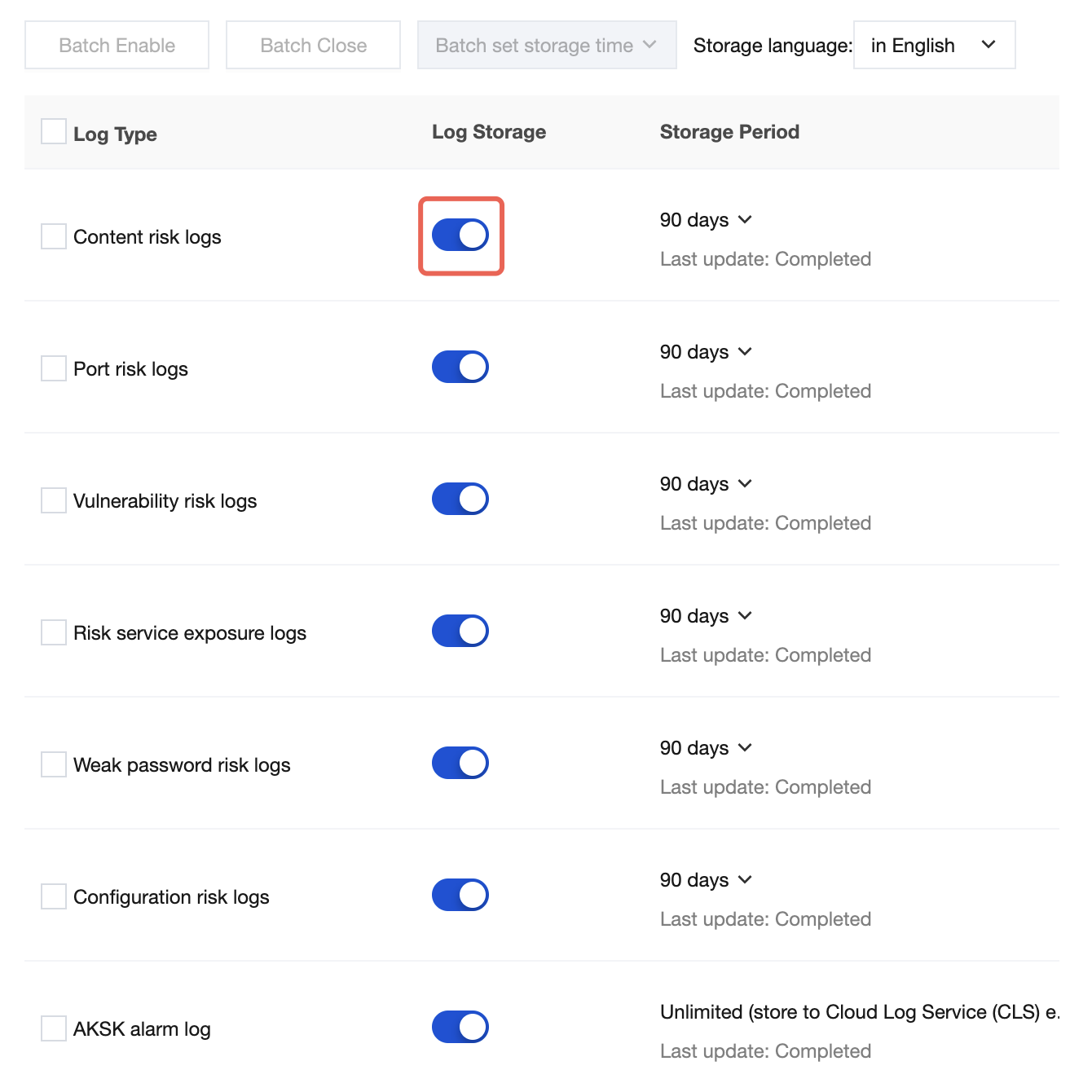
Turning on the log storage switch indicates that this log type needs to be stored.
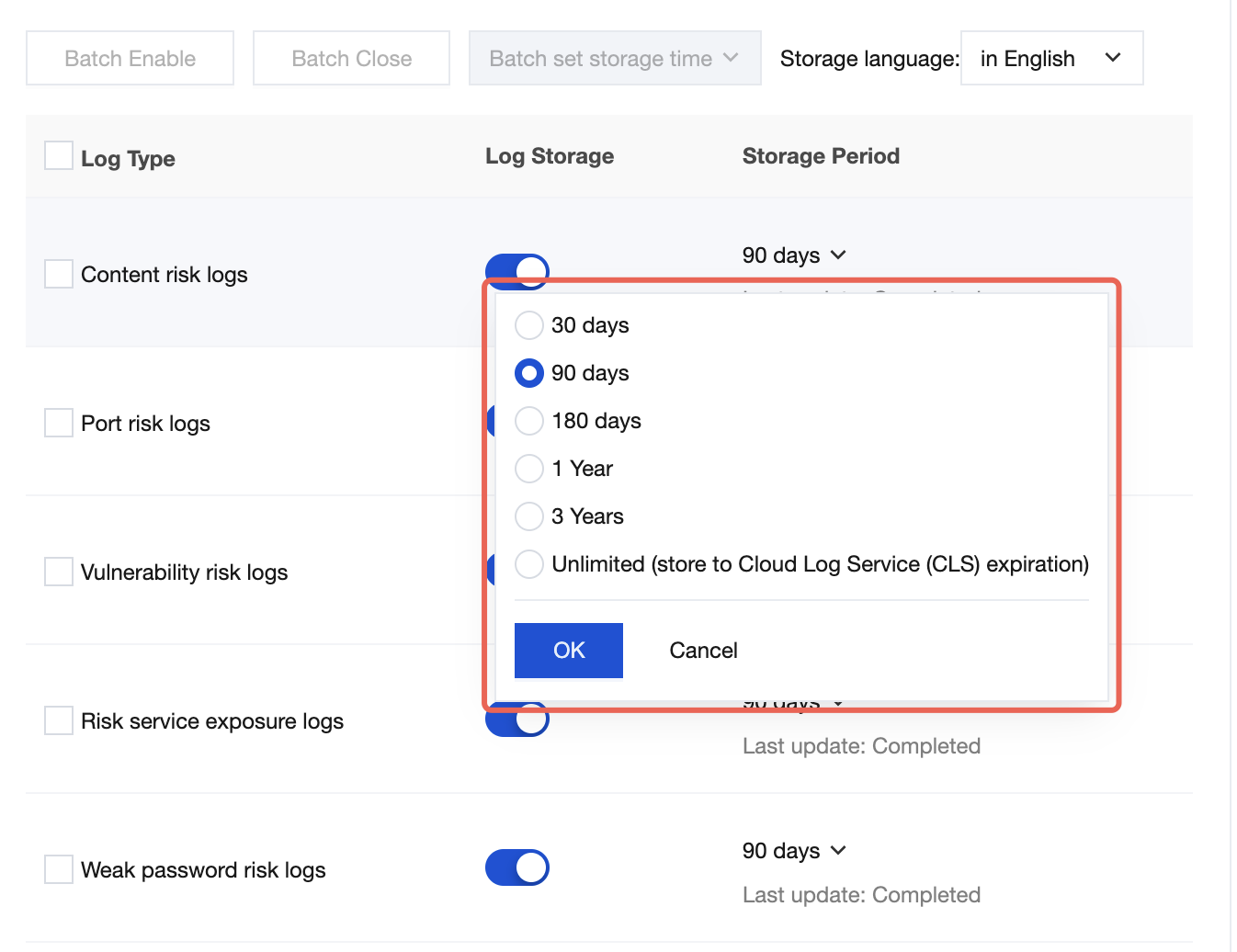
Click Storage Period. Use the drop-down menu to modify the storage duration, and then click OK to save.
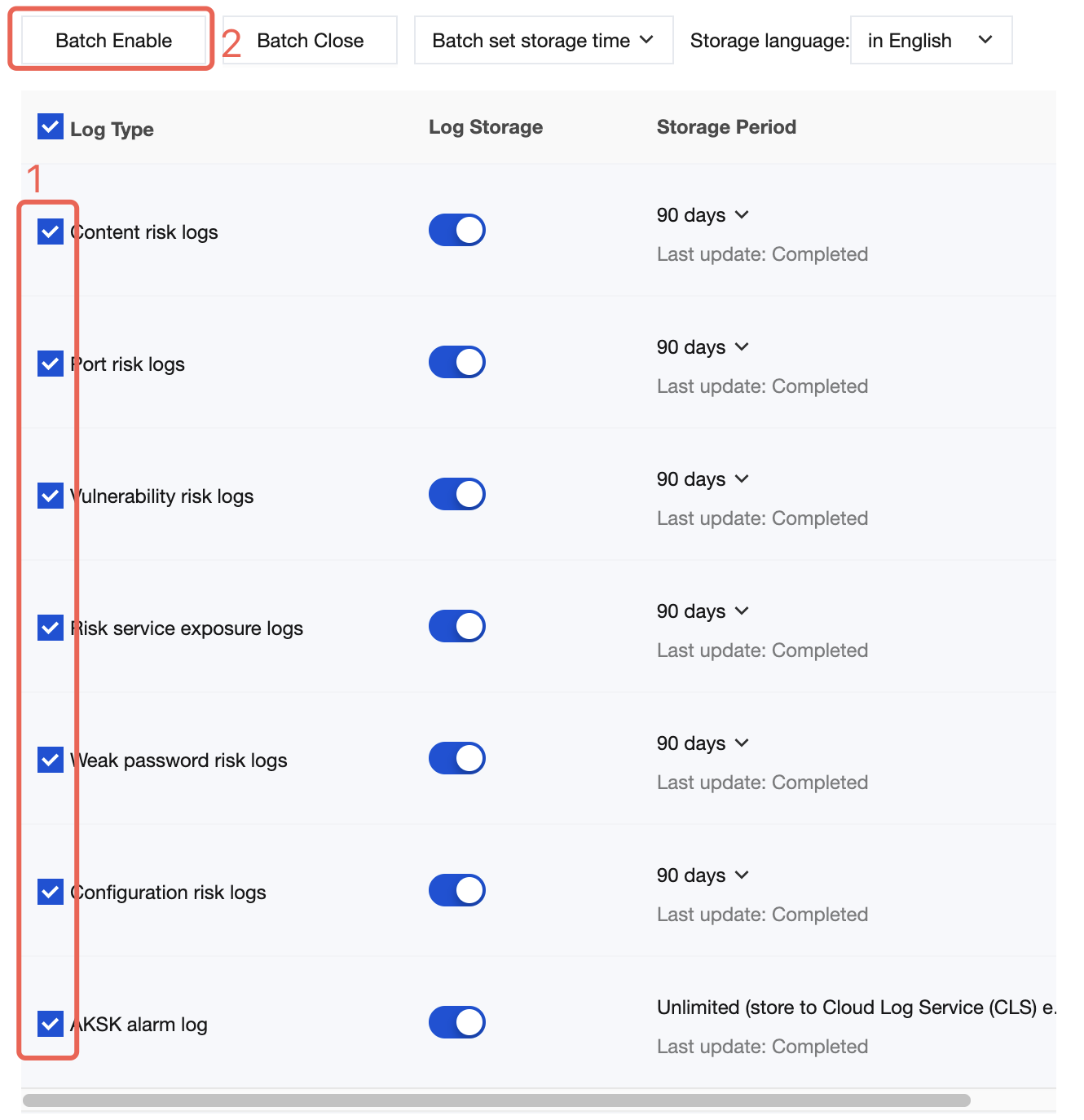
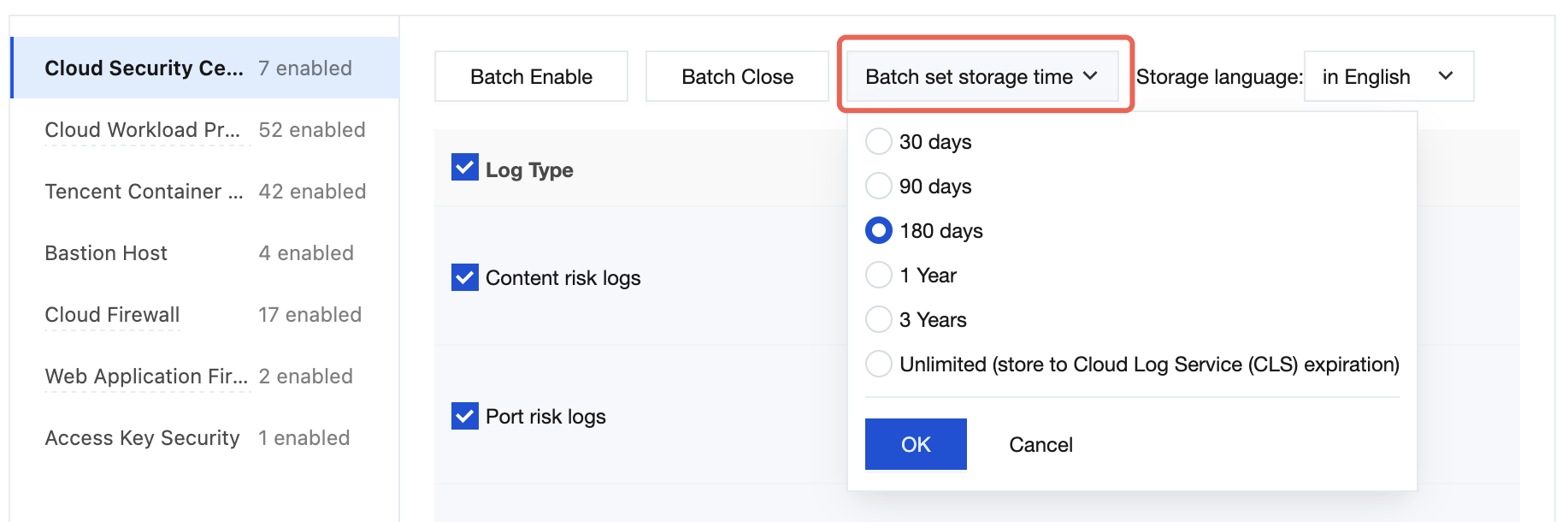
3. In the log list, quick operations such as batch enabling, batch disabling, and batch configuration of storage duration are supported.
To enable in batches: Select the log types you want to operate on, click Batch Enable, and then confirm the action twice to complete the operation .
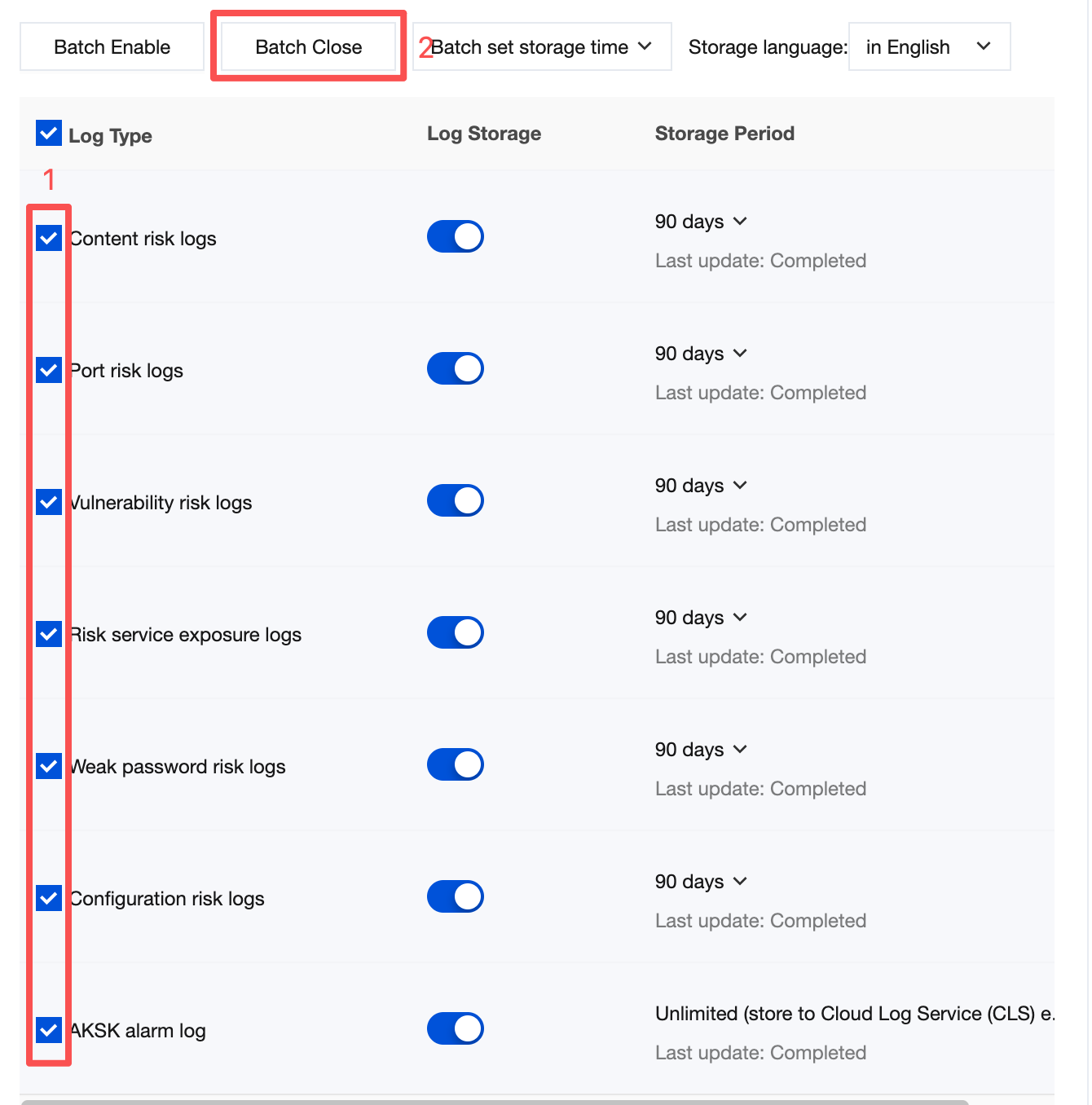
To disable in batches: Select the log types you want to operate on, click Batch Close, and then confirm the action twice to complete the operation.
To configure storage duration in batches: Select the log types you want to operate on, click Batch set storage time, choose the time you want to adjust, and then click OK to save.
Configuration Instructions for Multi-Account Scenarios
In a multi-account scenario, if you are logged in with an administrator account or a delegated administrator account, you can monitor the storage usage of the member accounts under your management in the Log Configuration module, and configure storage policies for each member account.
1. Log in to the CSC console. In the left-side navigation pane, click Log analysis.
2. On the Log Analysis page, click Log Configuration in the upper-right corner.
3. In Log Configuration - Monitoring Overview, you can view usage monitoring for each account. In the upper section, you can see the storage usage of each member account.
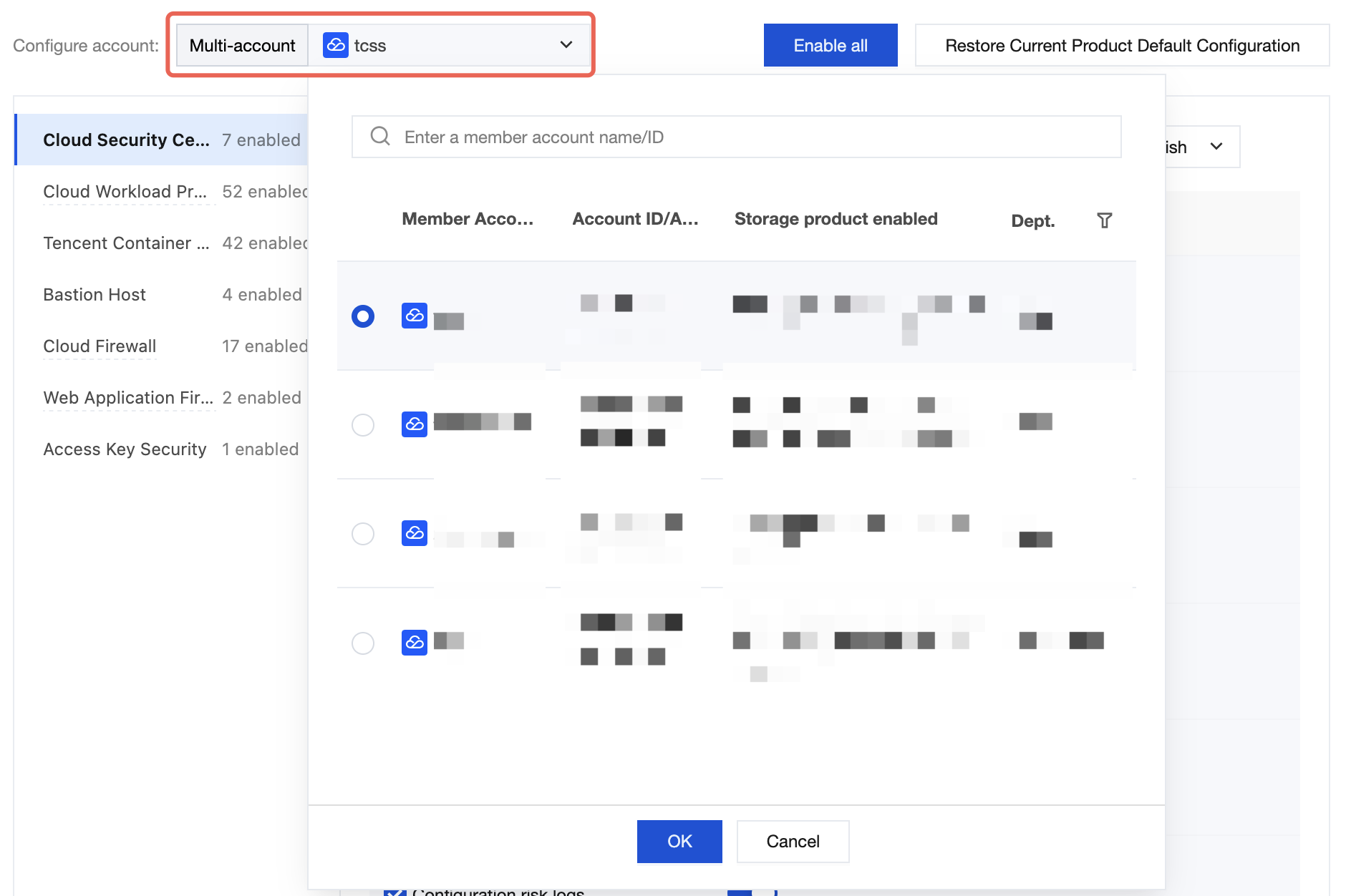
4. In Log Configuration - Storage Settings, click Multi-account, select the target account, and configure the log storage policy for the selected member account.
Note:
Help and Support
Was this page helpful?
You can also Contact sales or Submit a Ticket for help.
Help us improve! Rate your documentation experience in 5 mins.
Feedback