Delivering to Kafka
Download
Focus Mode
Font Size
This document describes how to deliver security product logs from the log analysis module to Kafka in real time, covering the complete configuration steps for both single-account and multi-account scenarios.
Feature Overview
The log delivery feature supports real-time delivery of security product logs to Kafka, meeting users' data flow requirements in scenarios such as log archiving, cross-platform collaborative analysis, and building a self-managed security operations system. It also supports configuration synchronization in multi-account scenarios, allowing administrators to synchronize delivery configurations to other member accounts with one click.
Prerequisites
1. An account that has purchased the Log Analysis Service.
2. The current logged-in account is an account that has been granted storage capacity.
Operation Steps
1. Log in to the CSC console. In the left-side navigation pane, click Log analysis.
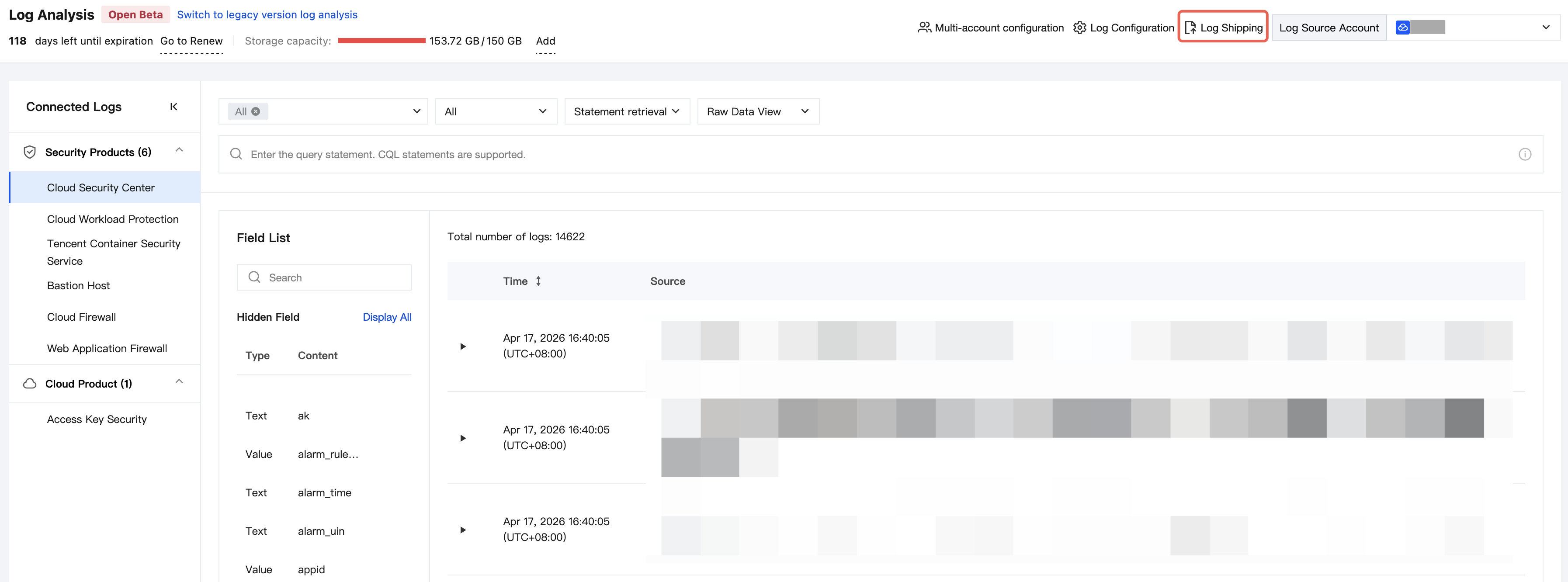
2. On the Log Analysis page, click Log Shipping > Ship to Kafka in the upper-right corner.
3. The upper section displays the message queue details of the delivery destination, and the lower section displays the delivery policy configuration for each product.
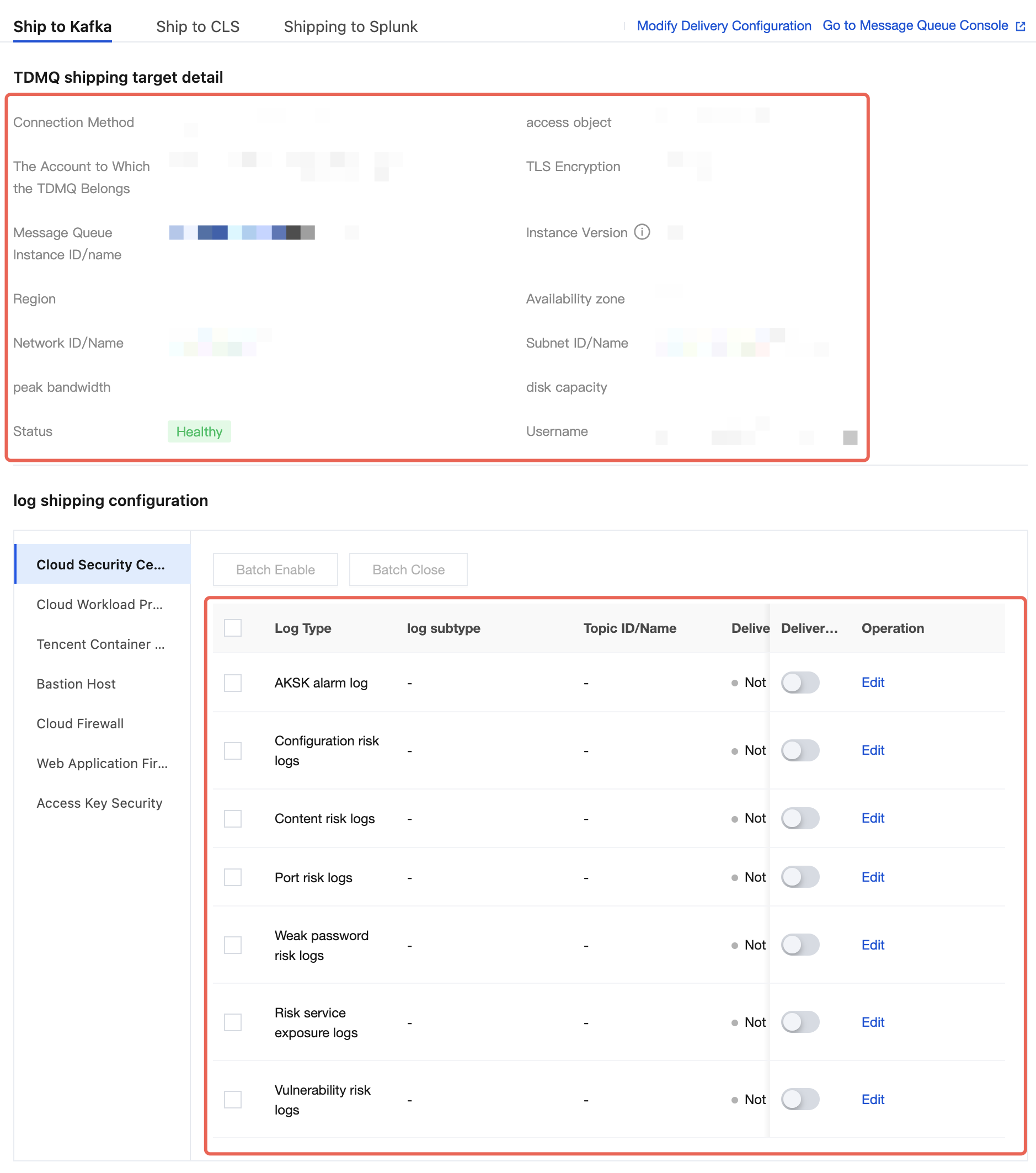
4. On the Deliver to kafka page, click Modify Delivery Configuration in the upper-right corner.
5. The delivery configuration policy consists of two configurations: ① the delivery destination configuration for the message queue, and ② the log delivery configuration (including the log types to be delivered and their corresponding kafka topics).
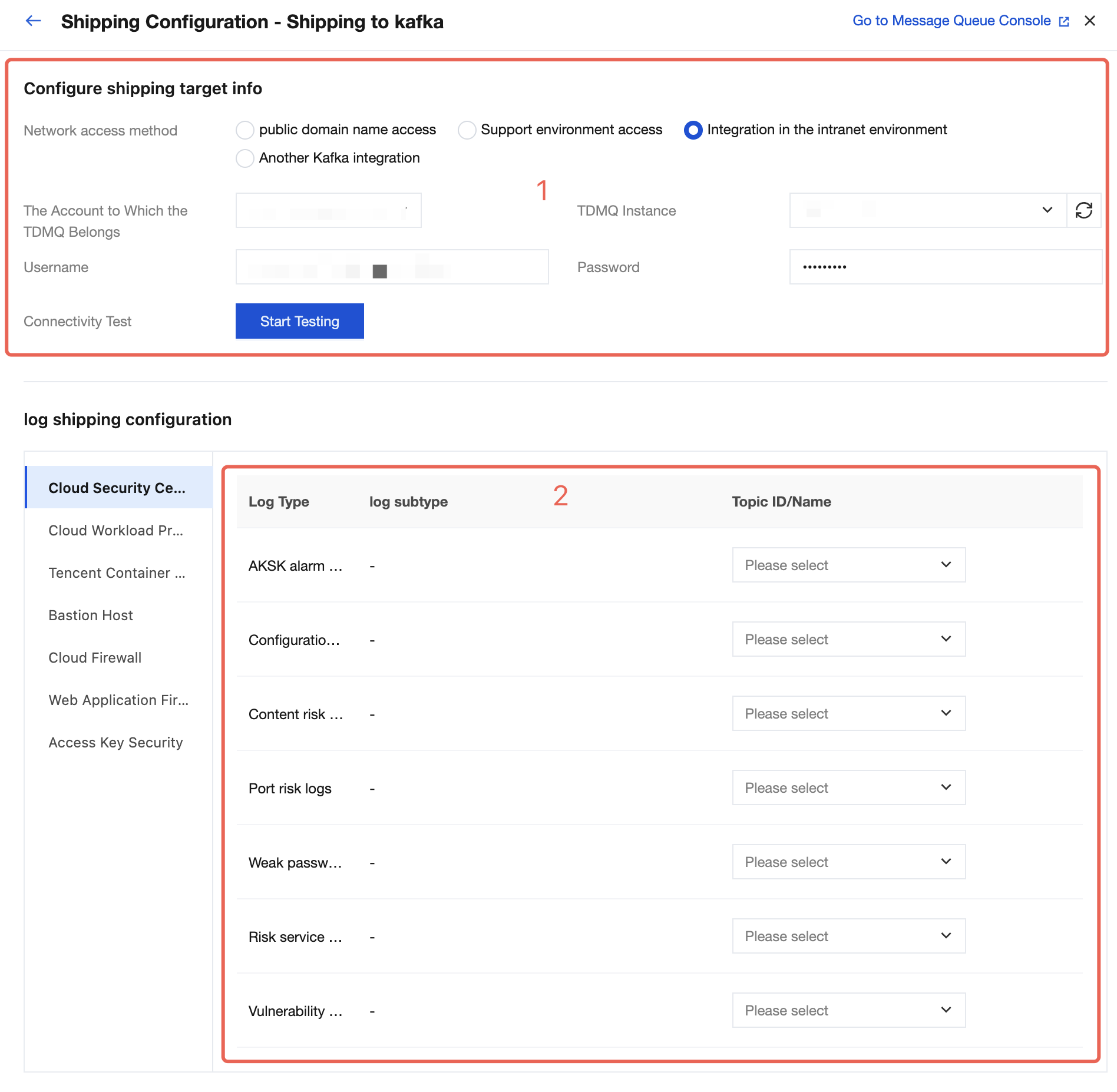
6. Configure the message queue. Currently, four network access methods are supported: public network domain name access, support environment access, private network environment access, and other kafka access.
Access Mode | Description | Remarks |
Public Domain Name Access | Log delivery over a public network | The default access method for message queue instances |
Supporting Environment Access | Delivers logs over the Tencent Cloud private network, offering stable performance and higher efficiency. | It is the default access method for message queue instances and only supports the SASL_PLAINTEXT access method. |
Private Network Environment Access | Delivers logs over the Tencent Cloud private network. The route does not require manual configuration in Ckafka, and an invisible internal route is automatically created to support access. | - |
Other kafka Access | Delivers logs via other kafka. | - |
Note:
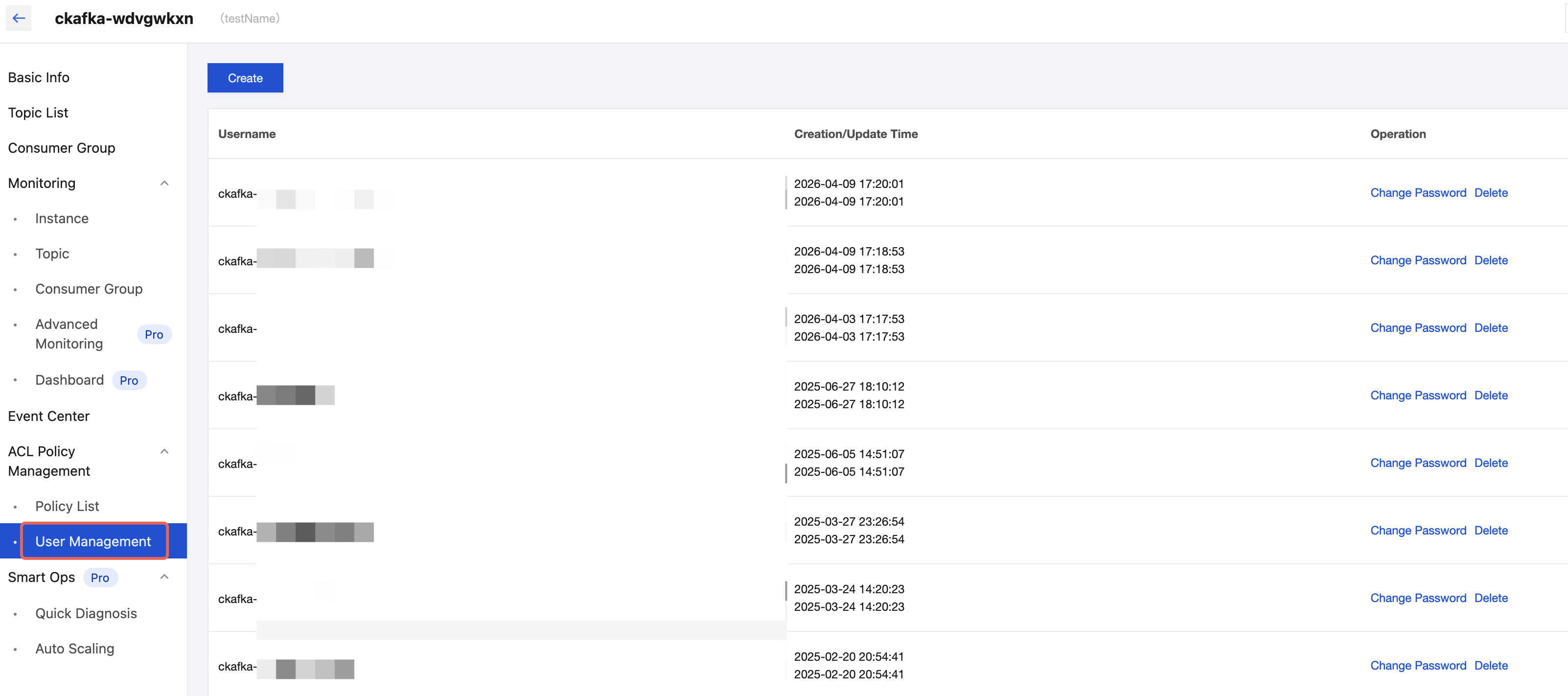
If you select "Public Network Domain Name Access" or "Support Environment Access" as the network access method, you also need to select an access route. The routing policy corresponds to the access method in the details of the Ckafka Instance List.
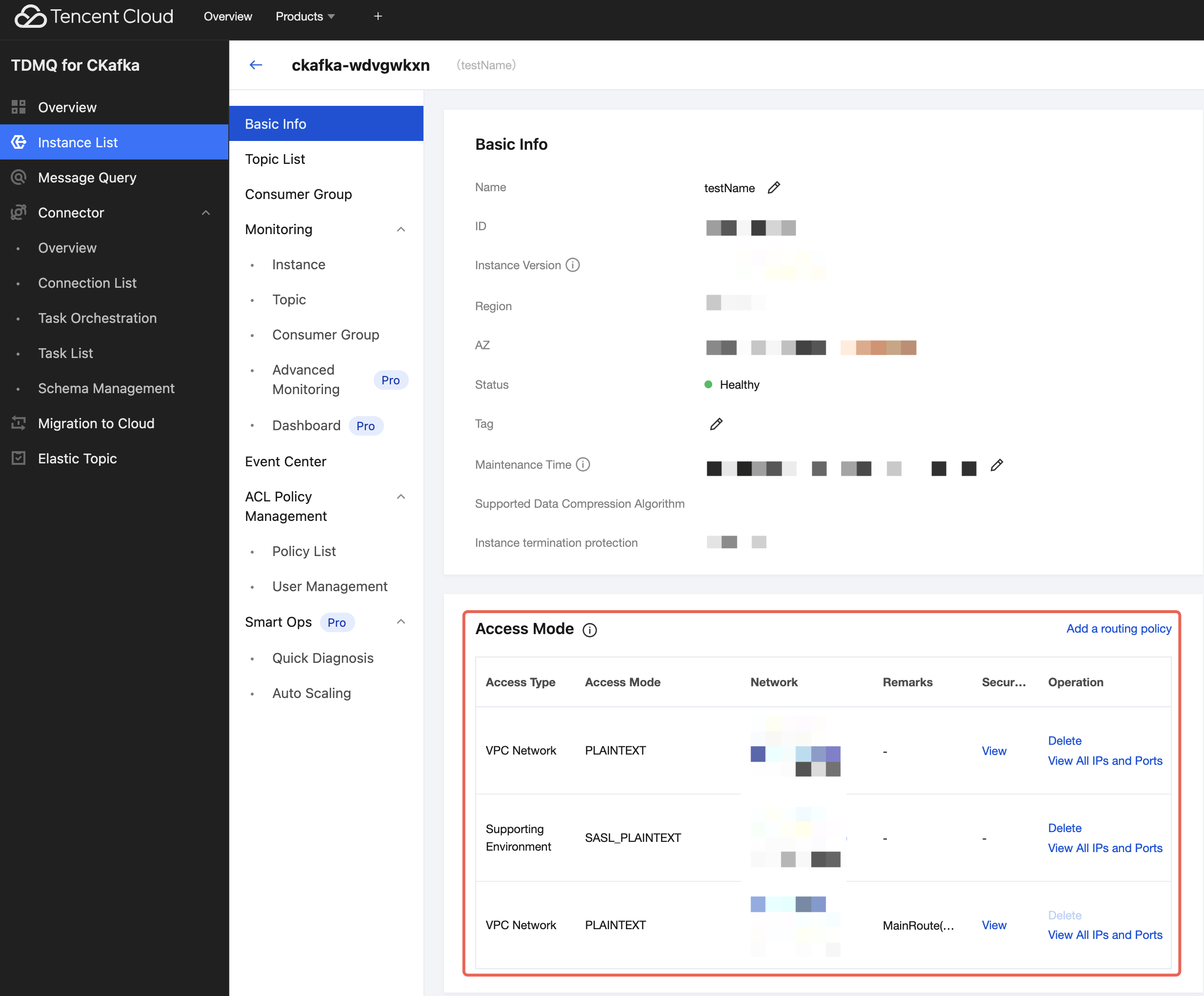
If you select "Public Network Domain Name Access" or "Support Environment Access" as the network access method, you also need to enter the username and password for the Ckafka instance. The username and password are added in ACL Policy Management > User Management within the details of the Ckafka Instance List. (When configuring log delivery, only enter the username after the # symbol. You do not need to enter the Ckafka instance ID before the # symbol.)
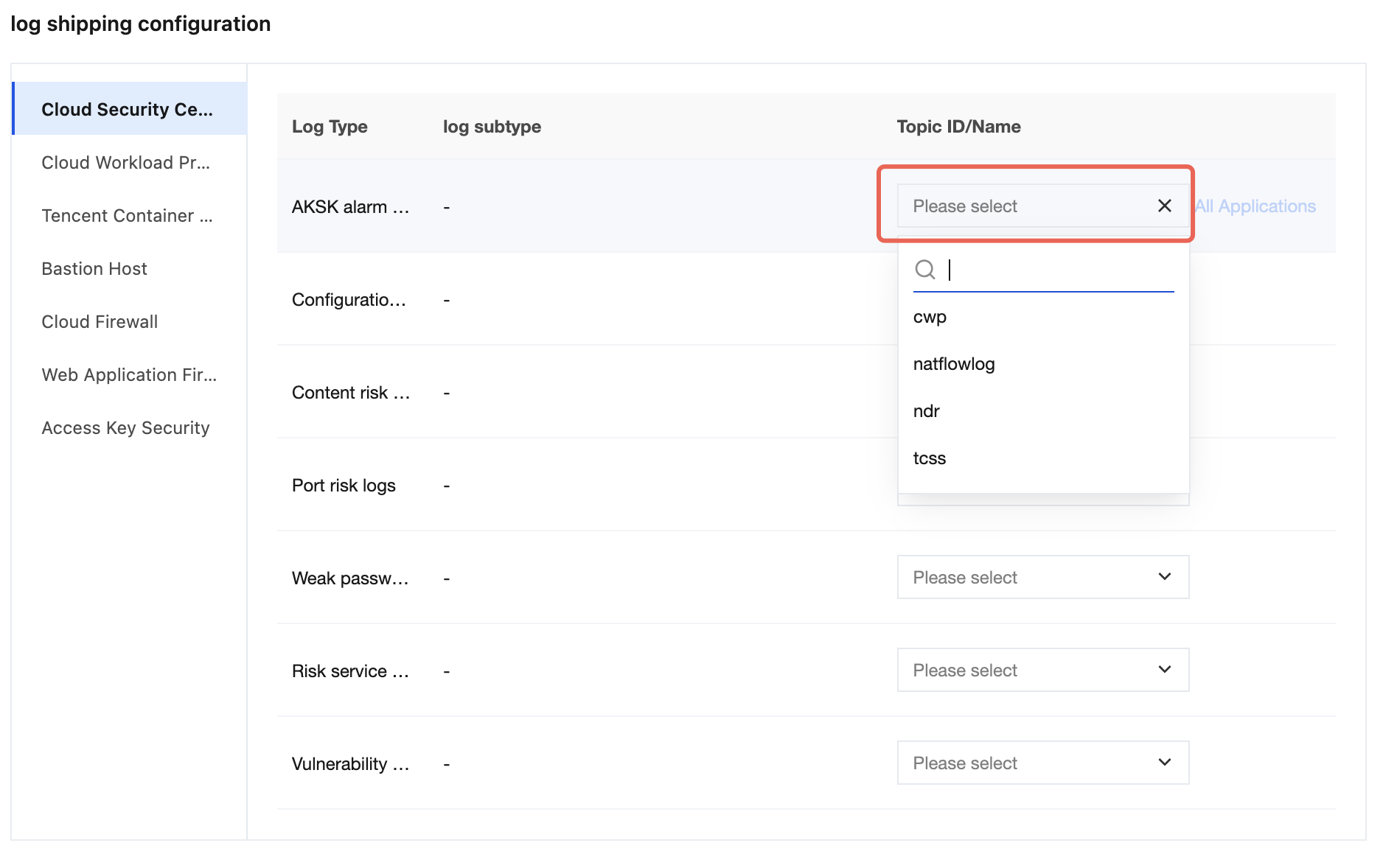
7. After completing the above kafka configuration, you must perform a Start Testing. After the test passes, you can configure different delivery targets (select target Topics) for the logs to be delivered.
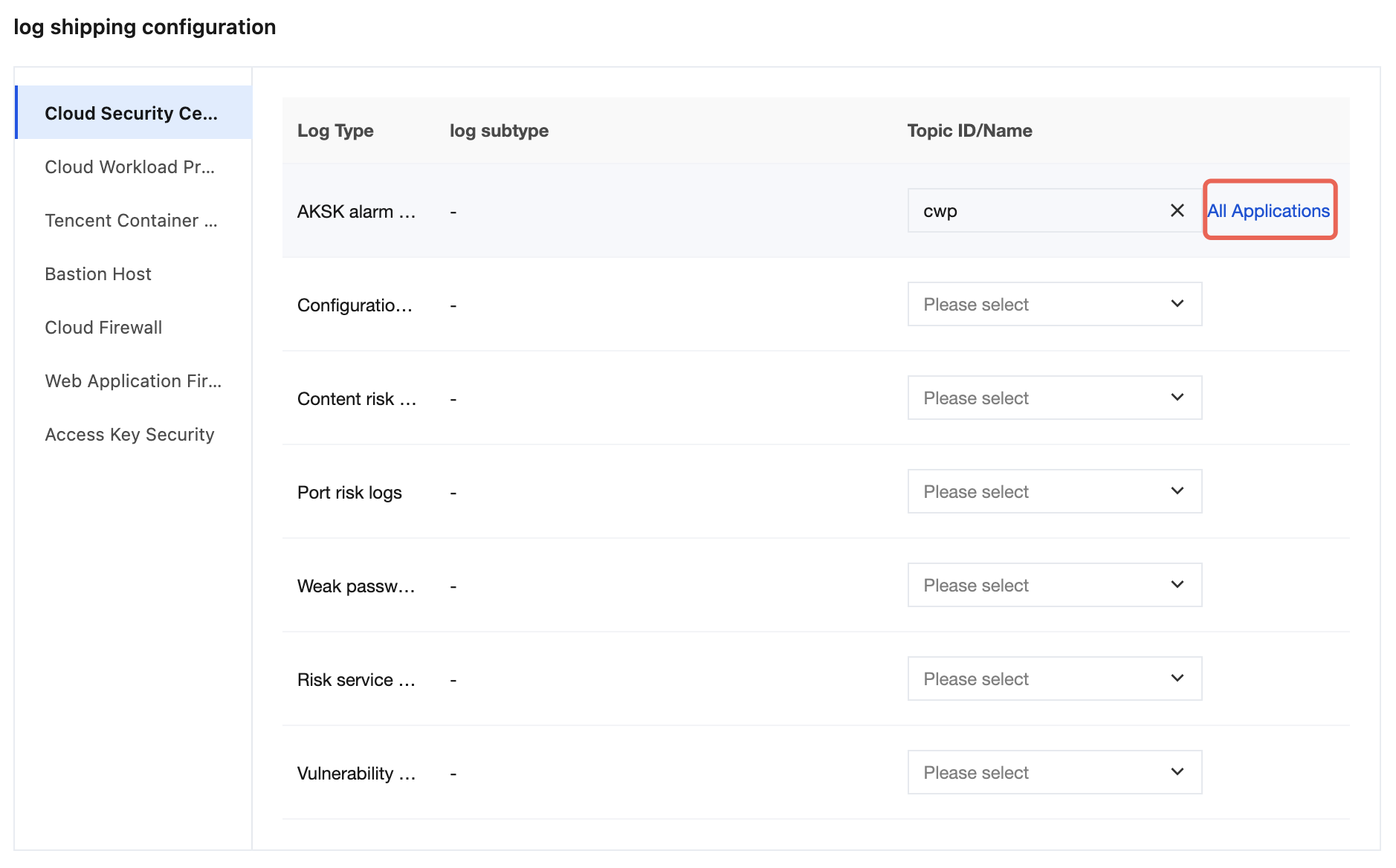
8. If all logs need to be delivered to the same Topic, you can click the configured item and then click All Applications on the right to complete the One-Click Apply All operation.
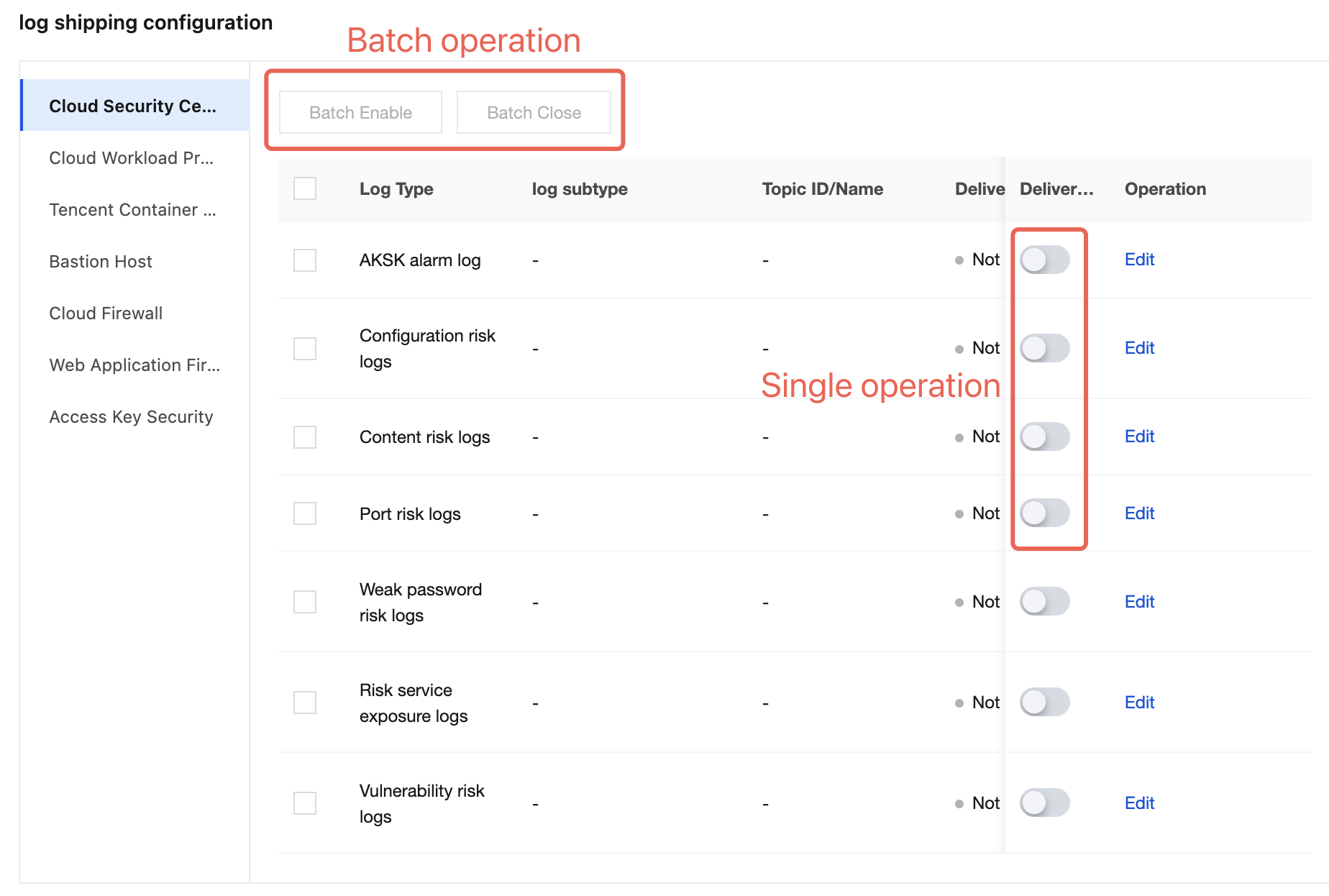
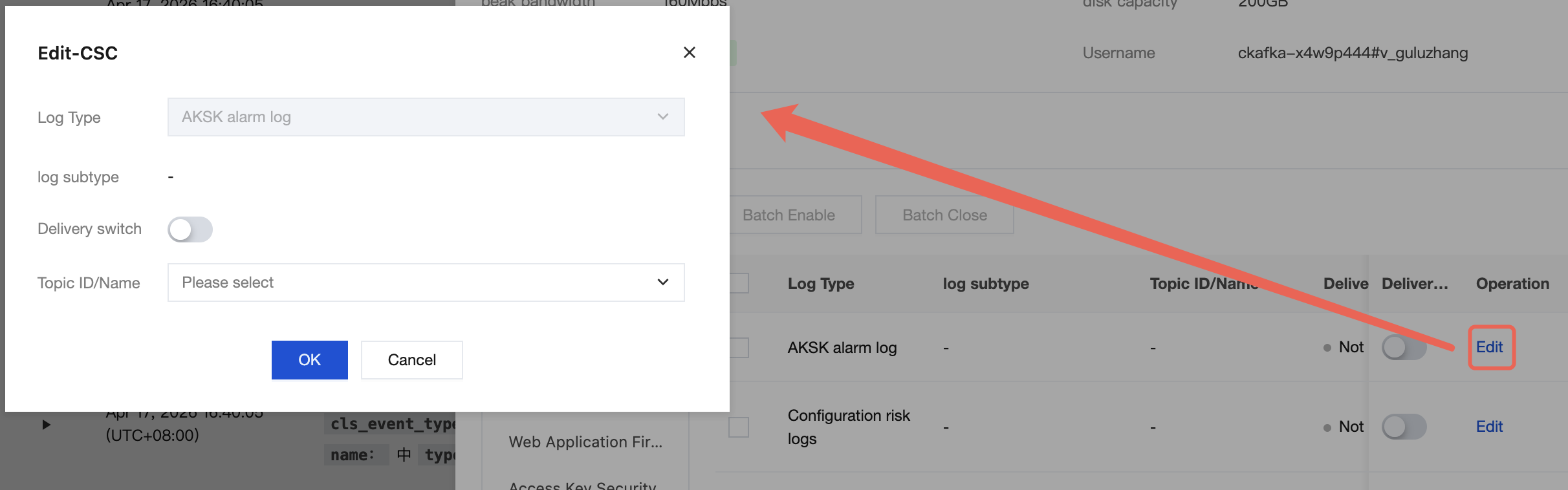
9. After completing the configuration, click Confirm. Go to the details page again. Here, you can choose to enable or disable the delivery switch for the corresponding logs. Both single and batch operations are supported.
10. After clicking Edit, you can modify the target Topic for delivery.
Multi-Account Scenarios
In a multi-account scenario, if you log in using an administrator account or a delegated administrator account, you can configure delivery policies for member accounts in the log delivery module. Unlike in a regular usage scenario, you need to pay special attention to the following configuration items:
Log Source Account (specifies the account to which the logs to be delivered belong)
Log Delivery Destination (specifies the kafka of the target account that receives the logs)
Note:
The target account must have the kafka service activated to use this feature.
1. Log in to the CSC console. In the left-side navigation pane, click Log analysis.
2. On the Log Analysis page, click Log Shipping > Ship to Kafka in the upper-right corner.
3. On the Log Delivery page, configure the log source account and the log delivery destination.
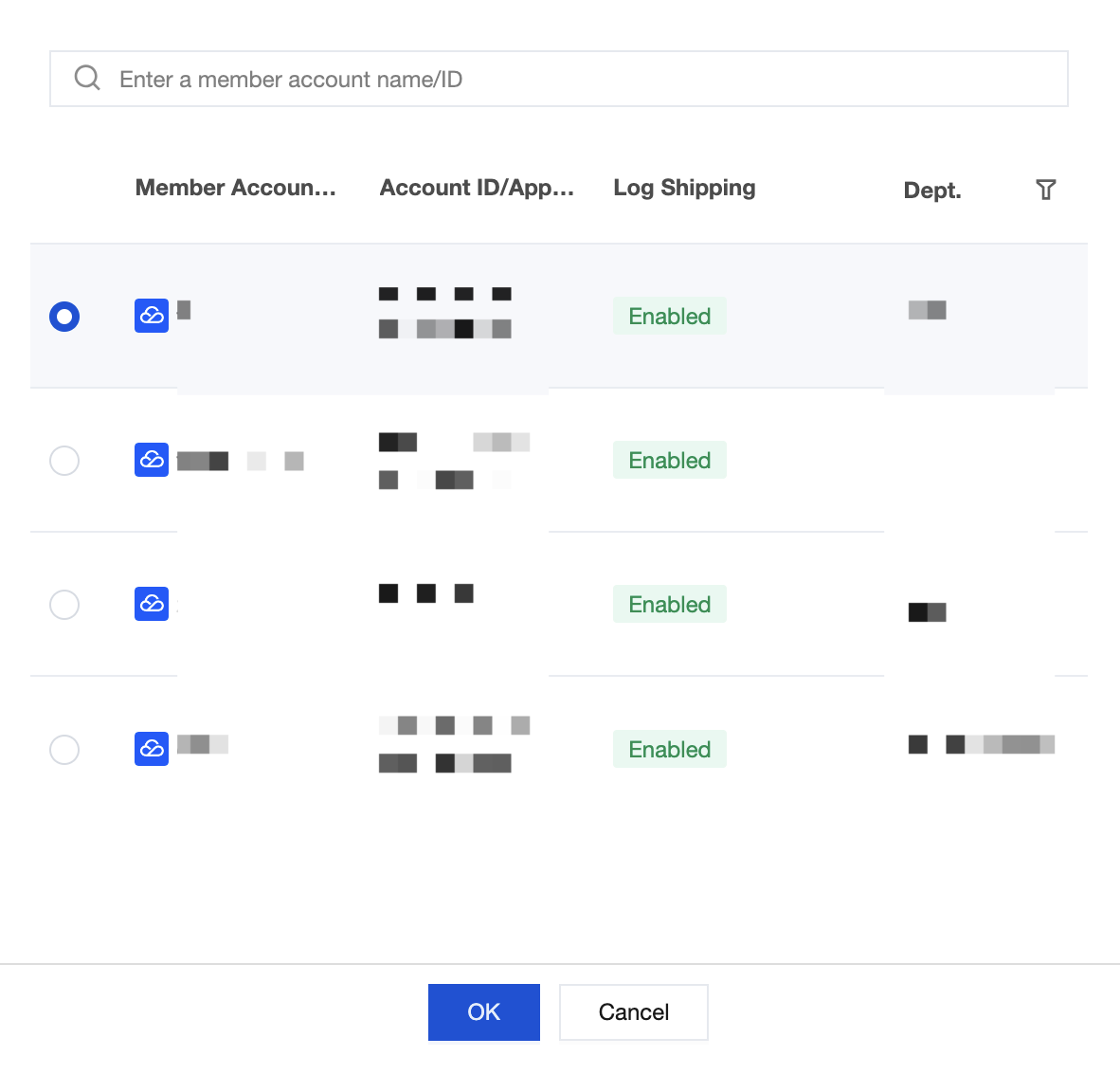
For the log source account, click Log Source Account in the upper-left corner, select the desired member, and then click OK to configure the delivery policy for the logs of the current member account.
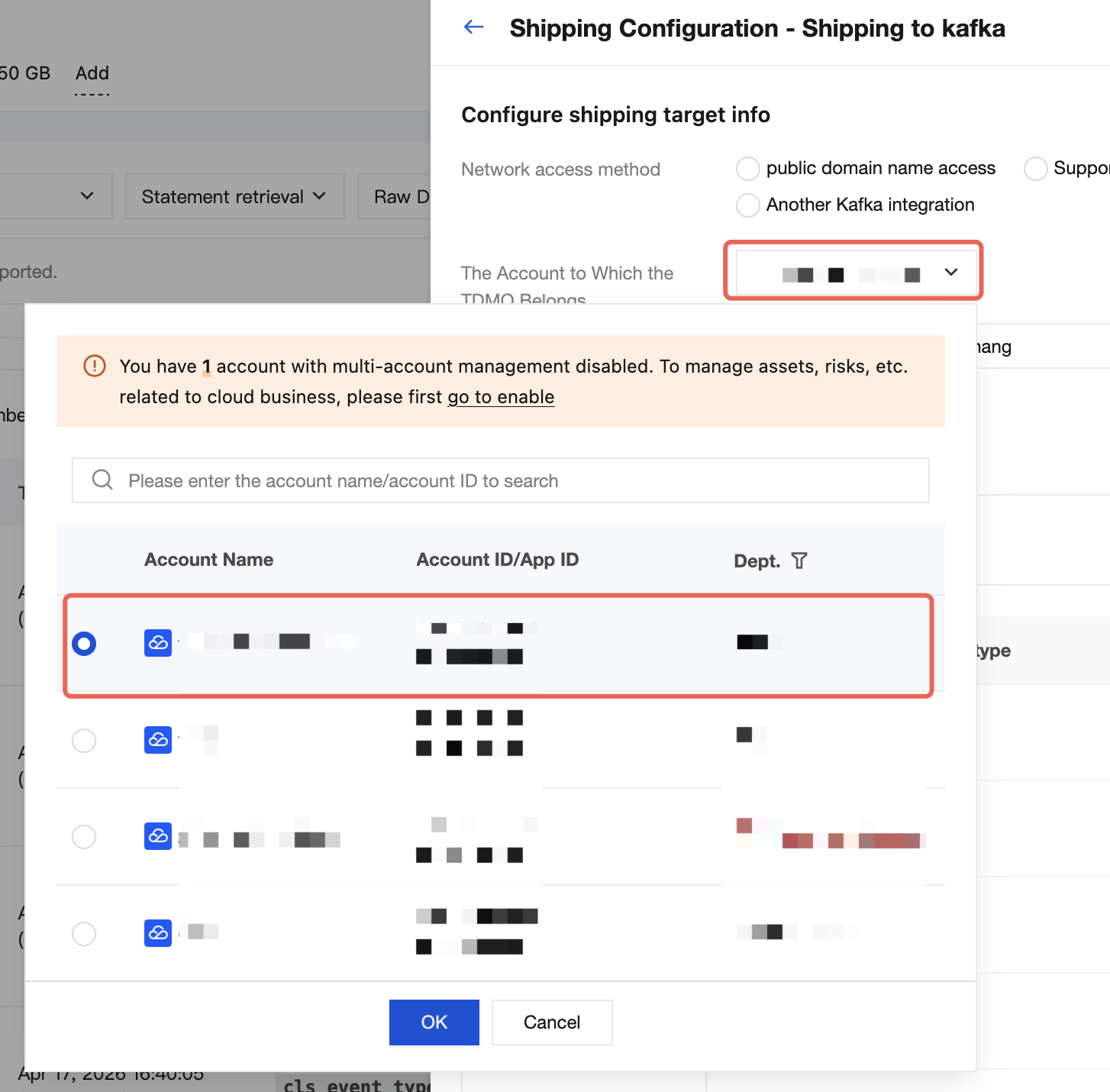
Log Delivery Destination: Click Modify Delivery Configuration and select the Account to Which the TDMQ Belongs. Click to switch to the corresponding account. The selected account must have the kafka service activated.
4. The procedure for configuring other log delivery settings is the same as in a regular operation scenario.
Help and Support
Was this page helpful?
You can also Contact sales or Submit a Ticket for help.
Help us improve! Rate your documentation experience in 5 mins.
Feedback