CVD Instance Snapshots
Download
Focus Mode
Font Size
Scenarios
A snapshot is a data status file of a specific Cloud Virtual Desktop (CVD) instance at a specific point in time. It can be used for data backup and recovery. To mitigate data loss in CVD instances caused by end user operational errors, CVD provides the snapshot feature for system disks and data disks.
In the current version, snapshots are created by using the automatic snapshot feature. Specifically, between 2:00 AM and 4:00 AM daily, a snapshot is created for the system disk and data disk of each CVD instance. These snapshots are displayed in the snapshot list. The creation process does not affect the normal use of the CVD instance by customers.
Rolling Back a Snapshot
When your CVD instance encounters data errors or data loss, you can roll back the snapshot data to recover the instance's data to the status it was in when the snapshot was created.
Must-Knows
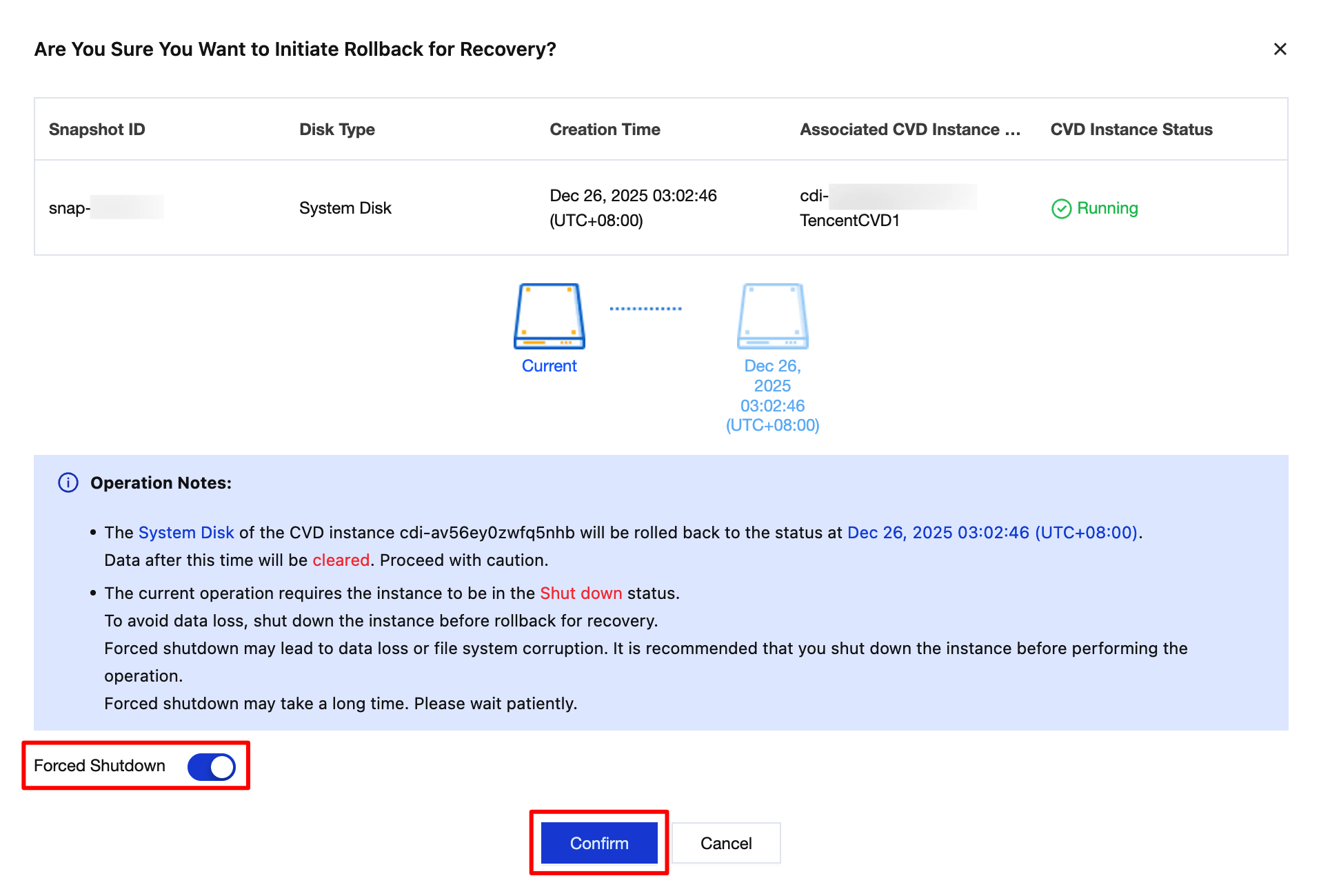
After a snapshot is rolled back, the data on the system disk of the CVD instance generated after the time of snapshot creation will be cleared. Proceed with caution.
The rollback operation requires the instance to be in the Shut Down status. Forcing a shutdown may cause data loss or file system corruption. To avoid data loss, it is recommended that you actively shut down the instance before performing the rollback.
Operation Steps
1. Log in to the CVD console.
2. On the CVD Instance List page, select the CVD instance for which you need to roll back a snapshot, and click the CVD instance ID on the left to go to the CVD instance details page.

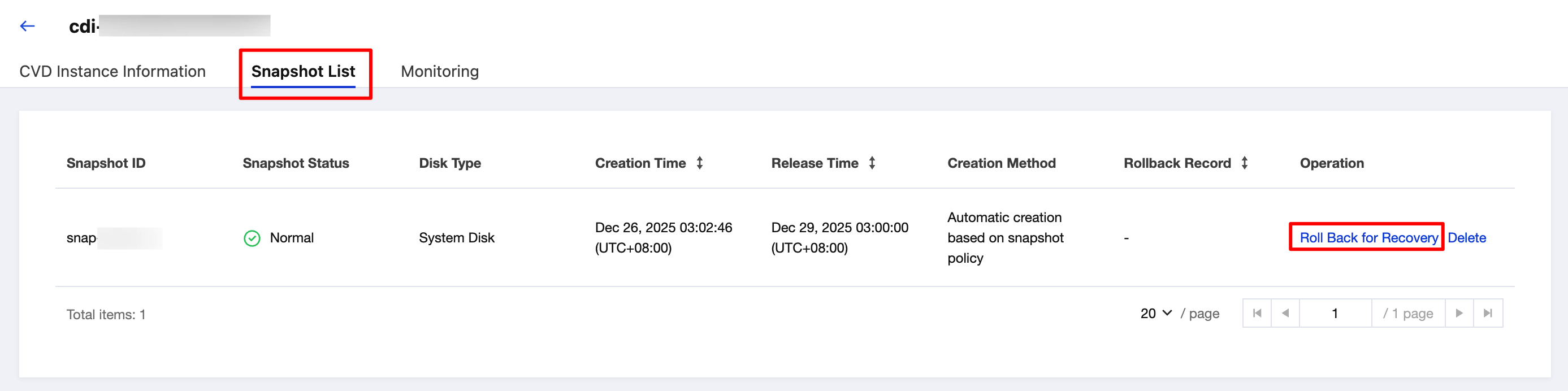
3. On the CVD instance details page, click the Snapshot List tab. Select the snapshot you want to roll back to and click Roll Back Recovery in the operation column on the right.
4. Confirm the rollback operation. The rollback operation will clear the current data on the CVD instance. Read the prompt for risk warning, enable the Forced Shutdown switch, and click Confirm in the lower part.
Deleting a Snapshot
Each snapshot is automatically deleted after 3 days. You can manually delete snapshots you no longer need to release virtual resources.
1. Log in to the CVD console.
2. On the CVD Instance List page, select the CVD instance for which you need to delete a snapshot, and click the CVD instance ID on the left to go to the CVD instance details page.

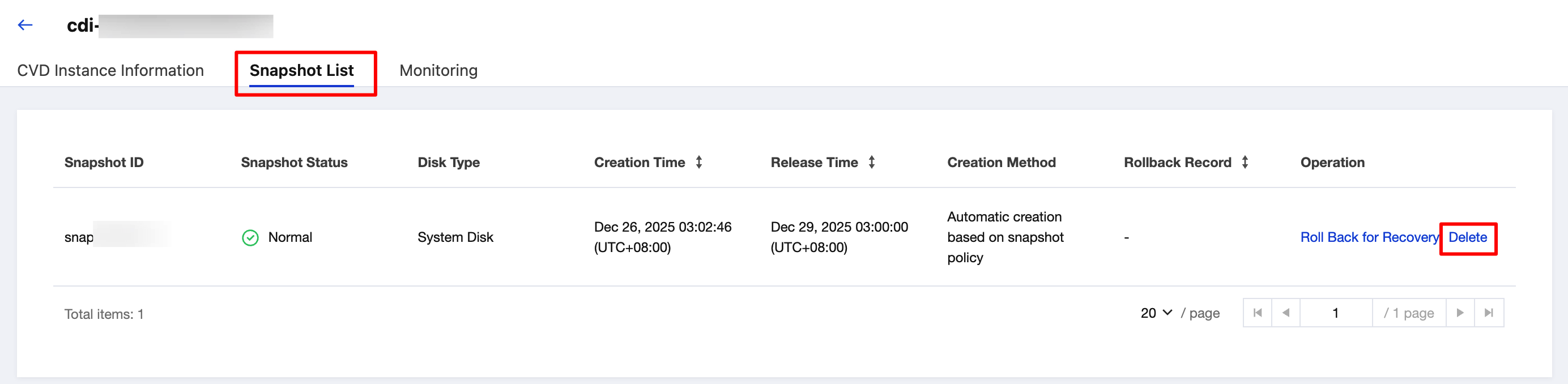
3. On the CVD instance details page, click the Snapshot List tab. Select the snapshot you want to delete and click Delete in the operation column on the right.
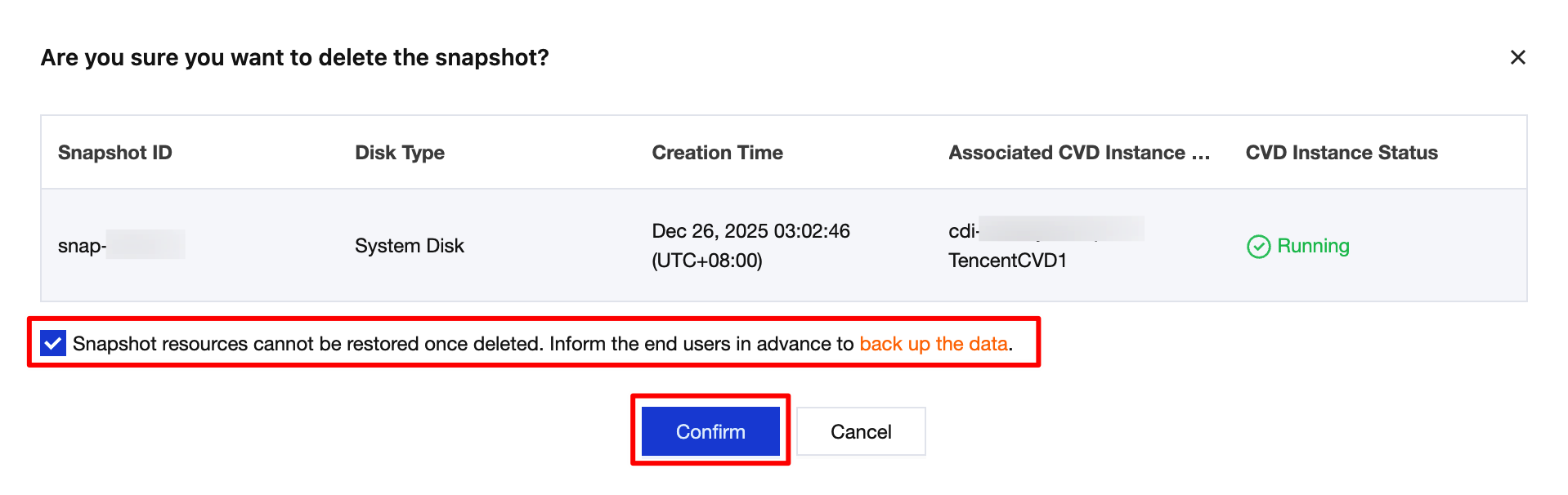
4. Deleted snapshots cannot be recovered. If you confirm the deletion, select the checkbox next to the warning "Snapshot resources cannot be restored once deleted. Inform the end user in advance to back up the data." and then click Confirm in the lower part.
Help and Support
Was this page helpful?
You can also Contact sales or Submit a Ticket for help.
Help us improve! Rate your documentation experience in 5 mins.
Feedback