Password Policy and End User Session Management
Download
Focus Mode
Font Size
Configuring End User Password Policies
Adding an End User Password Policy
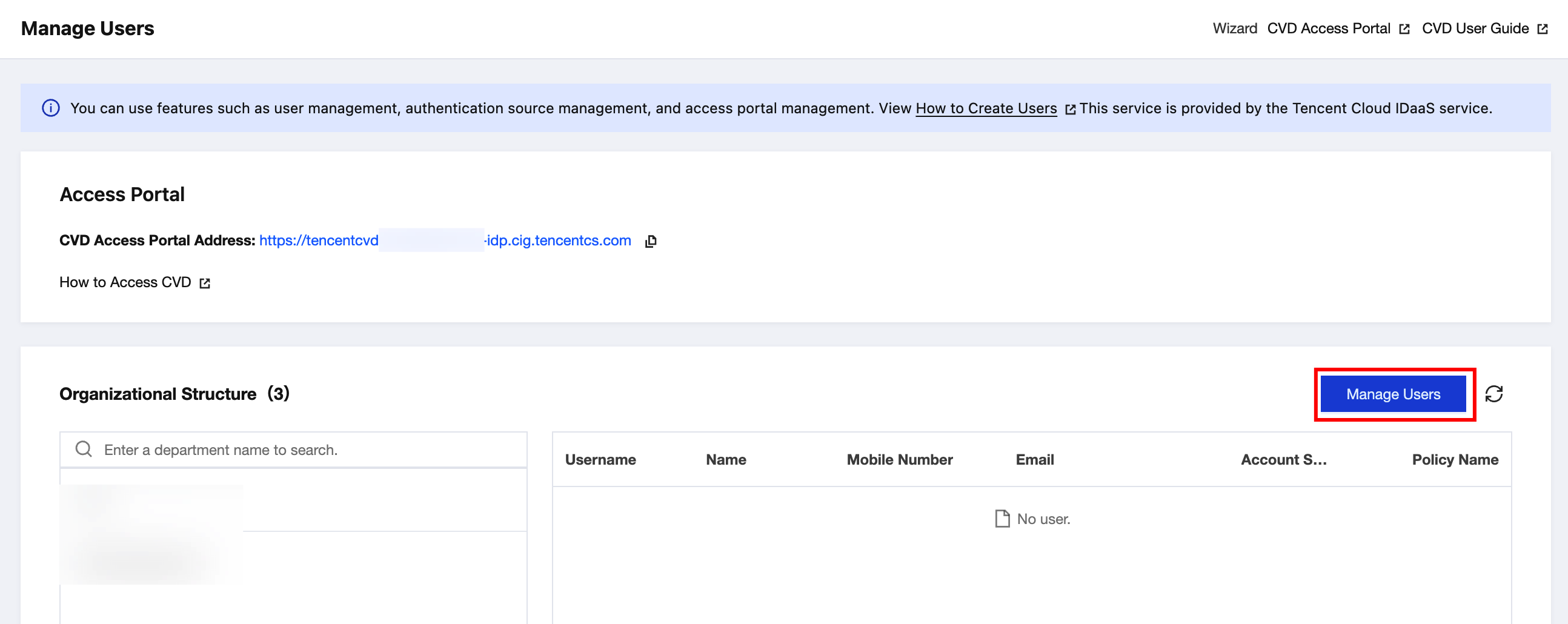
1. Log in to the Cloud Virtual Desktop (CVD) console and go to the Manage Users page. Click Manage users in the upper-right corner of the list. You are redirected to the Tencent Cloud IDaaS console. The settings of end user password policy are provided by Tencent Cloud IDaaS.
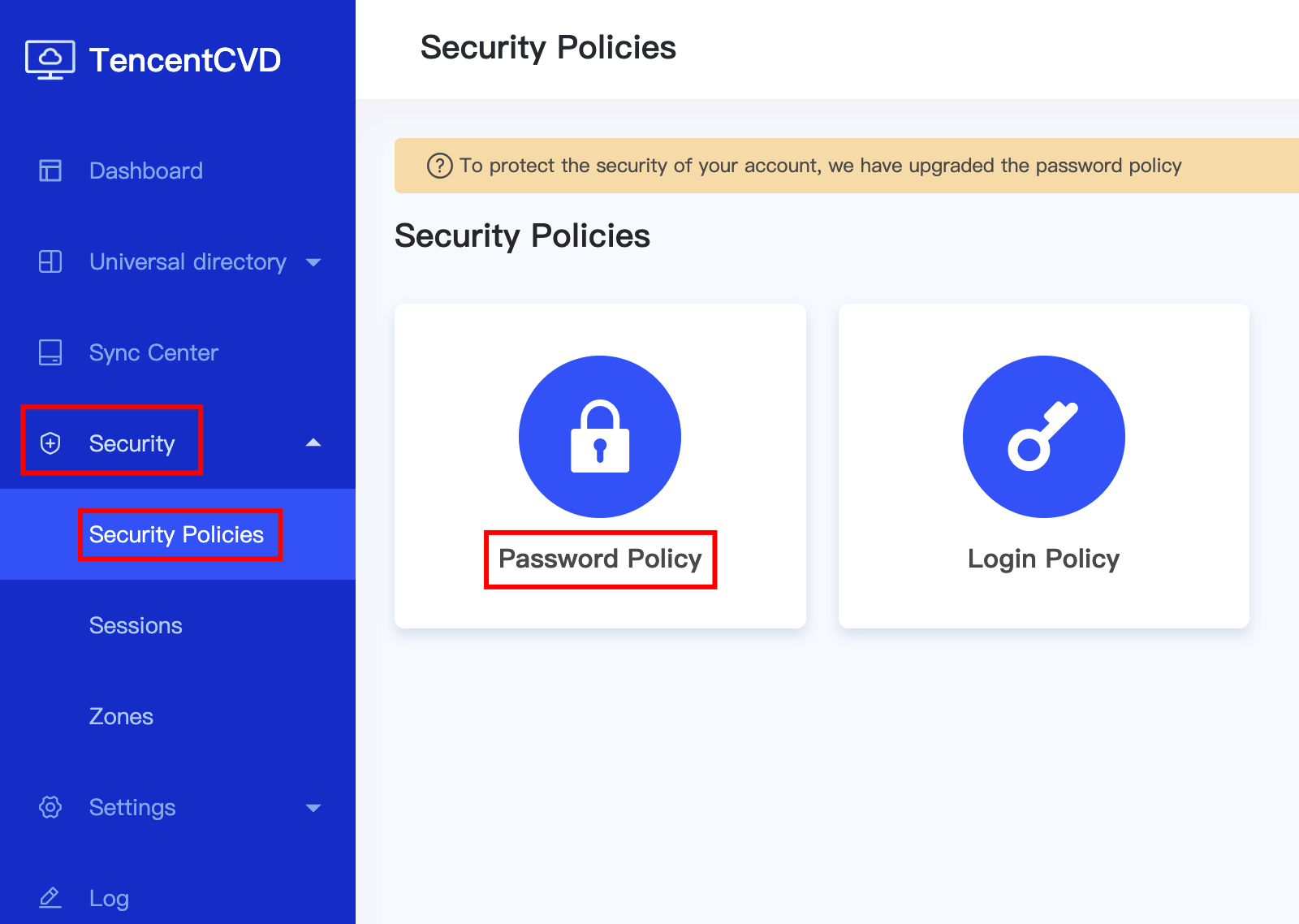
2. Choose Security > Security Policies > Password Policy to go to the password policy management page.
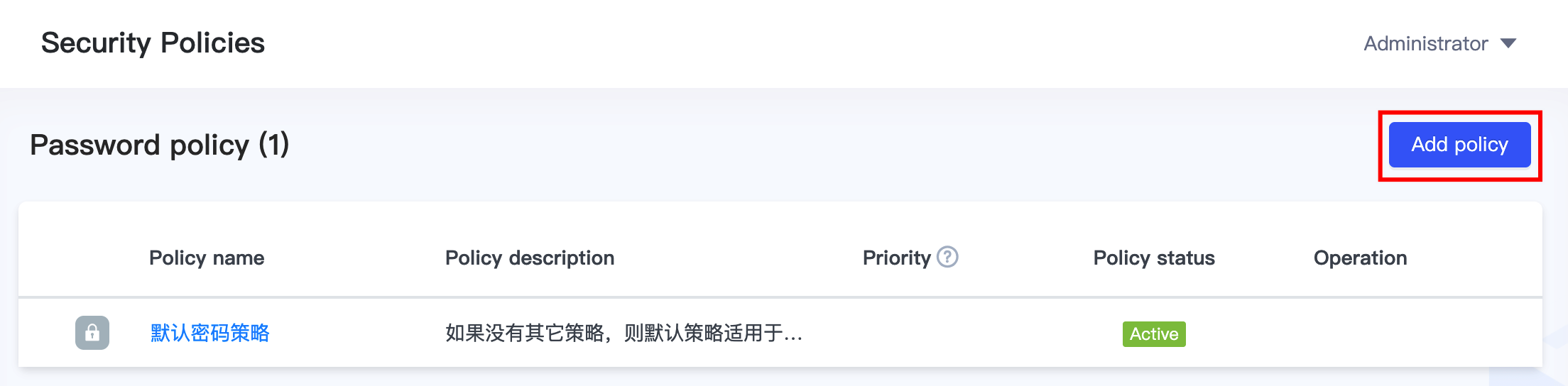
3. Click Add Policy.
4. Specify the policy name and description, and then click Next.
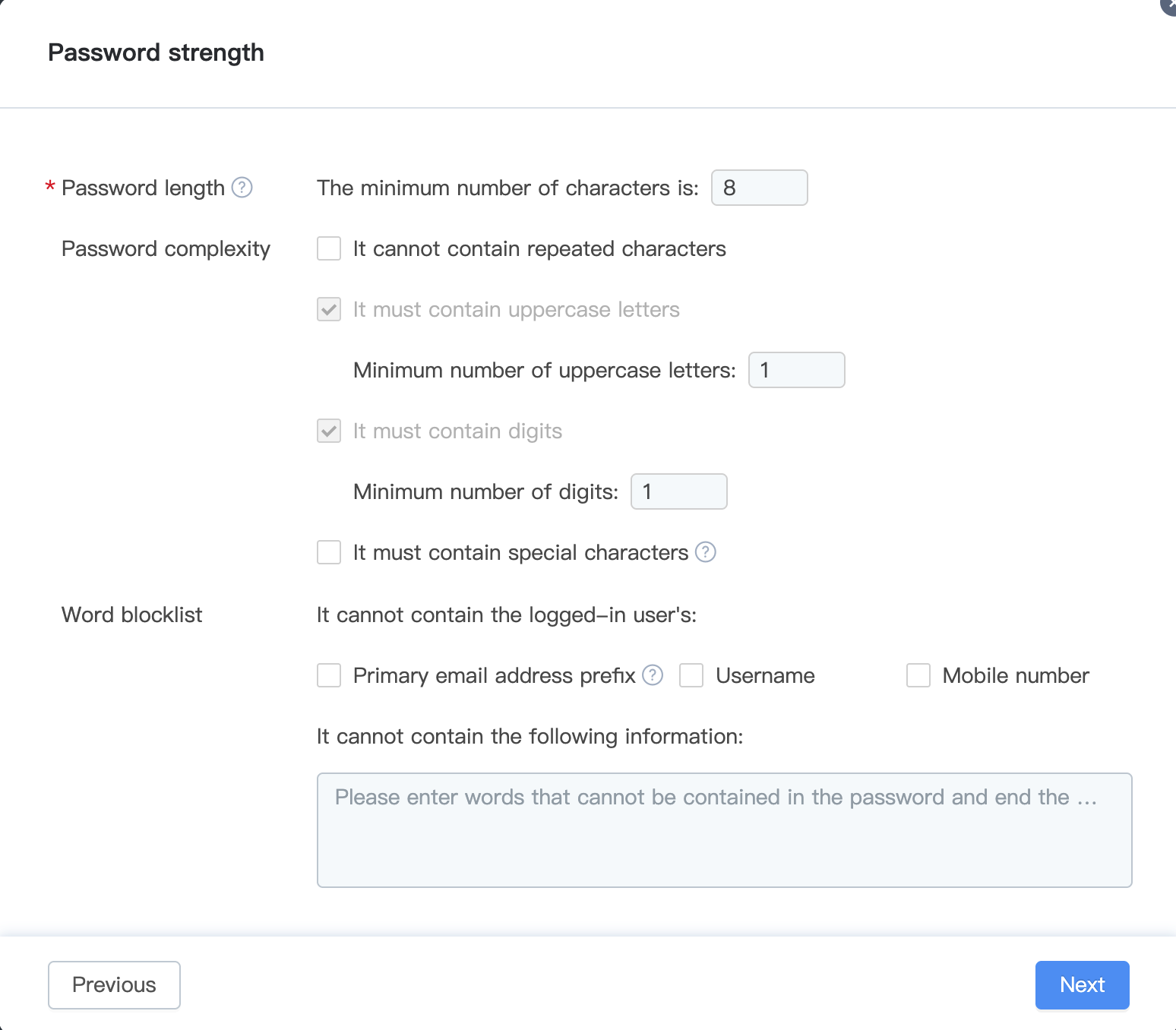
5. Configure the content of the password policy. Password length is required, while other settings are optional. The more complex the password requirements you set, the higher the security level.
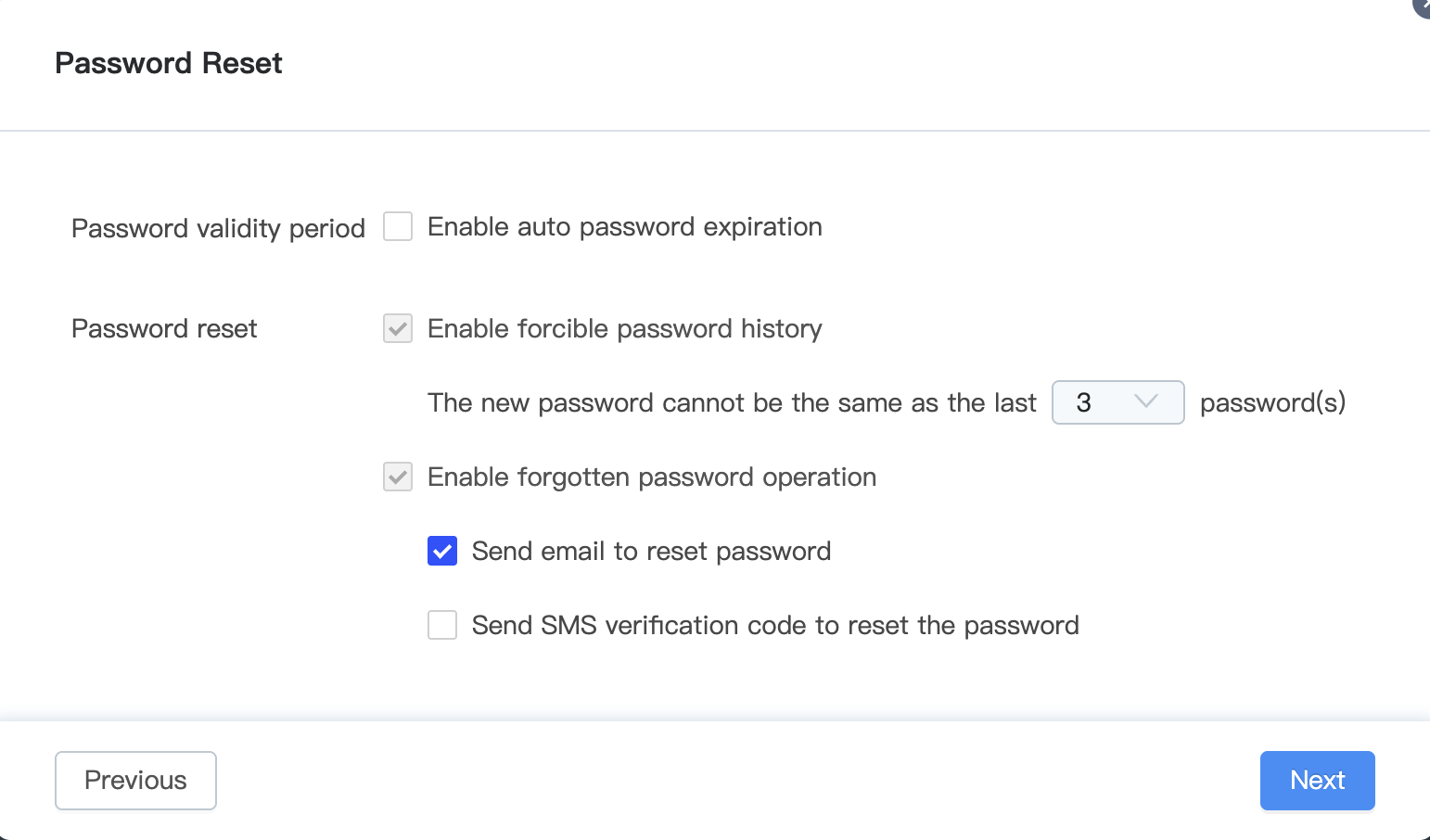
6. Set the validity period of the user password and requirements for password reset.
7. Configure login security settings. You can configure login verification, account lockout, and unlock settings as needed. If self-service unlock is enabled, end users can unlock their accounts via email or security questions. If self-service unlock is disabled, they must contact an administrator for unlock.
8. Set the effective scope of the password policy:
Select All Users or Custom. For a custom scope, specify users by dimensions such as individual, user attributes, user department, or department. Enter the names of users to be excluded in the Exclude the Following Users input box, with a maximum of 20 entries allowed.
9. After you complete the preceding settings, click Confirm to complete the configuration of the current password policy.
Setting Password Policy Priority
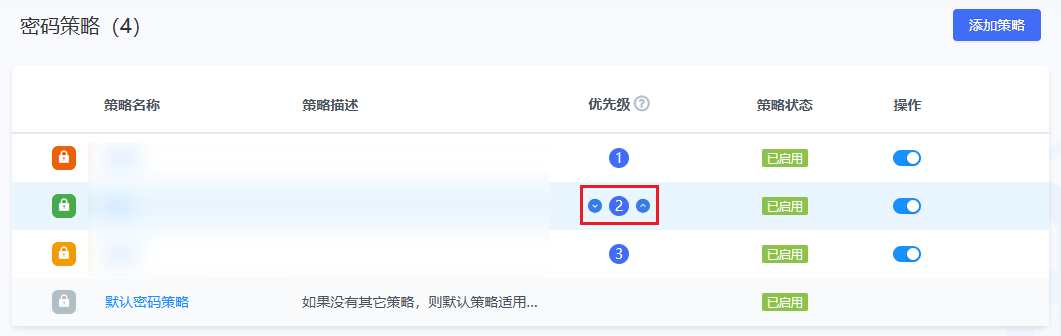
In the password policy list:
Click the up button to increase the priority.
Click the down button to decrease the priority.
Managing End User Sessions
1. Log in to the CVD console and go to the Manage Users page.
2. Click Manage Users in the upper-right corner of the list. You are redirected to the Tencent Cloud IDaaS console.
Note:
The settings of session expiration are provided by Tencent Cloud IDaaS.
3. Choose Security > Sessions to go to the Session Management page. On the Session Management page, you can configure the relevant settings:
Settings for session expiration time: In Session Expiration Time Settings, set the expiration time for access authentication token and access refresh token respectively.
Settings for session termination behavior: In Session Termination Behavior Settings, set the associated behaviors for closing the browser and long-term system inactivity respectively.
Note:
The time range for long-term system inactivity can be set to a minimum of 10 minutes and cannot exceed the expiration time of the access refresh token. The default value is 30 minutes.
Customizing Access Portal Settings
1. Log in to the CVD console and go to the Manage Users page.
2. Click Manage Users in the upper-right corner of the list. You are redirected to the Tencent Cloud IDaaS console. Custom settings of the access portal are provided by Tencent Cloud IDaaS.
3. Choose Settings > System Appearance Settings to go to the System Appearance Settings page. You can configure the following settings:
Settings | Description |
Settings for Browser Tab | Click the logo area to change the logo for the browser tab. The logo image must meet system requirements. In the input box, you can edit the text for the browser tab. Click OK to save the edited information. |
Login Page Appearance Settings | Click the logo area to change the logo for the login page. The logo image must meet system requirements. Click the background area of the login page to change the background. The background image must meet system requirements. Click OK to save the edited information. |
Settings for Navigation Bar and Background | Click the logo area to change the logo for the navigation bar and background settings. The logo image must meet system requirements. After configuration is complete, click OK to save the edited information. |
Help and Support
Was this page helpful?
You can also Contact sales or Submit a Ticket for help.
Help us improve! Rate your documentation experience in 5 mins.
Feedback