ImageSelect is used to select local image files in forms and automatically converts them to Base64 format for output. It is applicable to image upload scenarios such as avatar uploads, cover image setup, and thumbnail configuration.
Basic Usage
Template Sample:
<ImageSelect name="avatar" />
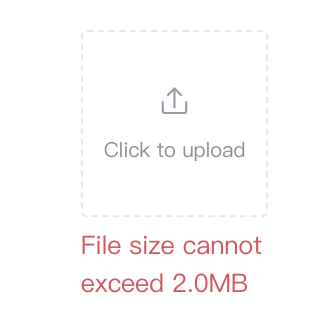
The effect is shown as follows:
After the image is uploaded, the effect is shown as follows:
After the image is uploaded
hover to display the delete icon, click to delete
Component Disabled Effect
Attribute Description
Property Name
Type
Description
Default value
name ★
string
Form Field Name
-
defaultValue
string
Default image value (base64 or URL)
-
required
boolean
Required field
false
disabled
boolean
Disabled
false
maxSize
number
Maximum file size (in Byte (1MB = 1024 × 1024 Byte), not exceeding 20MB)
This indicates that the file size limit for uploading images is set to 2 MB. When a user uploads an image that exceeds the file size limit, the upload will fail and an error message will be displayed.
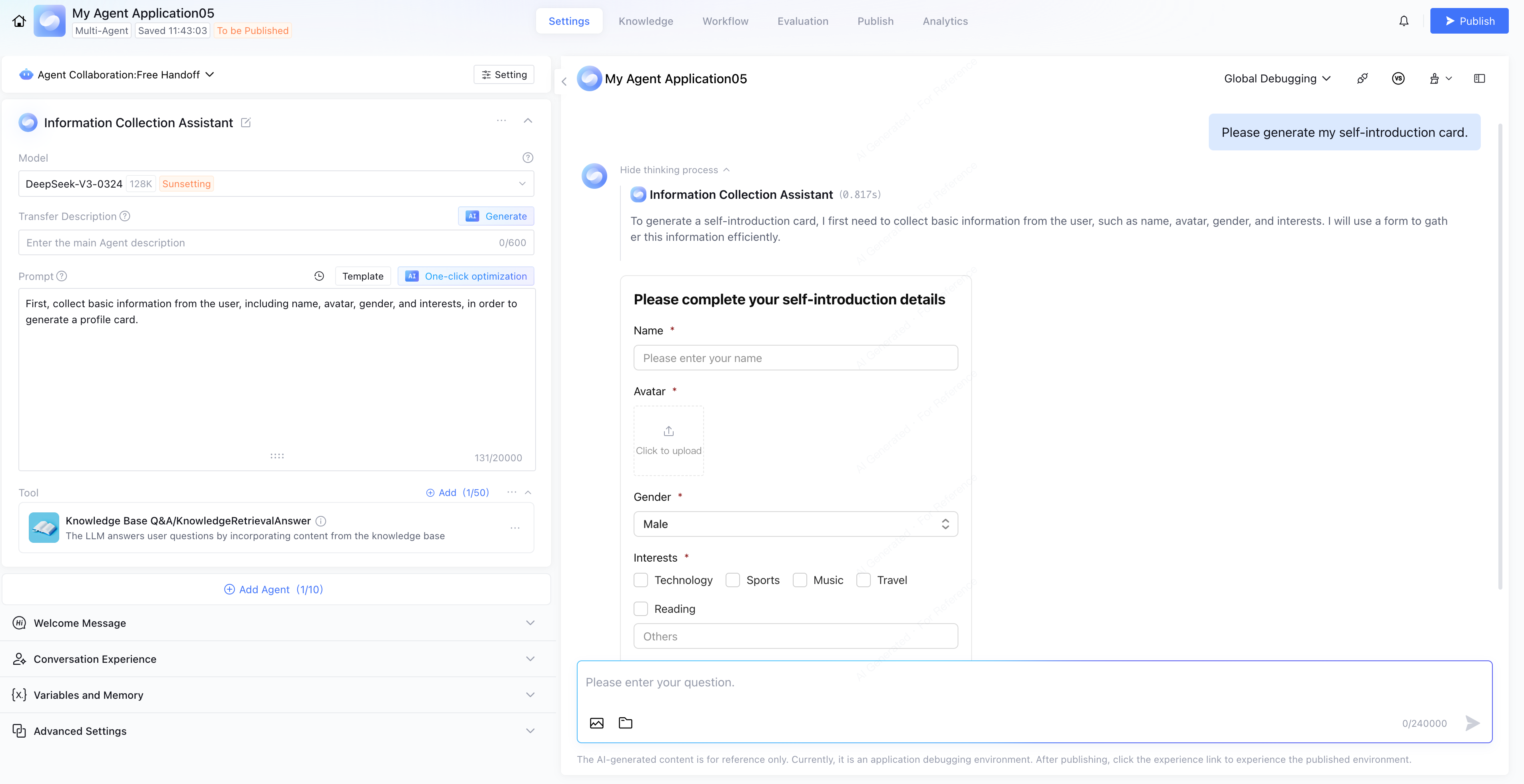
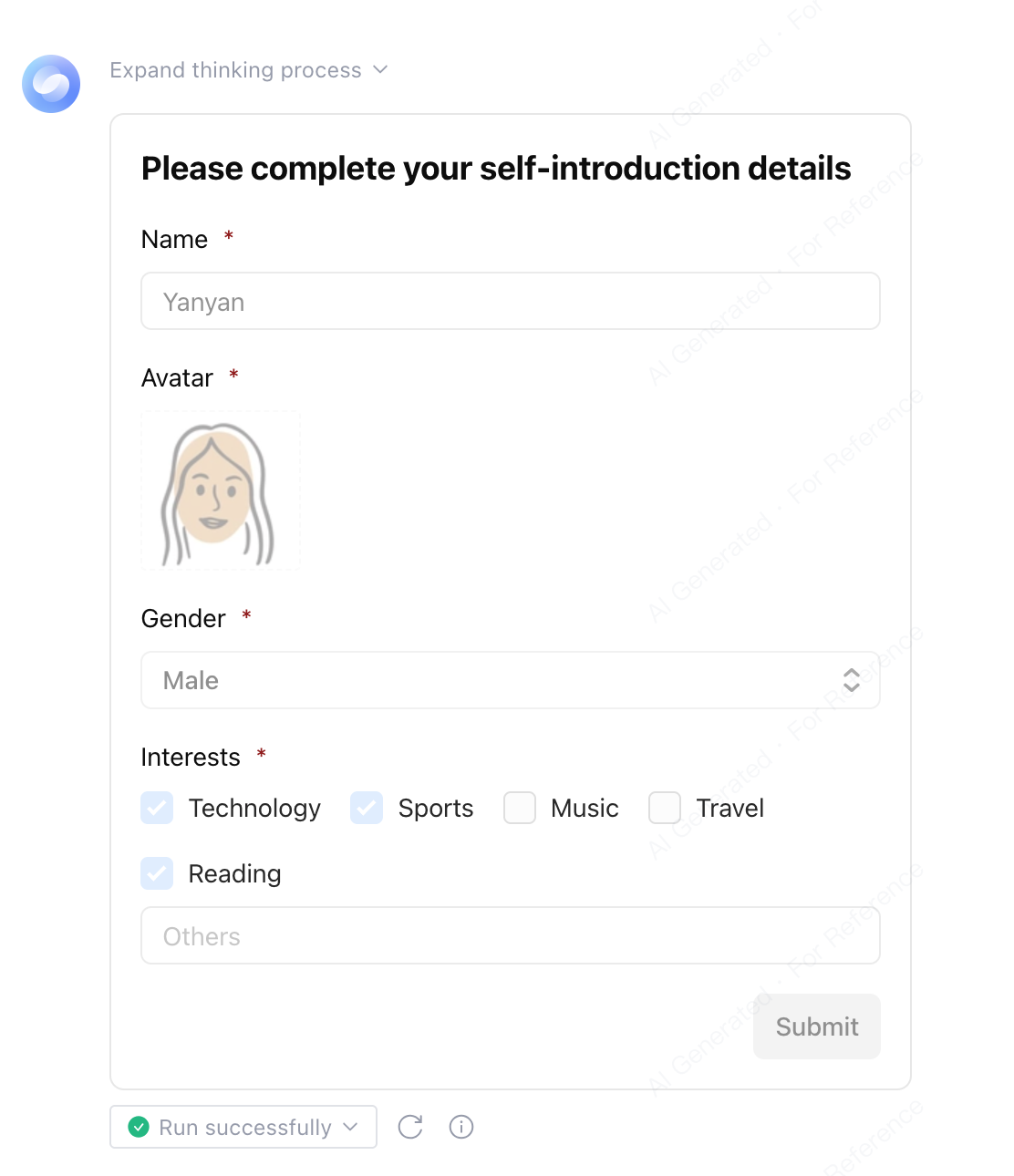
In Multi-Agent mode, the composite form clarification inquiry Widget includes an ImageSelect component. The following uses the "Application Information Collection Assistant" as an example:
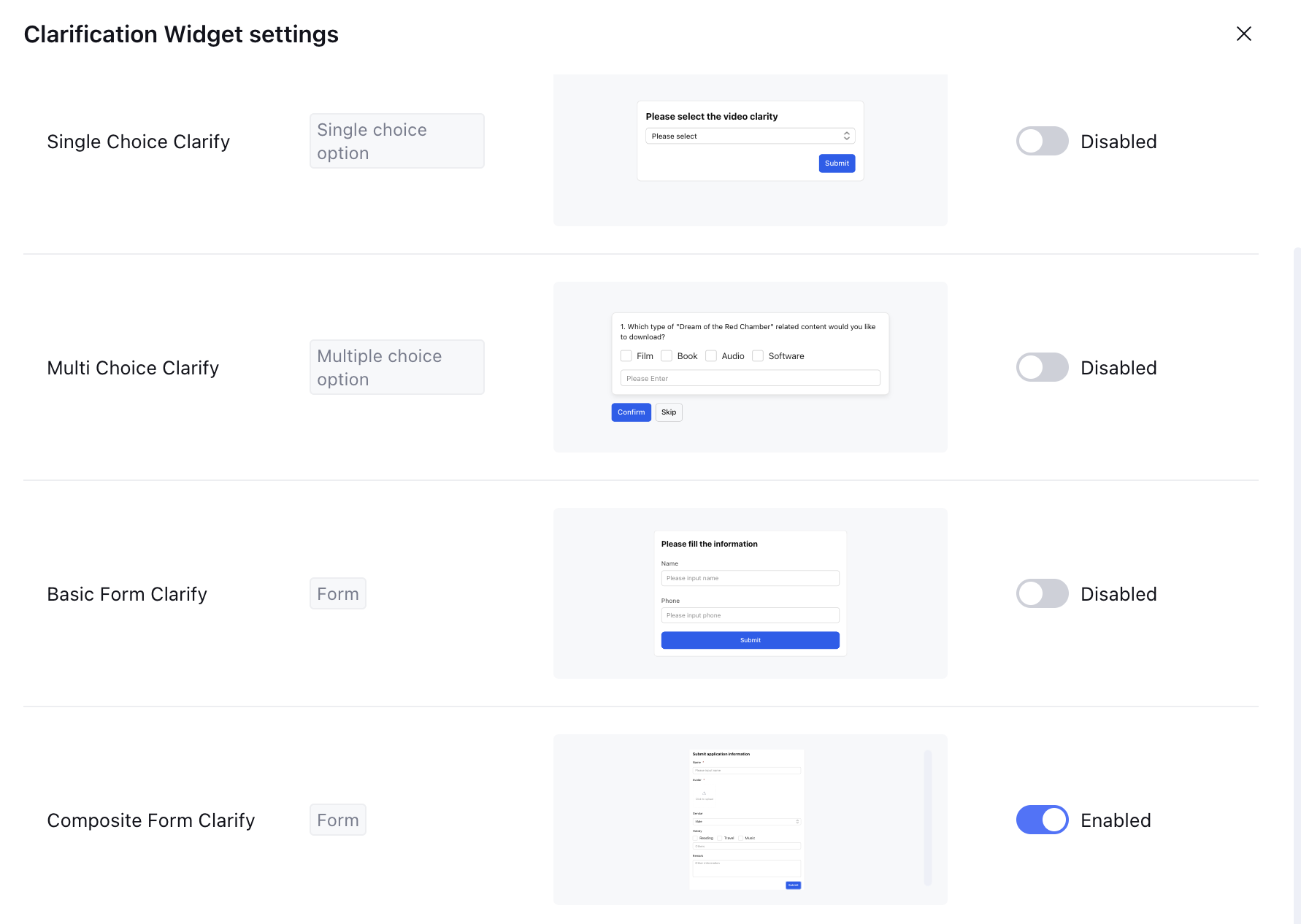
1. Go to Agent Advanced Settings and select Composite Form Clarification in the Clarification Style.
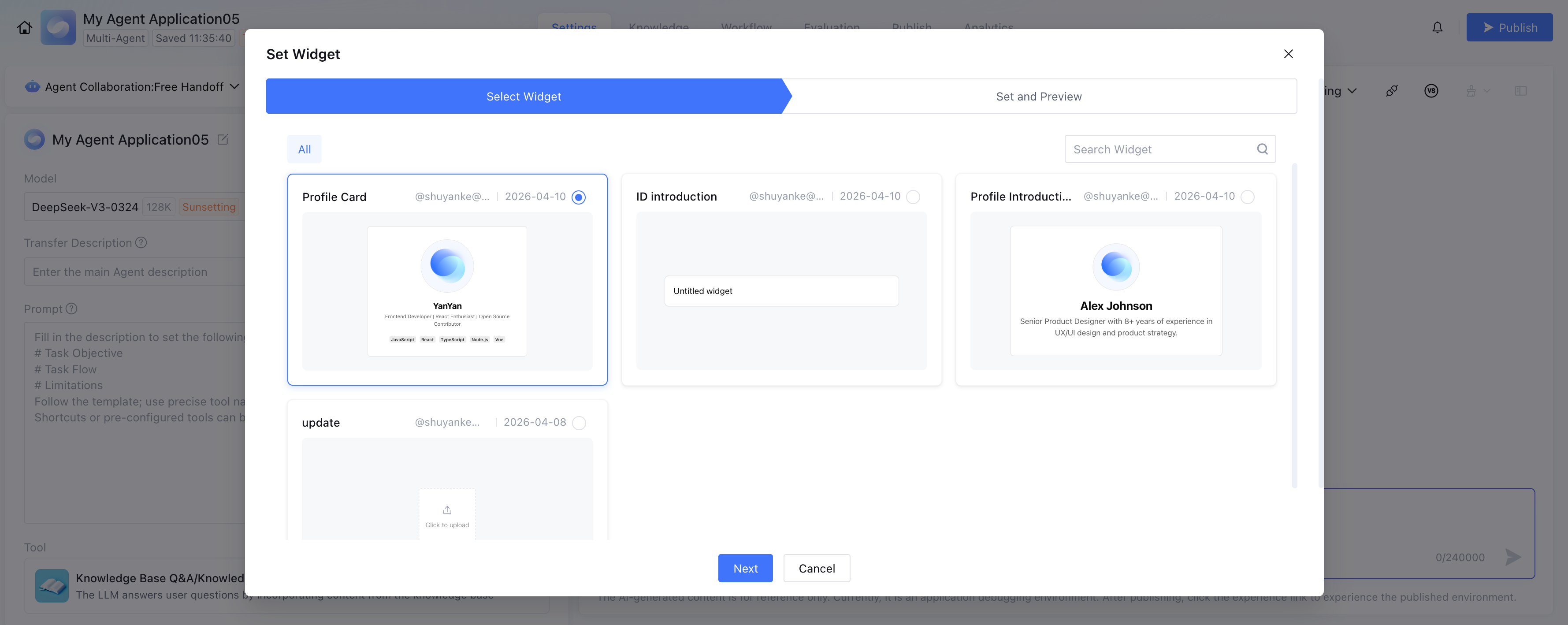
Agent output format selection Identity Information Introduction Widget.
2. The user starts a conversation, and the application uses Widgets for clarification inquiries and information collection.
Clarification Inquiry Widget
The user fills in the information
3. After the user submits the form, the collected avatar image is displayed in the output results.
Features
Supported image formats
JPEG/JPG
PNG
GIF
WebP
BMP
SVG
File size limit
Default limit: 20MB.
Custom upper limit: Set via the maxSize property.
When the uploaded file size exceeds the limit, an error prompt will be displayed.
Output Format
The selected image will be converted to Base64 format.
The output value includes the prefix identifier: ADPWidgetImageSelect=data:image/....
Supports using preset URLs or base64 as default values.
Interactive behavior
Click the selection area to open the file picker for file upload.
Supports drag-and-drop file upload.
Preview the image and hover to display a clear button.
An error prompt will be displayed when the image fails to load.
Note:
1. Recommend setting a reasonable maxSize value to avoid selecting excessively large images, which may affect loading performance and transmission efficiency.
2. The component automatically verifies file types and only accepts image format files.
3. After an image is converted to base64, the data size will increase by approximately 33%.
4. The component relies on the FileReader API to implement file reading, which is supported by all mainstream modern browsers.
5. When an image fails to load, the component will display an error status prompt without blocking the user's subsequent operations.