A custom DNS host is a DNS server created with the current domain to provide the DNS service. This document describes how to add a DNS host.
Note:
If you use a DNS host to resolve a domain, you must add the corresponding A record on the domain server (their IP addresses must be the same).
Up to 10 DNS hosts can be created under a domain.
When creating a DNS host, you can enter 1–13 IP addresses.
After a DNS host is created successfully, you cannot rename it. If you want to use a new name, you should create another DNS host.
Directions
1. Log in to the Domains console and click the domain for which you want to set a custom DNS host to enter the Domain Info page.
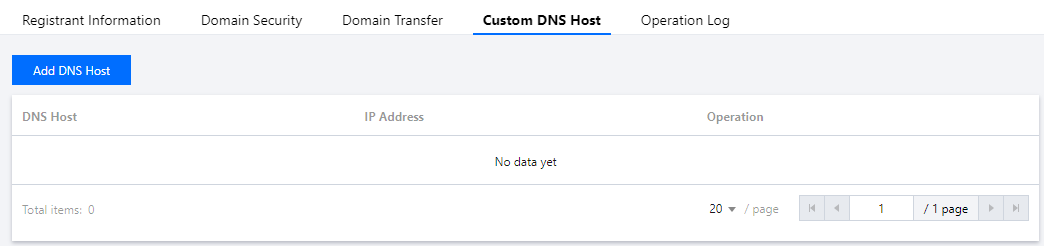
2. On the Domain Info page, select the Custom DNS Host tab.
3. In Custom DNS Host, you can add a custom DNS host in the following two ways:
Add DNS Host: you can add a DNS host by manually entering it.
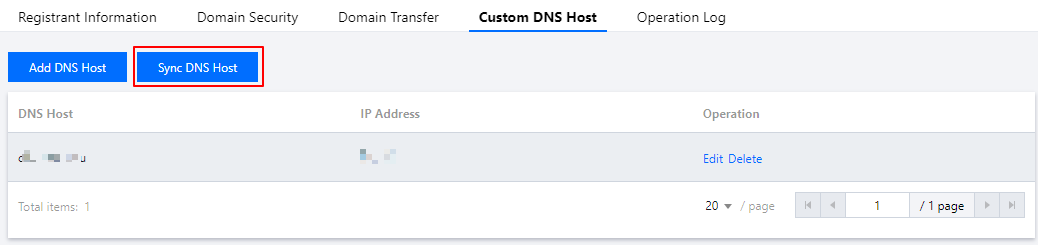
Sync DNS Host: an existing DNS host at the registry (entered at another registrar) can be synced to the Tencent Cloud console.
Adding DNS host
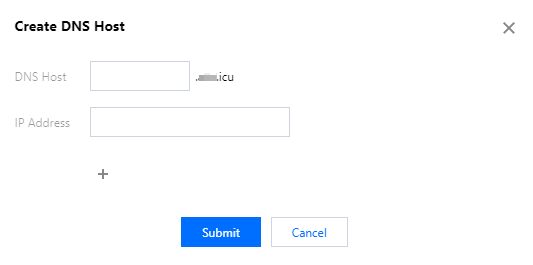
1. Click Add DNS Host. In the Add DNS Host pop-up window, enter the relevant information.
DNS Host: enter the subdomain of the DNS host.
IP Address: enter the IP address of your server.
2. After completing the configuration, click Submit.
Note:
For the added DNS host to take effect, add an A record to the domain with the configured DNS host at your DNS service provider and set the record value to the server IP address of the DNS host. If your DNS service provider is Tencent Cloud, you can view the A record after adding it.
Syncing DNS host
If you have entered a DNS host address at another registrar, click Sync DNS Host to sync it to the Tencent Cloud console.