tencent cloud

Domains

Release Notes and Announcements
Announcements
Product Introduction
Overview
Strengths
Domain Suffixes
Introduction to Domain Name Registrars
Product Rules
Rules for 60-Day Inter-Registrar Transfer Lock
Domain Transfer-Out Rules
Domain Naming Rules
Purchase Guide
Purchase Method
Domain Registration
Registration Guide
.ai Domain Registration
Domain Management
Domain Renewal
Enabling Domain Security Protection
Mobile and Email Verification
Modifying DNS Servers
Domain Redemption
Custom DNS Host
Modifying Registrant Profile
Domain Registrant Profile
Managing Domain Expiration Reminders
Domain Lookup
Domain Status
Batch Operation
Batch Domain Renewal
Bulk Modifying DNS Servers
Batch Setting Update Prohibition Lock for Domains
Batch Setting Transfer Prohibition Lock for Domains
Domain Transfer
Cross-Account Domain Transfer
Domain Transfer Out
Domain Transfer In
Domain Push
Troubleshooting
Domain Registration
Domain Transfer-In
API Documentation
History
Introduction
API Category
Making API Requests
Domain Management APIs
Domain Query APIs
Bulk Operation APIs
Registrant Profile APIs
Other APIs
Data Types
Error Codes
FAQs
Domain Registration
Domain Transfer
Domain Renewal
Domain Transfer-In
DNS Settings
Cross-Account Domain Transfer
Domain Security
DNS Abuse Complaints
Product Policy
Privacy Policy
Data Processing And Security Agreement
Domain Name Registration Service Agreement
TLD registry policies
DokumentasiDomains Domain ManagementDomain Registrant Profile

Domain Registrant Profile

PDF
Mode fokus
Ukuran font
Terakhir diperbarui: 2024-01-29 18:02:39

Overview

A domain registrant profile is a pre-formatted file that contains the domain registrant's basic information to get you started with registering your domain, changing the domain registrant, applying for identity verification and performing other steps quickly by just entering the required information in the profile.

Prerequisites

You have logged in to the Domains console and entered the My Domains page.

Directions

Creating a domain registrant profile

1. On the left sidebar, choose Registrant Profile to enter the Registrant Profile page.
2. Click Create Profile to enter the Create Profile page.
3. Select a user type for the domain registrant profile as needed: Individual or Organization.
Note:
The usage of the domain registrant profile is not affected regardless of whether you select Individual or Organization as the user type.
Profile information
For an Individual user, the following parameters need to be set:
Profile Information
Description


Last Name: enter the last name of the domain registrant.
First Name: enter the first name of the domain registrant.
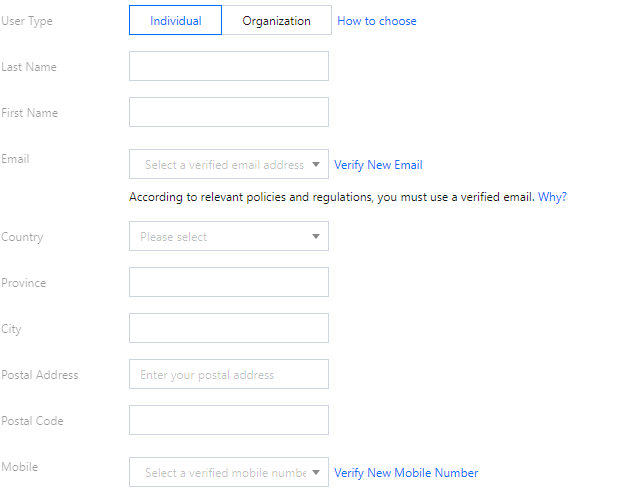
Email: select an email address that has been verified on the Phone and Email Verification page.
Country: select your country.
Province: enter your province.
City: select your city.
Postal Address: enter your postal address.
Postal Code: enter the postal code of your city.
Mobile: select a mobile number that has been verified on the Phone and Email Verification page.
For an Organization user, the following parameters need to be set:
Profile Information
Description


Organization: enter your organization name.
Last Name: enter the last name of the domain registrant.
First Name: enter the first name of the domain registrant.
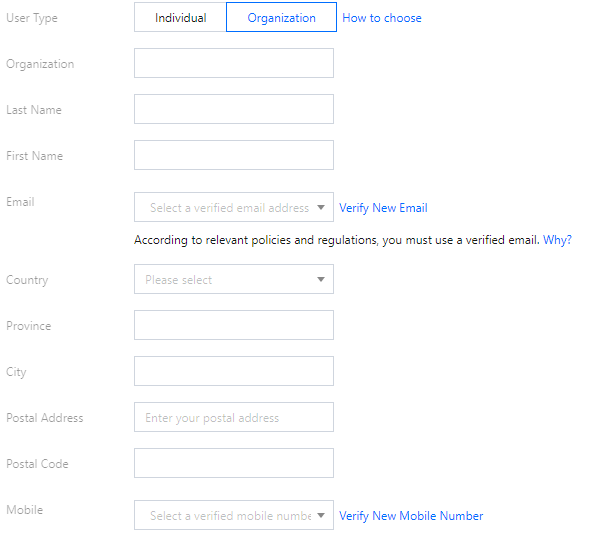
Email: select an email address that has been verified on the Phone and Email Verification page.
City: select your city.
Postal Address: enter your postal address.
Postal Code: enter the postal code of your city.
Mobile: select a mobile number that has been verified on the Phone and Email Verification page.

Managing registrant profiles

1. On the left sidebar, choose Registrant Profile to enter the Registrant Profile page.
2. To set a registrant profile as the default one, click Set as Default. See the figure below:


Bantuan dan Dukungan

Apakah halaman ini membantu?

masukan
