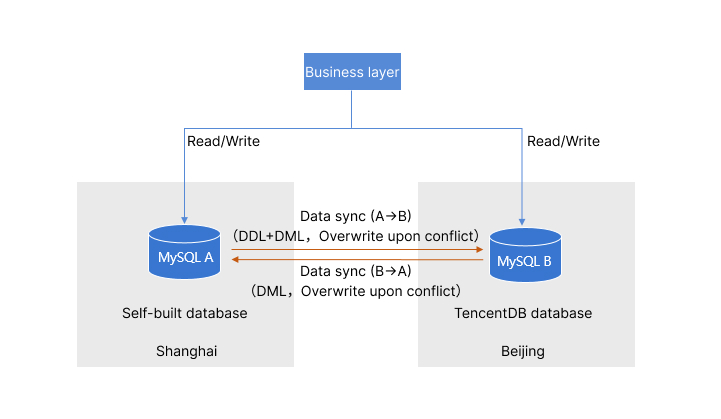
DTS supports two-way data sync between two databases, which can be applied to multi-site active-active scenarios. In a two-way sync task, two one-way sync tasks are created to establish a two-way topology, and data can be written into both database instances at the same time during sync.
Two-way data sync must follow restrictions on one-way sync and relevant operations. For more information, see the appropriate sync scenario in Databases Supported by Data Sync.
Notes
During full data sync, DTS consumes certain source instance resources, which may increase the load and pressure of the source database. If your database configuration is low, we recommend you sync the data during off-peak hours.
To avoid duplicate data, make sure that the tables to be synced have a primary key or non-null unique key.
You should plan the data in advance. The two source databases are responsible for updating (adding, deleting, and modifying) data with different primary keys so as to avoid problems such as primary key conflict and mutual overwriting of data with the same primary key (for example, data records with primary keys 1, 3, and 5 are updated in database A, while data records with primary keys 2, 4, and 6 are updated in database B). If there are duplicate primary keys in the two source databases for business reasons, select an appropriate conflict resolution policy as instructed in Recommended Configurations for Typical Use Cases to make the sync behavior and data meet the expectations.
DDL statements can be executed in at most one direction during two-way sync, as the sync linkage should not form a ring (you can run DDL statements in either the forward or reverse direction).
All sync links between MySQL, TDSQL-C for MySQL, MariaDB, Percona, and TDSQL for MySQL support two-way sync except when a TDSQL for MySQL instance with the MariaDB kernel is used as the source or target database.
Recommended Configurations for Typical Use Cases
A two-way sync task consists of two one-way sync tasks to establish a two-way topology. The creation steps for each one-way sync task are similar to those for a general one-way sync task. They differ only in the following sync option settings:
Sync Option Settings Difference
The following configurations are recommended for typical use cases for your reference.
Scenario
Time Requirements
Sync Task
Initialization Type
If Target Already Exists
Conflict Resolution Method
SQL Type
Scenario 1: Instance A has database/table structures and data, and instance B is empty
Task 2 can be created only after task 1 enters the "incremental sync" phase
Task 1: Forward sync (A < B)
Structure initialization/full data initialization
Precheck and report error
Select an option as needed.
Example: If a primary key conflict occurs, and you want the content of database A to prevail, you need to select **Overwrite** for task 1 and **Ignore** or **Report** for task 2.
The conflict resolution method takes effect only for the data with primary key conflict.
Select DDL in at most one task.
For operation types other than DDL, keep them consistent between the two tasks.
Task 2: Reverse sync (B > A)
Do not select
Ignore and execute
Scenario 2: Instance A has database/table structures and data, and instance B has only database/table structures but no data
None
Task 1: Forward sync (A > B)
Full data initialization
Ignore and execute
Task 2: Reverse sync (B > A)
Do not select
Ignore and execute
Scenario 3: Both instances A and B have database/table structures and data
None
Task 1: Forward sync (A > B)
Full data initialization
Ignore and execute
Task 2: Reverse sync (B > A)
Full data initialization
Ignore and execute
Directions
This document takes creating two-way sync between self-built MySQL database A in Shanghai region and TencentDB for MySQL database B in Beijing region as an example. Initially, A has database/table structures and data, while B is empty. When a primary key conflict occurs, data updates in A shall prevail. For A > B sync, the primary key conflict resolution policy is Overwrite, and DDL and DML statements are synced. For B > A sync, the policy is Ignore, and only DML statements are synced.
Creating a sync task 1: Reverse sync (A > B)
1. Log in to the data sync purchase page, select appropriate configuration items, and click Buy Now.
2. After successful purchase, return to the data sync list, and you can see the newly created data sync task. You need to configure it before you can use it.
3. In the data sync list, click Configure in the Operation column to enter the sync task configuration page.
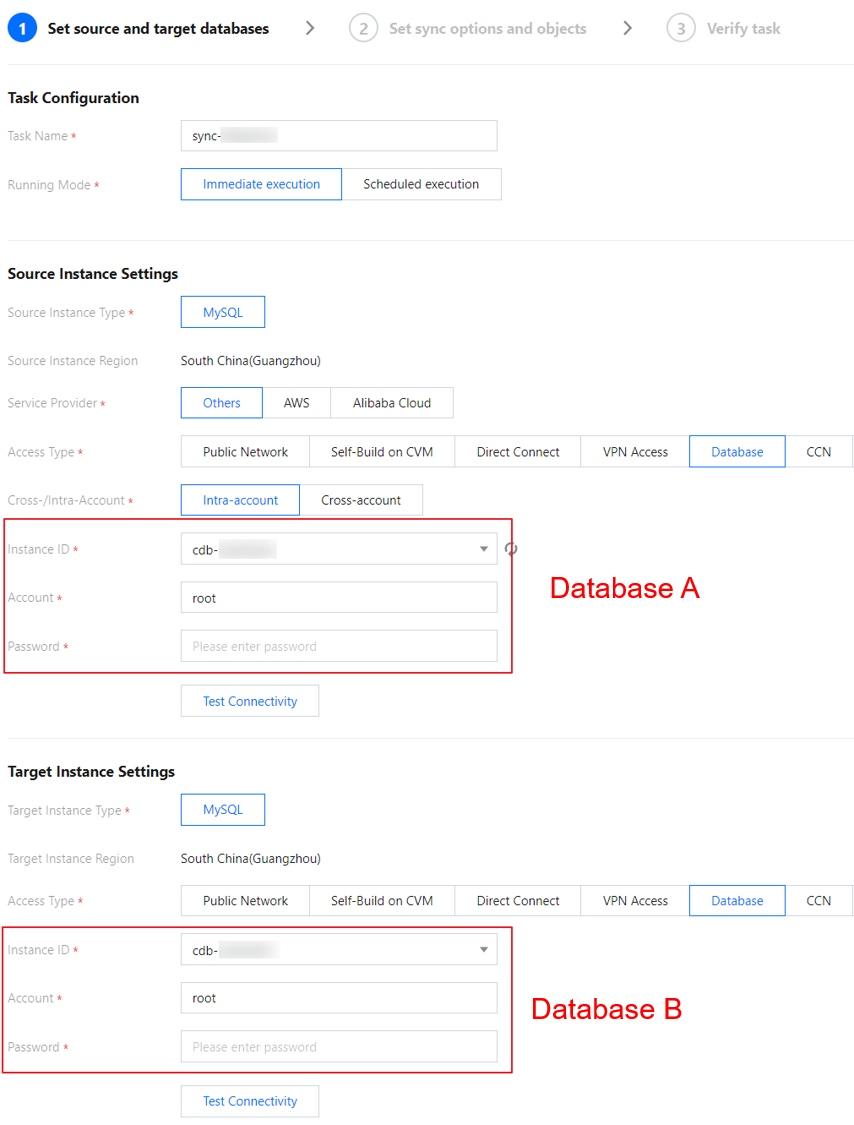
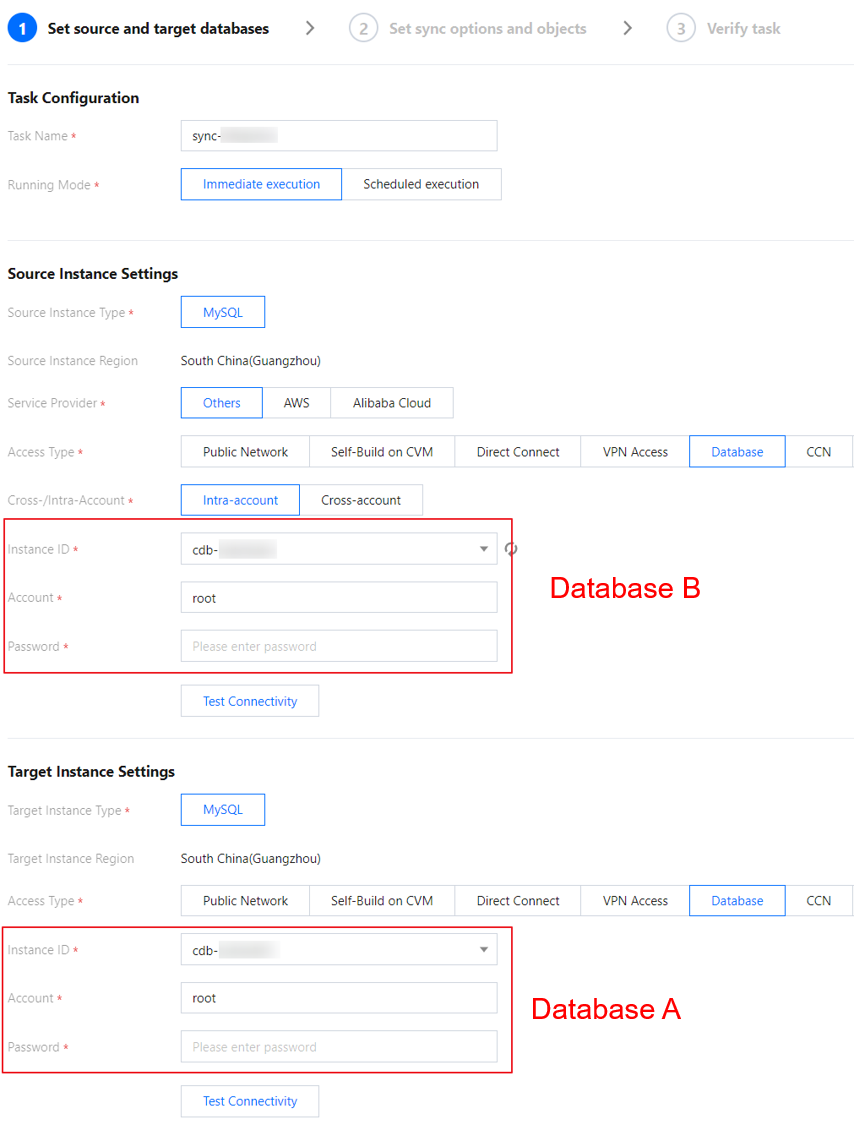
4. On the sync task configuration page, configure the source and target instances and their accounts and passwords, test the connectivity, and click Next.
Category
Parameter
Description
Task Configuration
Task Name
DTS will automatically generate a task name, which is customizable.
Running Mode
Immediate execution and scheduled execution are supported.
Source Instance Settings
Source Instance Type
The database A type selected during purchase, which cannot be changed.
Source Instance Region
The database A region selected during purchase, which cannot be changed.
Service Provider
Select **Others**.
Access Type
For a third-party cloud database, you can select **Public Network** generally or select **VPN Access**, **Direct Connect**, or **CCN** based on your actual network conditions. In this scenario, **Public Network** is selected as an example. For the preparations for different access types, see Overview.
Target Instance Settings
Target Instance Type
The target database B type selected during purchase, which cannot be changed.
Target Instance Region
The target database B region selected during purchase, which cannot be changed.
Access Type
In this scenario, select **Database**.
Instance ID
Instance ID of database B.
Account
Account of database B, which must have the required permissions.
Password
Password of database B.
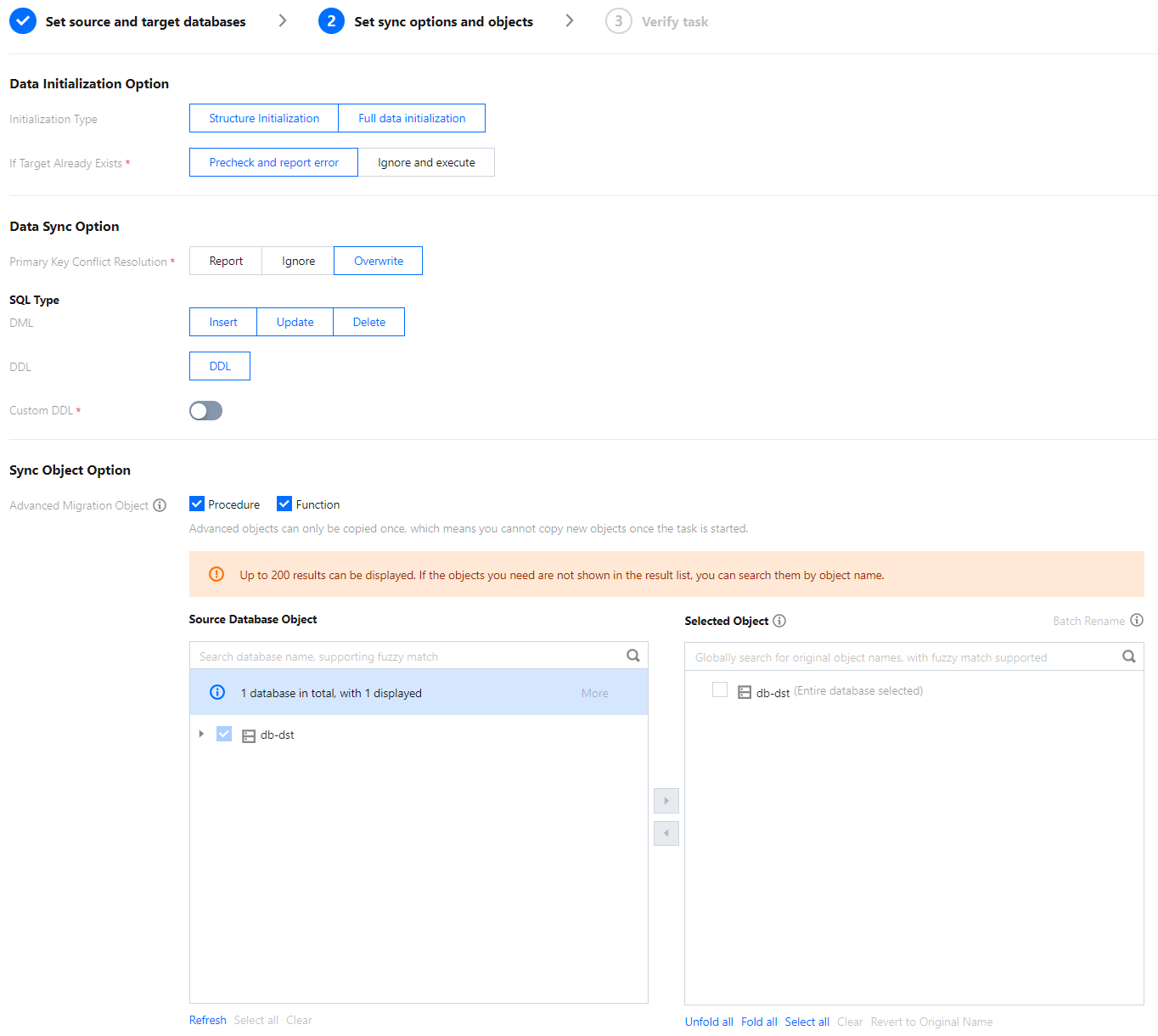
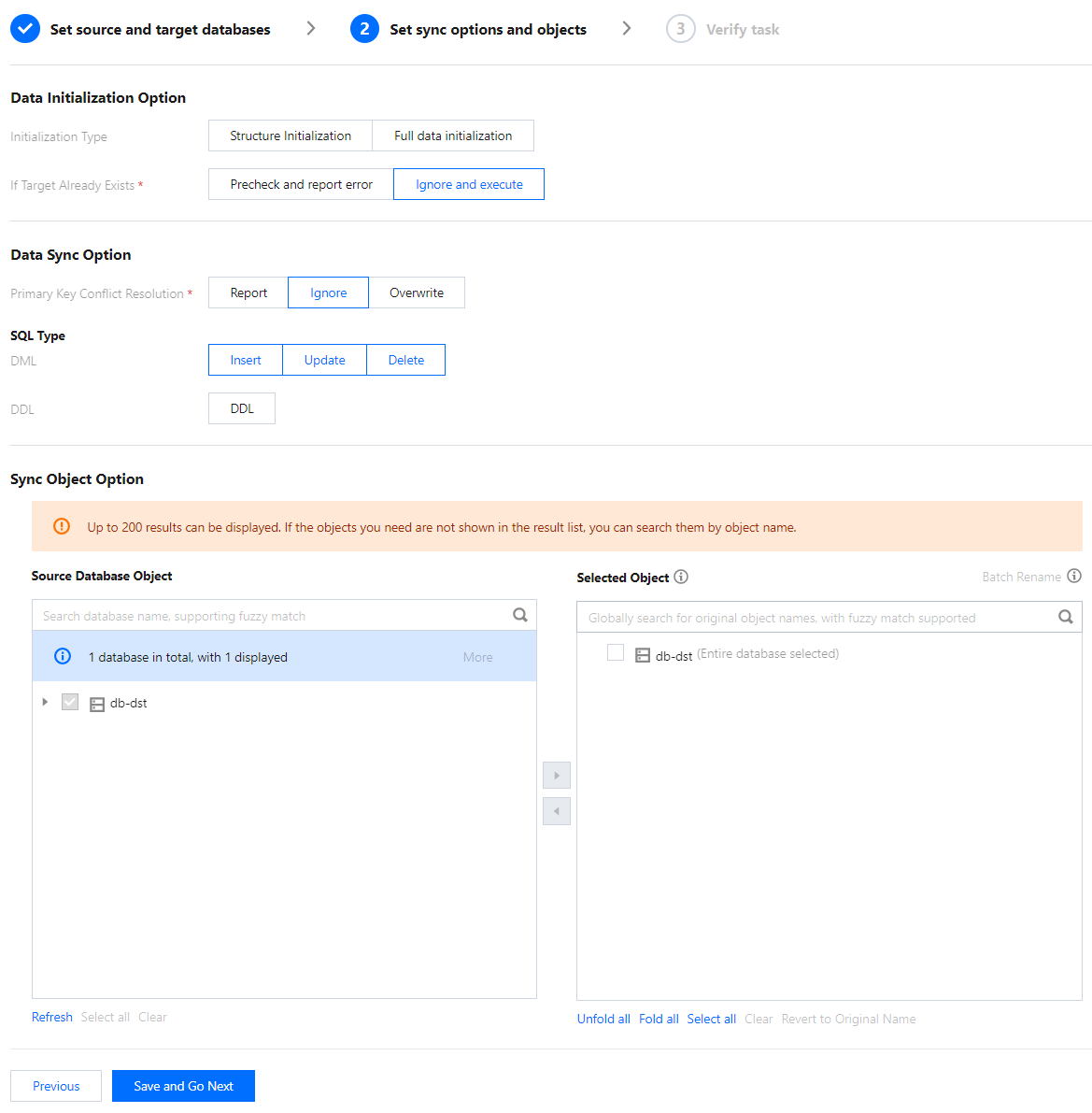
5. On the Set sync options and objects page, set the data initialization, data sync, and sync object options and click Save and Go Next.
Category
Parameter
Description
Data Initialization Option
Initialization Type
In this scenario, select **Structure initialization/Full data initialization**.
Structure initialization: Table structures in the source instance will be initialized into the target instance before the sync task runs.
Full data initialization: Data in the source instance will be initialized into the target database before the sync task runs.
If Target Already Exists
In this scenario, select **Precheck and report error**.
Precheck and report error: If a table with the same name exists in both the source and target databases, an error will be reported, and the task will stop.
Ignore and execute: Full and incremental data will be directly added to tables in the target instance.
Data Sync Option
Conflict Resolution Method
Select a conflict resolution policy based on the business conditions. In this scenario, select **Overwrite**.
Report: If a primary key conflict is found during data sync, an error will be reported, and the data sync task will be paused.
Ignore: If a primary key conflict is found during data sync, the primary key record in the target database will be retained.
Overwrite: If a primary key conflict is found during data sync, the primary key record in the source database will overwrite that in the target database.
SQL Type
Supported operations include INSERT, UPDATE, DELETE, and DDL. If you select **Custom DDL**, you can select different DDL statement sync policies as needed. For more information, see Setting SQL Filter Policy.In two-way sync, you can select **DDL** in at most one task. In this scenario, select **DDL** in task 1 but not task 2.
Sync Object Option
Database and Table Objects of Source Instance
Select the objects to be synced.
Selected Object
Database/Table mapping (renaming) is supported. Hover over a database or table name, click the displayed **Edit** icon, and enter a new name in the pop-up window.
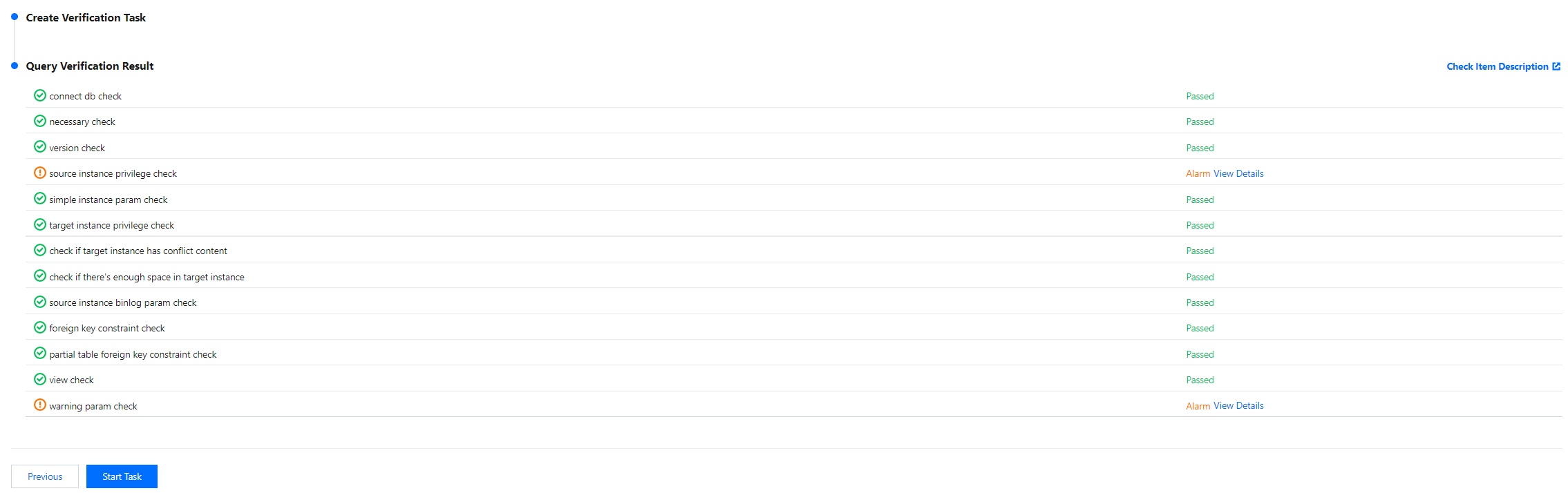
6. In an A > B forward sync task, DTS will check the source and target database parameters. After all check items are passed, click Start Task. In a B > A reverse sync task, DTS will also check the DDL configuration.
Note:
If the verification failed, fix the problem as instructed in Database Connection Check and initiate the verification task again.
If an alarm is displayed in the verification result, it will not affect the task start, but we recommend you click View Details to get the suggestions for adjustment.
DDL check
Source and target database parameter check
7. Return to the data sync task list, and you can see that the task has entered the Running status.
Creating a sync task 2: Reverse sync (B > A)
The operations of forward and reverse sync tasks are basically the same. The following only describes their differences:
1. Confirm the status of task 1. When task 1 enters the "incremental sync" phase, start configuring task 2.
This task configuration timing is required only when database B is empty. In other scenarios, there is no need to wait.
2. Set source and target databases.
Swap the data in source and target databases in task 1.
3. Set sync options and objects.
Initialization Type: Do not select.
If Target Already Exists: Select Ignore and execute.
Primary Key Conflict Resolution: Select an option based on your business conditions. In this scenario, select Ignore.
SQL Type: In two-way sync, you can select DDL in at most one task. In this scenario, select DDL in task 1 but not task 2.
4. On the Verify task page, check the DDL configuration.
Stopping a sync task
If you no longer need a sync task, you can select More > Stop in the Operation column to stop it.