tencent cloud

Data Transfer Service

Release Notes and Announcements
Release Notes
Announcements
Product Introduction
Overview
Data Migration
Data Sync
Data Subscription (Kafka Edition)
Strengths
Supported Regions
Specification Description
Purchase Guide
Billing Overview
Configuration Change Description
Payment Overdue
Refund
Getting Started
Data Migration Guide
Data Sync Guide
Data Subscription Guide (Kafka Edition)
Preparations
Business Evaluation
Network Preparation
Adding DTS IP Addresses to the Allowlist of the Corresponding Databases
DTS Service Permission Preparation
Database and Permission Preparation
Configuring Binlog in Self-Built MySQL
Data Migration
Databases Supported by Data Migration
Cross-Account TencentDB Instance Migration
Migration to MySQL Series
Migrating to PostgreSQL
Migrating to MongoDB
Migrating to SQL Server
Migrating to Tencent Cloud Distributed Cache
Task Management
Data Sync
Databases Supported by Data Sync
Cross-Account TencentDB Instance Sync
Sync to MySQL series
Synchronize to PostgreSQL
Synchronization to MongoDB
Synchronize to Kafka
Task Management
Data Subscription (Kafka Edition)
Databases Supported by Data Subscription
MySQL series Data Subscription
Data Subscription for TDSQL PostgreSQL
MongoDB Data Subscription
Task Management
Consumption Management
Fix for Verification Failure
Check Item Overview
Cutover Description
Monitoring and Alarms
Supported Monitoring Indicators
Supported Events
Configuring Metric Alarms and Event Alarms via the Console
Configuring Indicator Monitoring and Event Alarm by APIs
Ops Management
Configuring Maintenance Time
Task Status Change Description
Practical Tutorial
Synchronizing Local Database to the Cloud
Creating Two-Way Sync Data Structure
Creating Many-to-One Sync Data Structure
Creating Multi-Site Active-Active IDC Architecture
Selecting Data Sync Conflict Resolution Policy
Using CLB as Proxy for Cross-Account Database Migration
Migrating Self-Built Databases to Tencent Cloud Databases via CCN
Best Practices for DTS Performance Tuning
FAQs
Data Migration
Data Sync
FAQs for Data Subscription Kafka Edition
Regular Expressions for Subscription
Error Handling
Common Errors
Failed Connectivity Test
Failed or Alarmed Check Item
Inability to Select Subnet During CCN Access
Slow or Stuck Migration
Data Sync Delay
High Data Subscription Delay
Data Consumption Exception
API Documentation
History
Introduction
API Category
Making API Requests
(NewDTS) Data Migration APIs
Data Sync APIs
Data Consistency Check APIs
(NewDTS) Data Subscription APIs
Data Types
Error Codes
DTS API 2018-03-30
Service Agreement
Service Level Agreements

Introduction

PDF
フォーカスモード
フォントサイズ
最終更新日: 2025-10-24 14:48:58

Data Transfer Service (DTS) provides data migration, sync, and subscription services. With DTS, you can migrate your databases without interrupting your business and build a high-availability database architecture for remote disaster recovery through real-time sync channels.

Procedures for Calling Data Migration APIs
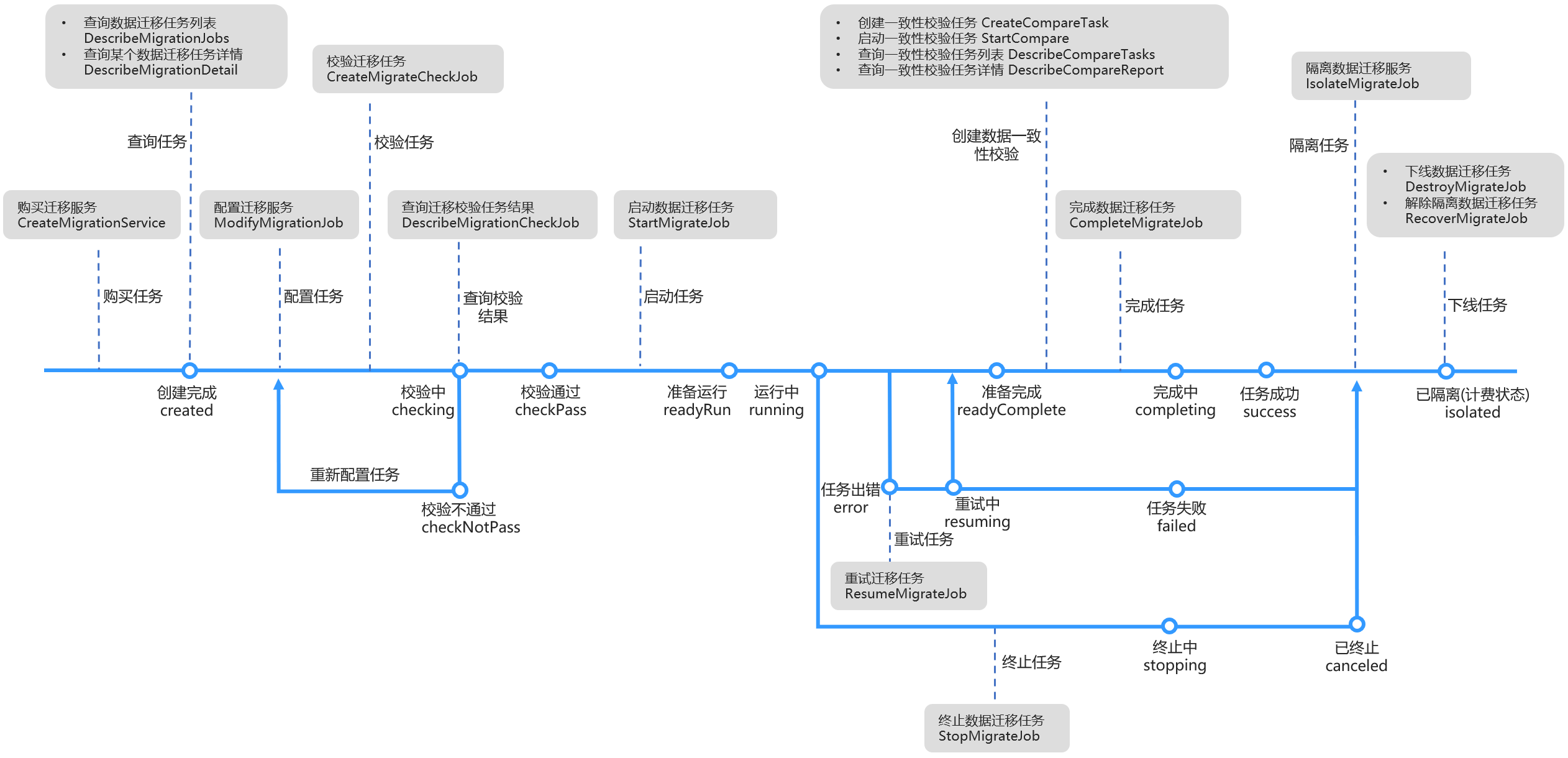
The supported operations and related APIs under each migration task status are listed below:

Task Status Supported Operation Key API Description
- - CreateMigrationService Purchase migration task resources. After making the purchase, you will return to the list of randomly generated migration task IDs.
Created (created) Configure
  • ModifyMigrationJob
  • CreateMigrateCheckJob
  • DescribeMigrationJobs
  • Configure the migration task.
  • Check the configured task. You need to check all the parameters of the source and target databases and make sure the check is passed before the migration task can be started.
  • You can call the DescribeMigrationJobs API to query the list of all migration tasks and obtain the task IDs.
  • Checking (checking) - DescribeMigrationCheckJob The migration task is being checked.
    Check passed (checkPass) Immediate start, configure, verify StartMigrateJob The check is passed, and you can start the data migration task.
    Check failed (checkNotPass) Configure, verify ModifyMigrationJob The verification failed, and you need to configure the migration task and start verification again.
    Preparing (readyRun) Stop - The data migration task is being prepared after you click Start.
    Running (running) Stop, create data consistency check task (only supported for eligible links) StopMigrateJob The task is running.
    If you need to cancel the migration task, click Stop. The stopped task cannot be resumed.
    Stopping (stopping) - - The task is being stopped after you click Stop.
    Stopped (canceled) - IsolateMigrateJob The stopped task needs to be isolated in order to promptly unfreeze the frozen amount of one hour's pay-as-you-go fees.
    Prepared (readyComplete) Complete, stop, create data consistency check task (only supported for eligible links)
  • CompleteMigrateJob
  • CreateCompareTask
  • If you select the "Full + incremental migration" scenario, when the task status becomes "Prepared", full and incremental data migration is completed. You should click Complete at an appropriate time to end the task.
  • We recommend that you perform a data consistency check before clicking Complete. u200c
  • The data consistency check compares the data to be migrated from the source database and the data migrated to the target database to check data consistency. You can view the inconsistency details. After the data consistency check task is created successfully, its task ID will be returned.
  • Completing (completing) - - The task is being completed after you click Complete.
    Task successful (success) - IsolateMigrateJob The migration task is successfully completed. The completed task needs to be isolated in order to promptly unfreeze the frozen amount of one hour's pay-as-you-go fees.
    Task error (error) Stop, retry ResumeMigrateJob The migration task is interrupted as an exception occurred during the migration. You can retry the task.
    Retrying (resuming) - - The task is being retried after you click Retry. If the retry succeeds, the task will be executed normally; otherwise, it will enter the "Task failed" status.
    Task failed (failed) Retry (only supported for Redis migration tasks) IsolateMigrateJob The migration task failed. u200c
    The failed task needs to be isolated in order to promptly unfreeze the frozen amount of one hour's pay-as-you-go fees.
    All above status View, adjust specification, isolate
  • DescribeMigrationDetail
  • ModifyMigrateJobSpec
  • IsolateMigrateJob
  • You can click View to view the details of the specified migration task. u200c
  • You can click Adjust Specification to adjust the specification of the migration link. Different specifications have different transfer rates. u200c
  • You can click Isolate to isolate a stopped, failed, or unwanted task.
  • Isolated (isolated, which is the billing status) Deisolate/resume, delete
  • RecoverMigrateJob
  • DestroyMigrateJob
  • After you initiate an isolation operation or one day after your account has overdue payments, the task will enter the "Isolated" status. Resources in isolation will be retained for seven days and then deleted, and the service will be suspended.
  • You can actively delete the isolated task or wait for seven days before the system automatically deletes it.
  • You can click Deisolate/Resume to resume the isolated task.
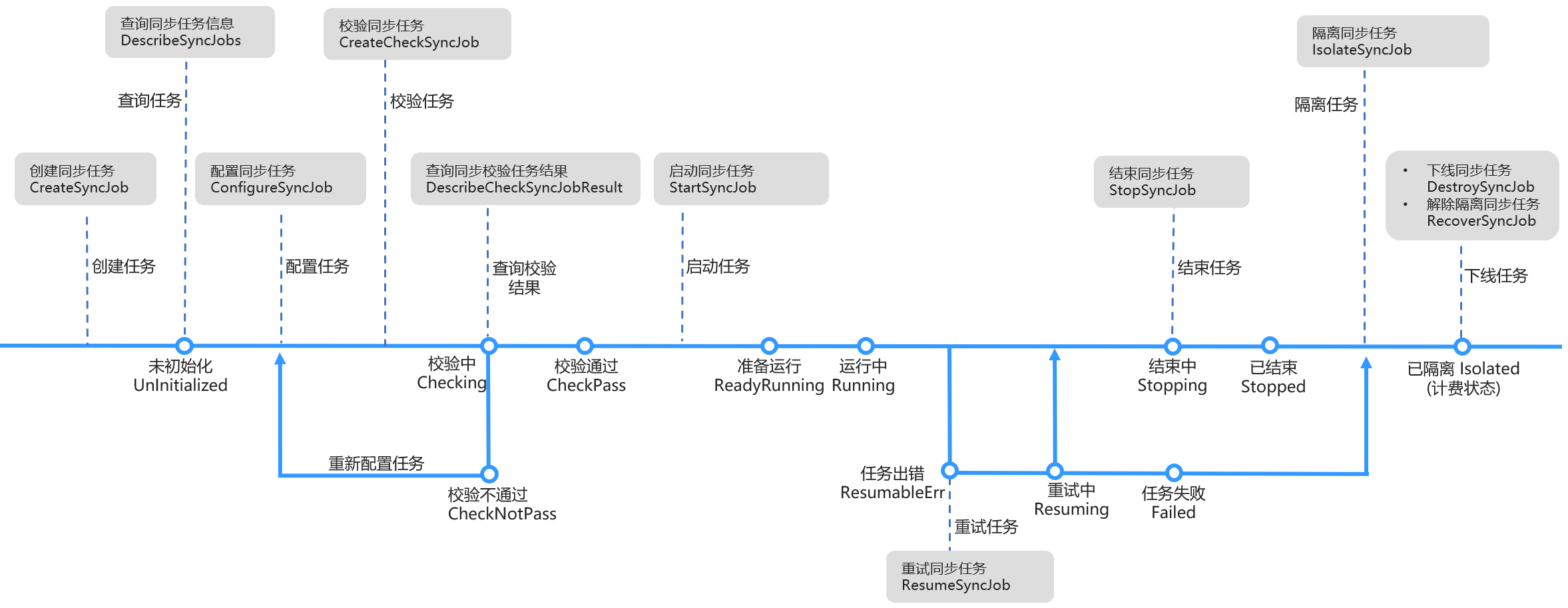
  • Procedures for Calling Data Sync APIs

    The supported operations and related APIs under each sync task status are listed below:

    Task Status Supported Operation Key API Description
    - - CreateSyncJob Purchase sync task resources. After making the purchase, you will return to the list of randomly generated sync task IDs.
    Uninitialized (UnInitialized) Configure
  • ConfigureSyncJob
  • CreateCheckSyncJob
  • DescribeSyncJobs
  • Configure the sync task.
  • Check the configured task. You need to check all the parameters of the source and target databases and make sure the check is passed before the sync task can be started.
  • You can call the DescribeSyncJobs API to query the list of all sync tasks and obtain the task IDs.
  • Checking (Checking) - DescribeCheckSyncJobResult The sync task is being checked.
    Verification passed (CheckPass) Start, configure, verify StartSyncJob The verification is passed, and you can start the data sync task.
    Verification failed (CheckNotPass) Configure, verify ConfigureSyncJob The verification failed, and you need to configure the sync task and start verification again.
    Preparing (ReadyRunning) Stop - The sync task is being prepared after you click Start.
    Running (Running) Stop StopSyncJob The task is running.
    If you need to cancel the sync task, click Stop.
    Stopping (Stopping) - - The task is being stopped after you click Stop.
    Stopped (Stopped) - IsolateSyncJob The sync task is successfully completed. The completed task needs to be isolated in order to promptly unfreeze the frozen amount of one hour's pay-as-you-go fees.
    Task error (ResumableErr) Stop, retry ResumeSyncJob The sync task is interrupted as an exception occurred during the sync. You can retry the task.
    Retrying (Resuming) - - The task is being retried after you click Retry. If the retry succeeds, the task will be executed normally; otherwise, it will enter the "Task failed" status.
    Task failed (Failed) - IsolateSyncJob The sync task failed u200c
    The failed task needs to be isolated in order to promptly unfreeze the frozen amount of one hour's pay-as-you-go fees.
    All above status View, adjust specification, isolate
  • DescribeSyncJobs
  • ResizeSyncJob
  • IsolateSyncJob
  • You can click View to view the details of the specified sync task. u200c
  • You can click Adjust Specification to adjust the specification of the sync link. Different specifications have different transfer rates. u200c
  • You can click Isolate to isolate a stopped, failed, or unwanted task.
  • Isolated (Isolated, which is the billing status) Deisolate/resume, delete
  • RecoverSyncJob
  • DestroySyncJob
  • After you initiate an isolation operation or one day after your account has overdue payments, the task will enter the "Isolated" status. Resources in isolation will be retained for seven days and then deleted, and the service will be suspended.
  • You can actively delete the isolated task or wait for seven days before the system automatically deletes it.
  • You can click Deisolate/Resume to resume the isolated task.
  • ヘルプとサポート

    この記事はお役に立ちましたか?

    フィードバック