Creating Data Subscription for MongoDB
Download
フォーカスモード
フォントサイズ
This scenario describes how to create a data subscription task in DTS for TencentDB for MongoDB.
Version Description
Currently, data subscription is supported only for TencentDB for MongoDB 3.6, 4.0, 4.2, and 4.4.
TencentDB for MongoDB 3.6 only supports collection-level subscription.
Prerequisites
You have prepared a TencentDB instance to be subscribed to, and the database version meets the requirements. For more information, see Databases Supported by Data Subscription.
We recommend you create a read-only account in the source instance by seeing the following syntax. You can also do this in the TencentDB for MongoDB console.
# Create an Instance-Level Read-Only Accountuse admindb.createUser({user: "username",pwd: "password",roles:[{role: "readAnyDatabase",db: "admin"}]})# Create a Database-Specific Read-Only Accountuse admindb.createUser({user: "username",pwd: "password",roles:[{role: "read",db: "Name of the specified database"}]})
Notes
Subscribed messages are stored in DTS built-in Kafka (single Topic), with a default retention time of 1 day as of now. A single Topic can have a maximum Storage capacity of 500 GB. When the data Storage period exceeds 1 day, or the data volume surpasses 500 GB, the built-in Kafka will start to clear the earliest written data. Therefore, users should consume data promptly to avoid it being cleared before consumption.
The region of data consumption needs to match the region of the subscription task.
The Kafka built in DTS has a certain upper limit for processing individual messages. When a single row of data in the source database exceeds 10 MB, this row may be discarded in the consumer.
After the database or collection specified for the selected subscription object is deleted from the source database, the subscription data (change stream) of the database or collection will be invalidated. Even if the database or collection is rebuilt in the source database, the subscription data cannot be resubscribed. In this case, you need to reset the subscription task and select the subscription object again.
SQL Operations for Subscription Supported
Operation Type | Supported SQL Operations |
DML | INSERT,UPDATE,DELETE |
DDL | INDEX:createIndexes,createIndex,dropIndex,dropIndexes
COLLECTION:createCollection,drop,collMod,renameCollection
DATABASE:dropDatabase,copyDatabase |
Subscription Configuration Steps
1. Log in to DTS Console, choose Data Subscription in the left sidebar, and click Create Subscription.
2. On the page for Creating Data Subscription, select the appropriate configuration and click Buy Now.
Billing Model: Supports Monthly subscription and Pay as you go.
Region: The region must be the same as that of the database instance to be subscribed to.
Database: Choose MongoDB.
Edition: Select Kafka Edition, which supports direct consumption through a Kafka client.
Subscribed Instance Name: Edit the name of the current data subscription instance.
Quantity: You can purchase up to 10 tasks at a time.
3. After successful purchase, return to the data subscription list, select the task just purchased, and click Configure Subscription in the Operation column.

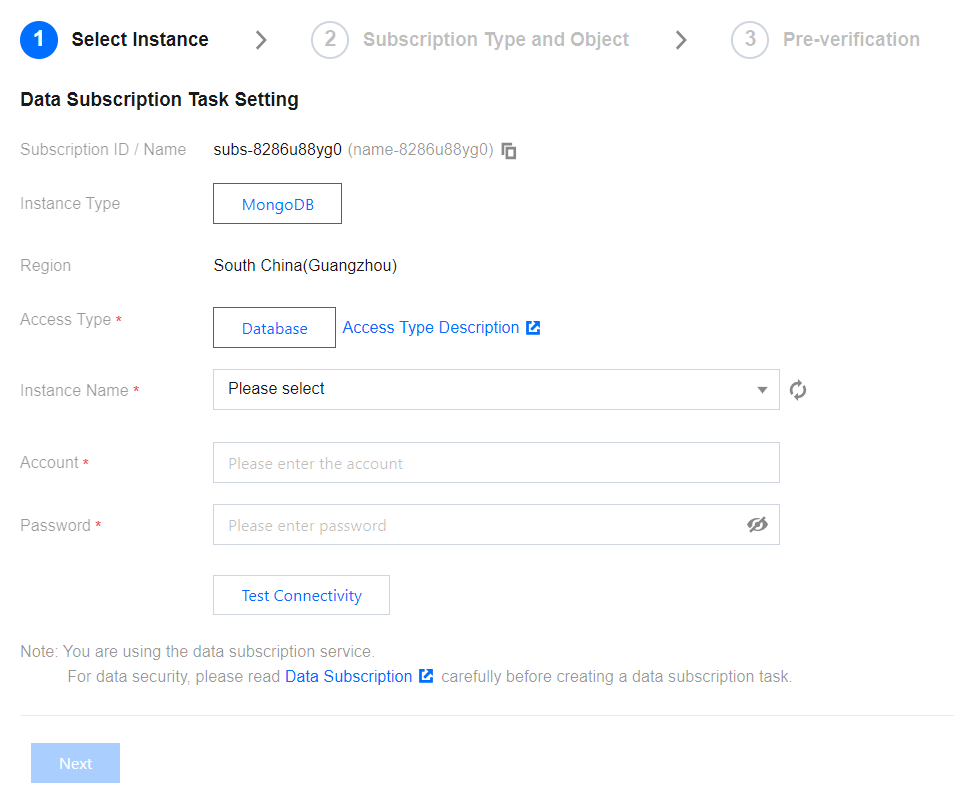
4. On the configure data subscription page, after configuring the source database information, click Test Connectivity, after passing, click Next.
Access Type: Currently, only supports Database.
Instance Name: Select the TencentDB instance ID.
Database Account/Password: Add the username and password for the subscription instance. The account has read-only permissions.
Number of Kafka Partitions: Set the number of Kafka partitions. Increasing the number can improve the speed of data write and consumption. A single partition can guarantee the order of messages, while multiple partitions cannot. If you have strict requirements for the order of messages during consumption, set this value to 1.
5. In the Subscription Type and Object Selection Page, after selecting the subscription parameters, click Save.
Parameter | Description |
Data Subscription Type | It is Change Stream by default and cannot be modified. |
Subscription Object Level | Subscription level includes all instances, library, and collection. All Instances: Subscribe to the data of all instances. Library: Subscribe to the library-level data. After selection, only one library can be chosen in the task settings below. Collection: Subscribe to the collection-level data. After selection, only one collection can be chosen in the task settings below. |
Task Configuration | Select the database or collection to be subscribed to. You can select only one database or collection. |
Output Aggregation Settings | If this option is selected, the execution order of the aggregation pipeline is determined by the configuration order on the page. For more information and examples of the aggregation pipeline, see MongoDB Official Documentation. |
Kafka Partitioning Policy | Partitioning by Collection Name: Partitions the subscribed data from the source database by collection name. Once set, data with the same collection name will be written to the same Kafka partition. Custom Partitioning Policy: Database and collection names of the subscribed data are matched through a regex first. Then, matched data is partitioned by collection name or collection name + objectid. |
6. On the pre-verification page, the pre-verification task is expected to run for 2–3 minutes. After passing pre-verification, click Start to complete the data subscription task configuration.
Note:
If verification fails, correct it according to the Handling Methods for Validation Failure and initiate the verification again.
7. The subscription task will be initialized, expected to run for 3–4 minutes. After successful initialization, it will enter the Running status.
Subsequent Operations
The consumption in data subscription (Kafka Edition) relies on Kafka's consumer groups, so you need to create a consumer group before consuming data. Data subscription (Kafka Edition) supports the creation of multiple consumer groups for multi-point consumption.
After the subscription task enters the running state, you can start consuming data. Consumption with Kafka requires password authentication. For details, see Demo in Consume Subscription Data. We provide demo codes in various languages and have explained the main process of consumption and the key data structures.
フィードバック