Data Delivery to Kafka Policy Settings
Download
フォーカスモード
フォントサイズ
Overview
When syncing the source data to Kafka, it supports flexible delivery policies. It can deliver data from different tables to different Topics, or to a single Topic. The explanations of different policies are as follows:
Policy Category | Single Topic Partitioning Policy | Feature Scenario |
Deliver to Custom Topic | Not involved | Data from different libraries and tables can be delivered to different Topics. |
Deliver to a Single Topic | Topic partitioning policy (default partitioning policy) | Deliver all to Partition0: deliver all to the first partition of a single Topic. By table name: deliver data from the same table to the same partition. By table name + primary key: deliver data with the same primary key value in the same table to the same partition. This policy is suitable for hot data; after setting, tables with hot data will be scattered and delivered to different partitions. |
| Topic partitioning policy (default partitioning policy) + custom partitioning policy | 1. First, deliver matched database and table data according to the custom partitioning policy (supports partitioning by table name, table name + primary key, and column). 2. Then, deliver the remaining unmatched database and table data according to the Topic partitioning policy (default partitioning policy). |
Custom Topic Name
Feature Description
Users set the Topic name for delivery themselves. DTS writes to the target Kafka according to the filled Topic name:
If the target has the Topic, or does not have the Topic but auto.create.topics.enable is true, DTS will write successfully.
If the target does not have the Topic, and auto.create.topics.enable is false, then DTS will fail to write, and at the same time, the sync task will report an error.
auto.create.topics.enable is a configuration parameter in Kafka, which is used to control whether to allow automatic creation of Topics and typically modified in Kafka's configuration file server.properties. When it is set to true, Kafka will automatically create the Topic upon receiving a request for a non-existing Topic. When it is set to false, it will not automatically create a Topic.
Configuration Rules
When selecting a custom Topic name, if the user has set multiple rules, DTS will match them line by line from top to bottom.
If the set rule (which the source's database name and table name both match with) is matched, then it will be delivered to the Topic corresponding to that rule.
If multiple rules are matched, it will be delivered to the Topic of all matched rules.
The remaining data that does not match any set rule will be delivered to the Topic specified by the last rule.
Matching rules are case-sensitive for database names and table names.
If the source database set lower_case_table_names = 0, then the database and table names in the matching rules must exactly correspond to the case used in the source database.
If the source database set lower_case_table_names = 1, then the database and table names are unified to lowercase, and the database and table names in the matching rules must be input in lowercase.
Database, table, and table name matching rules support RE2 regex. For the specific syntax, refer to Syntax Description. To achieve precision matching, start symbol and end symbol $ must be added, e.g., to precisely match the test table, it should be test$.
Configuration Sample
In the Instance X in a database, there are tables Teacher, Student, Student1, Student2, and Student3 in the Users database.
Example 1: Deliver all data from the Users database to Topic_A; deliver the remaining data to Topic_default.
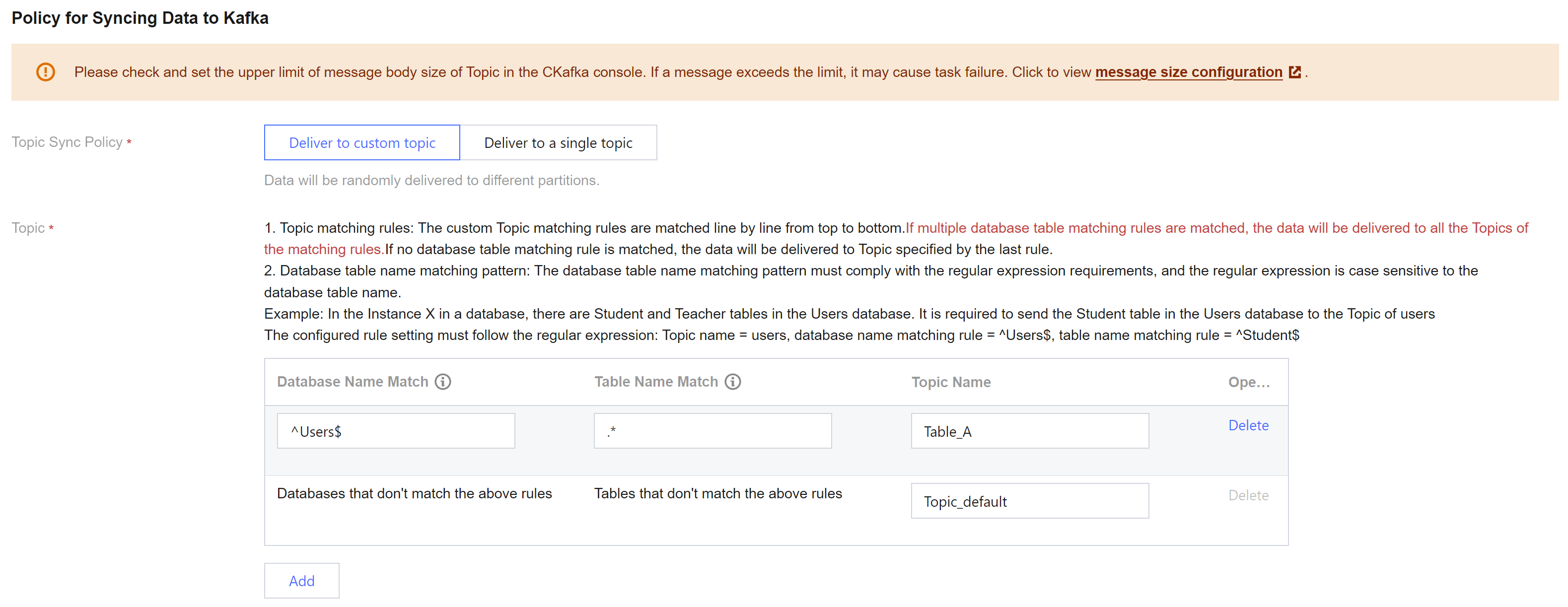
Topic Name | Database Name Match Mode | Table Name Match Mode | Description |
Topic_A | ^Users$ | .* | Users$ indicates a precision match of the Users database, where is the start symbol and $ is the end symbol; entering only Users matches all database names containing Users, such as table X_Users_1. .* matches all table names. |
Topic_default | Databases that don't match the above rules | Tables that don't match the above rules | - |
Example 2: deliver data from the Teacher table to Topic_A, data from the Student table to Topic_B, and the remaining data to Topic_default.
Topic name | Database Name Match Mode | Table Name Match Mode | Description |
Topic_A | ^Users$ | ^Teacher$ | Teacher$ indicates a precision match of the table name Teacher, where is the start symbol, and $ is the end symbol; entering only Teacher matches all tables containing Teacher, such as F_Teacher_1. |
Topic_A | ^Users$ | ^Student$ | - |
Topic_default | Databases that don't match the above rules | Tables that don't match the above rules | - |
Example 3: deliver data from the Teacher table to Topic_A , tables with the prefix Student (namely tables Student, Student1, Student2, and Student3) all to Topic_B, and the remaining data to Topic_default.
Topic Name | Database Name Match Mode | Table Name Match Mode | Description |
Topic_A | ^Users$ | ^Teacher$ | - |
Topic_A | ^Users$ | ^Student | ^Student matches all tables with the prefix Student, namely Student, Student1, Student2, and Student3. |
Topic_default | Databases that don't match the above rules | Tables that don't match the above rules | - |
Delivering to a Single Topic (Default Partitioning Policy)
Select an existing Topic on the target, then deliver according to various partitioning policies, supports Single Partition, By Table Name, By Table Name + Primary Key.
Delivering All to Partition0 (i.e., Single Partition)
Deliver all synced data from the source database to the first partition of a single Topic.
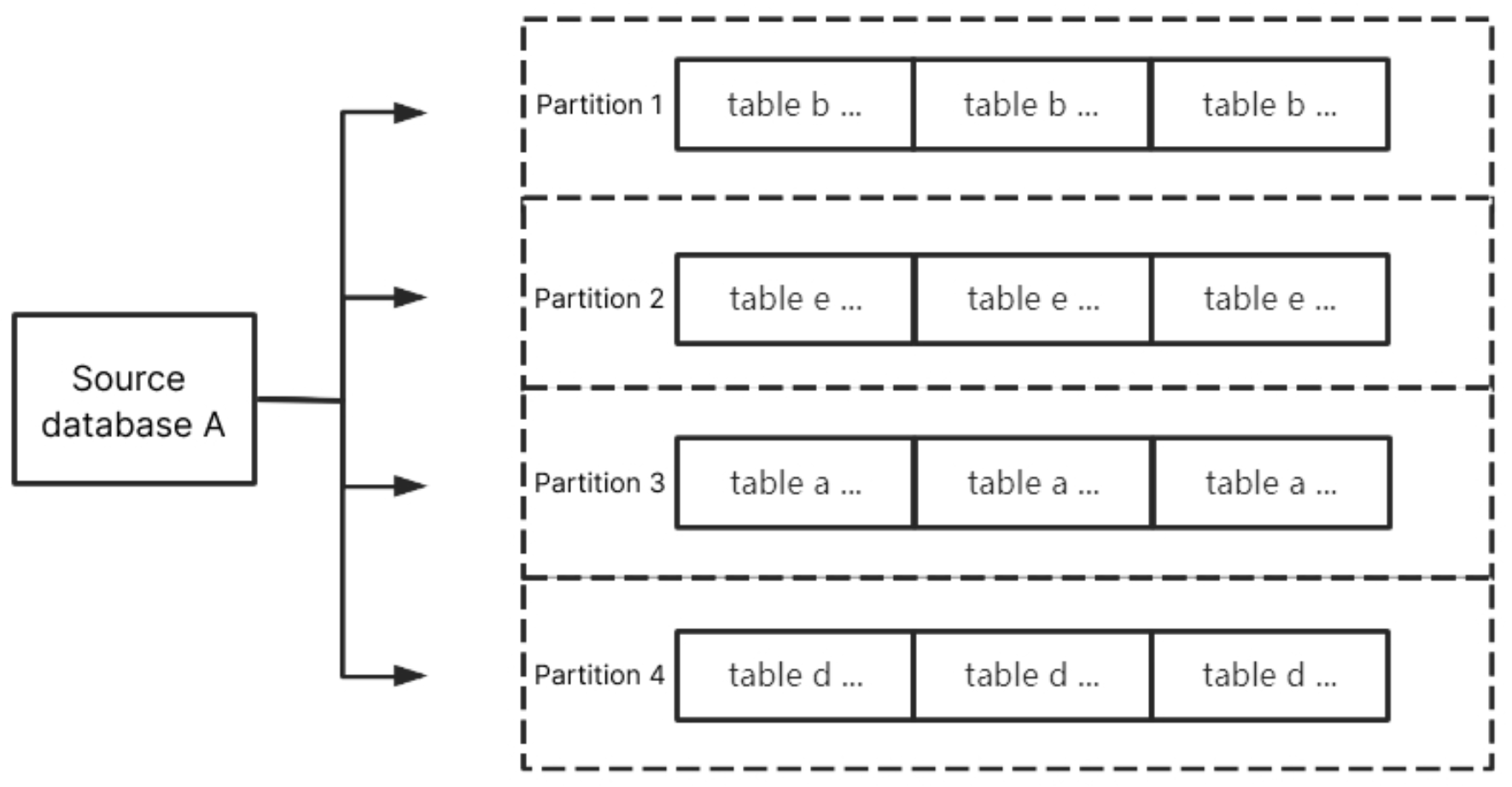
By Table Name
Partition synced data from the source database by table name. After setting, data with the same table name will be delivered to the same partition.
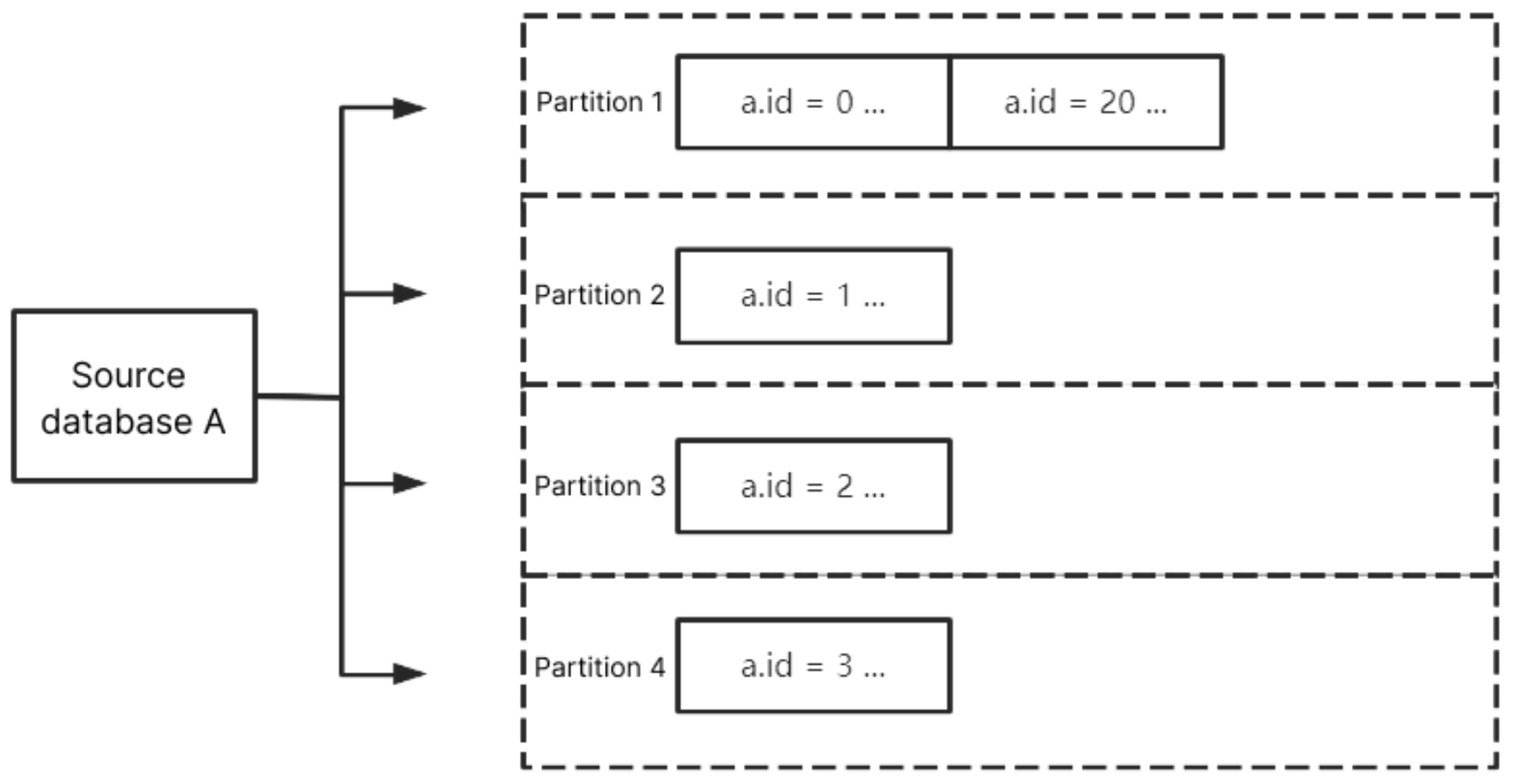
By Table Name + Primary Key
Partition synced data from the source database by table name + primary key. After setting, data within the same table with the same primary key value will be delivered to the same partition. This policy is suitable for hot data; after setting, tables with hot data will be scattered into different partitions to enhance the concurrency consumption efficiency.
Custom Partitioning Policy
When the Topic partitioning policy (default partitioning policy) selects By table name or By table name + primary key, it supports the option to choose a custom partitioning policy.
The custom partitioning policy matches database and table names through regex, partitioning matched data by table name, table name + primary key, or column. The remaining unmatched data is then partitioned according to the Topic partitioning policy (default partitioning policy) settings.
Matching Rules
Database and table name matching rules support RE2 regex. For the specific syntax, refer to Syntax Description.
The matching rule for database names is to match through regex database name. The matching rule for table names is to match through regex table name data. If precise matching is needed for database and table names, start and end symbols should be added, e.g. to match the
test table, it should be ^test$.The matching rule for column names uses equivalence
==, and is case-insensitive.Prioritize matching the custom partitioning policy. When there are multiple custom partitioning policies, match them one by one from top to bottom. The remaining data not matched by the custom partitioning policy is then delivered according to the Topic partitioning policy.
By Table Name
For the database name match mode, enter
^A$; for the table name match mode, enter ^test$. After selecting By table name, the data from A database's test table will be delivered to the same partition. Meanwhile, test table's data, except for other unmatched database and table data, will be delivered according to the Topic partitioning policy (default partitioning policy).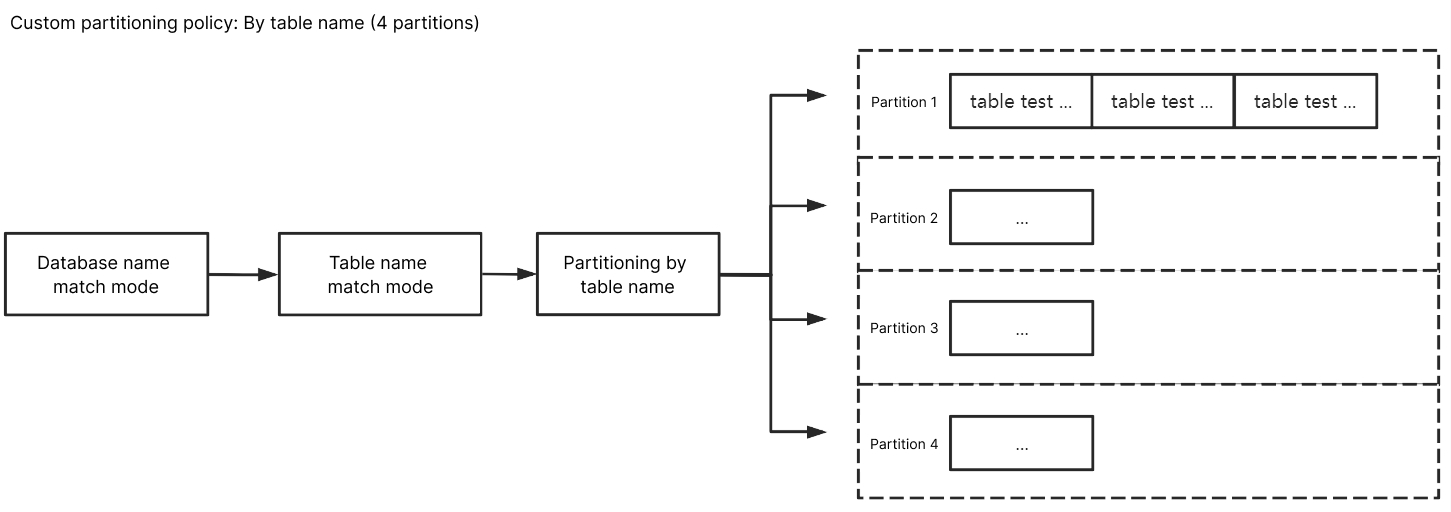
By Table Name + Primary Key
For the database name match mode, enter
^A$; for the table name match mode, enter ^test$. After selecting By table name + primary key, data from the A database's test table will be scattered and delivered to different partitions based on primary key data, eventually delivering data with the same primary key to the same partition. Data from other unmatched databases and tables, except for the test table, will be delivered according to the Topic partitioning policy (default partitioning policy).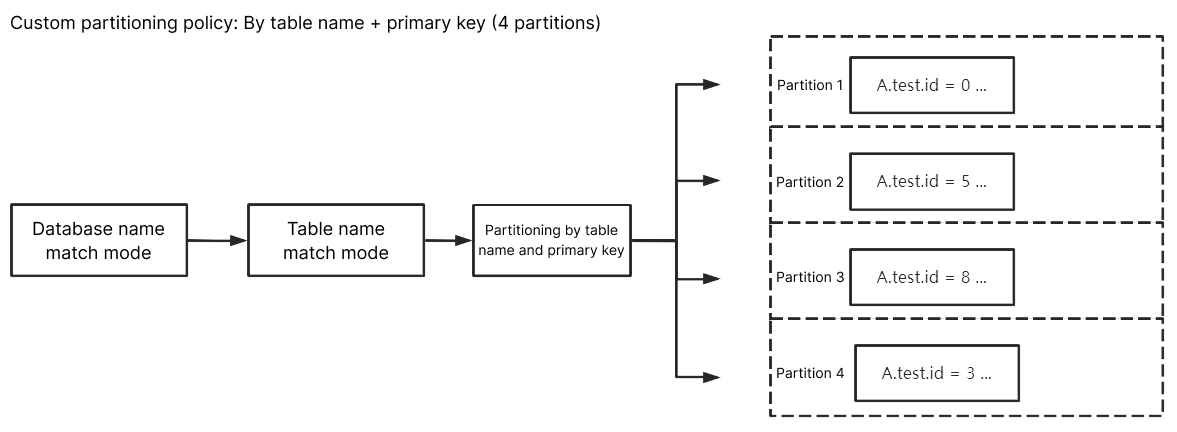
By Column
For the database name match mode, enter
^A$; for the table name match mode, enter ^test$. Enter class for the custom partition column, and after selecting By column, data from A database's table test with column name class will be scattered and delivered to different partitions, eventually delivering updated data from the same column to the same partition. Data from other unmatched databases and tables, except for the test table, will be delivered according to the Topic partitioning policy (default partitioning policy).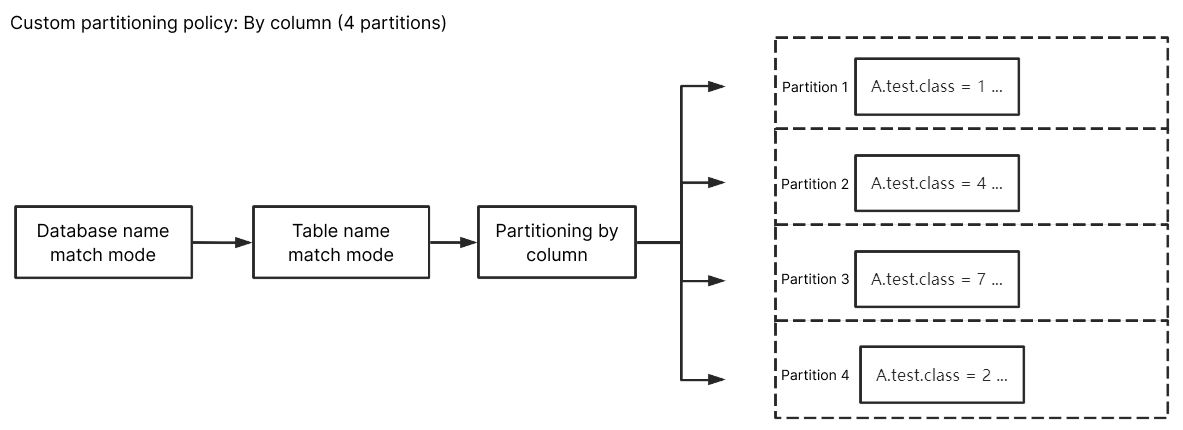
フィードバック