Web React
Download
フォーカスモード
フォントサイズ
This guide helps you run a full-featured TUILiveKit live streaming demo on your local machine in under 10 minutes.
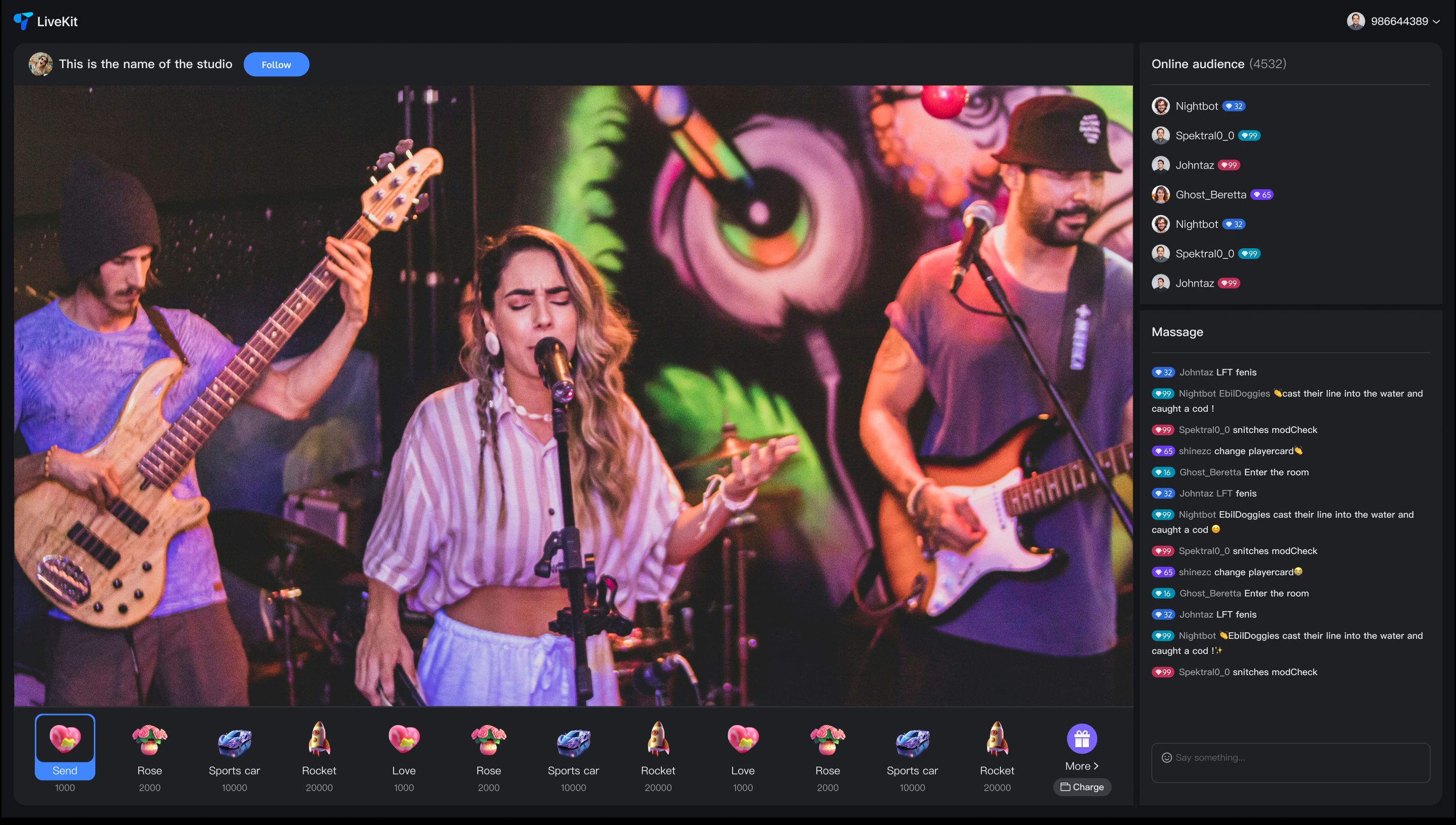
Once setup is complete, you can try it as a viewer: watch HD live streams, join in with bullet chat, and send gifts.
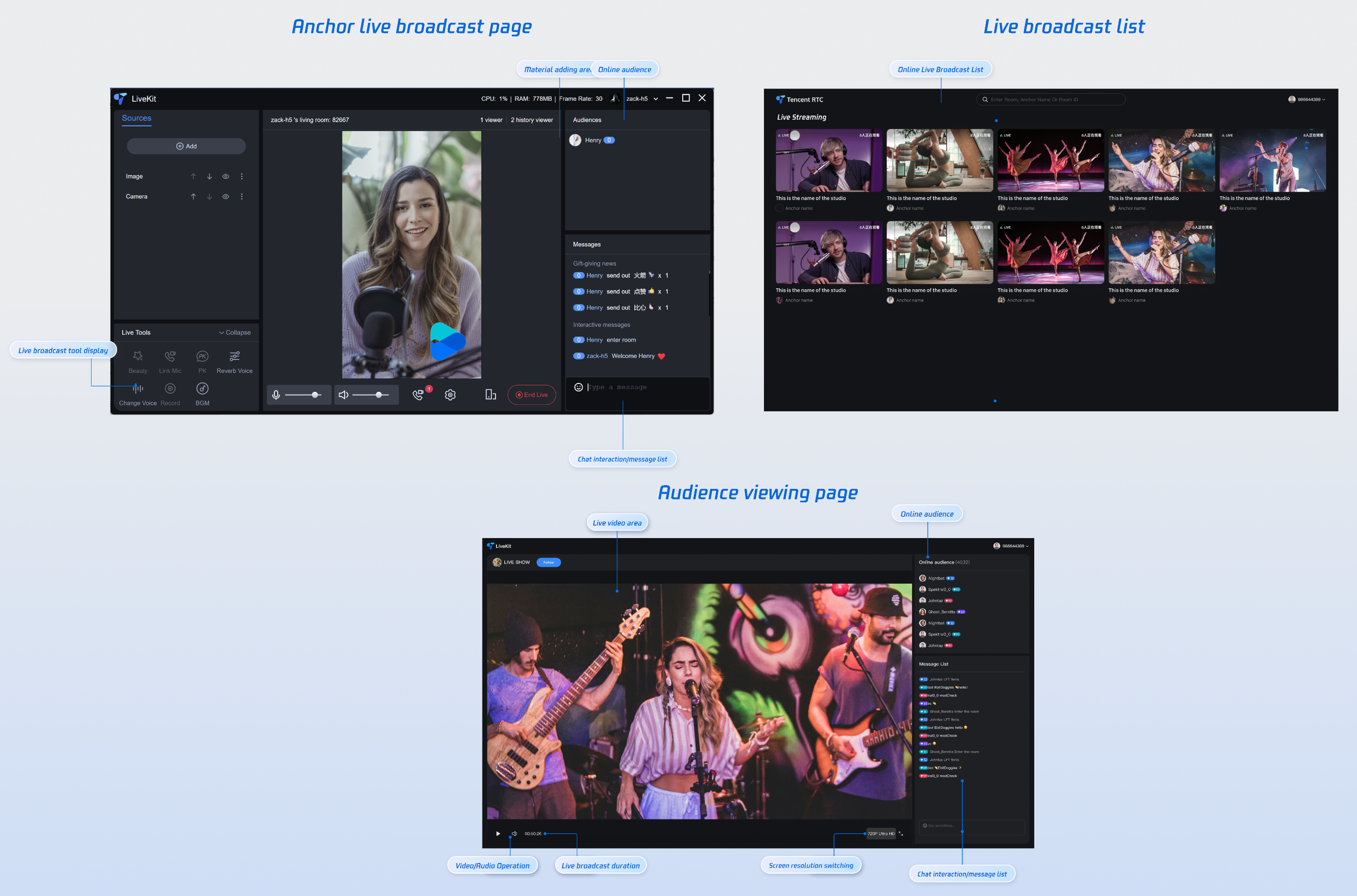
Prerequisites
Enable the Service
Refer to Enable the Service to obtain a TUILiveKit trial version. Then, go to the Console for application management, and get the following:
SDKAppID: Application identifier (required). TRTC uses SDKAppId for billing and details.SDKSecretKey: Application secret key, used to initialize the configuration file with secret information.Environment Preparation
Modern Browser: A modern browser that supports WebRTC APIs.
Devices: Camera, microphone, and speakers.
Node.js: ≥ 18.19.1 (Official LTS version recommended, check your current version with
node -v command).Instructions
Get the Demo
1. Download the TUILiveKit React Demo source code from GitHub, or run the following command directly in the
command line:git clone https://github.com/Tencent-RTC/TUIKit_React.git
2. Navigate to the demo project and install dependencies:
cd TUIKit_React/demos/live-vite-reactnpm install
Configure the Demo
In the project root directory, open the
src/config/basic-info-config.js file and enter the SDKAppID and SDKSecretKey obtained when activating the service: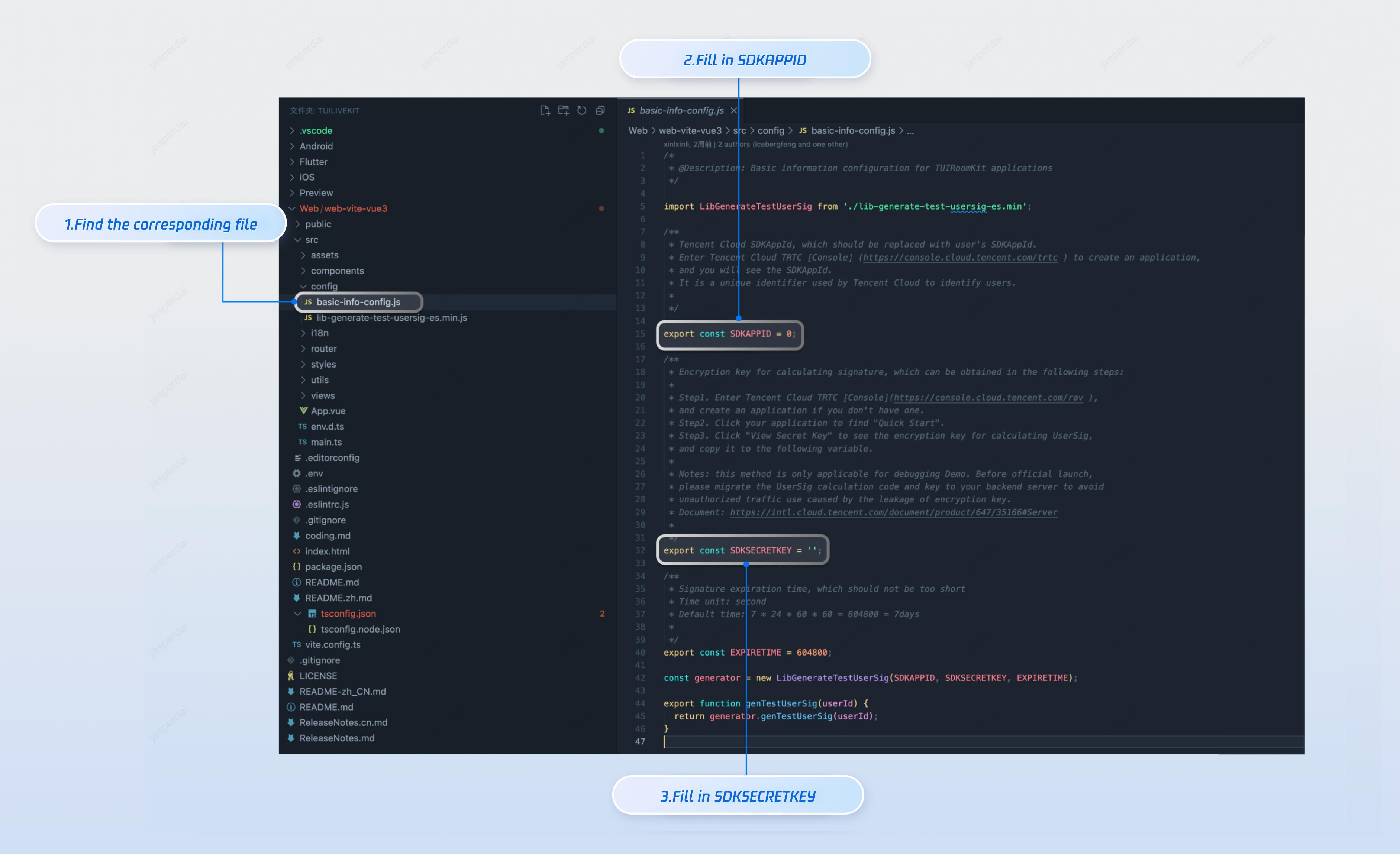
Build and Run the Demo
npm run dev
After the project runs successfully, a browser will automatically open and navigate to the live stream list page. At this point, you may see an empty live stream list page as no one is streaming in your application.
Live Streaming and Viewing
Start a Live Stream
The React project currently supports viewing only. To try it, start a live stream first, then open the React demo you just ran and watch the stream there.
Option 1 (recommended)
Option 2
Start a live stream from another platform demo—for example, run the Web Vue3 Streaming and Viewing project.
Watch Live Stream Using React Demo
After the stream is running, refresh the browser tab opened by
npm run dev (usually http://localhost:5173). The stream you started will appear in the list—click it to open the viewing page.Note:
For a smooth experience, use different user IDs for streaming and viewing. Logging in with the same ID on both will cause conflicts and kick you out, and you won’t be able to try the full flow.
Next Steps
Now that the demo is running, use the integration guides below to add the features you need to your project:
Page | Document Link |
Preparation | |
Audience Viewing | |
Live Stream List |
Contact Us
If you have any questions or suggestions during running the demo or usage, join our Telegram technical group or contact us for support.
フィードバック