To ensure the Cloud GPU Service to work properly, the correct Data Center Operating System software must be installed in advance. For NVIDIA series GPUs, the following two levels of software packages need to be installed:
The hardware driver that drives the GPU to work.
The libraries required by upper-level applications.
If you use NVIDIA GPUs for general computing, you need to install the Tesla Driver along with CUDA. This document explains how to install the Tesla Driver. For instructions on installing CUDA, see Installing CUDA Driver.
Note:
NVIDIA GPU instances are categorized into two types: physical pass-through card instances (full GPUs) and vGPU instances (fractional GPUs, such as 1/4 GPU).
Physical passthrough GPUs can use the Tesla driver to support computing scenarios or the GRID driver to enable rendering scenarios.
vGPUs can only use specific versions of the GRID driver to support different scenarios.
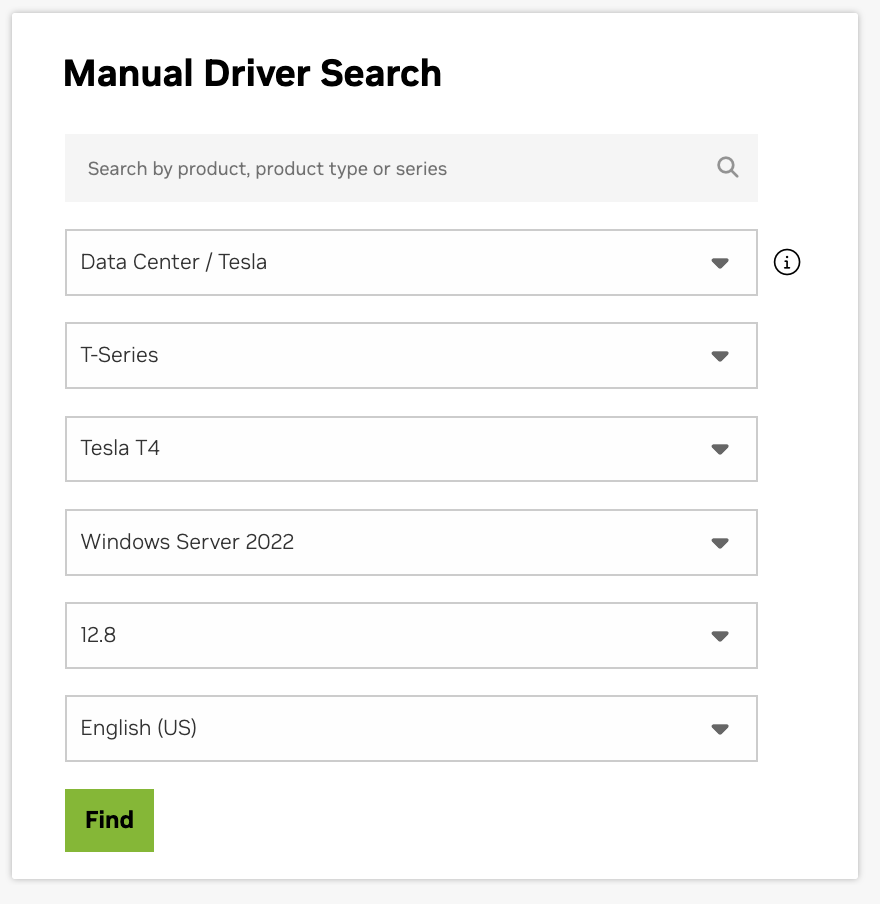
3. Select the required version based on the instance operating system, GPU model, and the desired CUDA version. For GPU model details, see Instance Types.
This document uses the T4 GPU and selects a driver installation package that supports CUDA 12.2 as an example, as shown in the figure below:
4. Download the installation package following the instructions.
5. Open the folder where you downloaded the driver, double-click the installation file to start the installation, follow the prompts on the interface to install the driver, and restart the instance as needed.
6. After the installation is complete, open the CMD terminal and enter nvidia-smi.exe to verify that the new version has been successfully installed and the GPU is functional.