Using Pre-installed GRID Driver Images (Recommended)
Download
포커스 모드
폰트 크기
마지막 업데이트 시간: 2026-01-16 16:53:07
Scenarios
If NVIDIA-series GPU instances are used for 3D graphics rendering workloads (such as high-performance graphics processing, video encoding/decoding, etc.), you must install the GRID Driver and configure a License Server. Only the GNV4v, GNV4, and GN7vw instance families provide public images with the GRID driver pre-installed, supporting graphics APIs such as DirectX and OpenGL. For ease of use, NVIDIA rendering instances provide images with the GRID driver pre-installed. When creating a GPU instance, you can select an image with the GRID driver already installed.
Procedure
1. On the purchase page, select the required GPU Rendering Instance model and related configurations.
Note:
Only the GNV4v, GNV4, and GN7vw instance families provide public images with the GRID driver pre-installed. Among them, GNV4v and GN7vw are available on a whitelist basis. Please contact Online Support to request purchase access for these instances.
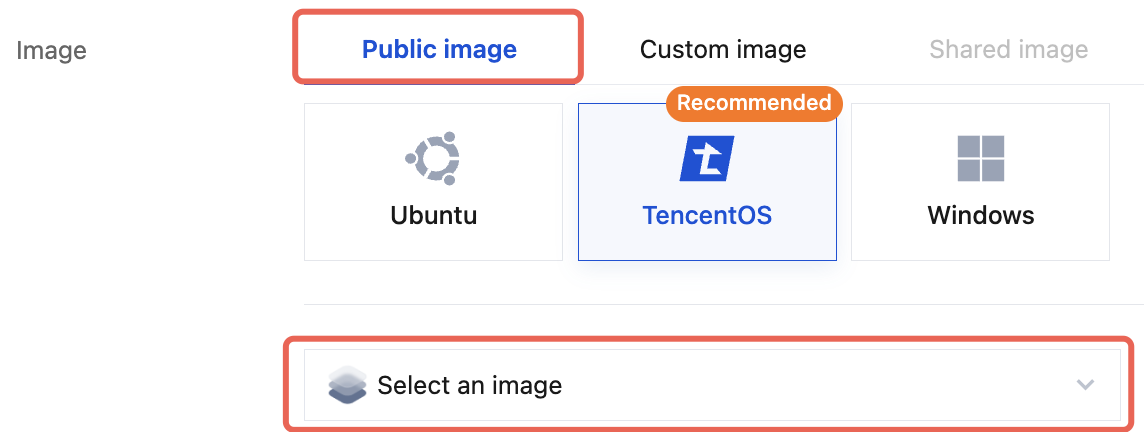
2. Select Public Image in the image, and click Select an image, as shown below:
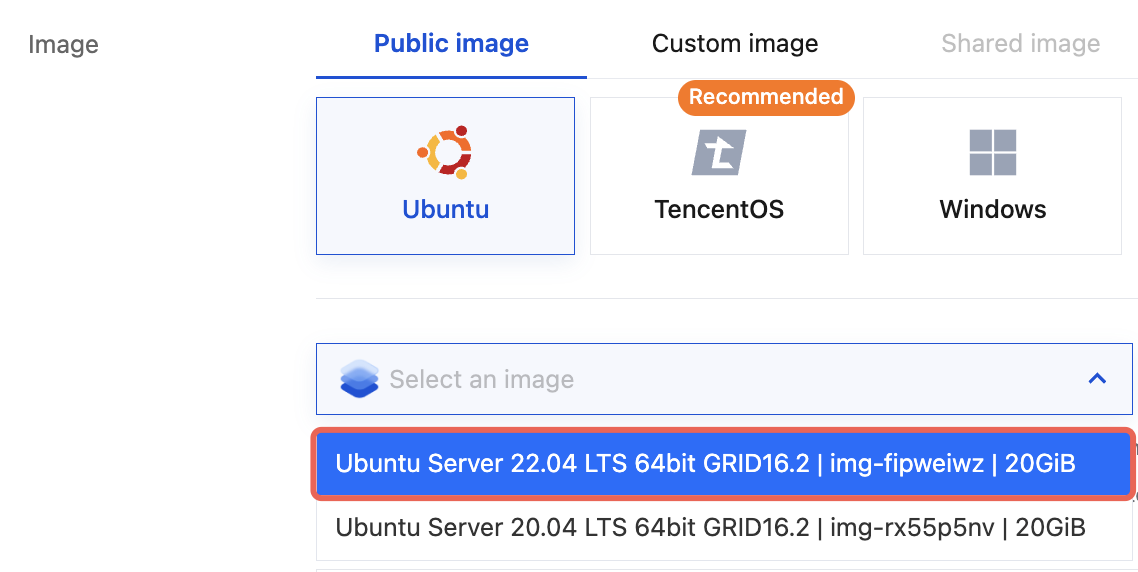
3. In the Select an image drop-down list, use the search box to find the required image version based on your needs, and then click the image version you want, as shown below:
This document uses Ubuntu Server 22.04 LTS 64-bit with GRID16.2 as an example. You can choose the appropriate image based on your actual needs and see Rendering Instance for further guidance.
4. Follow the prompts in the interface to complete the instance configuration.