This document introduces you to the bill subscription feature and shows you how to subscribe to bills.
About Bill Subscription
If you subscribe to bills, after your bill is generated each month, Tencent Cloud will send bill notifications to the recipients you specify. The notifications offer an overview of your costs in the previous month and can be used for reconciliation.
Time of notification: An overview of your monthly costs is sent between the second and fourth day of the next month.
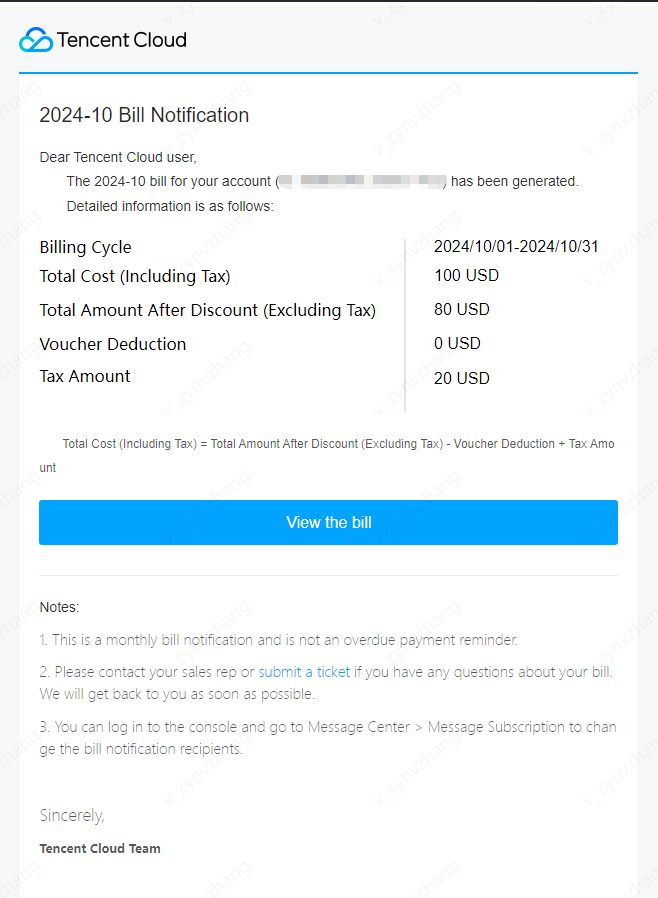
Content of notification: Below are samples of the notifications you will receive in Message Center and via email:
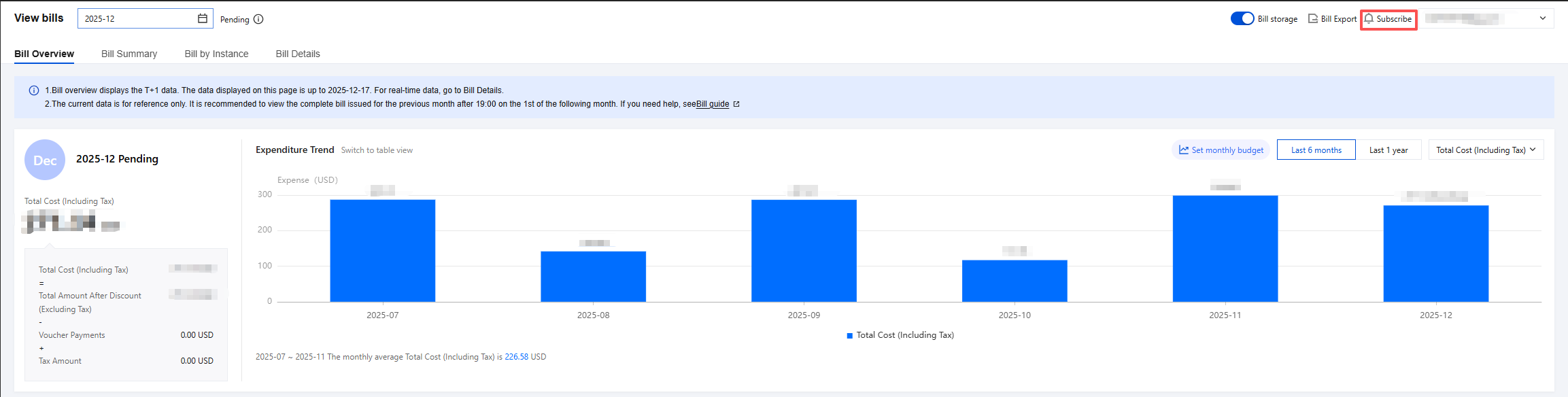
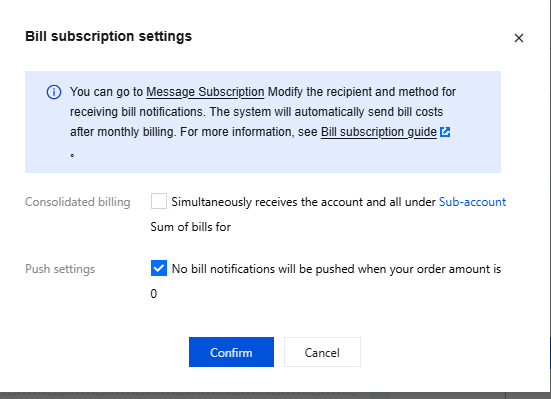
2. In the pop-up window, check or uncheck the setting items based on your actual requirements, and click Confirm.
Consolidate billing: Receive the sum of billing fees for that account and all sub-accounts belong to it at the same time.
Push settings: When the bill amount is 0 USD, no bill notification will be pushed. A bill amount of 0 USD means cash expenditure, free credit expenditure, and voucher expenditure are all 0 USD.
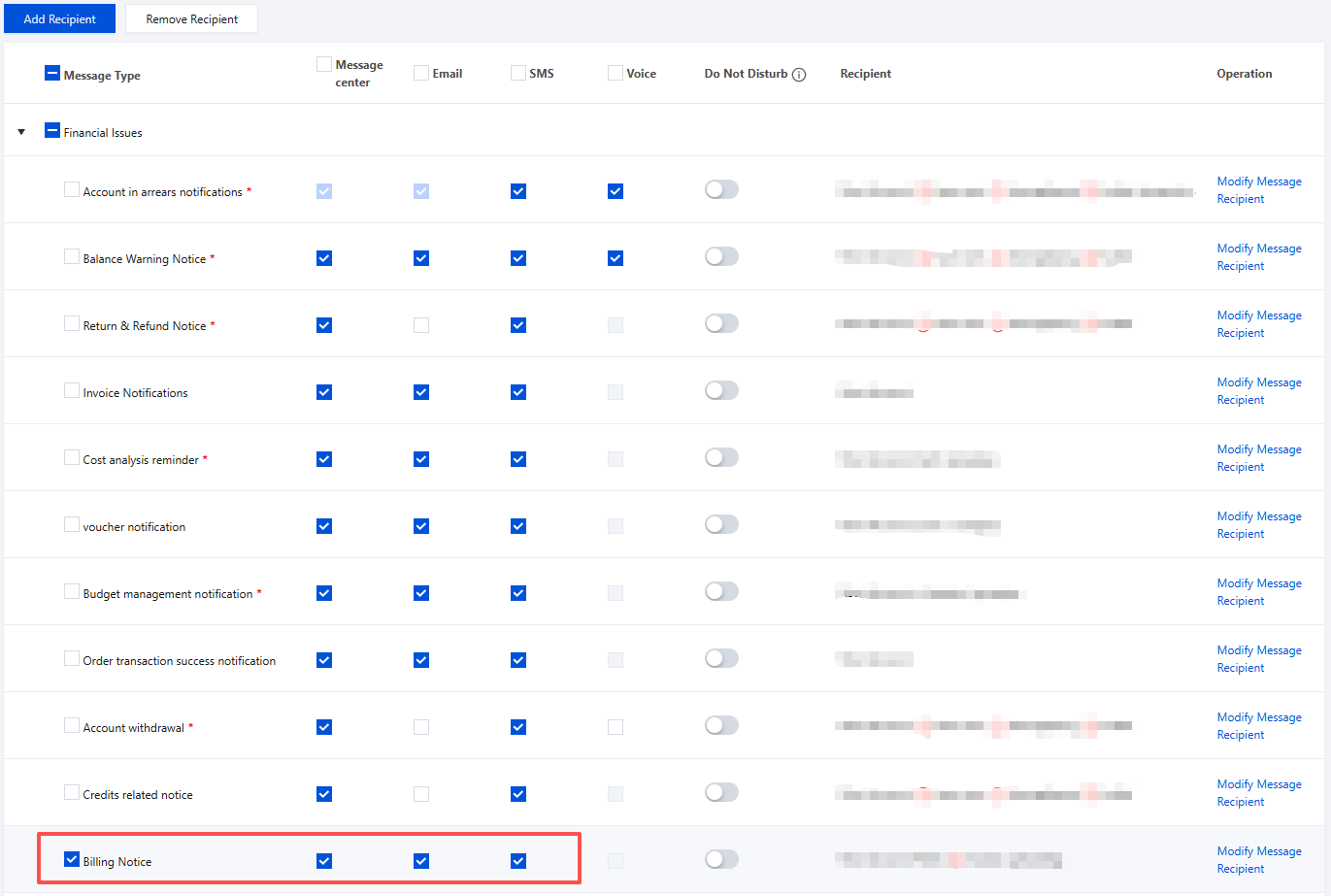
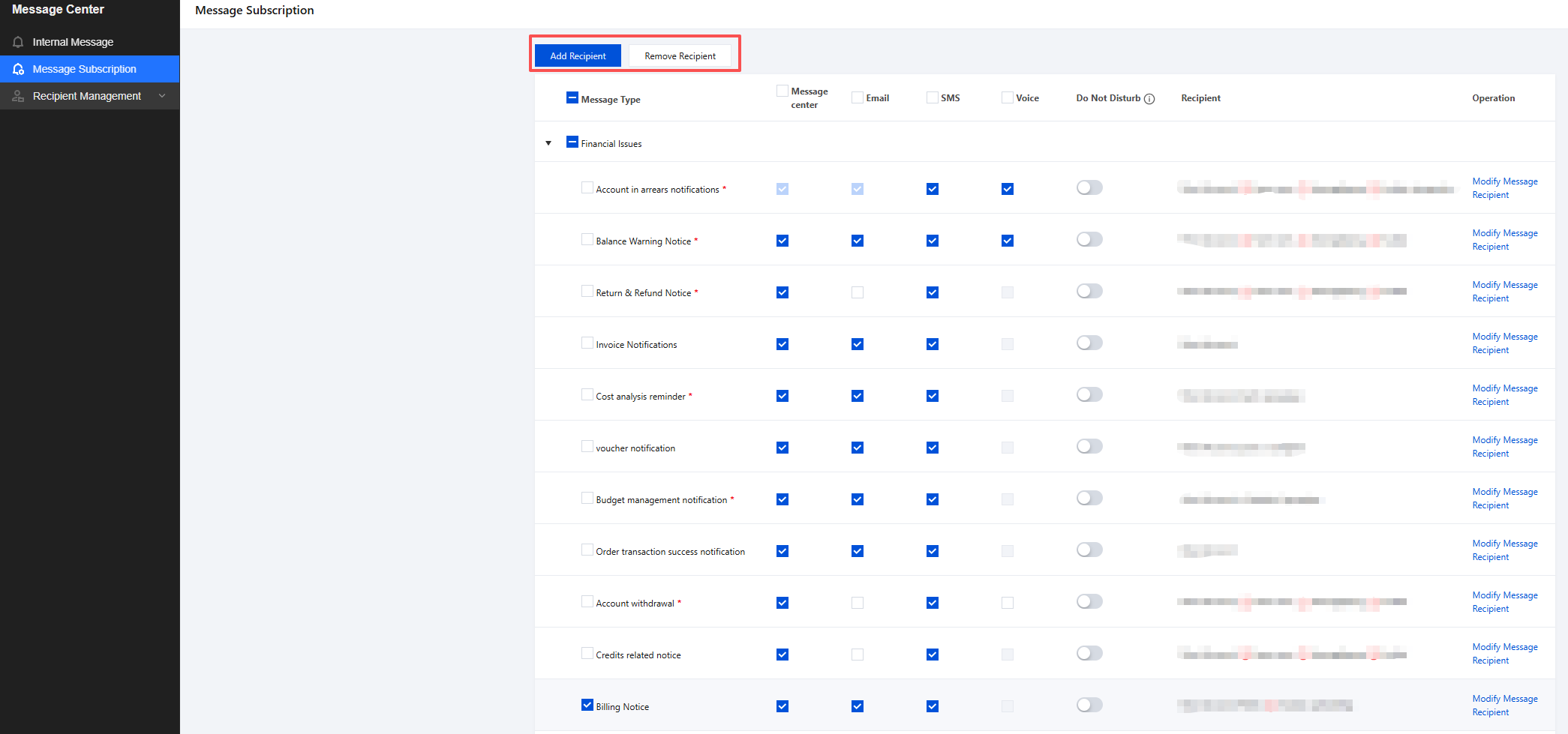
3. Enter Message Center >Message Subscription, check Billing Notice and the desired receiving method (Message Center, by email, SMS).
4. On the message subscription page, find the message type Billing Notice, and click Modify Message Recipient on the right to proceed.
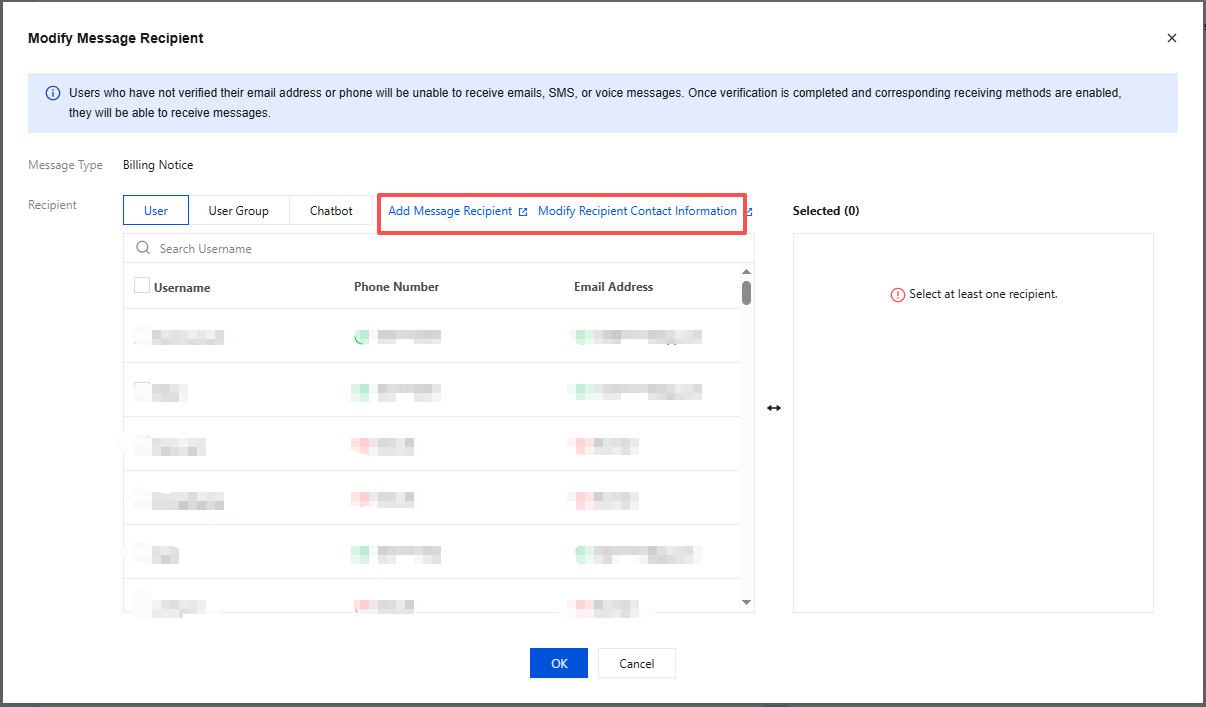
5. In the Modify Message Recipient window, add new message recipients or modify recipient contact information (Default recipient: creator).
Note:
To ensure data security of your bill amount, modification of notification recipients is a sensitive operation and requires authentication. To add or modify user or user group info, go to the Cloud Access Management relevant pages.
6. On the message subscription page, as required, click Add Recipient or Remove Recipient, and in the pop-up window, check the needed objects to add or objects to remove from the recipient list.