Cloud resources represent a significant cost for users, making the analysis and management of cloud resource expenses a key requirement. Tencent Cloud bills serve as the vehicle for users to analyze their costs and expenses. In addition to the routine need to query and aggregate bills by standard dimensions such as product and resource for reconciliation purposes, users also expect bill costs to align with their own enterprise (or personal) cost management and analysis dimensions, such as by department or project. This alignment enhances the convenience and usability of cost and expense statistical analysis in practical operations.
Tencent Cloud enables users to customize the management of their cloud resource bills for statistical analysis through its Tag tool and bill splitting capabilities. This functionality addresses users' needs for multi-dimensional management and analysis of bills and costs.
Core Concepts
Tag
Tag (Tag) is a cloud resource management tool provided by Tencent Cloud. Users can classify, search, and aggregate cloud resources with the same characteristics from different dimensions, thus easily managing cloud resources.
Bill
A bill is a collection of cloud resource settlement records generated by users and Tencent Cloud based on orders or transaction agreements (resource service activation orders). It serves as the vehicle for users and Tencent Cloud to reconcile and settle their transactional accounts.
Cost Allocation
Cost allocation refers to the process where users reallocate and analyze the costs of various cloud resources within a bill according to their own management or analytical needs. Common allocation dimensions include the department responsible for the resource and the application project using the resource. Tencent Cloud users can define these allocation dimensions as Tag keys within the Tag tool and assign corresponding Tag values to resources. When a bill is generated, the associated Tag information (that is, the allocation dimension details) is displayed alongside each billing record via the resource linkage, thereby enabling Tag-based cost allocation for cloud resource bills.
Cost Allocation Tag
A Tag is a collection used by users to classify and manage resources based on their own requirements (currently supporting up to 1 million tag key-value pairs in total). Tags used for cost allocation and cost analysis are referred to as cost allocation tags, which can be identified and managed on the cost allocation tag side (currently supporting up to 15). Cost allocation tags are a simple cost allocation tool with relatively basic features, suitable for scenarios requiring cost allocation based on a single dimension.
When users set tag keys as cost allocation tags, these designated tag keys will appear as columns in the bill. Each key becomes an additional column, and under each tag key column, the corresponding tag value assigned by the user to that resource is displayed for each billing record line. Other tag keys not designated as cost allocation tags do not appear in the bill.
For example, a company may wish to track its cloud resource consumption by different projects. It can create a Tag, bind the created Tag to resources, and designate it as a cost allocation tag. Detailed instructions for cost allocation tags are provided below.
Cost Allocation Tag Settings
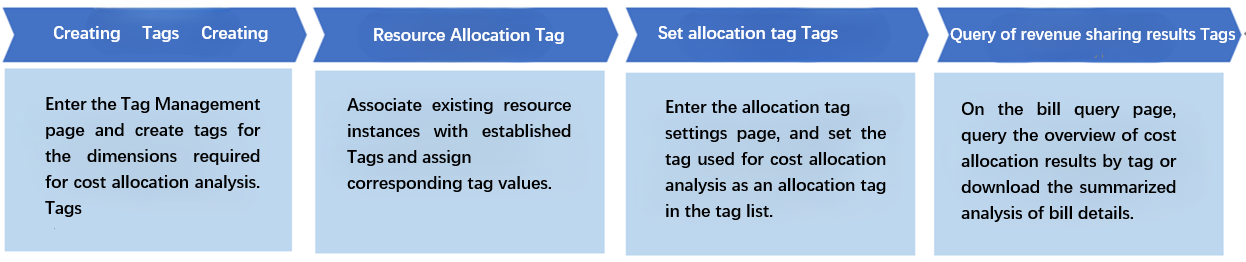
Before using cost allocation tags, users must create Tags and assign corresponding Tags to the resources that require cost allocation. The actual operation process is as follows:
Step 1: Creating a Tag
Please see the Create Tag documentation to create a tag.
Note:
Tag Key (Required): Enter a new tag key to create, or select an existing tag key to add tag values for that key.
Tag Value (Required): Enter a new tag value.
Step 2: Binding and Viewing Resources
1. Please see the Bind Resources documentation to associate the newly created tag with resources.
2. After binding resources, please see the View Bound Resources documentation to view resources bound under the tag.
Note:
You can use this operation to view the corresponding resource list and perform tagging on resources. A Tag can correspond to multiple resources, while a resource can be associated with multiple Tags.
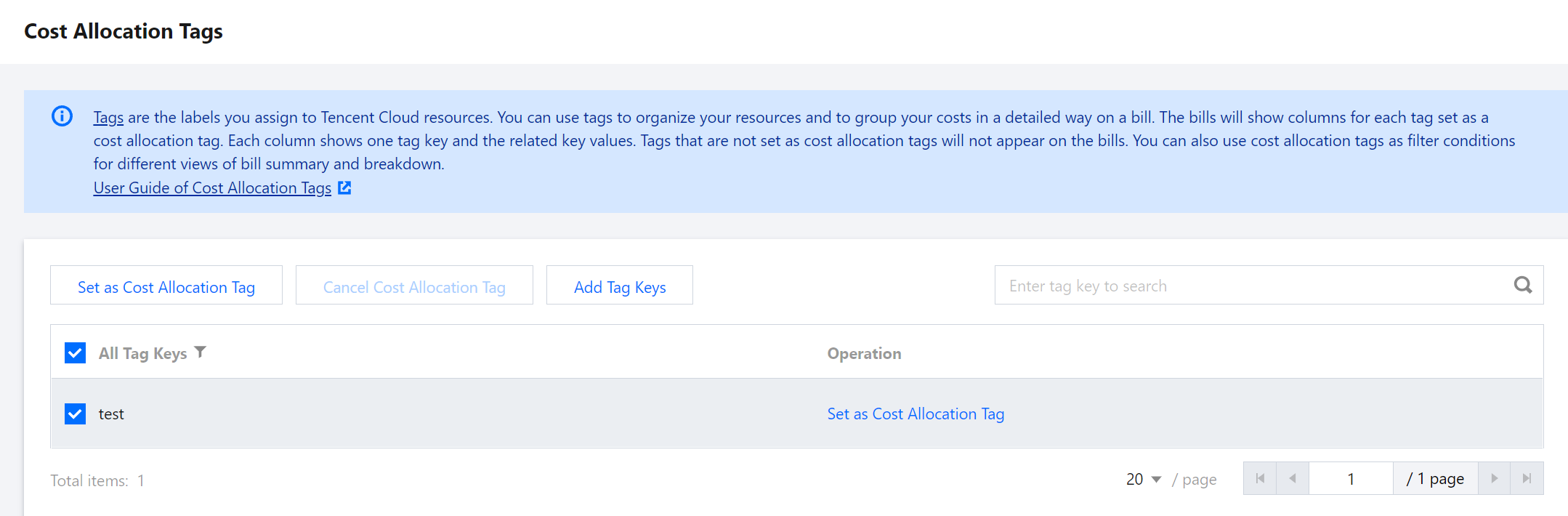
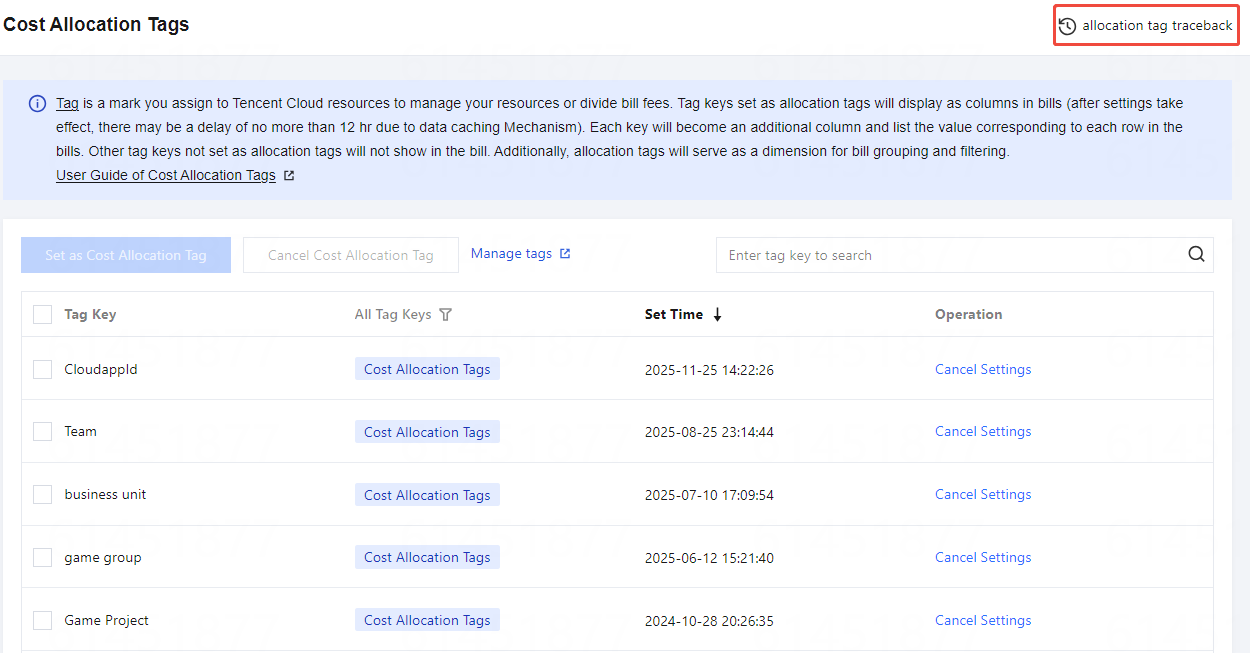
2. In the left sidebar, click Cost Allocation Management > Cost Allocation Tags.
3. On the Cost Allocation Tags page, select the tag key you want to operate on, and click Set as Cost Allocation Tag.
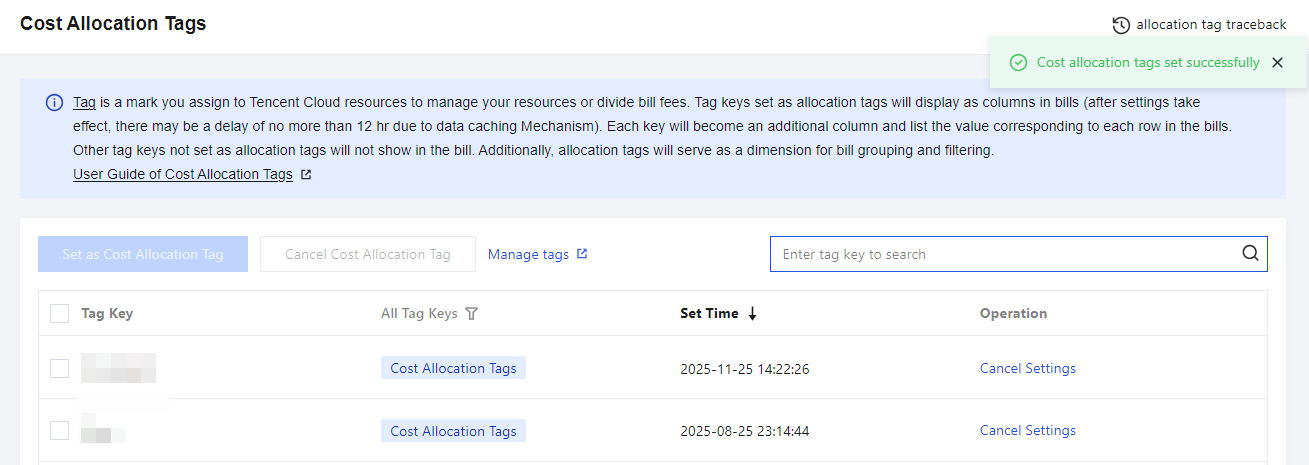
4. In the pop-up dialog box, click OK. A notification as shown in the figure below appears in the upper-right corner of the console, indicating that the setup is complete.
Note:
A maximum of 15 cost allocation tags can be set. It is recommended to select only one tag key as the cost allocation tag, as a smaller number facilitates easier management of your expenses. Tag keys designated as cost allocation tags will be displayed as separate columns in bills, allowing you to filter and categorize bills based on these tag keys.
Step 4: Viewing Cost Allocation Tags
If you have created Tags and bound them to resources, and have set a Tag as a cost allocation tag, you can view the related Tag information in your bills. Specifically, starting from the month in which you set the cost allocation tag, you can view Tag information in your bills. Billing data for historical months that have already been invoiced remains unchanged.
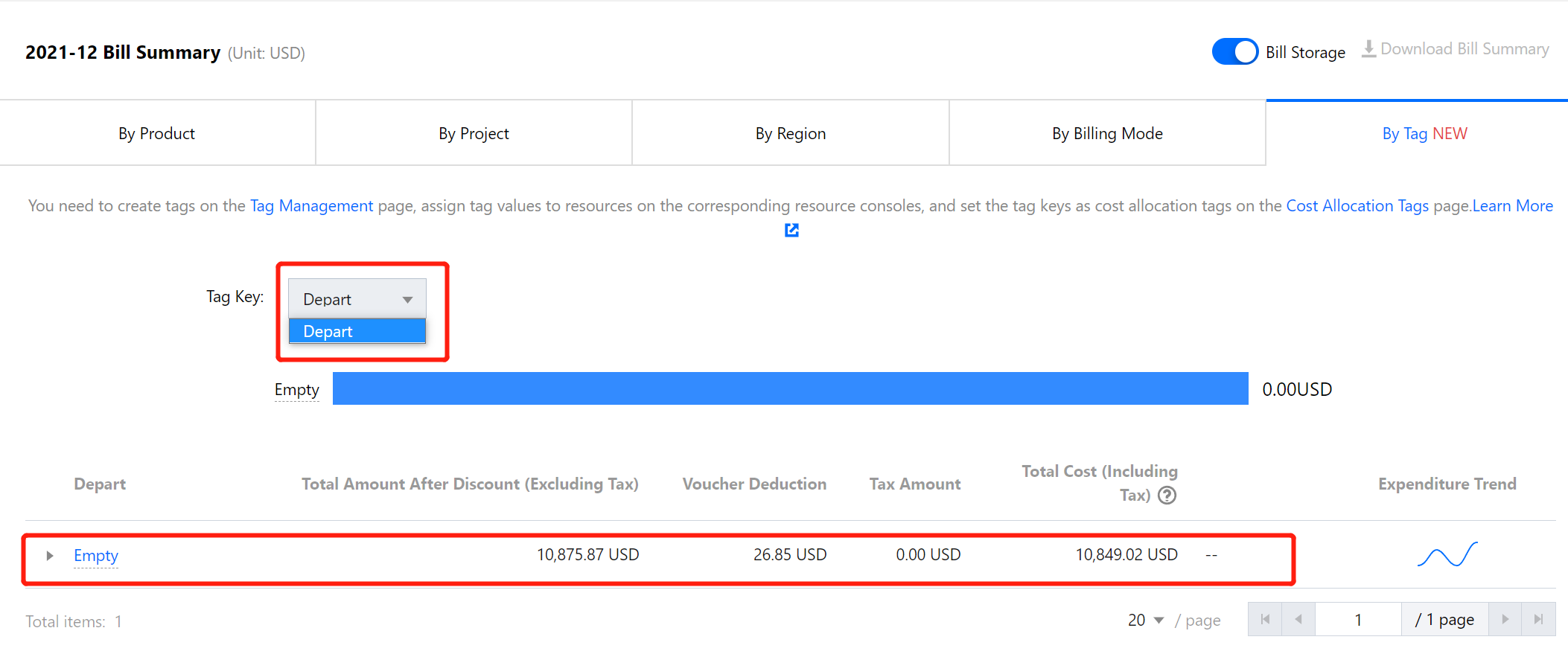
2. On the Bill Overview page, select a specific tag key to view a bar chart and list of related resources aggregated by that tag key.
If you have enabled the Tag feature and set a cost allocation tag, you can view the related Tag information in your downloaded bills at different levels (for downloading bills, see Bill Export Center). In the table, you can filter or perform other operations on the files based on the tag key.
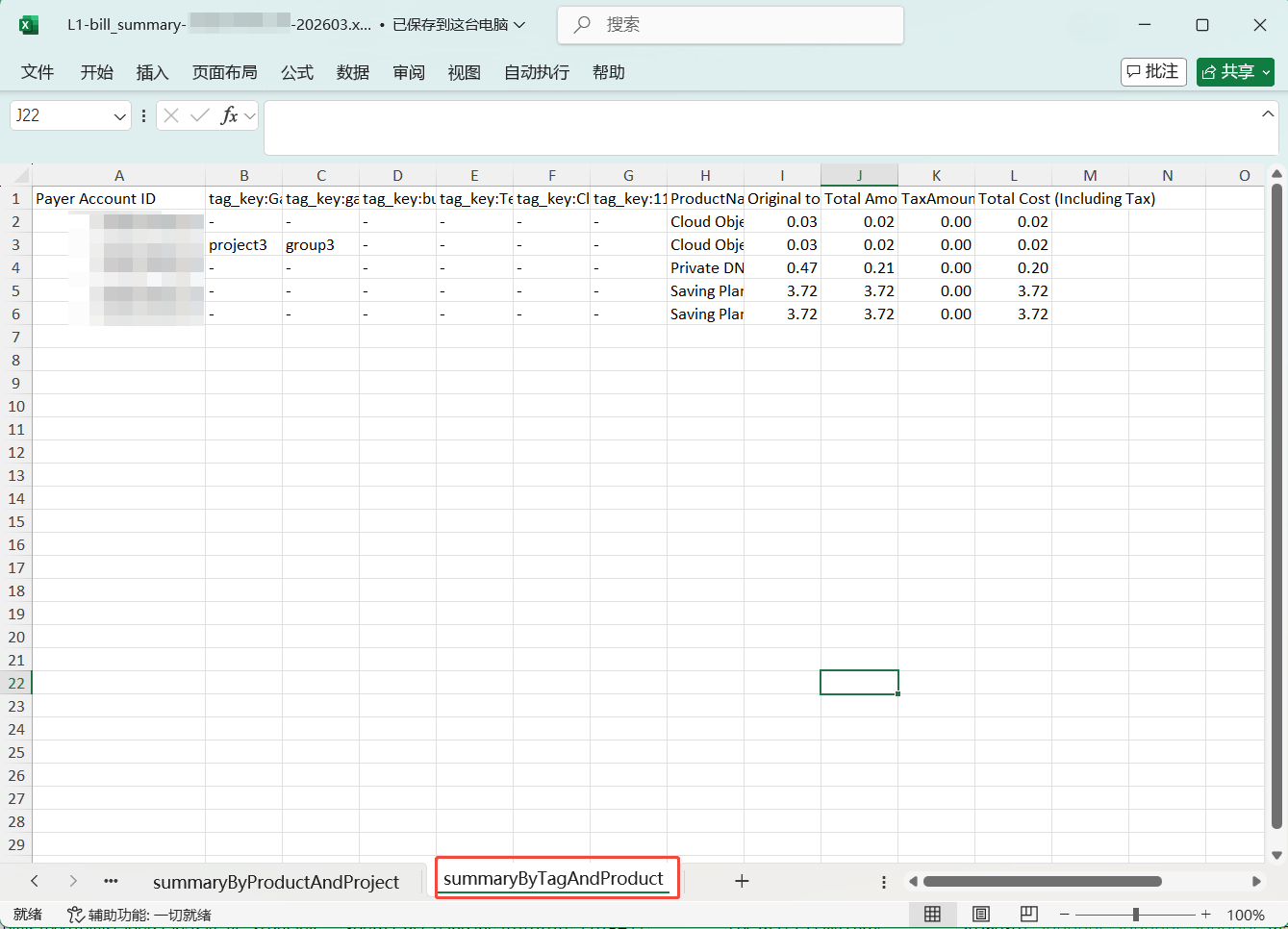
1. The display of Tags in L1-level bill files (aggregated by product and project).
2. In the L1-level file, you can see a sheet named: Aggregated by Tag + Product Name. In this sheet, you can view billing content aggregated by tag key. If you have not set a tag value under that tag key for a resource in a particular row, that row will be displayed as empty.
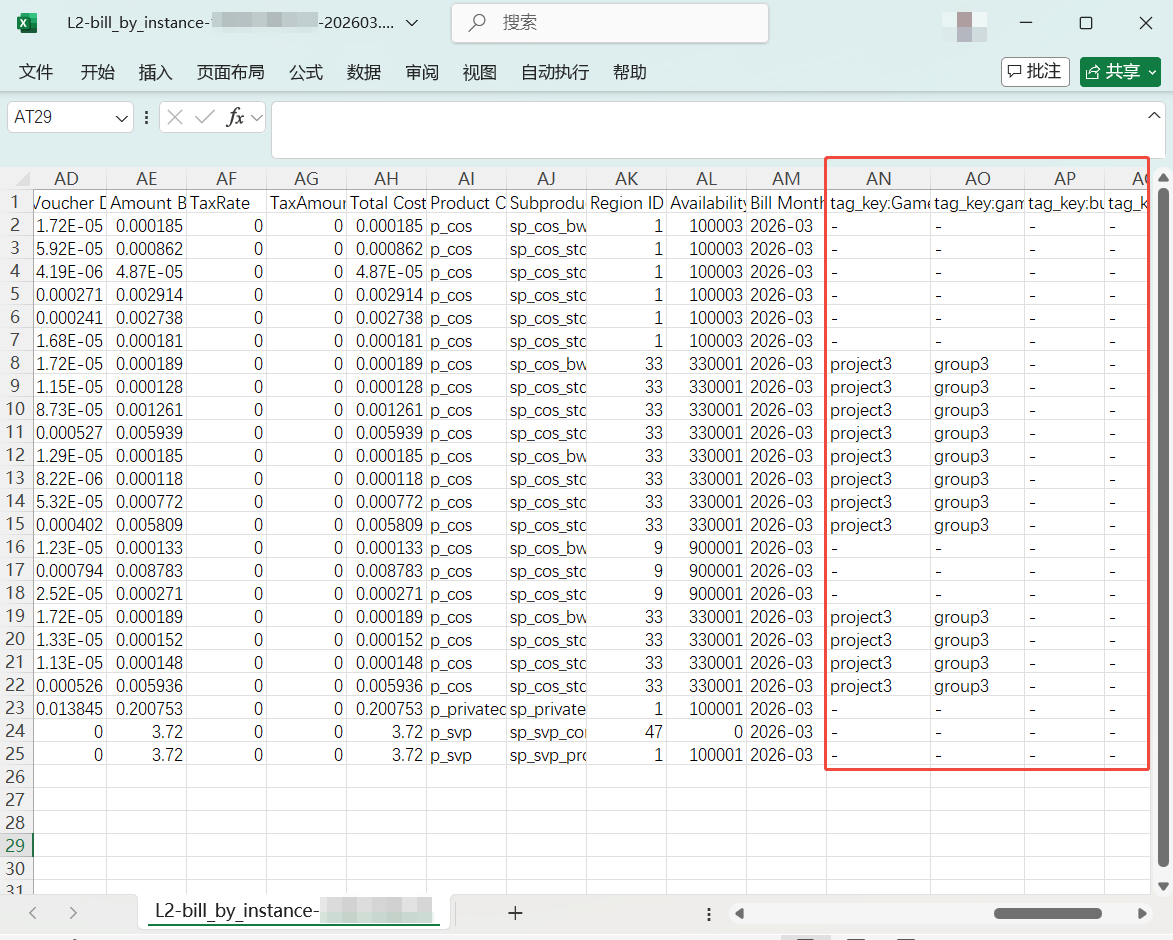
3. The display of Tags in L2-level bill files (aggregated by resource ID).
4. In the bill file aggregated by resource ID, you can see the tag key column and the corresponding tag value for each row under that column on the right side of the table. If you have not set a tag value under that tag key for a resource in a particular row, it is displayed as "-".
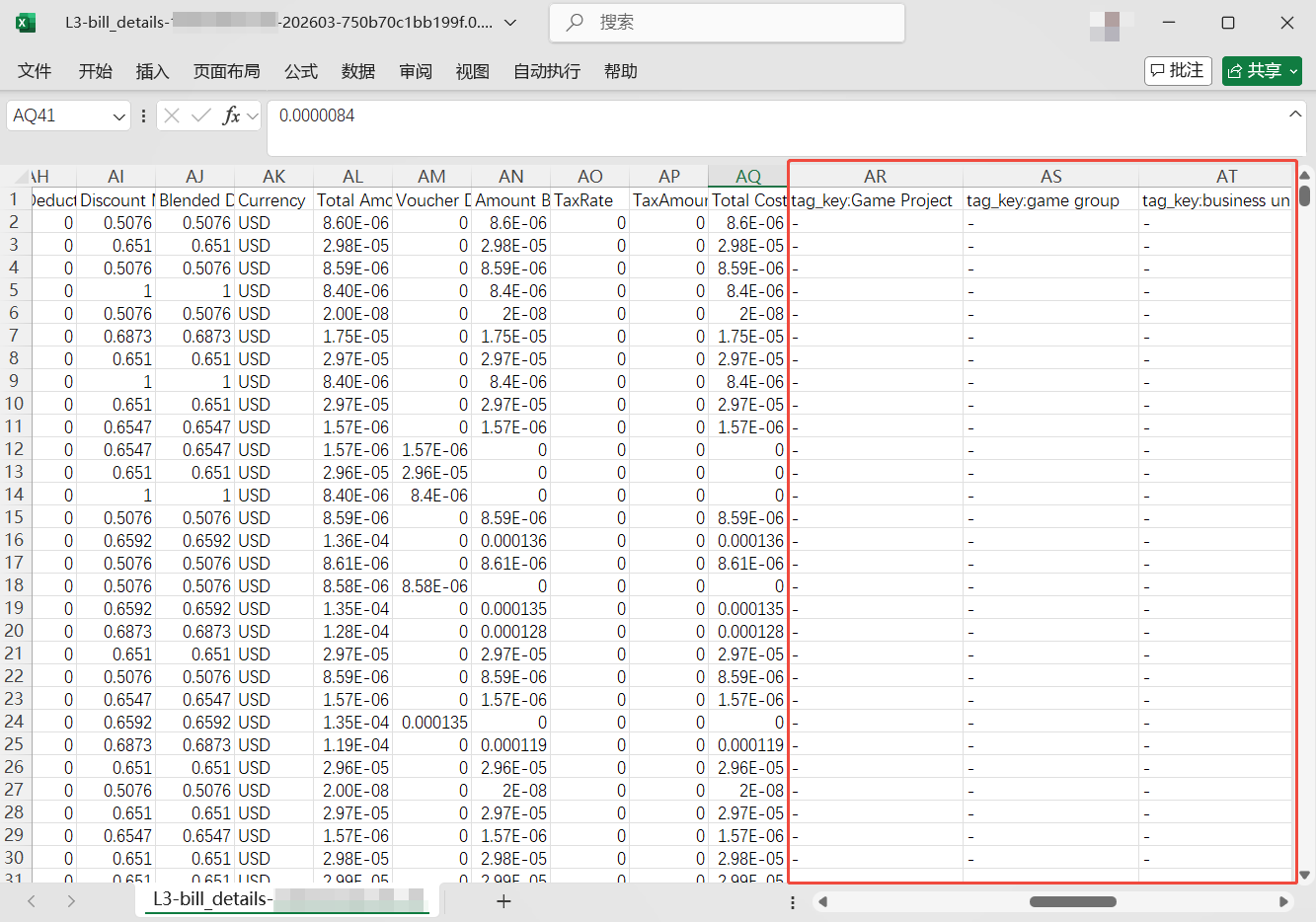
5. The display of Tags in L3-level bill files (bill details).
6. In the bill details file, you can see the tag key column and the corresponding tag value for each row under that column on the right side of the table. (If you have not set a tag value under that tag key for a resource in a particular row, it is displayed as "-".)
Products Supporting Cost Allocation
Product Name
DC
Time Series Database CTSDB
TCR
Real-time audio and video communication
CBS Snapshot
TencentDB for Redis®
CBS
TKE
GAAP
CLS
TencentDB for MongoDB
TencentDB for Redis®
TencentDB for SQL Server
Lighthouse
Chat
Stream Compute Service (SCS)
TencentDB for PostgreSQL
TencentDB for KeeWiDB
T-Sec-Cloud Firewall (CFW)
Tencent Interactive Whiteboard
Public IP Address
Bandwidth package
TencentDB for MariaDB
Cloud Data Warehouse Doris
Cloud data warehouse PostgreSQL
CLB
TDSQL for MySQL
ServiceMesh
Tencent Cloud TCHouse-C
Cloud Development
CCN
Tencent Service Framework (TSF) - Public Cloud
CSG
Video on Demand (VOD)
Tencent Cloud Observability Platform
CVM
SCF
VPN Gateway
T-Sec-CloudHSM
T-Sec-Bastion Host (BH)
CAT (New Version)
TcaplusDB
Voice Messaging Service (VMS)
T-Sec-Host Security (CWP)
T-Sec-Anti-DDoS
T-Sec-Web Application Firewall (WAF)
GME
Tencent Push Notification Service
Application Observability
TSE Register Configuration Center
TDSQL-C for MySQL
TDSQL-C for PostgreSQL
HTTPDNS
TDMQ
Message Queue CKafka
TDSQL for PostgreSQL
Tencent Kubernetes Engine for Serverless
SSL Certificates
CFS
Tencent Cloud Blockchain as a Service (TBaaS)
Tencent Cloud TI Platform TI-ONE
NAT Gateway
Elasticsearch Service
TDSQL-H
TEM
CI
Elastic MapReduce (EMR)
Cloud Object Storage
SMS
API Gateway
Database Backup Service (DBS)
Data Lake Compute
WeData
CSS
ECDN
CDN
Data Subscription Service (DSS)
Tencent Cloud VectorDB
Data Transmission Service (DTS)
Edge Security Acceleration Platform
TSE Cloud Native Gateway
Threat Intelligence Cloud Query and Local Engine API_SDK
TencentDB for MySQL
T-Sec-Cloud Security Center (CSC)
Cloud Native etcd
T-Sec-KMS
Cloud Monitor (Prometheus)
Private Link
-
-
Note:
For SMS, CSS, CDN, ECDN, Edge Security Acceleration Platform, CBS Snapshot, and TencentDB for MySQL Backup - Pay-as-you-go, cost allocation Tag-related data is generated only after they are added to the allowlist. Retroactive application is not supported. If you need to add a service to the allowlist, contact the corresponding cloud product to submit a ticket.
For resources bound to Tags under certain products, split billing cannot be performed for resource IDs that are neither pay-as-you-go billing resource IDs nor prepaid resource IDs.
Allocation Tag Traceback
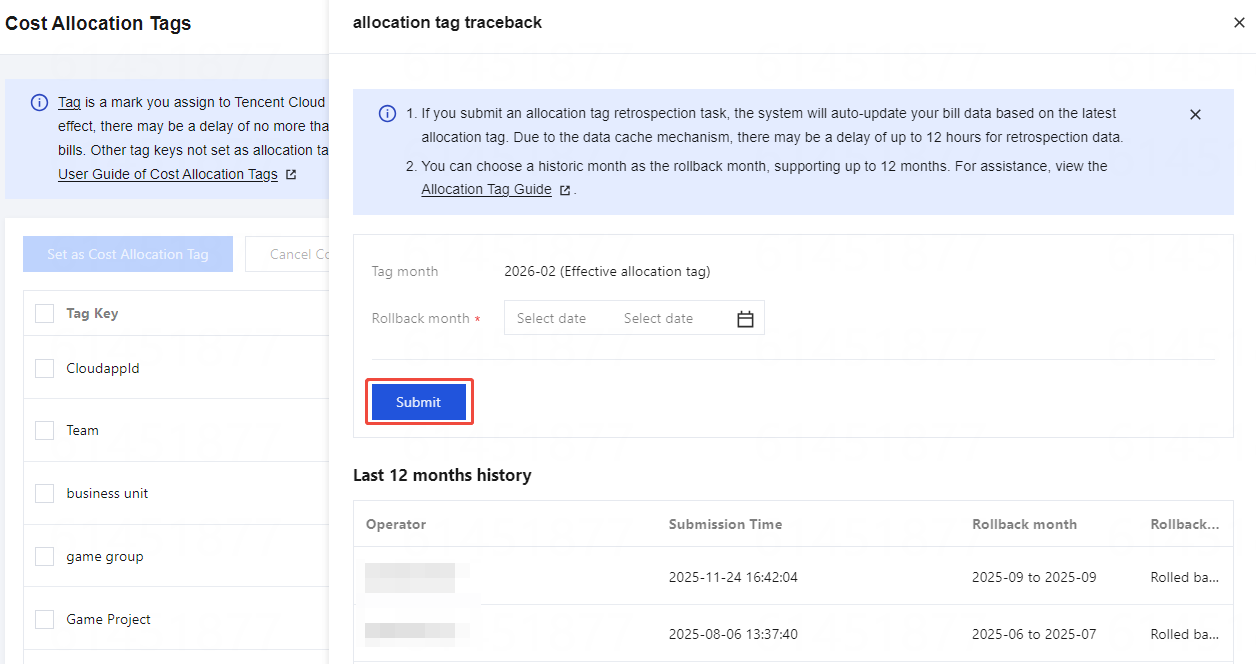
The cost allocation Tag reprocessing capability reprocesses historical monthly cost allocation bills based on the current Tag key designated for cost allocation and the binding relationships between resources and Tags, supporting retroactive cost allocation Tag reprocessing for up to 12 months.
2. In the left sidebar, choose Cost Allocation Management > Cost Allocation Tags > Cost Allocation Tag Traceback.
3. Select the historical retrospection month(s) as needed (you can select a single month or multiple months), and then click Submit.
4. After OK is clicked in the Confirm Submission Rollback operation window, the system starts the retrospection.
Note:
For resources that have been destroyed or had Tags unbound, the Tags from historical months are retained during reprocessing.
Cost allocation Tag retrospection supports only standard bills.
Retrospection Records Description
Operator: The UIN that submitted the retrospection operation, which is the currently logged-in account. For example: 100002345.
Submission Time: The time when the retrospection was submitted. For example: 2025-11-16 14:09:54.
Rollback Month(s): Select the month(s) for retrospection (time period). For example: 2024-08 - 2024-12.
Rollback Status:
Backtracking: The retrospection task has been submitted but is not yet completed, and downstream data has not been refreshed;
Rolled back: The retrospection task has been submitted and completed, and downstream data takes effect according to the latest retrospection version.
API Description
If you have allocated Tags to resources and successfully set up cost allocation Tags, you can obtain Tag-related information from the billing API starting from the current month.
In the Bill Details API and Resource Bill API, you can obtain billing data and the corresponding Tag information from the billing API starting from the month in which you set the cost allocation Tag.
1. How long does it take for the changes to take effect in the bill after a resource is tagged and the Tag key is set as a cost allocation Tag?
The Tag takes effect on the next day after being applied. You can view the bill costs aggregated by Tag through the bill on the following day.
Note:
For historical billed months, the resource Tag information is captured as of the month-end time point. Subsequent changes to resource Tags will not trigger updates once billed.
2. What does the "Other" category in the bar chart on the Tag-based summary page refer to?
The Tag-based summary visualization only displays the top5 data, with the remaining data aggregated and shown as Other. For detailed information, please navigate to the Bill Details page.
3. How are costs calculated when multiple cost allocation Tags are assigned to the same resource?
When multiple cost allocation Tags are set for the same resource, the total cost of the resource will be displayed under each Tag. However, these costs are not allocated across Tags in the bill.
4. A maximum of 15 cost allocation Tags are supported. Can this limit be increased?
Currently, up to 1000 tag keys can be created, with a maximum of 15 configurable as cost allocation tags, meeting the needs of most scenarios. Insufficient capacity typically stems from incorrect usage practices, requiring users to implement proper usage.
5. What are the operational steps for cost allocation by Tag when a member account applies Tags and the consolidated billing under the group account's payment-on-behalf supports cost allocation by that Tag?
Step 1: The member account provisions resources and applies Tags to them. For example: Business Line: Game.
Step 2: The group account creates a tag key with the same name: Business Line, and designates Business Line as a cost allocation tag.
Step 3: After T+1, you can view the Tag information, which is set by member accounts and falls under the Business Line tag key, in the group account's bill.
6. Can cost allocation be implemented in the bill using Tags applied at the account level?
Tags applied at the account level are supported for display and cost allocation in the bill, for example:
If the group account applies a tag key-value pair (e.g., Business Personnel: Zhang San) to a member account, and the Business Personnel tag key is designated as a cost allocation tag, then the Business Personnel tag field under the billing details for that member account's UIN will be populated with Zhang San.
7. If the same tag key is applied to both the account and the resource, which one takes precedence?
If the same tag key is applied to both the account and the resource, the tag value on the resource takes precedence.