Business Intelligence (BI) enables page-based permission management, allowing different users to have varying permissions for different data.
For example, User A is a data analyst, and User B is an operator. Through resource permissions, you can configure that User A can access and edit data source 1, data table 1, and the dictionary table, and User B can access data table 1 and the dictionary table.
Feature limits: This feature is only available to Basic Edition and Professional Edition users.
Operation Steps
Permission role limits: Only the "enterprise administrator", "enterprise permission administrator", and "project administrator" roles are allowed to access.
Resource Authorization Operation
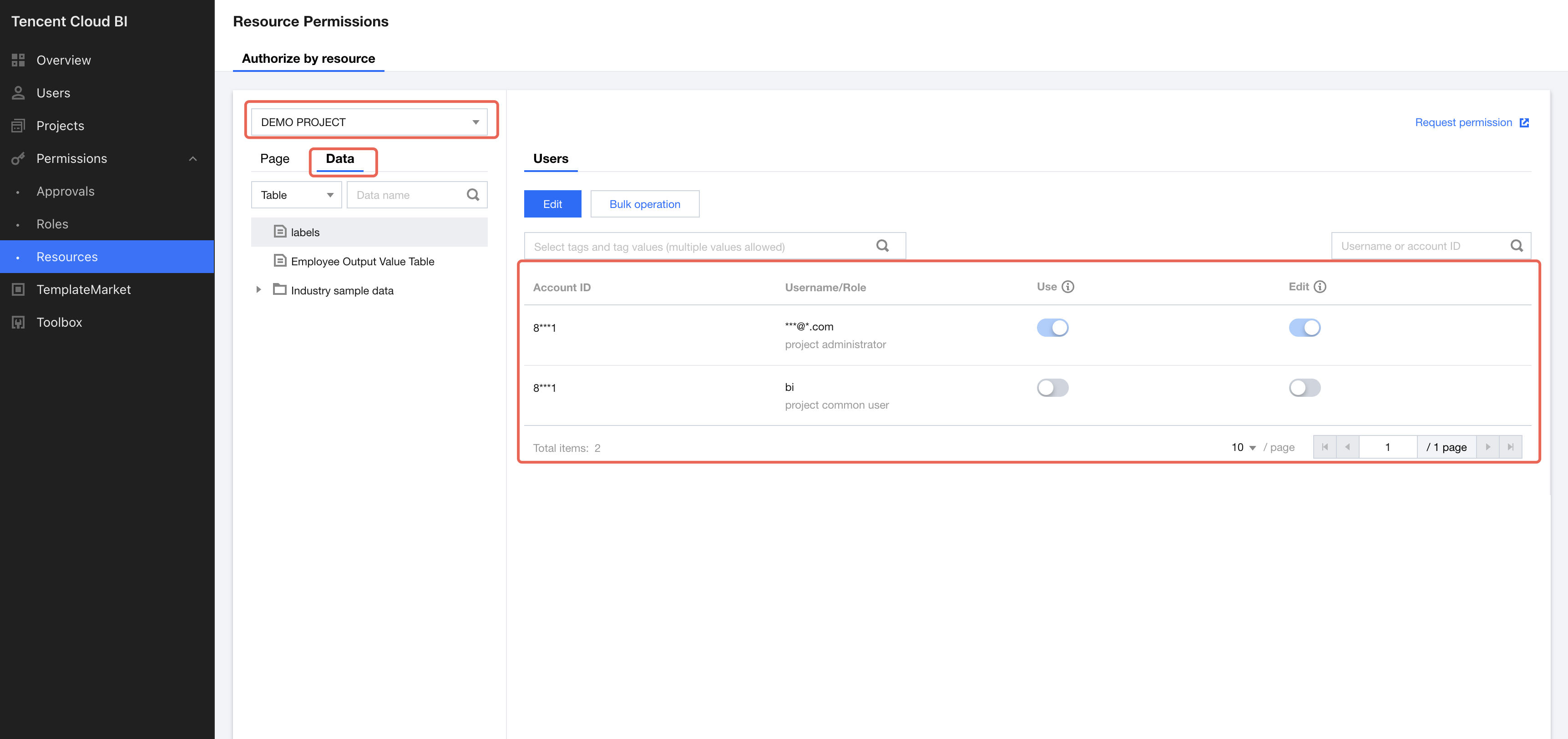
1. Enter Permission Management > Permissions for Resources > Authorization by resource.
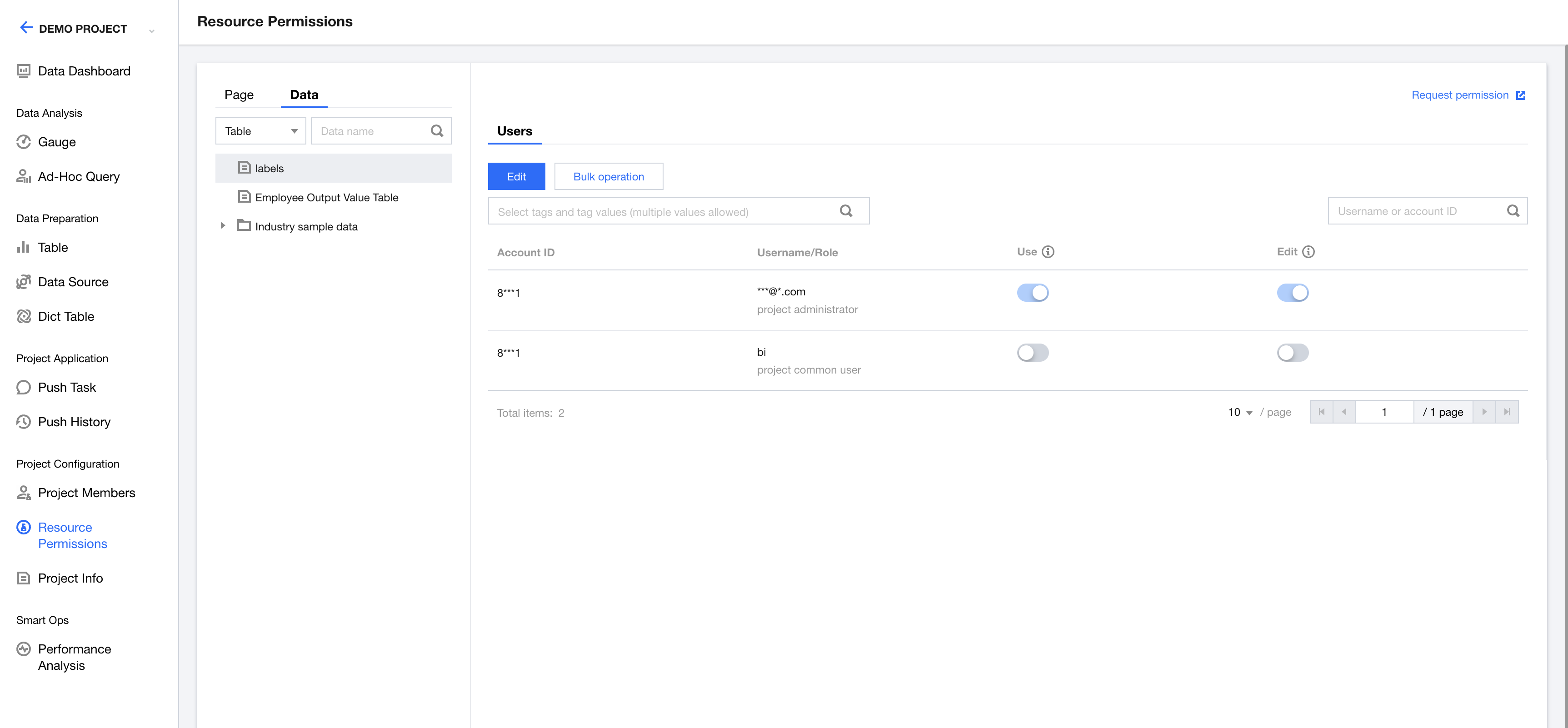
2. Select Data List > Select Data Table > User > Edit.
If the user's global role is "enterprise administrator" or "enterprise permission administrator", the data list drop-down list options will consist of all data tables, dictionary tables, and data sources.
If the user's global role is not "enterprise administrator" or "enterprise permission administrator", the data list drop-down list options will be limited to the data tables, dictionary tables, and data sources within the corresponding projects where the user is the "project administrator".
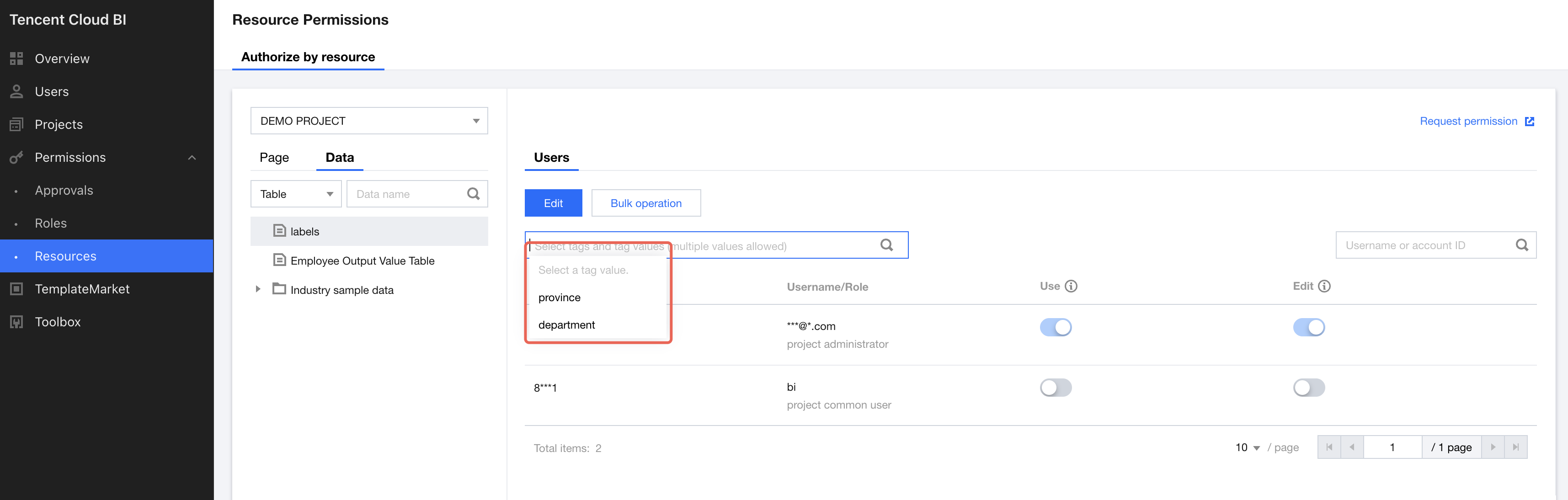
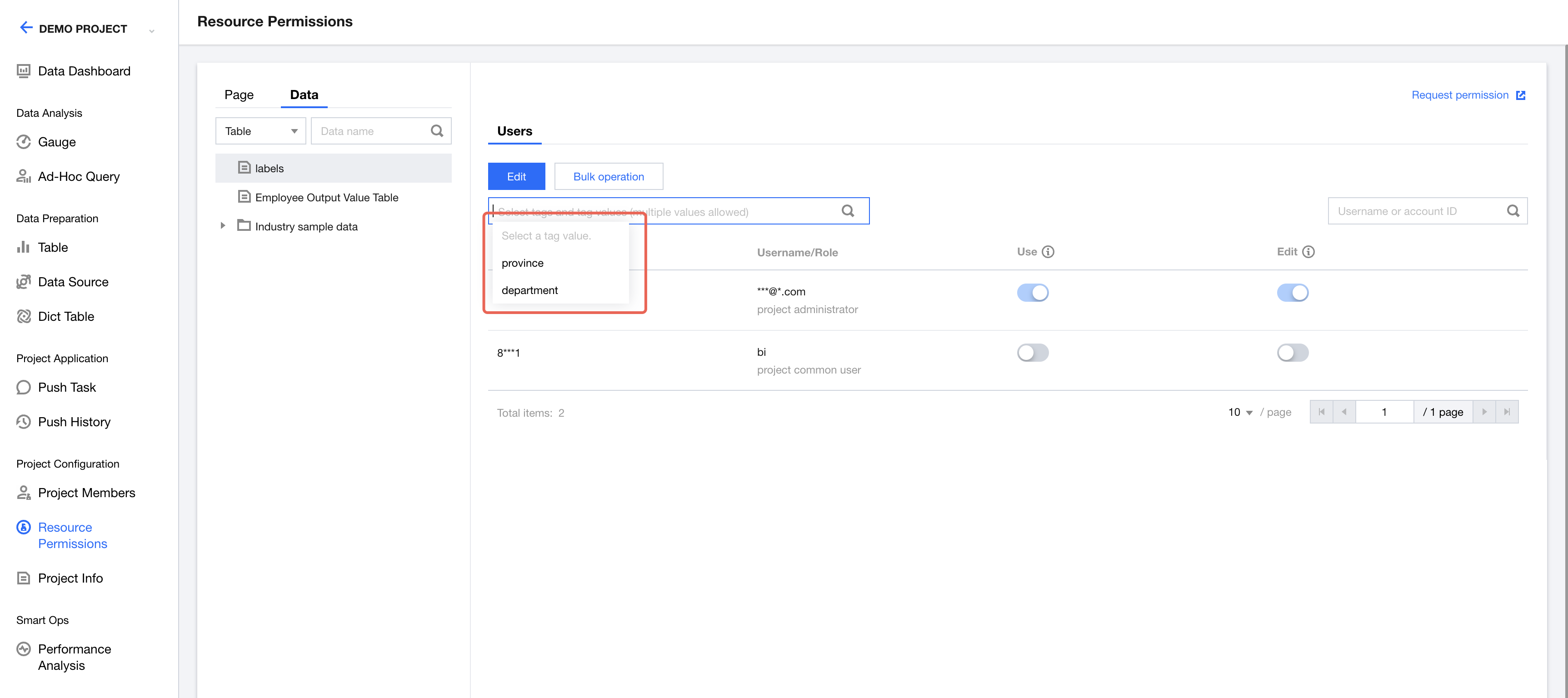
Support filtering users based on the tag values configured in Tag Management.
3. Enable and disable permissions for users.
Usage permission: When the usage permission is enabled, the user can view and select the data in the component's data configurations. If the usage permission for a data table/dictionary table/data source is disabled, the user will still be able to view the data in the component, but will not be able to select or use the data.
Edit permission: When the edit permission is enabled, the user can perform operations on the corresponding data tables/dictionary tables/data sources in the project management/data list, including viewing, editing, updating, and deleting, as well as row/column level permissions. If the edit permission for a data table/dictionary table/data source is disabled, the user will not be able to perform these operations.
4. Default role permissions and applicable scope.
(1) Enterprise administrators and project administrators have all permissions enabled, and these permissions cannot be disabled.
(2) Project viewers have the edit permission disabled for all data, and the edit permission cannot be enabled.
(3) When a member is added to the project, the default permissions are assigned based on the role of that member.
A. Project editor: By default, the usage permission is enabled and cannot be disabled. The edit permission is disabled by default, but can be authorized to enable.
B. Project viewer: By default, the usage and edit permissions are disabled and cannot be enabled.
C. Project general member: By default, all permissions are disabled and can be toggled on or off.
(4) When the user role is successfully modified, the system will automatically update the member's permissions based on the new role.
A. Any role changed to enterprise administrator or project administrator will have all permissions enabled, and these permissions cannot be disabled.
B. When modifying between other project roles, the permissions for the modified role will be updated based on the default permission settings as defined in section 4.(3).
Project regular users can apply for permissions, and after approval, the corresponding permissions for the relevant pages will be enabled.
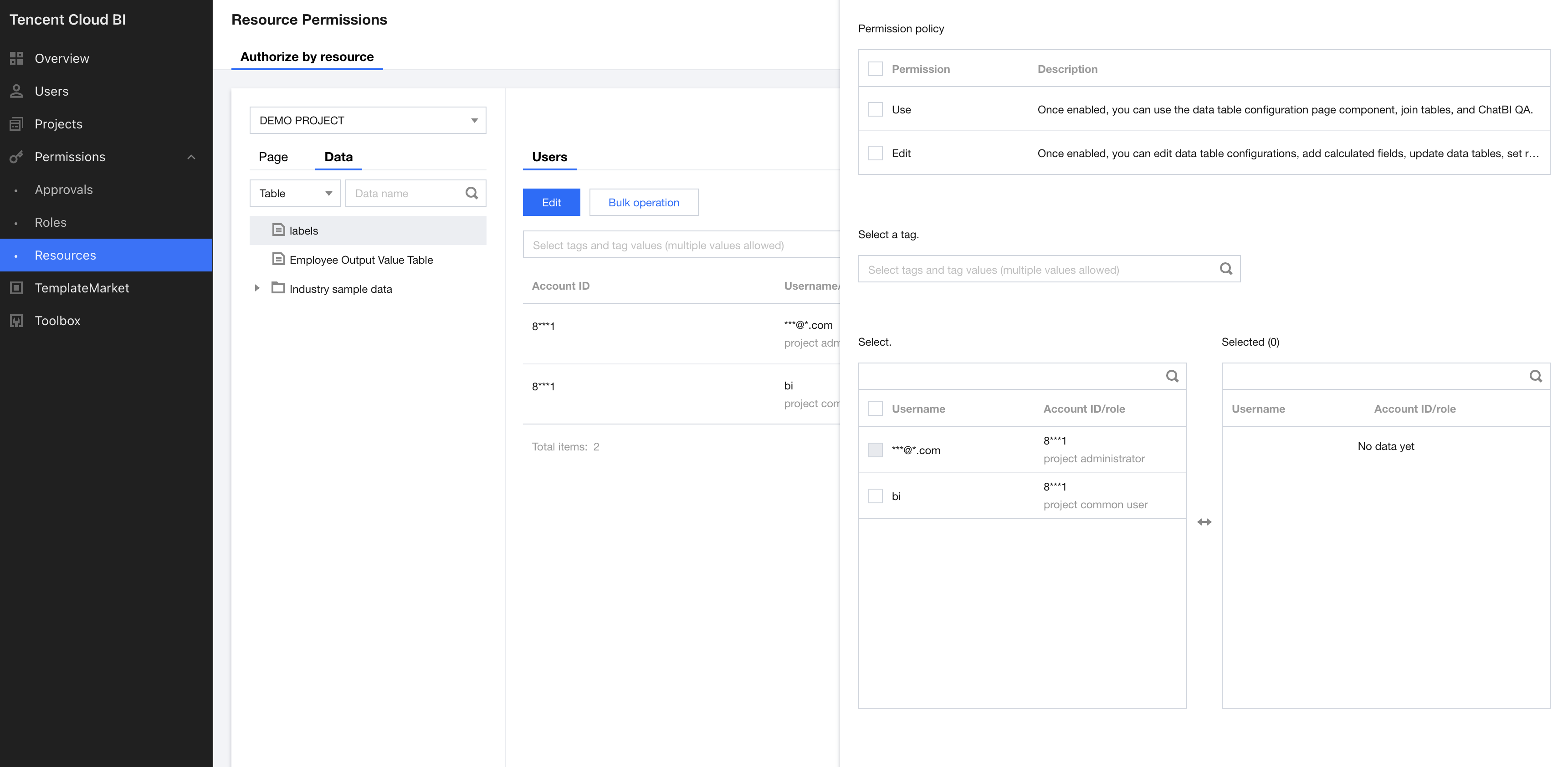
5. Batch operations.
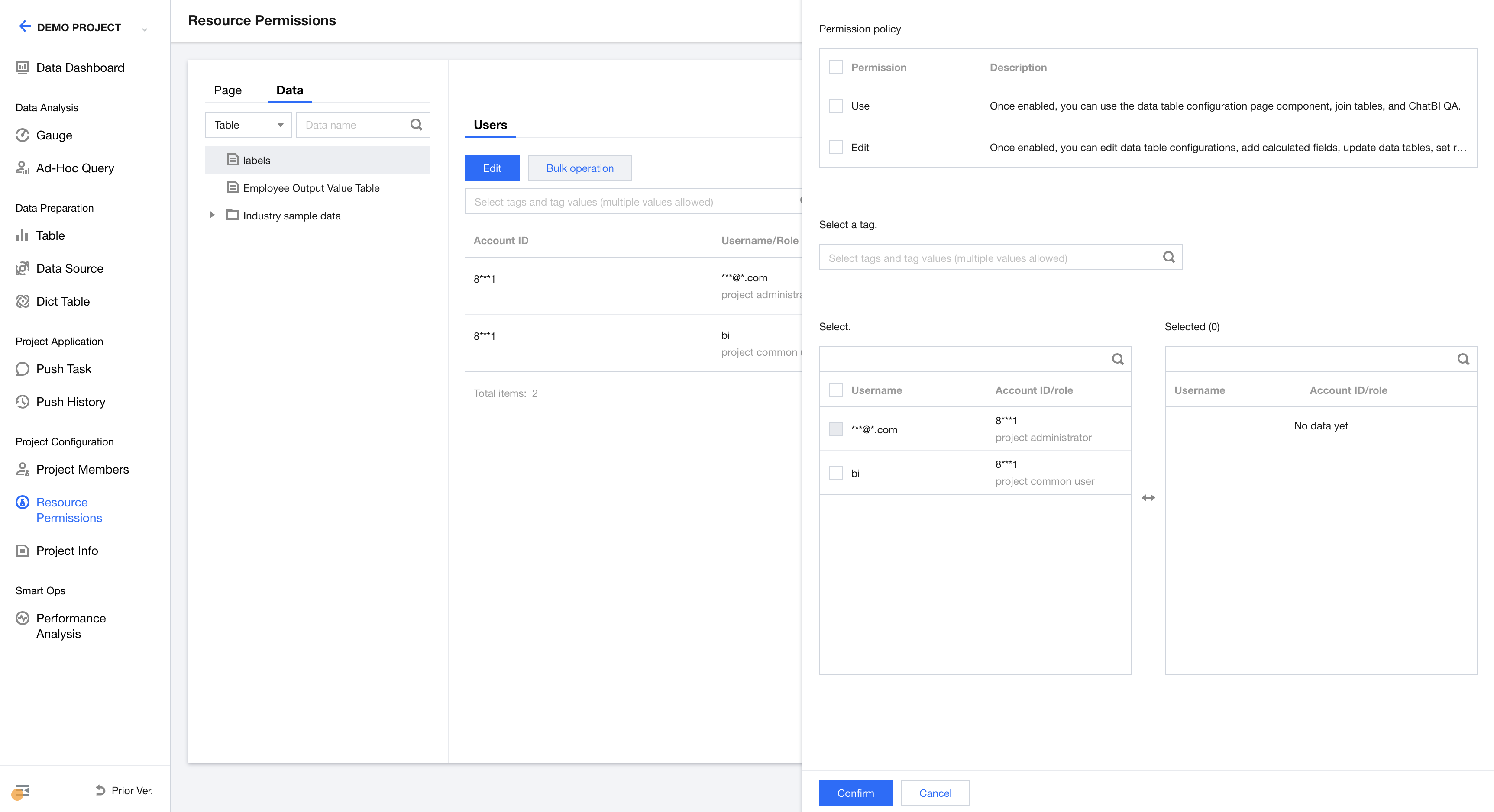
Click Batch Operation, and a drawer will slide out from the right. Select the permissions and the corresponding usernames.
The user roles follow the requirements in section 4. If the role does not support adding permissions, the checkbox will be disabled.
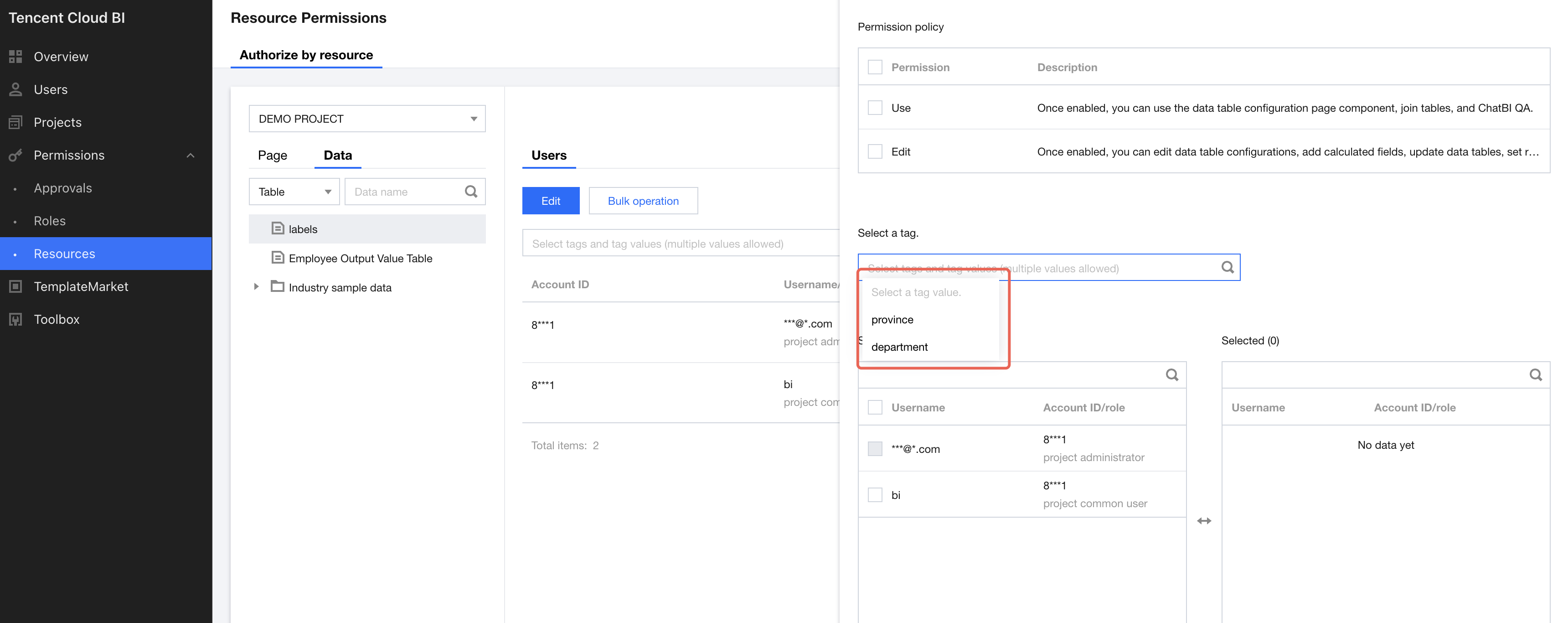
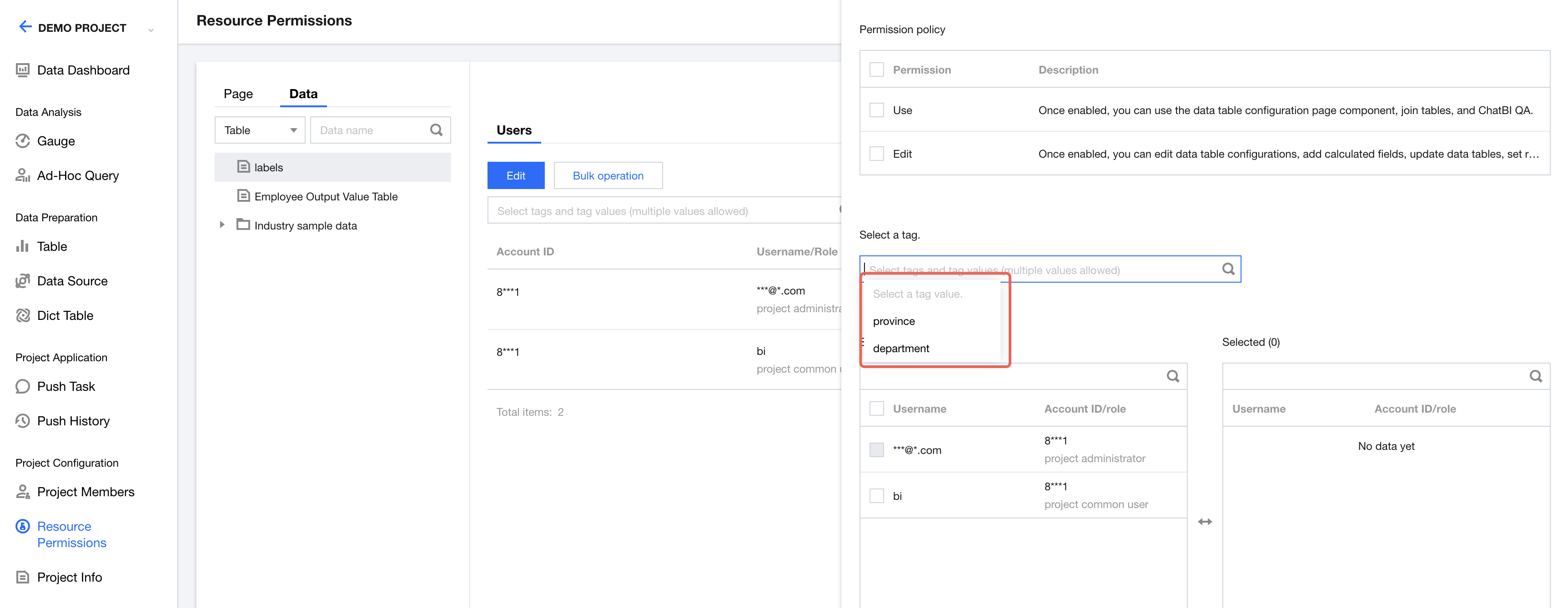
Support filtering users based on the tag values configured in Tag Management, and assigning permissions in batches according to the filtered list.
Project Management Permission Operations
1. Enter Project Management > Specific Project > Permissions for Resources.
2. Select the data list > select the data table > the User tab > Edit.
If the user's global role is "enterprise administrator" or "enterprise permission administrator", the data list drop-down list options will consist of all data tables, dictionary tables, and data sources.
If the user's global role is not "enterprise administrator" or "enterprise permission administrator", the data list drop-down list options will be limited to the data tables, dictionary tables, and data sources within the corresponding projects where the user is the "project administrator".
Support filtering users based on the tag values configured in Tag Management.
3. Enable and disable permissions for users.
Usage permission: When the usage permission is enabled, the user can view and select the data in the component's data configurations. If the usage permission for a data table/dictionary table/data source is disabled, the user will still be able to view the data in the component, but will not be able to select or use the data.
Edit permission: When the edit permission is enabled, the user can perform operations on the corresponding data tables/dictionary tables/data sources in the project management/data list, including viewing, editing, updating, and deleting, as well as row/column level permissions. If the edit permission for a data table/dictionary table/data source is disabled, the user will not be able to perform these operations.
4. Default role permissions and applicable scope.
(1) Enterprise administrators and project administrators have all permissions enabled, and these permissions cannot be disabled.
(2) Project viewers have the edit permission disabled for all data, and the edit permission cannot be enabled.
(3) When a member is added to the project, the default permissions are assigned based on the role of that member.
A. Project editor: By default, the usage permission is enabled and cannot be disabled. The edit permission is disabled by default, but can be authorized to enable.
B. Project viewer: By default, the usage and edit permissions are disabled and cannot be enabled.
C. Project general member: By default, all permissions are disabled and can be toggled on or off.
(4) When the user role is successfully modified, the system will automatically update the member's permissions based on the new role.
A. Any role changed to enterprise administrator or project administrator will have all permissions enabled, and these permissions cannot be disabled.
B. When modifying between other project roles, the permissions for the modified role will be updated based on the default permission settings as defined in section 4.(3).
Project regular users can apply for permissions, and after approval, the corresponding permissions for the relevant pages will be enabled.
5. Batch operations.
Click Batch Operation, and a drawer will slide out from the right. Select the permissions and the corresponding usernames.
The user roles follow the requirements in section 4. If the role does not support adding permissions, the checkbox will be disabled.
Support filtering users based on the tag values configured in Tag Management, and assigning permissions in batches according to the filtered list.