Common Time Settings
Note:
Modification of the common time will affect published reports. Assess the impact and make adjustments based on actual requirements.
In practical scenarios, users may need to define the last N days (relative time), a specific date (absolute time), or the current fiscal year (combinations of absolute time and relative time). The common time settings allow a flexible definition of these time descriptions.
Prerequisite: Currently, only administrators are allowed to edit.
This document introduces the following operations:
Initializing time settings for the analysis condition fields.
Initializing common time settings for filters.
Descriptions for complex time configurations.
Editing and deleting time settings.
Initializing Time Settings for the Analysis Condition Fields
When performing chart analysis, if you need to filter detailed data based on the time field, you will need to use a time component, as shown in the figure below.
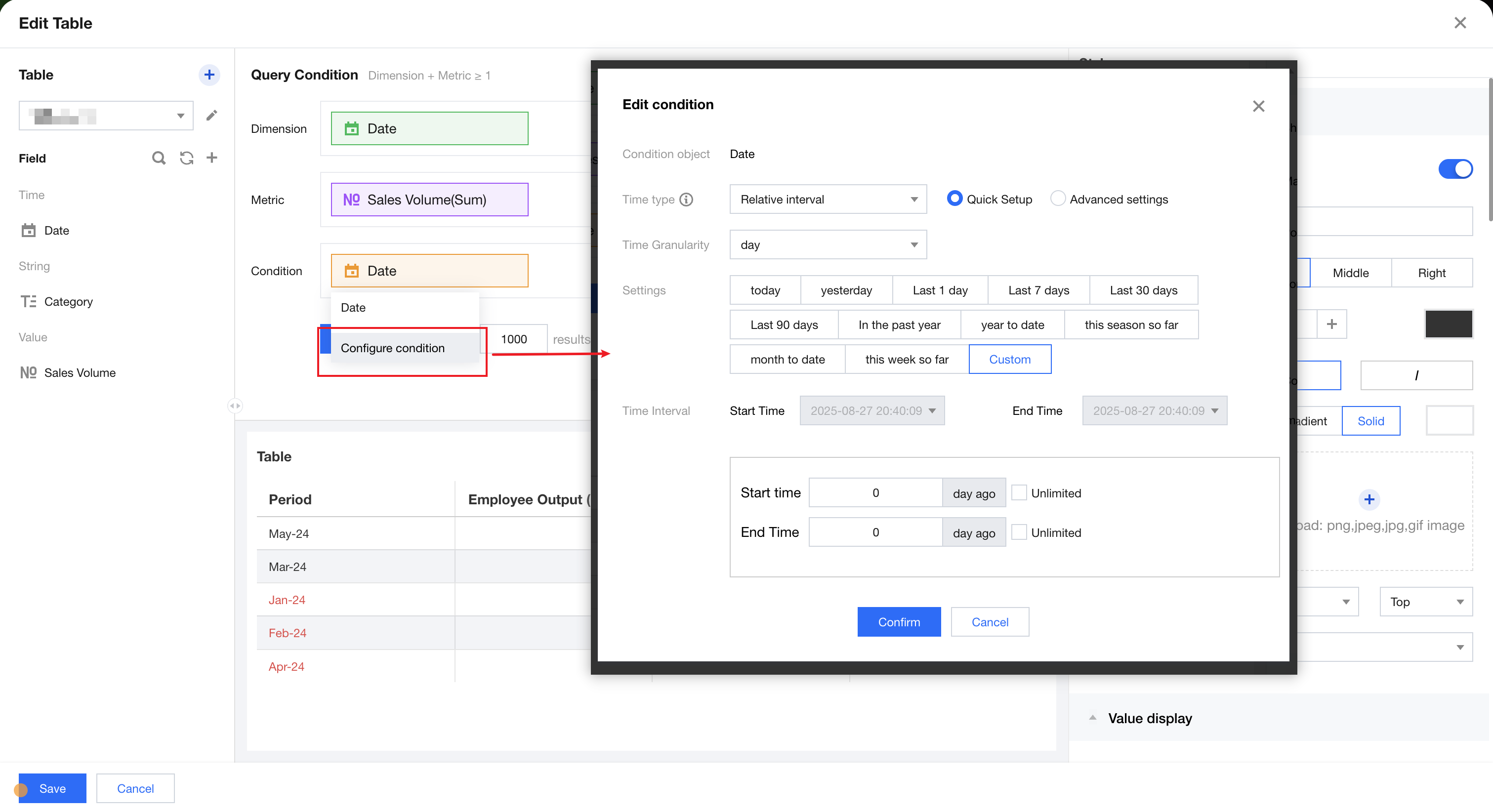
The system provides a default set of time definitions, but different teams may interpret time ranges differently. For example, the last 1 day can have multiple interpretations (as illustrated below using the current time 2025/03/11 12:23:21 as a reference):
24 hours back from the current time: From 2025/03/10 12:23:21 to 2025/03/11 12:23:21.
From midnight yesterday to the end of today: From 2025/03/10 00:00:00 to 2025/03/11 23:59:59.
From midnight yesterday to the current time today: From 2025/03/10 00:00:00 to 2025/03/11 12:23:21.
Next, we'll use the example of adding a "Current settlement week" to demonstrate how to configure time (assuming the settlement week is defined as from last Wednesday to this Tuesday).
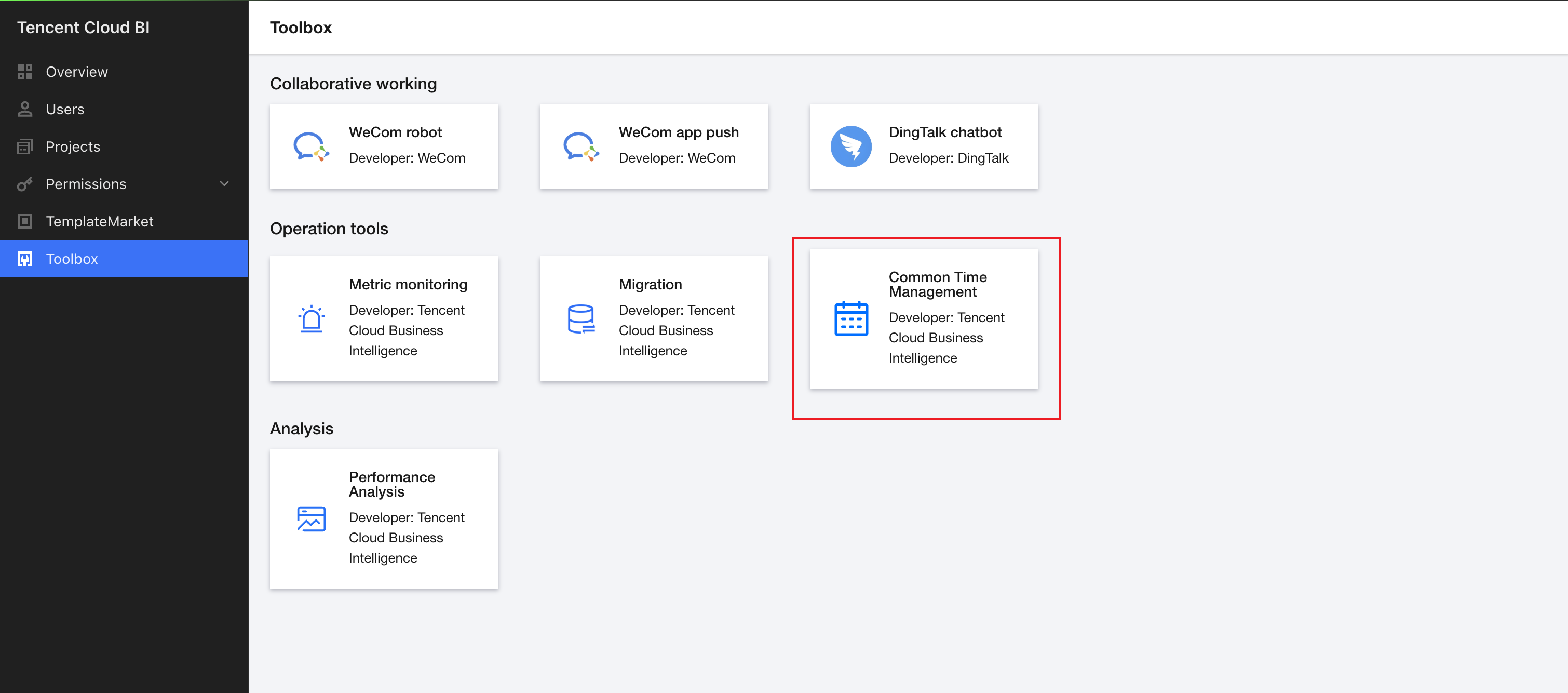
1. Go to BI Console > Toolbox > Common time management > Relative time condition.
2. Click Add to create a "Current settlement week" time condition.
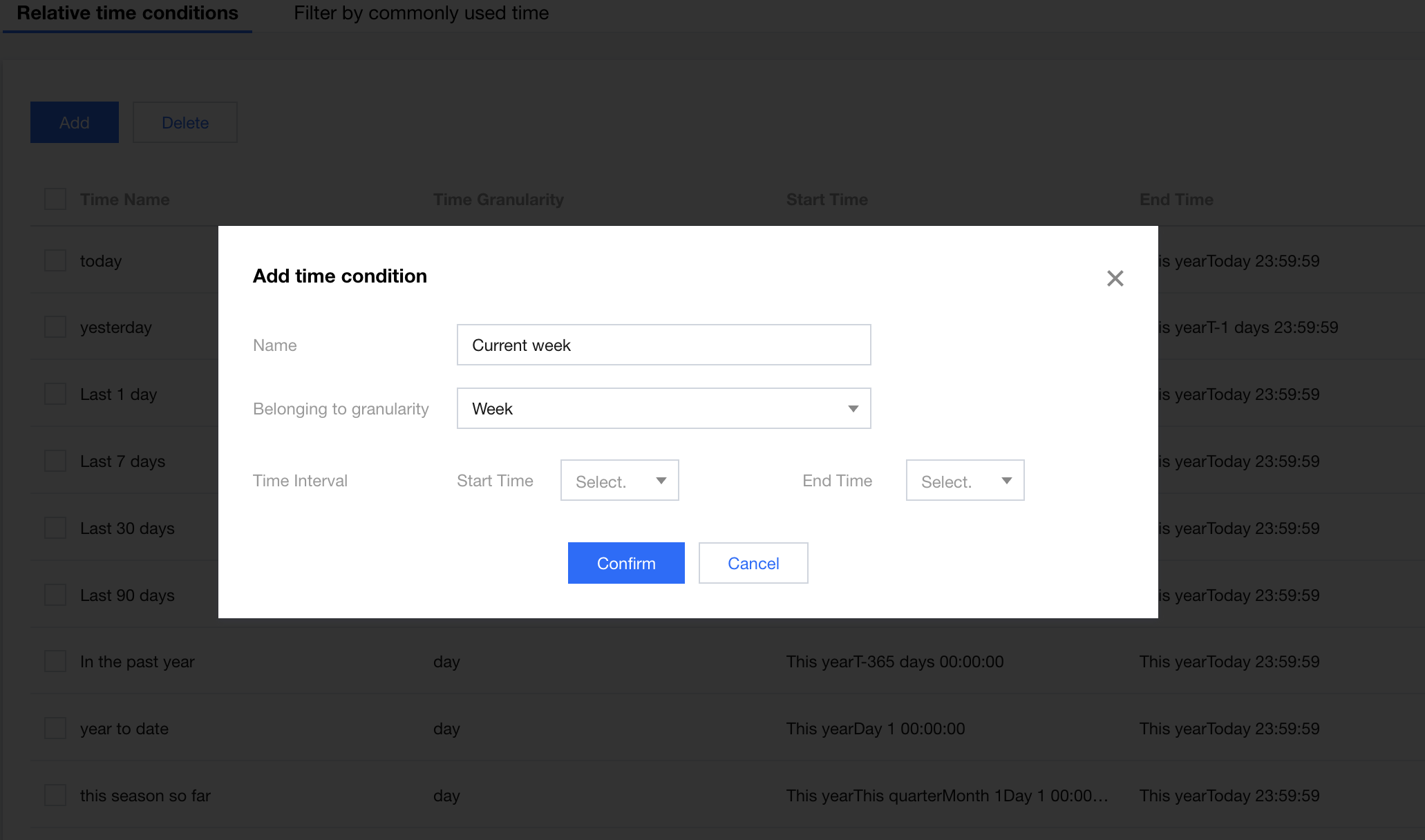
Settings | Settings Description | Remarks |
Name | Set the display name shown in the analysis field filter. | - |
Associated granularity | The time granularity level at which this time condition will be visible. | If you select "Week" here, when filtering by the time field, choosing the weekly granularity will display the currently configured time condition, as shown in the figure below. 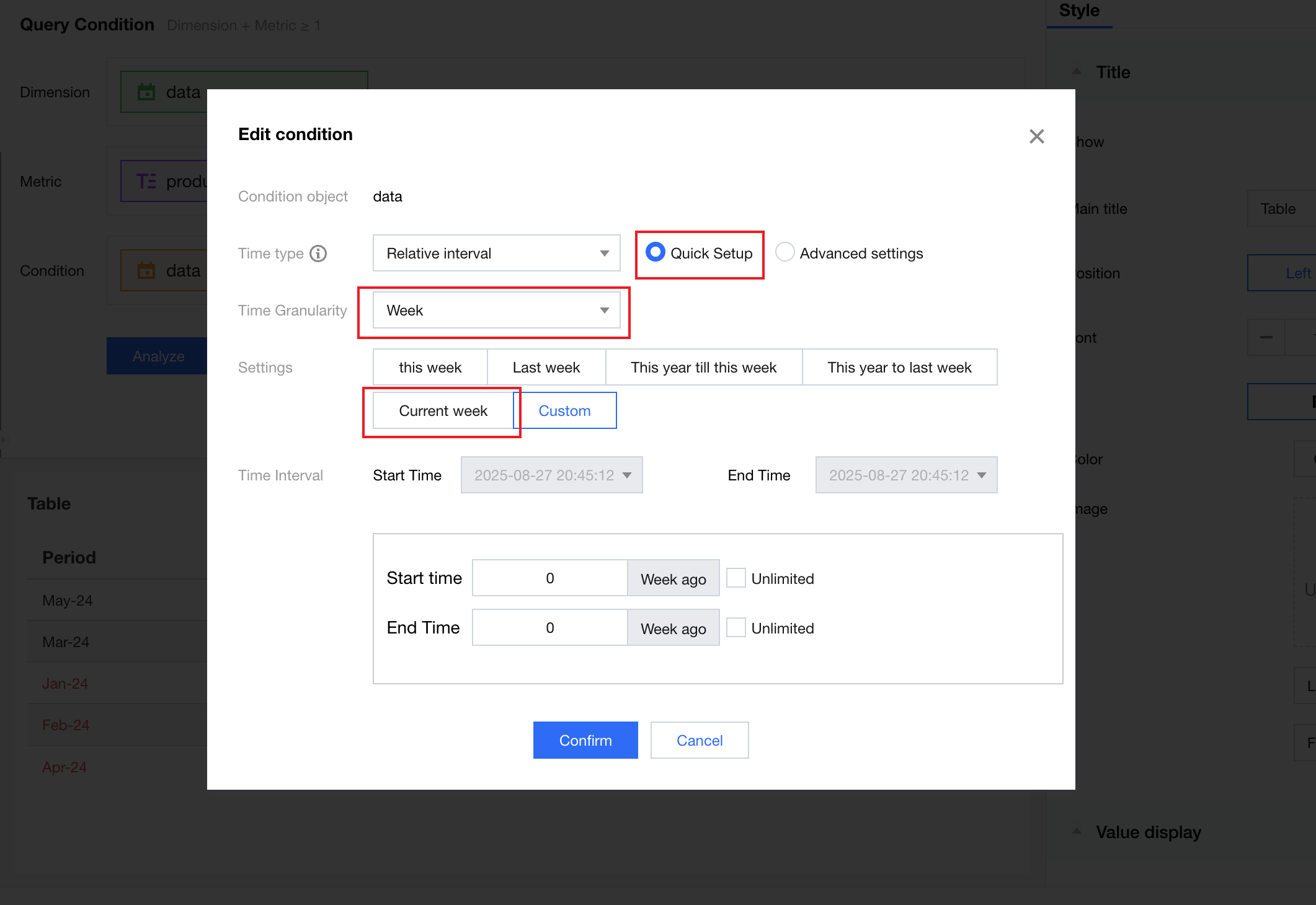 |
Time interval | Set the start time and end time. |
3. Set the start time and end time of the time interval.
Select relative time, check week, day, and time, and set each as follows.
Set the week to 1 week prior.
Specify the day as day 3 (Wednesday).
Specify the time as 00:00:00.
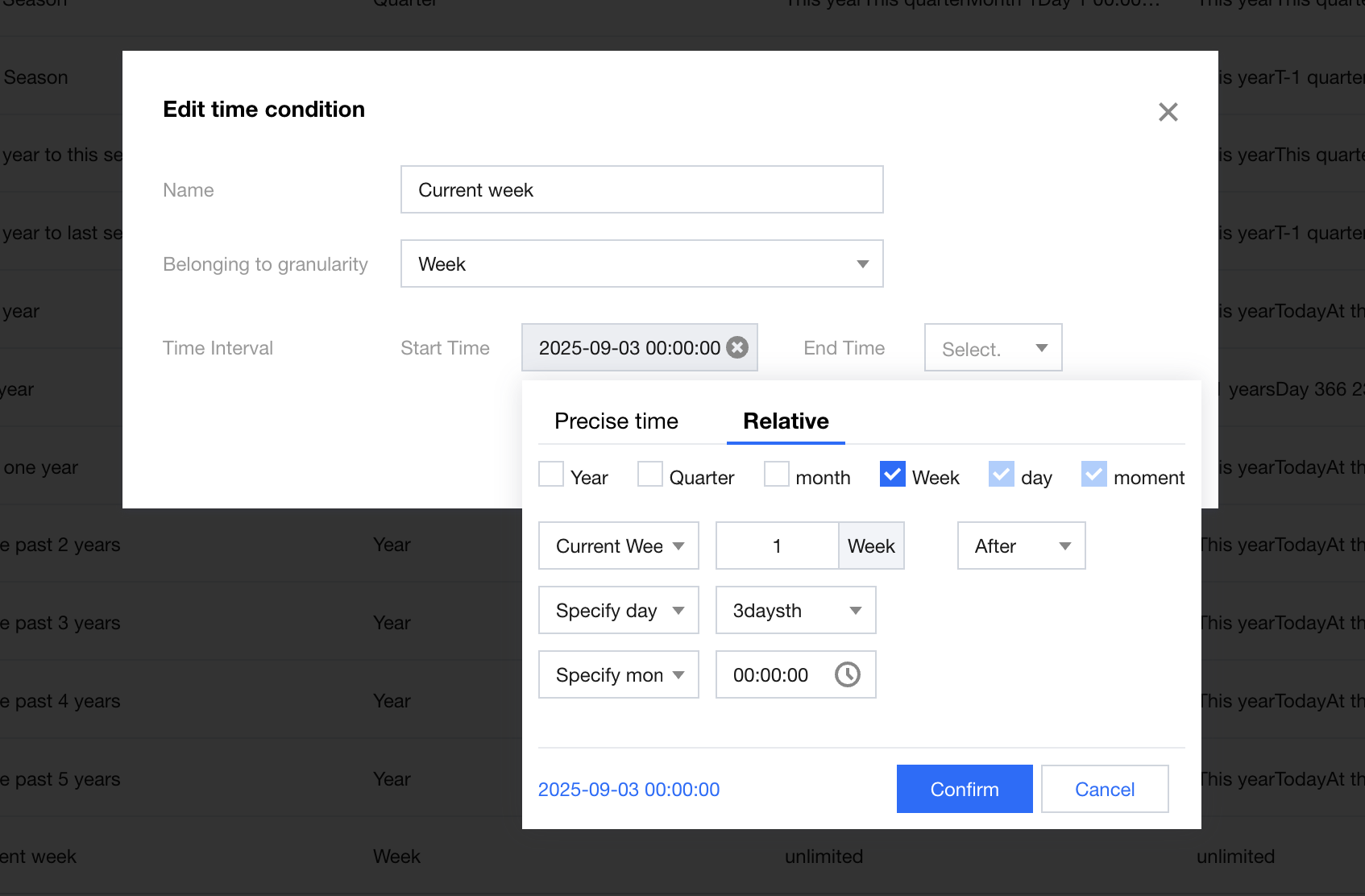
Next to the “Confirm” button, you can see the time result based on the current time as a reference (not the final result). Click “Confirm” to complete the start time definition.
Similarly, complete the definition of the end time. The end time is set as follows.
Set the week to the current week.
Specify the day as day 2 (Tuesday).
Specify the time as 23:59:59.
Save the time settings, and the system will generate a time condition named "Current settlement week".
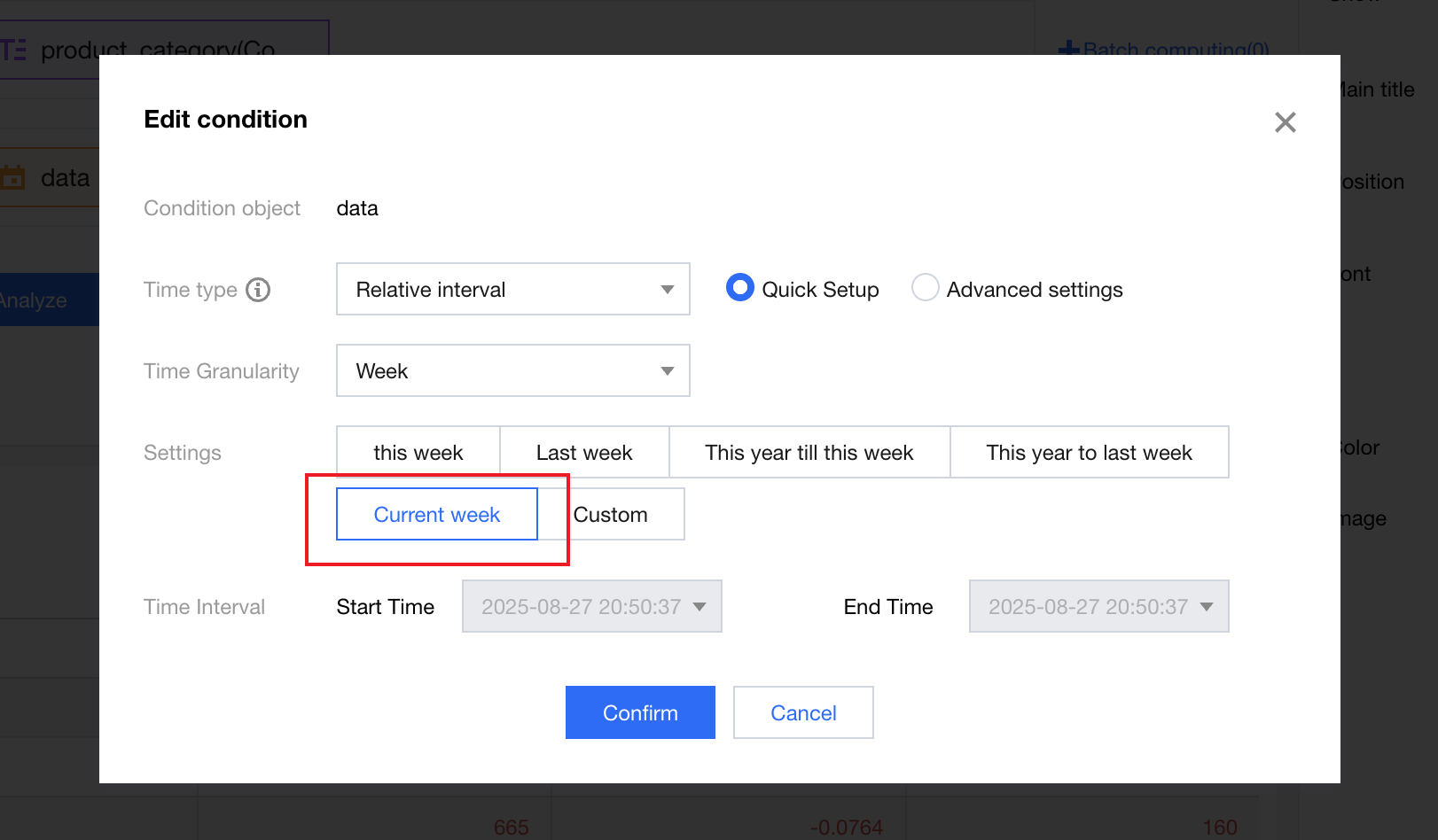
When the analysis condition fields are filtered, the "Current settlement week" is visible under the "Week" granularity.
Initializing Common Time Settings for Filters
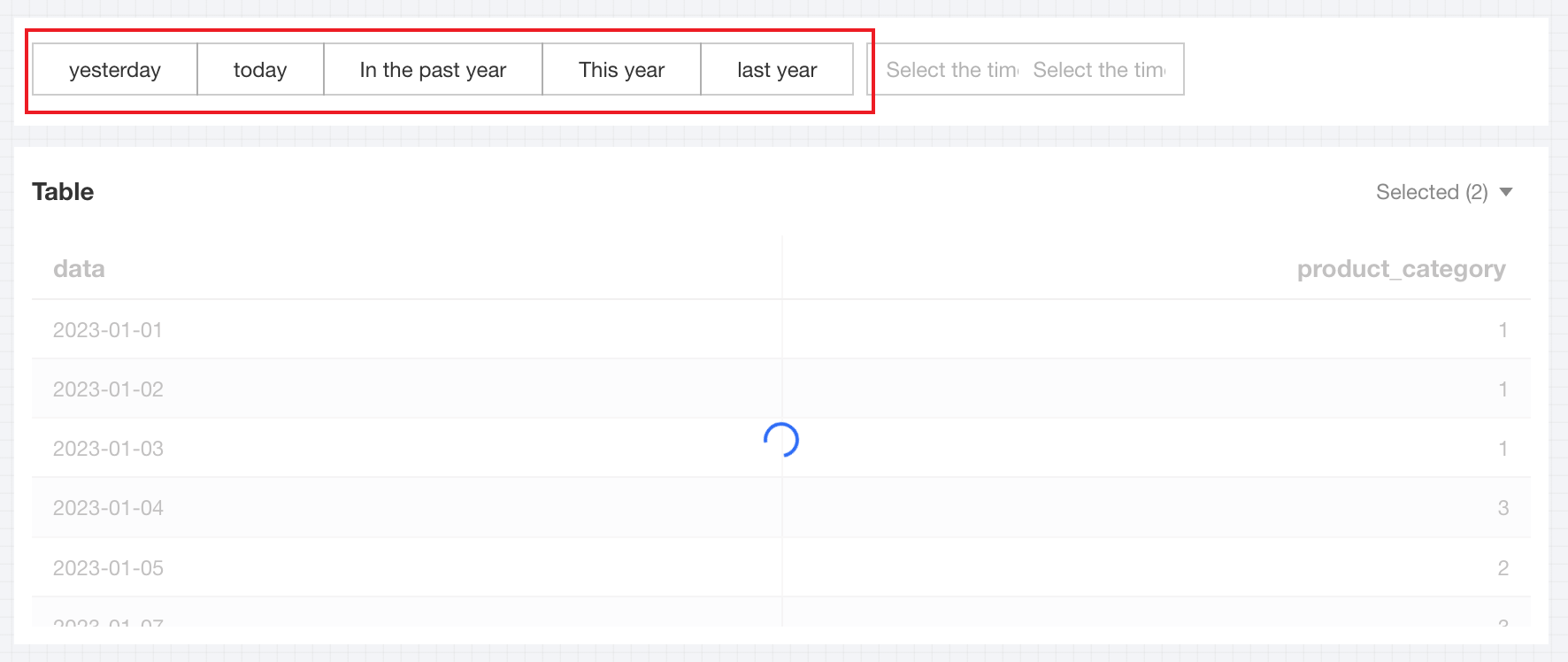
When using the time filter, users can quickly select a time range with the quick time options. As shown below, the Year to Date (YTD) range can be selected with a single click.
1. Go to BI Console > Toolbox > Common time management > Common time for filters, and click "Add" to add a "This fiscal year" time condition:
2. Set the start time and end time of the time interval.
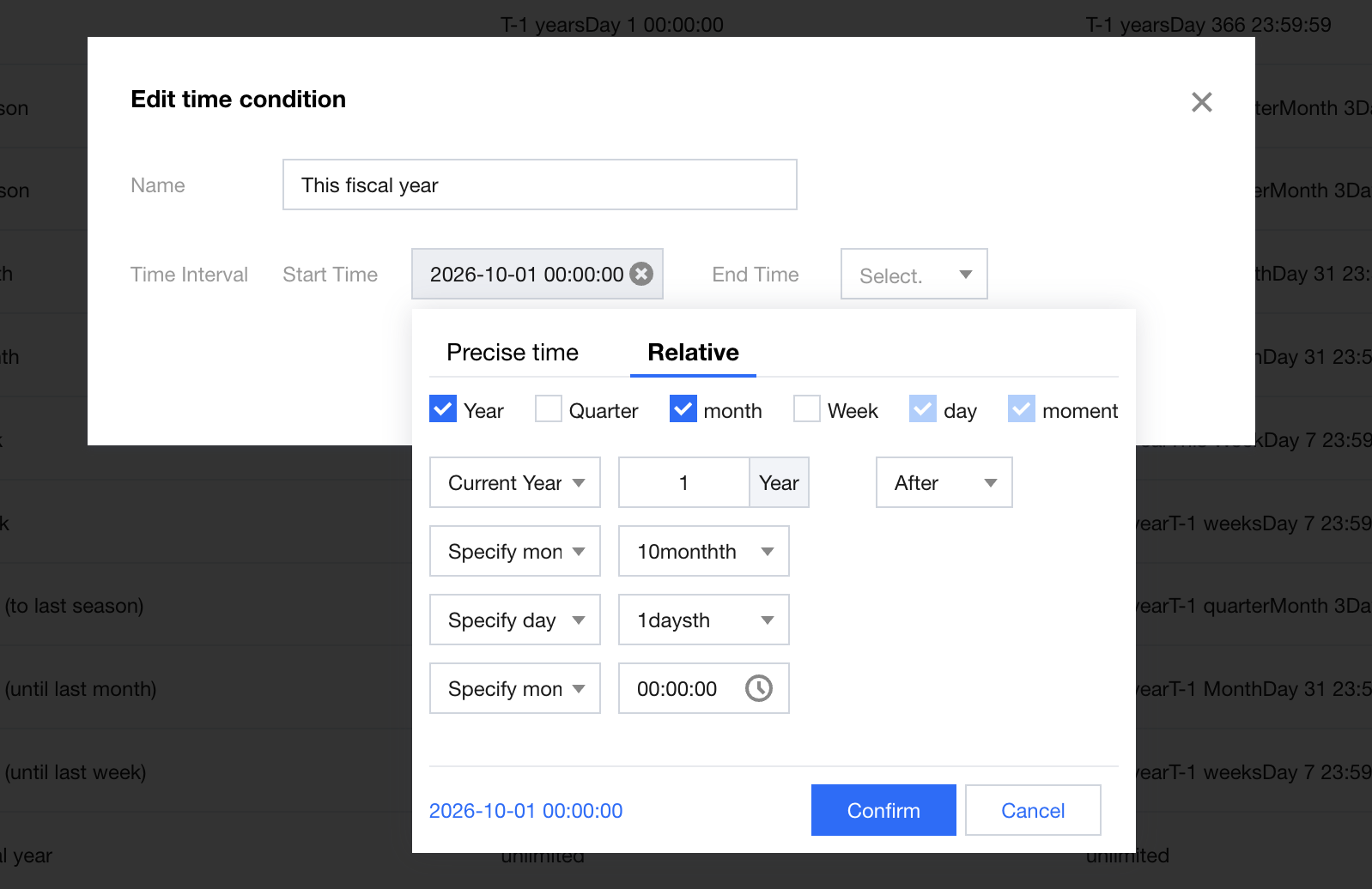
Select relative time, check year, month, day, and time, and set each as follows.
Set the year to 1 year prior.
Specify the month as month 10.
Specify the day as day 1.
Specify the time as 00:00:00.
Next to the “Confirm” button, you can see the time result based on the current time as a reference (not the final result). Click “Confirm” to complete the start time definition.
Similarly, complete the definition of the end time. The end time is set as follows.
Set the year to the current year.
Specify the month as month 9.
Specify the day as day 30.
Specify the time as 23:59:59.
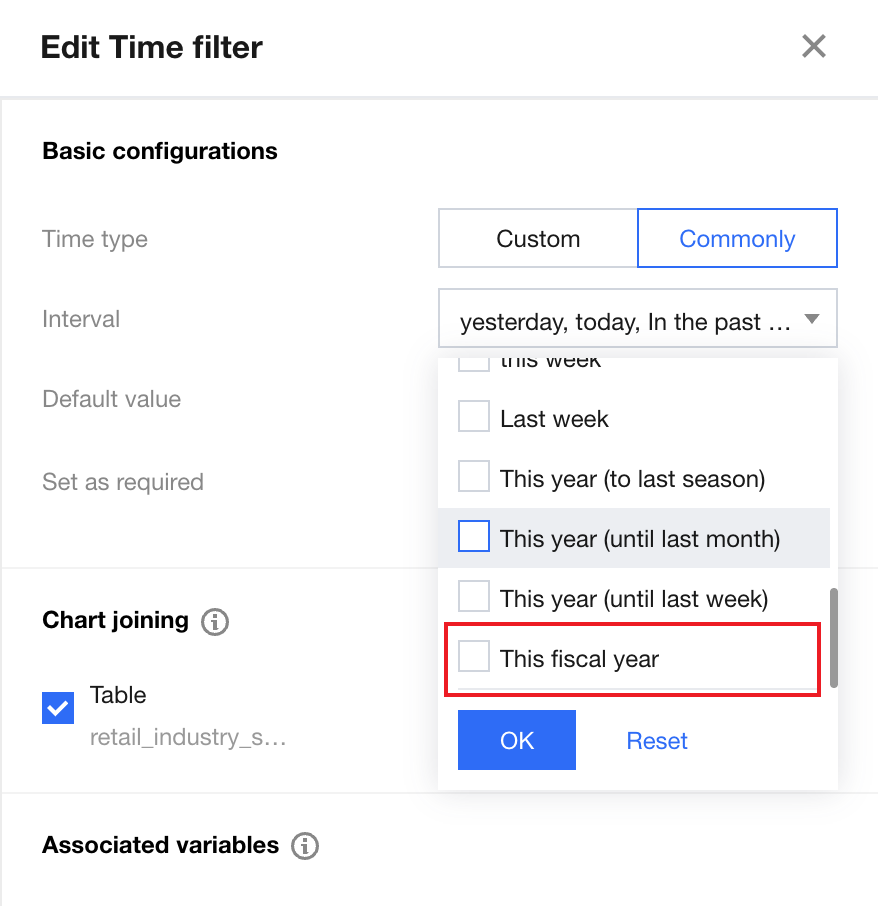
Save the time settings, and the system will generate a time condition named "This fiscal year".
Select the newly added "This fiscal year" in the time filter.
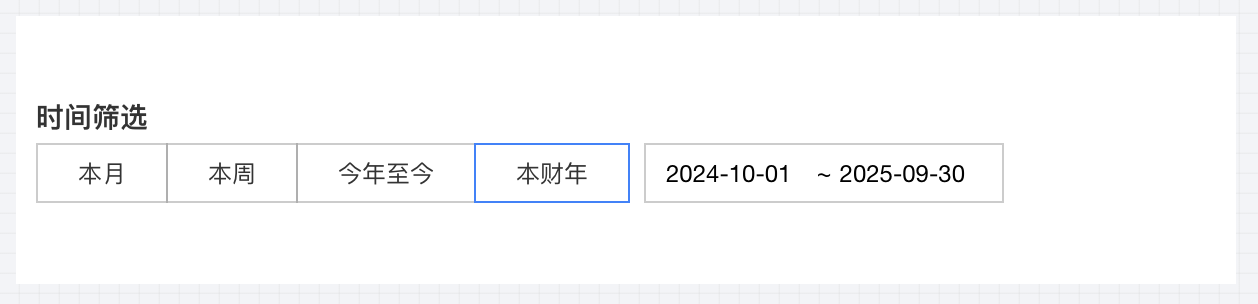
A quick time option named "This fiscal year" will now appear in the time filter.
Editing and Deleting Time Settings
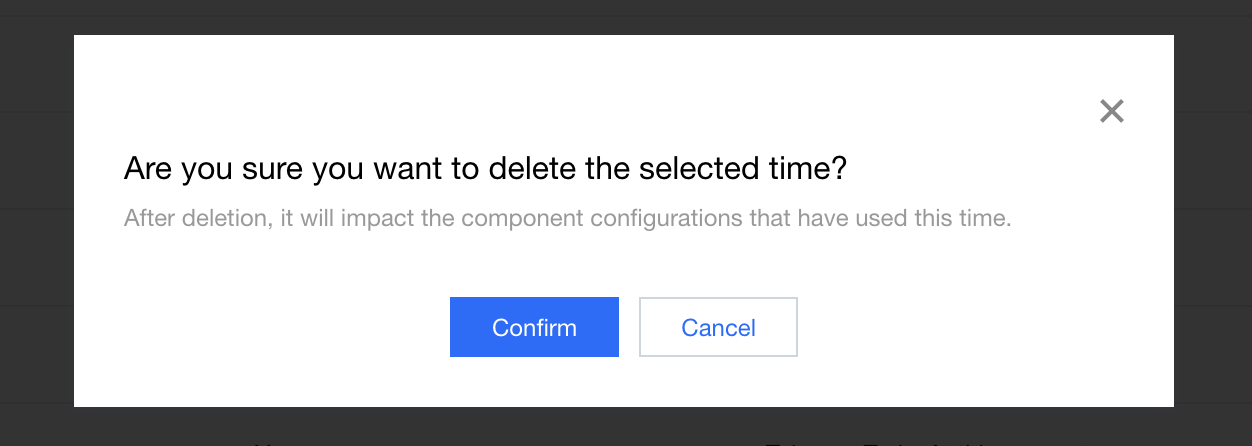
The system administrator can edit and delete time conditions. A confirmation is required before deletion.
Click Edit to modify the time definitions.
Note:
1. Once the time configurations are modified, the previously used reports will execute queries based on the updated time definitions.
2. After a time condition is deleted, even if a new one is created with the same name and definitions, the new time will not appear by default in the filter. To use the time in the filter again, you need to manually select the time in the filter settings.
Descriptions for Complex Time Configurations
The time configuration panel includes Exact Time and Relative Time settings. Exact time allows users to select a fixed time through a calendar, while relative time supports more complex time configurations.
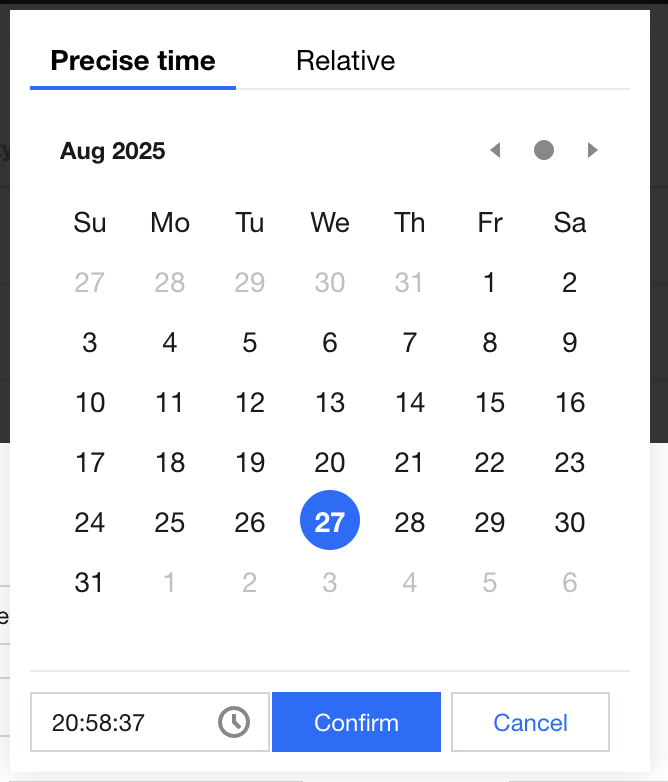
Relative time configurations include the following parts.
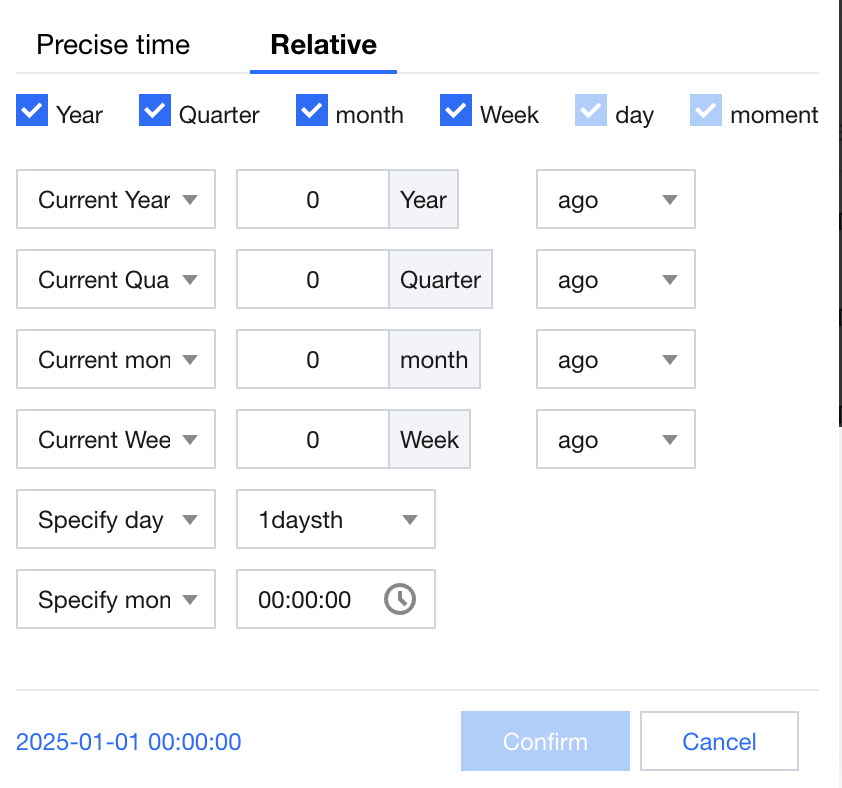
In the time granularity section, users can select the required granularities to serve as references for anchoring the target time. Use the following process to determine the granularities.
Describe the target time: For example, the same day last year or 3 months prior to the same day last year.
Select the granularity based on the described time.
Same day last year: Select year and day (day and time are required).
3 months prior to the same day last year: Select year, month, and day.
After selecting a granularity, you can configure the granularity using either of the 2 methods.
Relative: Add or subtract from the current time. For example, "Current month - 2 months - Prior" means subtracting 2 months from the current month.
Specified: Based on the specified number. For example, "Specified day - Day 31" means the 31st day of the month (if the month doesn’t have 31 days, it refers to the last day of the month).
Next, we will provide examples of common scenarios and the configurations for your reference.
Scenario | Configuration |
Year to date (YTD) | Start time: Current year, 0 year prior + specified day, day 1 + specified time, 00:00:00. End Time: Current day, 0 day prior + current time, 00:00:00 prior. |
Month to date (MTD) | Start time: Current month, 0 month prior + specified day, day 1 + specified time, 00:00:00. End time: Current day, 0 day prior + current time, 00:00:00 prior. |
Last 7 days | Start time: Current day, 7 days prior + specified time, 00:00:00. End time: Current day, 1 day prior + specified time, 23:59:59. |
Last year's first half | Start time: Current year, 1 year prior + specified day, day 1 + specified time, 00:00:00. End time: Current year, 1 year prior + specified month, month 6 + specified day, day 30 + specified time, 23:59:59. |
Fiscal year (the new fiscal year starts in October the current year) | Start time: Current year, 1 year prior + specified month, month 10 + specified day, day 1 + specified time, 00:00:00. End time: Current year, 0 year prior + specified month, month 9 + specified day, day 30 + specified time, 23:59:59. |
Help and Support
Was this page helpful?
You can also Contact sales or Submit a Ticket for help.
Help us improve! Rate your documentation experience in 5 mins.
Feedback