Quick Installation of Tesla Driver After Instance Creation - Linux (Recommended)
Download
포커스 모드
폰트 크기
마지막 업데이트 시간: 2026-01-16 16:43:48
Application Scenario
To ensure the Cloud GPU Service to work properly, the correct Data Center Operating System software must be installed in advance. For NVIDIA series GPUs, the following two levels of software packages need to be installed:
The hardware driver that drives the GPU to work.
The libraries required by upper-level applications.
For user's convenience, the purchase page offers multiple methods for installing GPU drivers along with associated CUDA and cuDNN. When creating a GPU instance, you can select different methods based on your business requirements to complete the driver deployment.
Installing Methods
Installing Method
Description
Link
Method 1: Automatically install drivers when reinstalling a public image
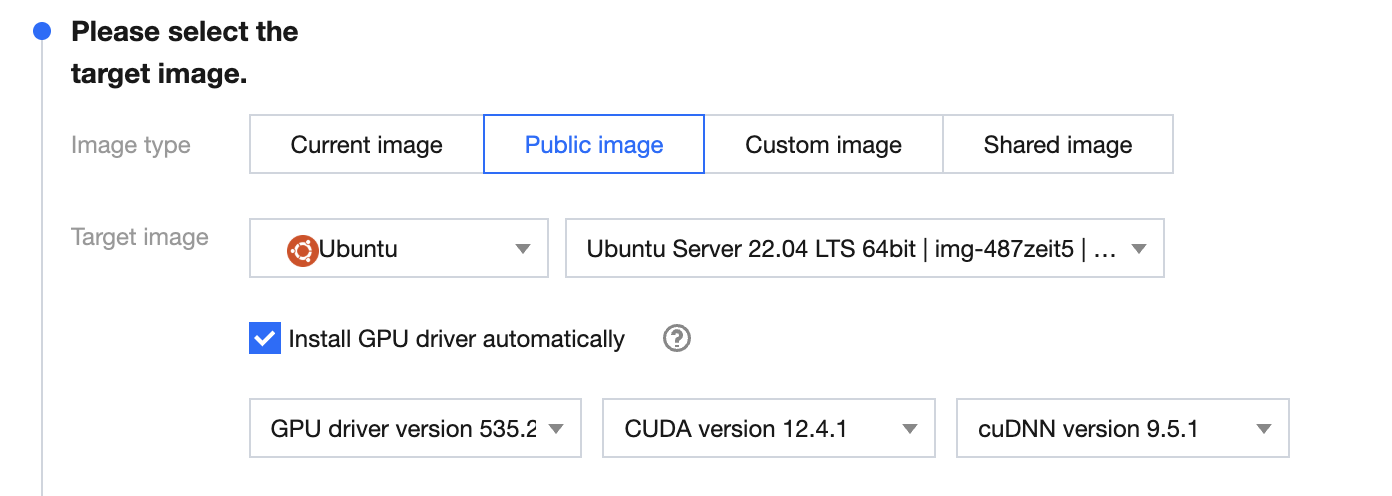
During the image selection on the system reinstallation page, select a public image and check the option to automatically install the GPU driver in the backend.
Method 1: Automatically Installing Driver After Selecting a Public Image
1. During the reinstalling system process for a CVM, select a CentOS, Ubuntu, or TencentOS image in the image selection step.
Warning:Reinstalling the system may result in data loss and service interruption. Please refer to the precautions in Reinstalling the System and evaluate the operation carefully.
2. After you select the image, the install GPU driver automatically option will appear, allowing you to choose the desired CUDA and cuDNN versions as needed, as shown in the figure below:
Note:
Only certain image versions for compute-optimized instances support automatic Tesla driver installation, as displayed on the reinstall system page.
3. For other configuration options, see Reinstalling System. After configuration, go to the console, find the instance, and wait for approximately 10 minutes for the driver installation to complete.
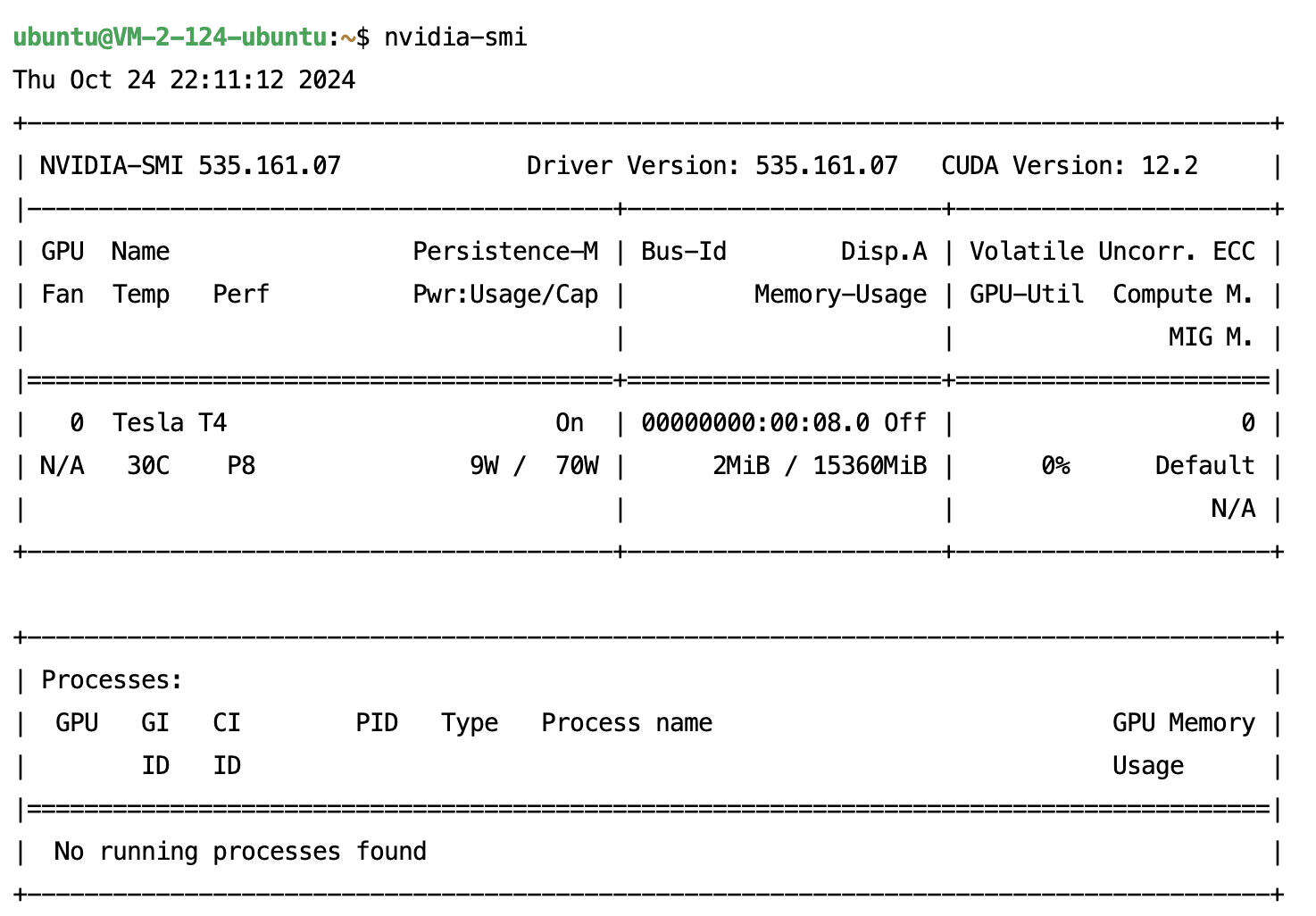
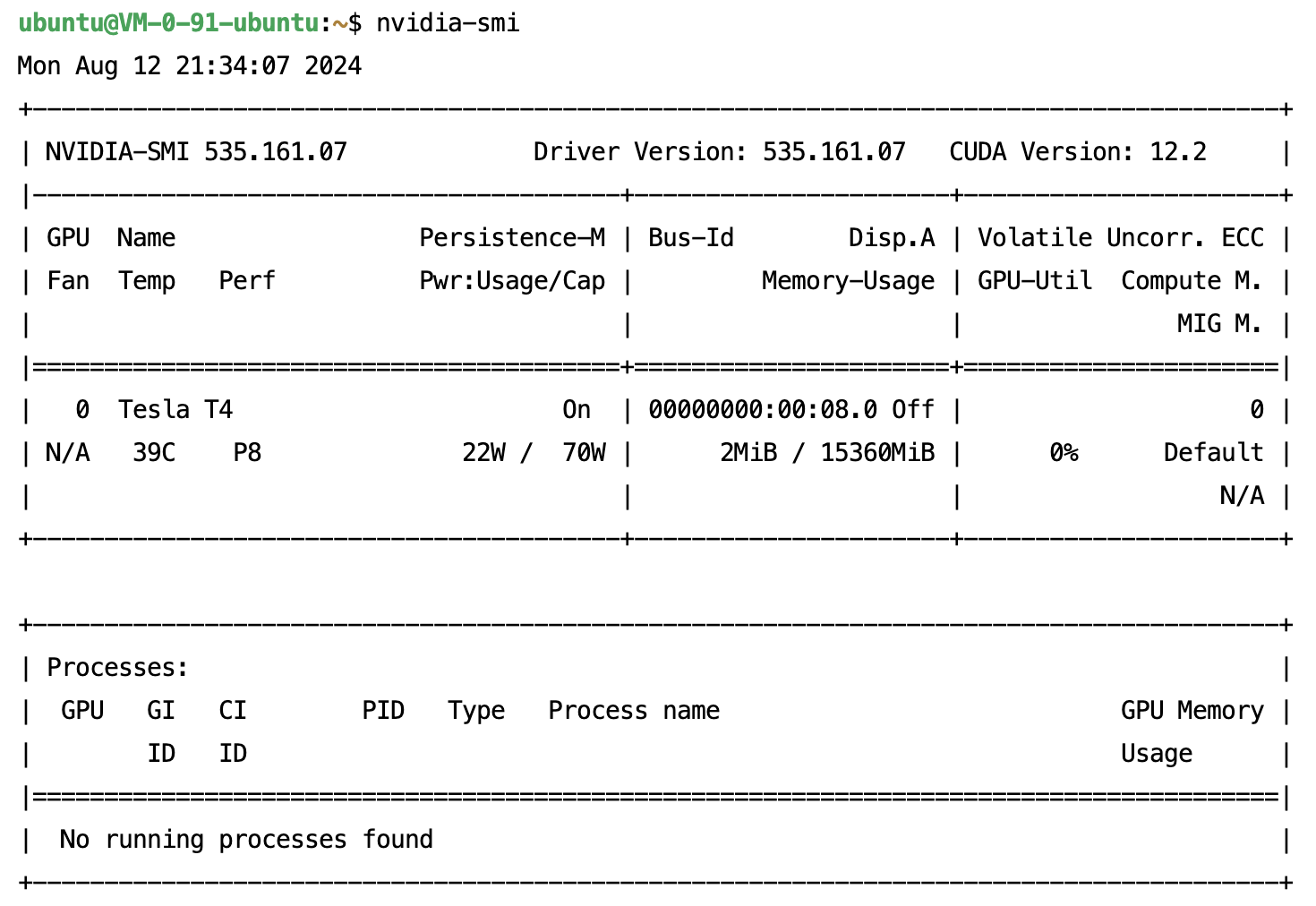
5. Execute the following command to verify whether the driver has been successfully installed.
nvidia-smi
If the returned information is similar to the GPU information in the figure below, it indicates that the driver has been successfully installed.
Method 2: Installing GPU Driver Using a Script During Logging In to the Instance
Directions
1. Log in to the CVM Console, select the Cloud GPU Service you want to access, click log in on the right, and choose a connection method based on your needs to log in to the instance.
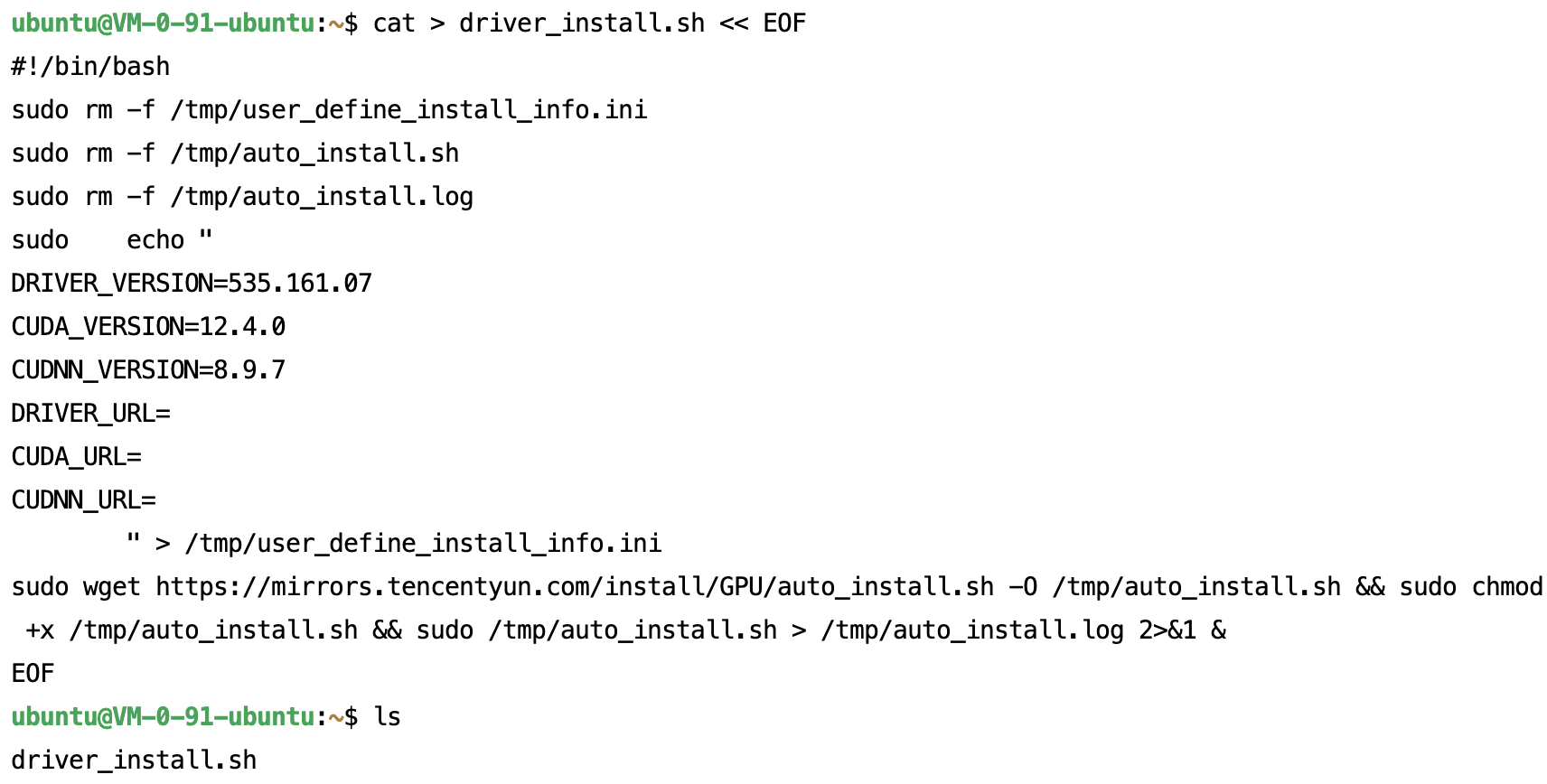
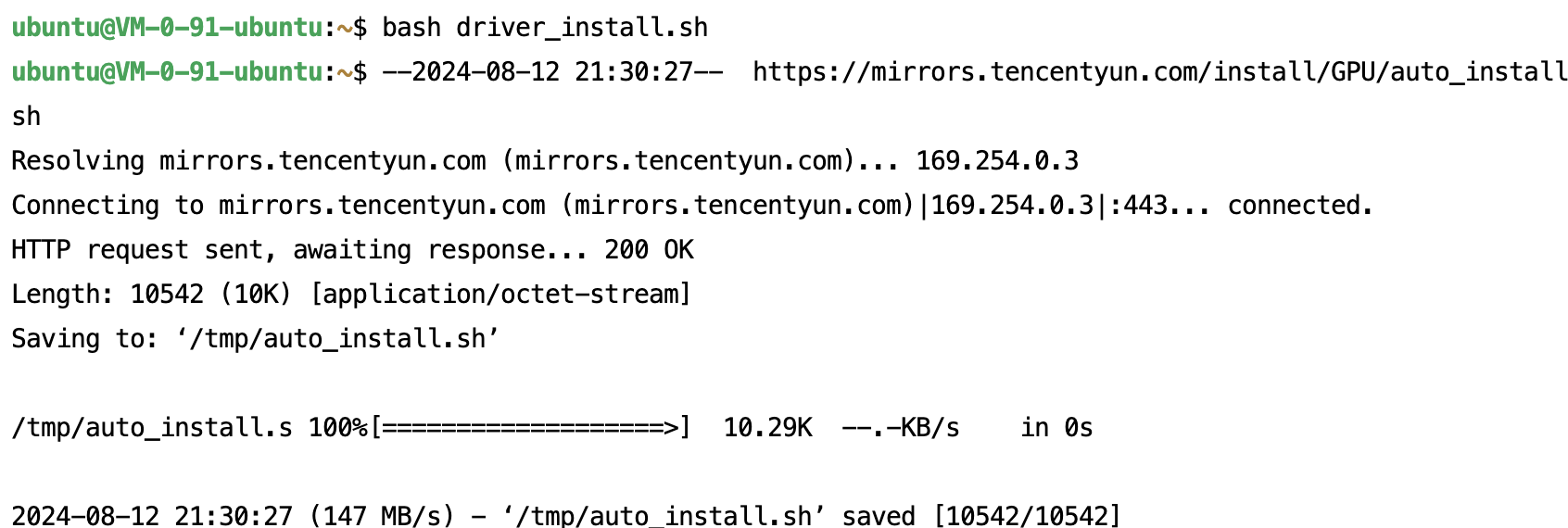
2. Copy the following command, update the parameters according to the Parameter Description, and save the driver auto-installation script as driver_install.sh.
Specifying Driver Version Number for Driver Installation
Based on the created instance specifications and image, adjust the corresponding Tesla driver, CUDA, and cuDNN library version parameters within the supported combination range:
DRIVER_VERSION=535.161.07
CUDA_VERSION=12.4.0
CUDNN_VERSION=8.9.7
DRIVER_URL=
CUDA_URL=
CUDNN_URL=
Note:
Only certain Linux images for NVIDIA compute-optimized instances support Tesla driver installation scripts.
It is recommended to select the latest versions of the Tesla driver, CUDA, and cuDNN libraries.
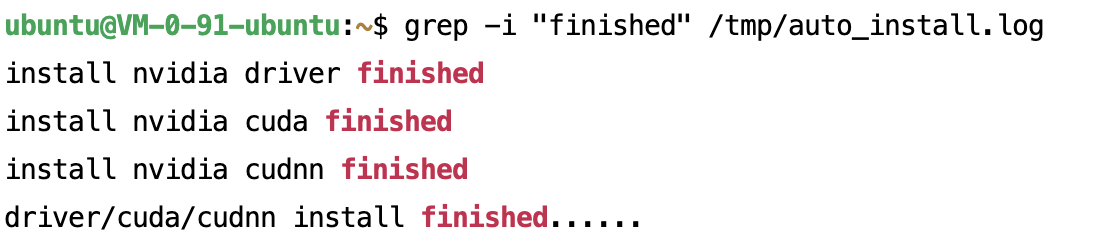
After the instance is created, executing the script takes approximately 10–20 minutes.
The supported combinations of models, images, Tesla drivers, CUDA, and cuDNN are as follows:
Specifying Download URL of Installation Package for Driver Installation
Based on the created instance type and image, see NVIDIA Driver, CUDA, and cuDNN official documentation to specify the corresponding combination of Tesla Driver, CUDA, and cuDNN library versions. After downloading, save them as instance-accessible URL addresses and fill in the parameters:
DRIVER_VERSION=
CUDA_VERSION=
CUDNN_VERSION=
#Ensure the instance can successfully download the installation packages from the provided URLs.
If any of the parameters DRIVER_URL, CUDA_URL, or CUDNN_URL are specified, the DRIVER_VERSION, CUDA_VERSION, and CUDNN_VERSION parameters will be ignored.
Only NVIDIA compute-optimized instance Linux images support the Tesla driver installation script. There may be risks of incompatibility among card types, images, GPU drivers, CUDA, and cuDNN library installation packages. It is recommended to install the driver using the method of specifying the driver version number.
If a non-Tencent Cloud intranet download address is filled in, Public Network Fee will be generated, and the download time will tend to be longer.
Method 3: Using TAT to Install Drivers
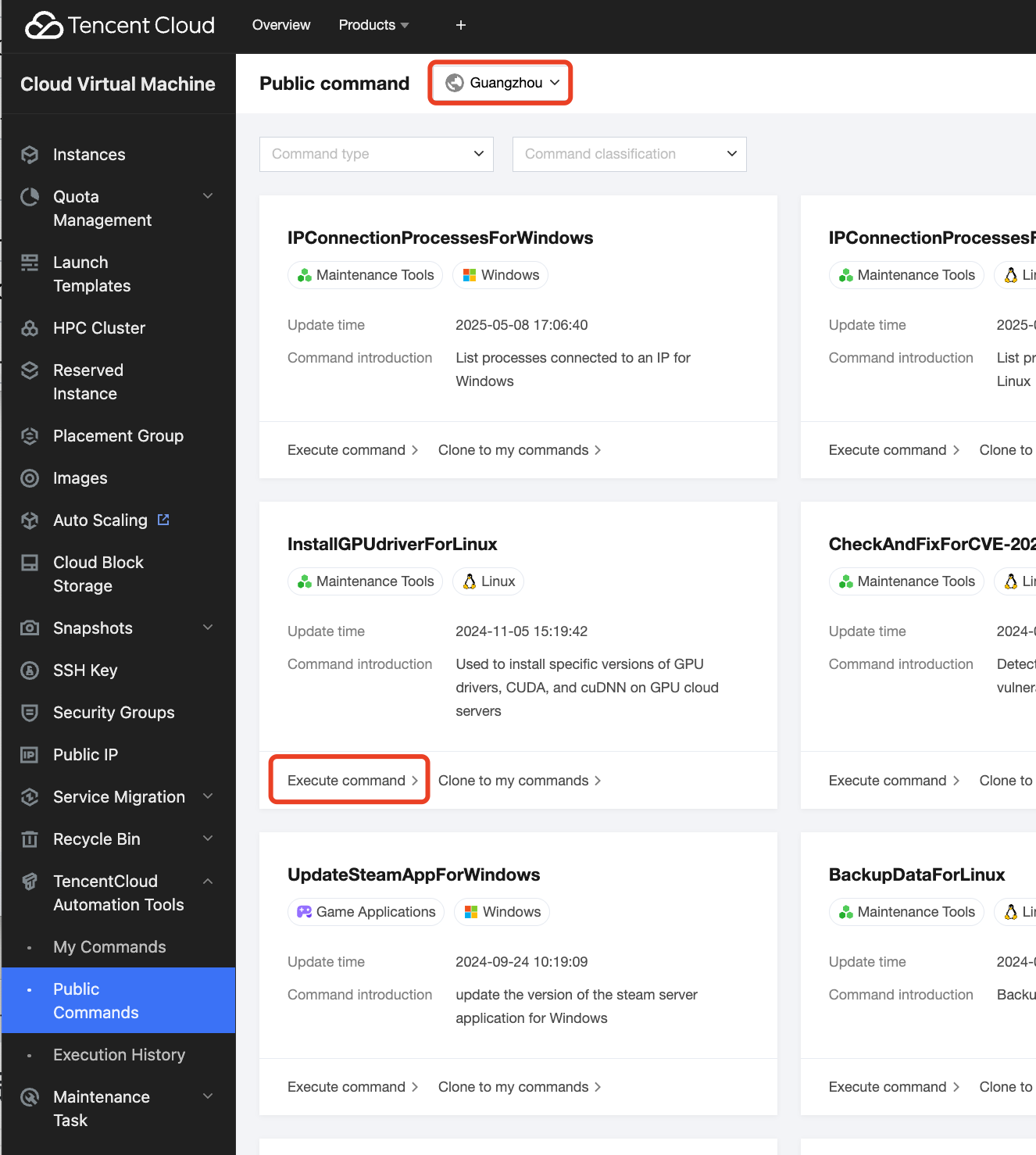
1. Log in to the CVM console and select TencentCloud Automation Tools > Public Commands from the left sidebar.
2. At the top of the Public Command page, select the region where the instance is located, and then click Execute Command in the lower-left corner of the Install GPU Driver For Linux module, as shown in the figure below:
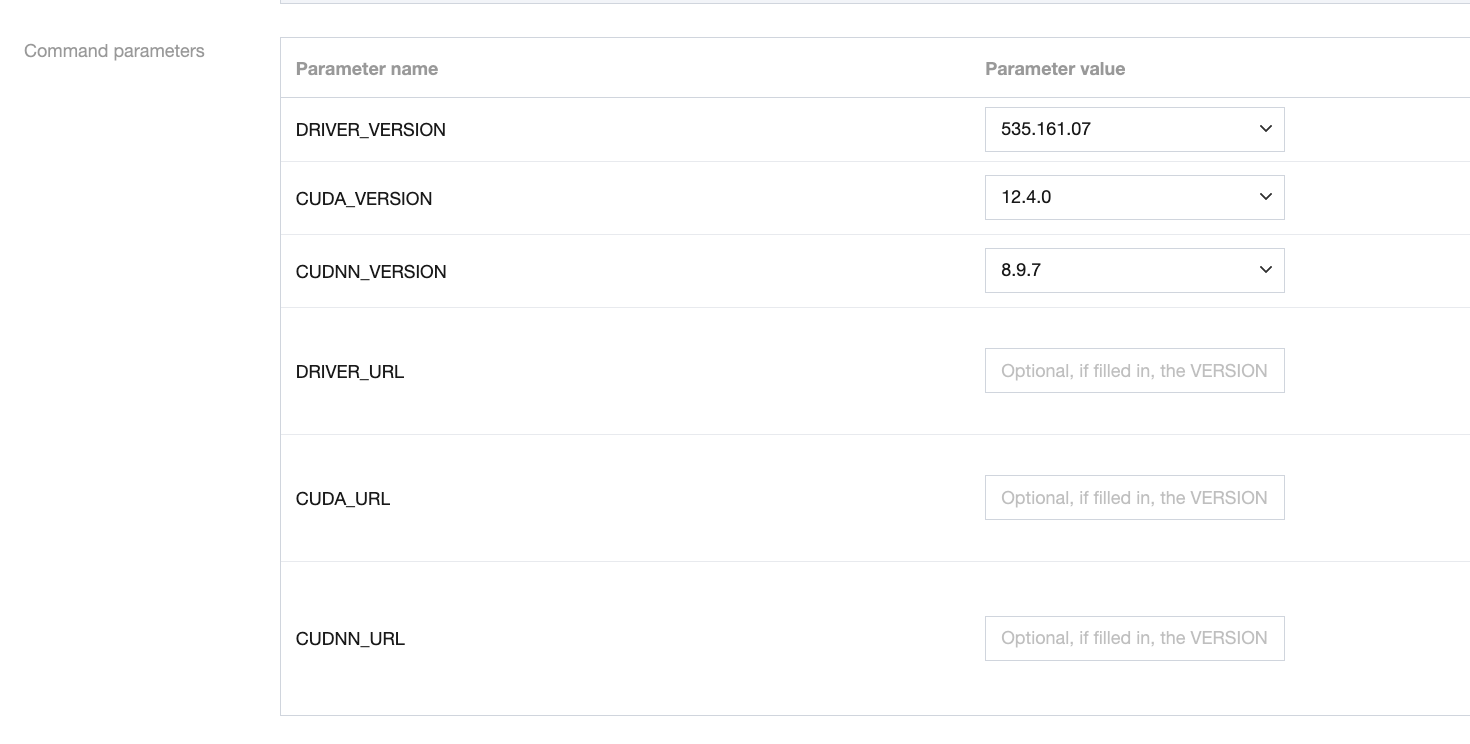
3. On the command execution page, you can modify the command configuration. For parameter details, see Parameter Description:
4. Select the GPU instances on which the command should be executed. You can use the Instance Type Filter to filter GPU instance types: