Account Push
Download
Focus Mode
Font Size
Overview
With Bastion Host, you can push asset login accounts to target assets.
Note
Account push currently supports Linux systems only.
Prerequisites
Directions
1. Log in to the BH console.
2. In the left sidebar, choose Account Mgmt > Account Push.
3. On the Account Push page, click Create push task to configure task details.
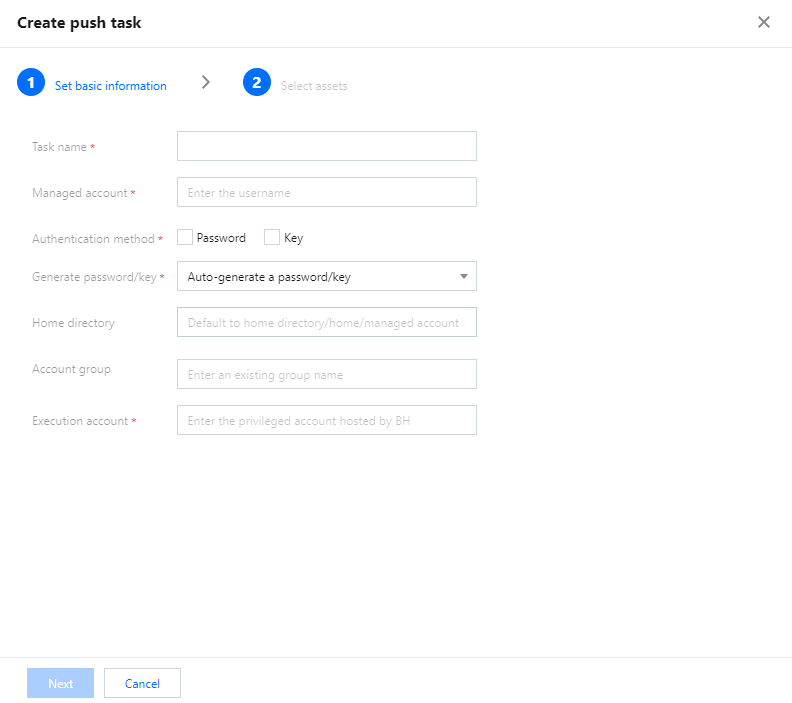
Parameter Name | Parameter Description |
Task name | 1–32 characters. |
Managed account | 1–64 characters. |
Authentication method | Choose password, key, or both options simultaneously. |
Generate password/key | Automatically generate identical passwords/keys. Automatically generate unique passwords/keys. Manually specify identical passwords/keys. |
Home directory | Default home directory /home/asset account. |
Account group | Enter an existing group name. |
Execution account | Enter a privileged account already hosted by the BH. |
4. After configuring the task information, click Next to select the asset information to be pushed, and then click OK to save the task.
5. Return to the push task page, locate the corresponding task, and click Push in the action column to initiate the account push task.

6. After the account push is complete, you can switch to Self-Audit > Account Push Logs to review the account push details.

7. After the account push is successful, you need to configure access permissions to allow Ops users to log in to the target asset using the account. For more details, see Creating Access Permission and Editing Access Permission.
Help and Support
Was this page helpful?
You can also Contact sales or Submit a Ticket for help.
Help us improve! Rate your documentation experience in 5 mins.
Feedback