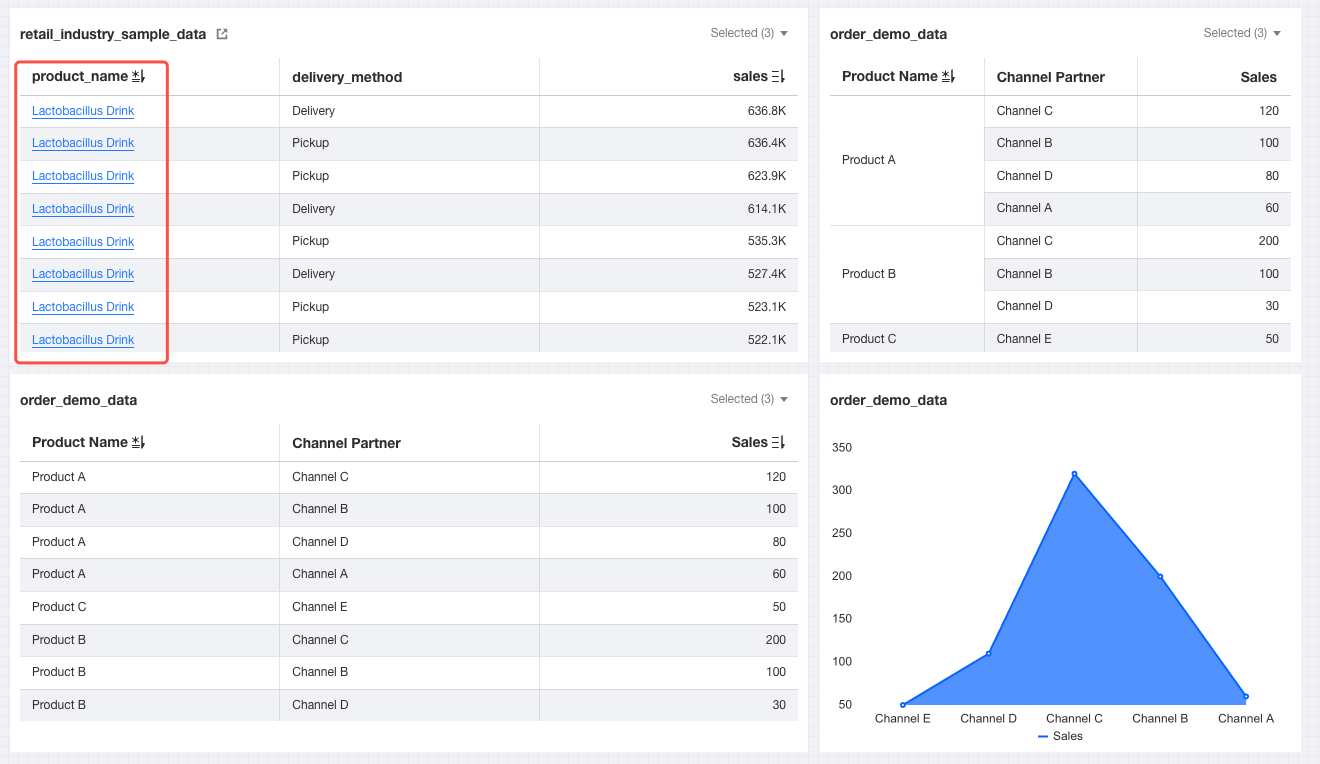
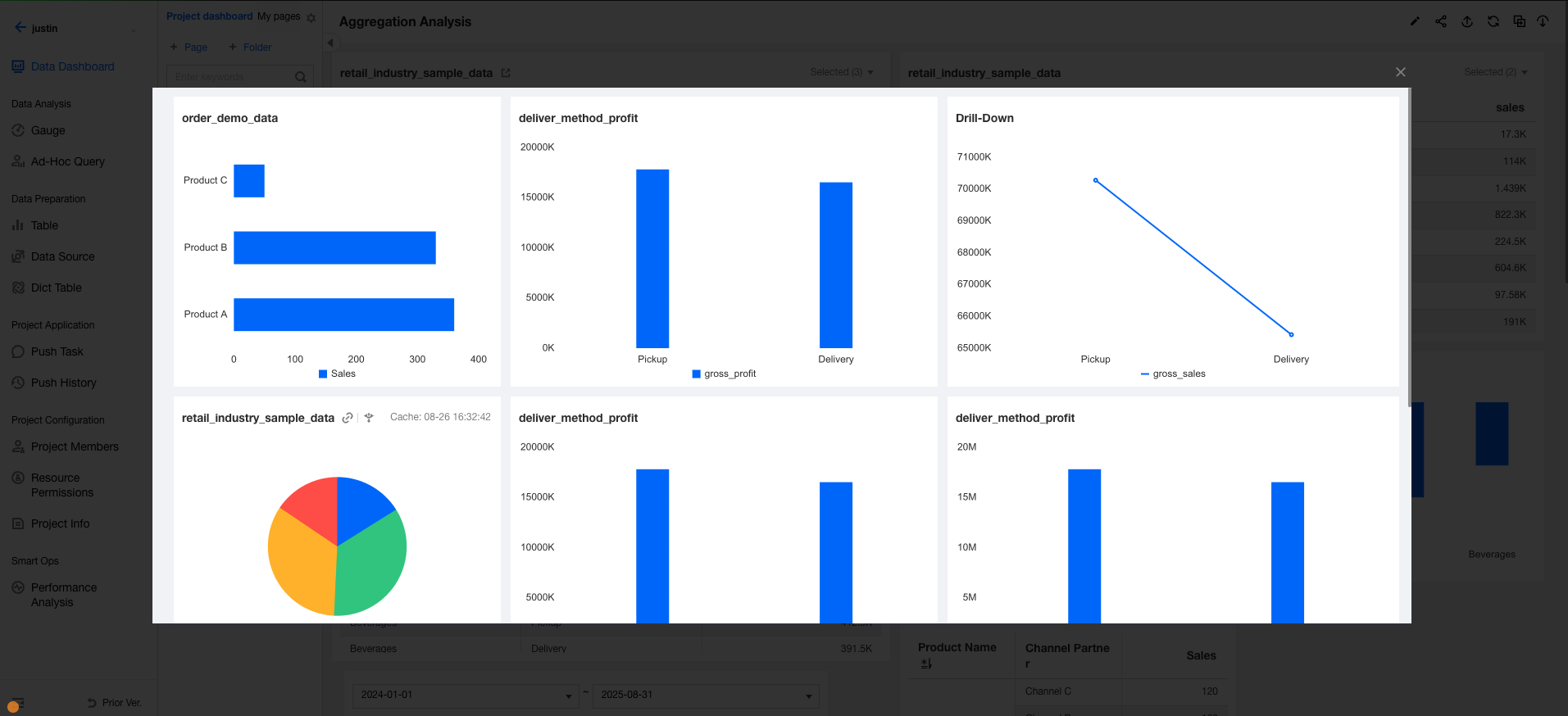
In data analysis scenarios, you may need to click to be redirected from a chart on Page A to Page B so as to fully describe metric information across multiple pages. Two redirection types are available.
1. Direct redirection: A normal link jump (without any parameters) applies to scenarios for quickly reaching the target page, such as jumping from one chart to another.
2. Parameterized navigation: The redirect link carries parameters, applying to scenarios where filtering is needed on the target page, such as clicking a dimension value in the chart to navigate to the related data of that dimension value on another page.
To enable chart redirection, follow the steps below:
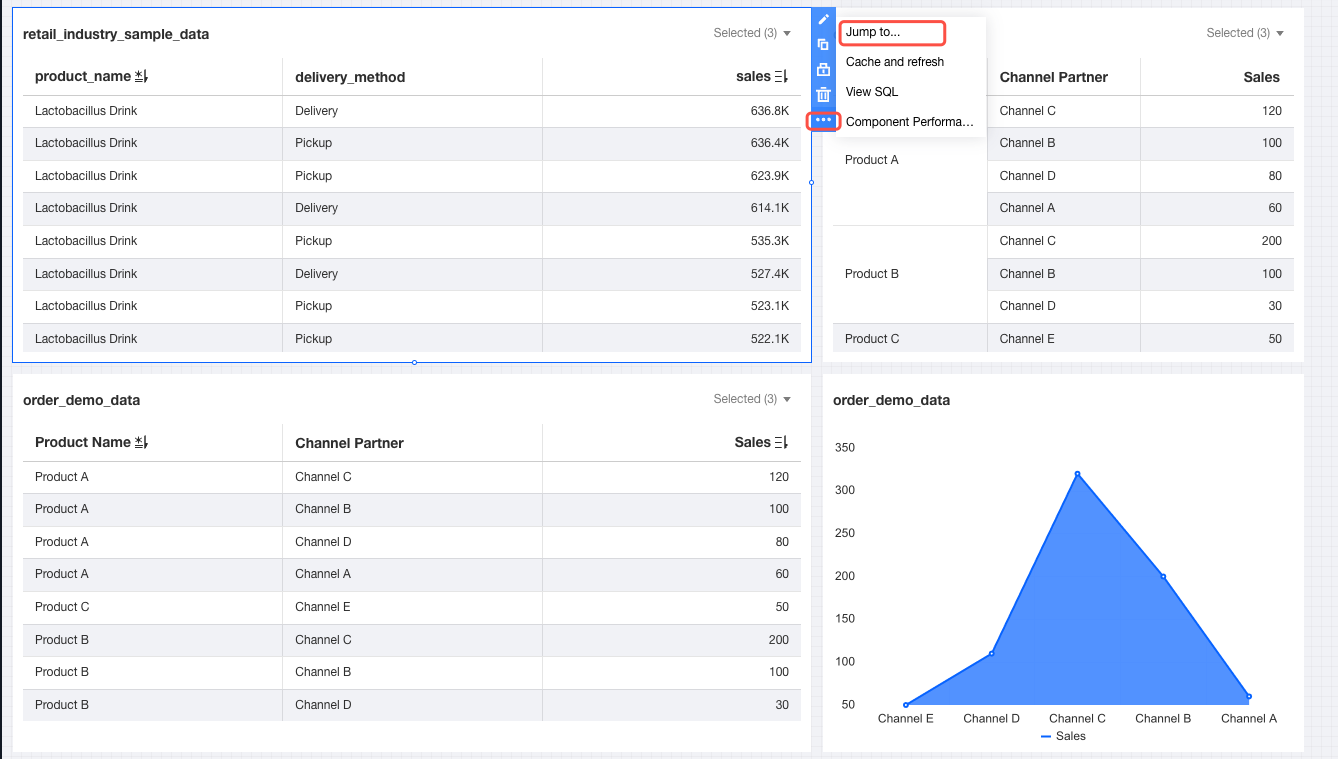
1. Go to the editor, then select navigate to... under the more icon of the component.
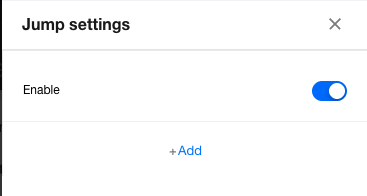
2. Enable redirection in the settings panel.
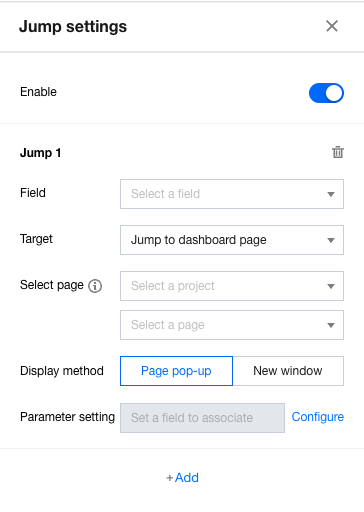
3. Click New Redirect. The table component supports setting multiple redirections.
Select the redirection field: Select the field for redirection in the table;
Select the redirection target: Available options include "navigate to dashboard page" and "external link" ("external link" will be supported in later editions). If "navigate to dashboard page" is selected, the page selection settings will be displayed. If "external link" is selected, the redirection link settings will appear.
When "navigate to dashboard page" is selected, you need to select a specific project and page. Note that if the page is not released, although it can be selected, it will be inaccessible upon redirection. Therefore, please confirm whether the target page is in released status. If not, remember to release the target page after the settings.
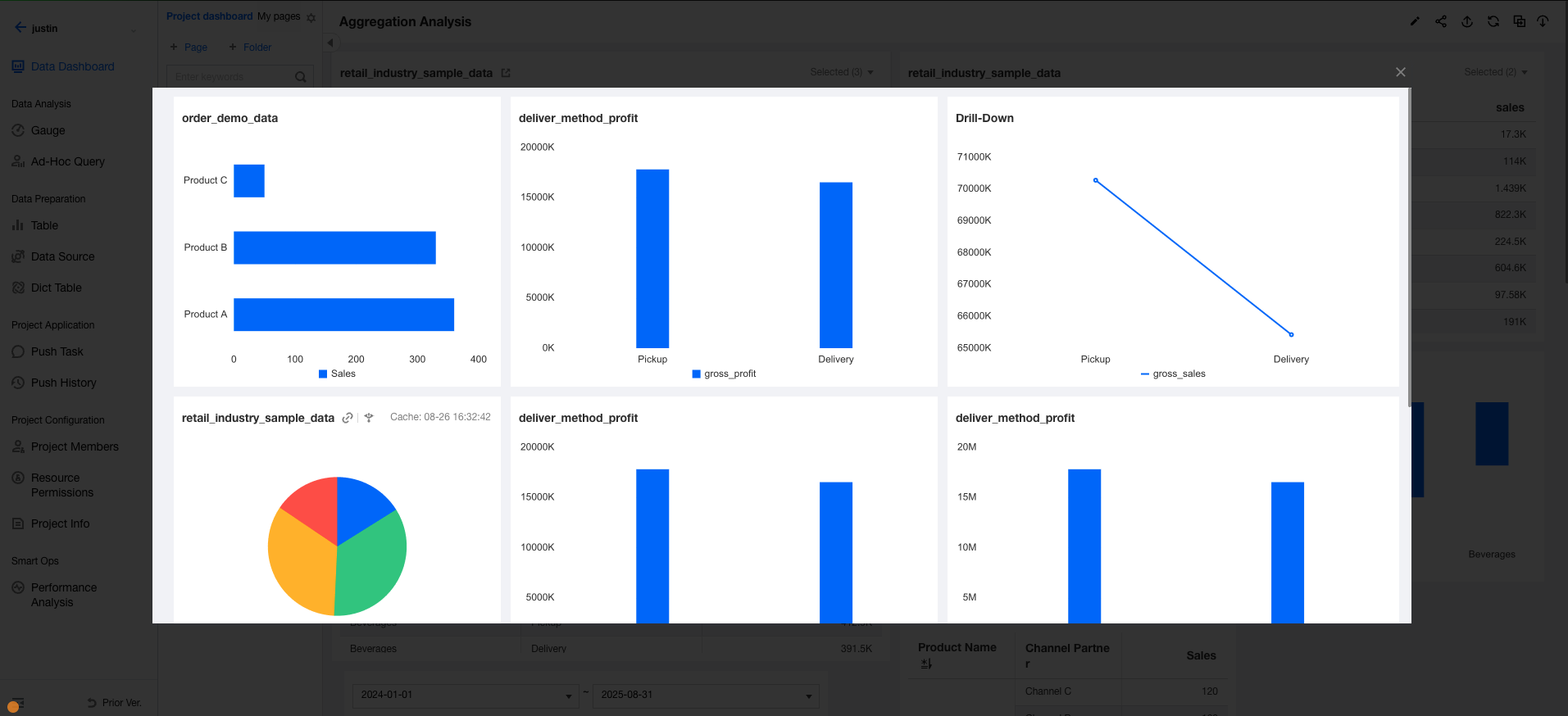
Open method: The target page can be opened through either a page pop-up layer or a new window. If "page pop-up layer" is selected, you do not need to leave the current page, and the target page content will be displayed directly in a pop-up layer on the current page. The effect is as follows:
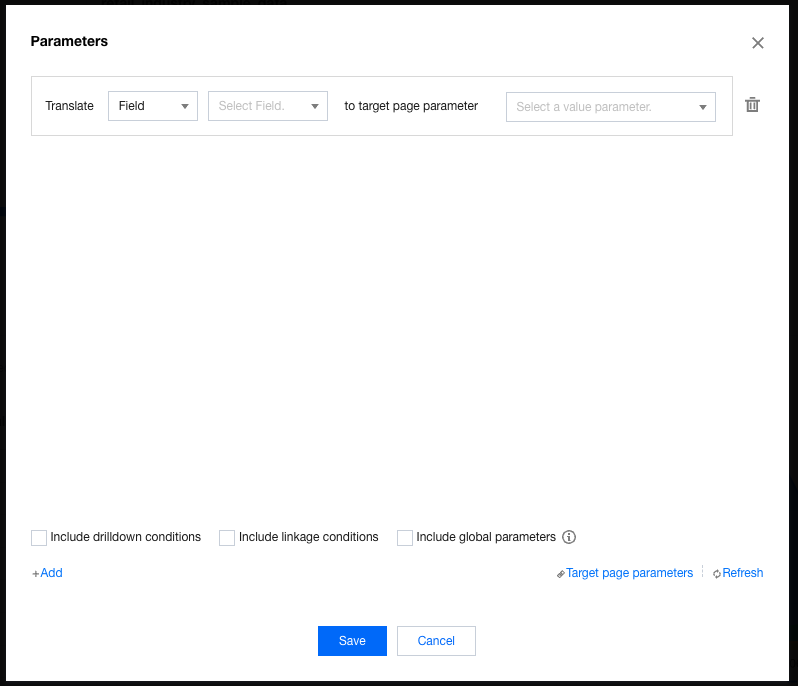
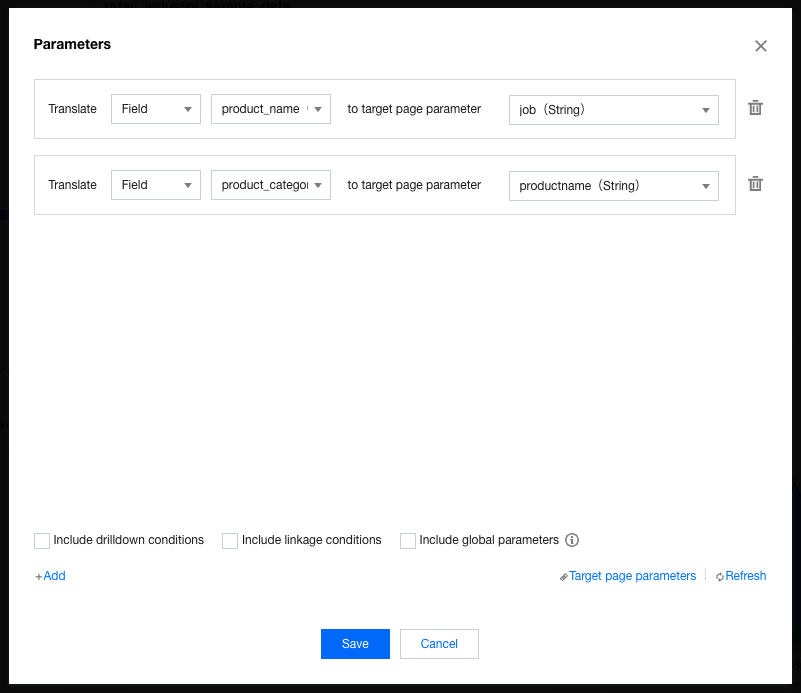
Configure parameter settings: If parameterized redirection is required, you need to configure the parameters. Click Configure and associate the target page parameters in the pop-up layer (for target parameter settings, see Page Parameter Settings).
You can assign values to multiple parameters simultaneously and bind them to different page parameters, as shown in the following figure:
Supported parameter sources are as follows:
Parameter Source
Optional Operation
Example Scenario Description
Fields
Select the data table fields referenced on the current chart.
Example: Click "Product Department" in the department dimension to be redirected to another Page B, then set the value of the "dpt" parameter on Page B to "Product Department". This way, Page B will display the filtered results where the department field equals "Product Department".
Note:
1. If the current chart has no "department" dimension field, the "department" value cannot be obtained and is empty by default. It means that the "dpt" parameter value is empty (no filtering).
2. If the current chart has no "department" dimension field, but the component is linked with another component (through the "department" field) and "Include linkage conditions" is selected, the linked department value will be passed as a condition to the page parameter during parameter passing.
Variables
Select page variables, project, and system variables.
Example: Click "Product Department" in the department dimension to be redirected to another Page B, then set the value of the "employee" parameter on Page B to the page variable "epl" (best employees of Product Department). This way, Page B will display the filtered results of the best employees.
Note:
When you click to be redirected to Page B, the variable value will be obtained first. If the variable value is not obtained, the redirection will not occur.
Filters
Select the filters associated with this component.
Example: Select "Product Department" in the "Department" filter to link and filter the metric card showing the sales of "Product Department". Click the metric card to be redirected to Page B. Then, Page B will display the filtered results where the department field equals "Product Department".
Note:
1. Only filters associated with this component can be selected.
2. Not setting "department" as a dimension is allowed in component settings.
Page Parameters
Select the current page parameters.
Example: The current page is redirected with the "dpt" parameter (whose value is "Product Department"). When being redirected to Page B again, you need to pass "Product Department" to "bumen" on Page B. This way, Page B will display the data filtering results for "Product Department".
Note:
1. When multiple filter values are assigned to the same page parameter, these values are processed with an "AND" relationship. For example, if both "department" and "dpt" filter values are assigned to the page parameter "dpt", the actual execution will be "dpt=[department] AND dpt=[dpt]".
2. When multiple field values are assigned to the same page parameter, these values are processed with an "OR" relationship. For example, if both "department" and "dpt" field values are assigned to the page parameter "dpt", the actual execution will be "dpt=[department] OR dpt=[dpt]".
3. Parameters should be set in the target page. Click "Target Page Parameter" to quickly open page settings. After the settings, click "Refresh" to update the target page parameter list.
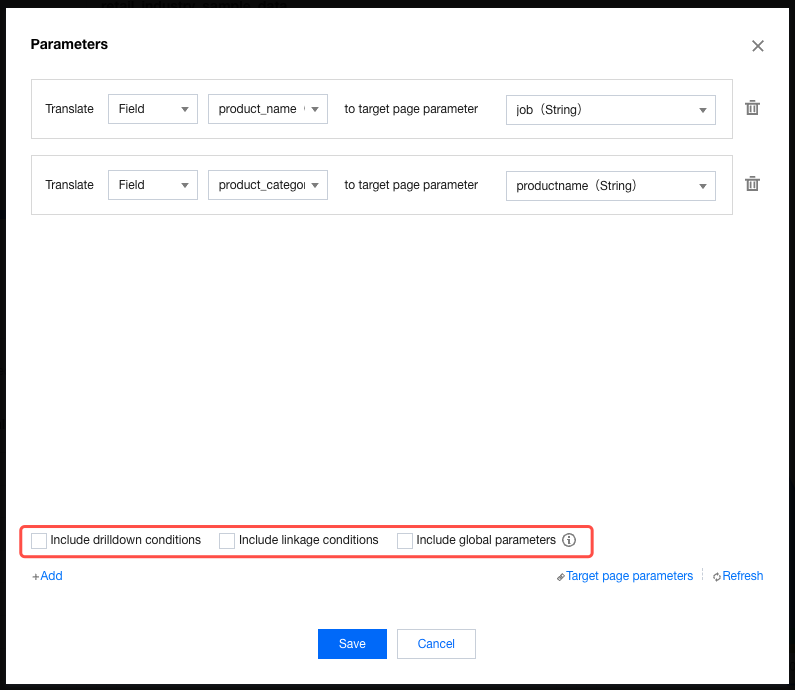
During interactive analysis (including drill-down or linkage), if you want to use interactive data as a source of redirection parameter values (for example, including linked parameters), you can obtain the corresponding values by selecting the following options.
Interaction Type
Prerequisites
Example Description
Include Drill-Down Conditions
You should first set "assign the value of field ** to target page parameter **". Otherwise, the drill-down conditions will not take effect even if this option is selected.
"tGX" contenteditable="false">Example: A chart is set with drill-down (drill-down levels: "department" > "center" > "employee") and is set to redirect to Page B. Select [assign the value of the field "department" to the target page parameter "dpt"], then select "include drill-down conditions". When you drill down to the employee level (the employee's department is "Production Department"), all the results where the dpt field equals "Product Department" will be filtered out.
Unselection results: All the results where the dpt field is empty will be filtered out.
Include Linkage Conditions
You should first set "assign the value of field ** to target page parameter **". Otherwise, the linkage conditions will not take effect even if this option is selected.
Example: The "department" field (such as "Product Department") of Chart A is linked with the "department" field of Chart B, but Chart B does not use "department" as a dimension field. When you click Chart B, if you select [assign the value of field "department" to target page parameter "dpt"] and select "with linkage conditions", then all the results where the dpt field equals "Product Department" will be filtered out.
Unselection results: All the results where the dpt field is empty will be filtered out.
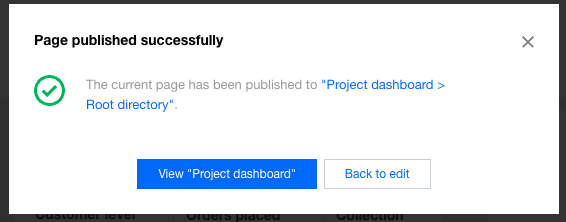
4. Release the page to make the parameters take effect.
Click Save in the pop-up layer, then click Publish on the page. When the following pop-up layer appears, the parameter takes effect.
5. View the redirection effect.
Open the page in the dashboard, set up highlighted display, and click to show the target page data in a new window or pop-up layer.
Taking the pop-up layer as an example, the data in the red box below only displays the specified dimension data rather than all data, proving that parameterized navigation succeeded.