Username and password authentication is the most basic authentication method. During connection, the client provides the username and password, and MQTT matches them with internally stored credentials and accepts the client request if the match passes.
Prerequisites
An MQTT cluster has been created. For specific steps, see Creating a Cluster.
2. In the left sidebar, choose Resource > Cluster, select a region, and click the ID of the target cluster to go to the cluster basic information page.
3. On the cluster details page, select Authentication and go to the Username and Password tab.
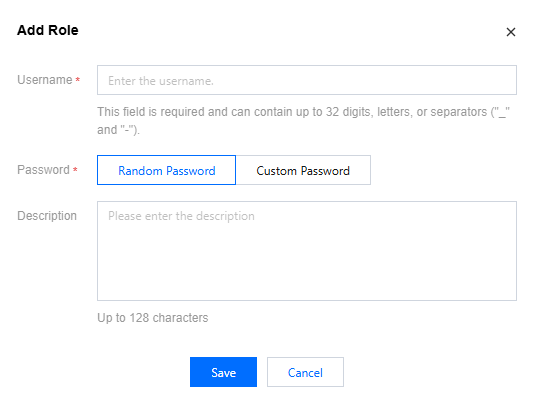
4. Click Create User, enter the username and description, and set the password. The username and password authentication is the most basic authentication method provided by MQTT. You need to enter them when using the client to send or receive messages subsequently.
Username: must be no more than 32 characters in length and can contain only digits, upper- and lower-case letters, hyphens (-), and underscores (_).
Password: set user password, support system automatically generate password or customize settings. Password longest 64 characters, support digits, uppercase and lowercase letters, separators ("_", "-").
Description (optional): must not exceed 128 characters.
5. Click Save to complete user creation. Subsequently, in the user list, you can copy the username and password in any of the following ways.
Note:
Password leakage is likely to cause your data leakage. Please keep your password safe.
Method 1: Copying from the Token Column
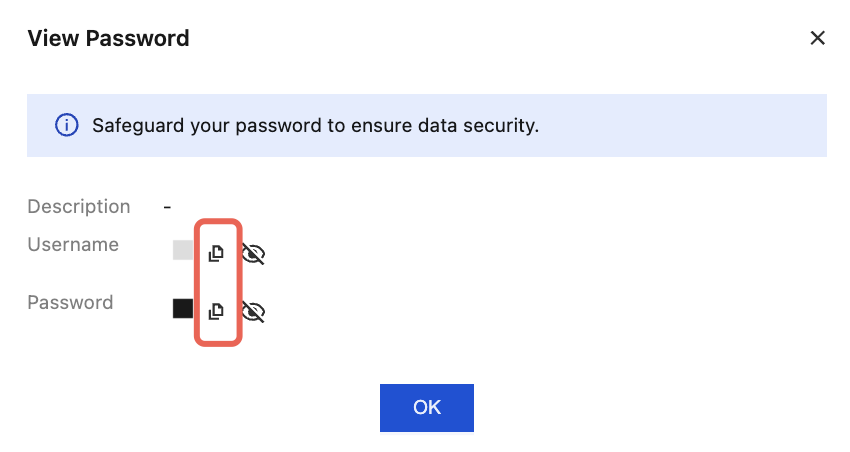
Method 2: Viewing and Copying from the Action Column
Copy from the Username and Password columns.
Click View Password in the Action column, click the view icon in the View Password pop-up window, then click the copy icon.
Configuring Permissions
After user creation is completed, the created user needs to be granted permissions to produce and consume messages.
When the authorization policy is not enabled, data plane resources have no permission management. You can use any "username + password" to connect, produce, and consume. For production environments, it is advisable to implement fine-grained permission control based on the principle of least privilege. For detailed introduction and operation steps, see Configuring Data Plane Authorization.
Deleting a User
Note:
Once a user is deleted, its username and password will immediately become invalid. Any message production or consumption activities relying on these credentials will be terminated. Please ensure relevant tasks have been stopped or new credentials have been configured before proceeding.
When you no longer need a user, you can delete it in the console. Specific operation steps are as follows:
On the user list page, click Delete in the operation bar, then confirm Delete in the pop-up window to delete a user.