tencent cloud

Data Transfer Service

Release Notes and Announcements
Release Notes
Announcements
Product Introduction
Overview
Data Migration
Data Sync
Data Subscription (Kafka Edition)
Strengths
Supported Regions
Specification Description
Purchase Guide
Billing Overview
Configuration Change Description
Payment Overdue
Refund
Getting Started
Data Migration Guide
Data Sync Guide
Data Subscription Guide (Kafka Edition)
Preparations
Business Evaluation
Network Preparation
Adding DTS IP Addresses to the Allowlist of the Corresponding Databases
DTS Service Permission Preparation
Database and Permission Preparation
Configuring Binlog in Self-Built MySQL
Data Migration
Databases Supported by Data Migration
Cross-Account TencentDB Instance Migration
Migration to MySQL Series
Migrating to PostgreSQL
Migrating to MongoDB
Migrating to SQL Server
Migrating to Tencent Cloud Distributed Cache
Task Management
Data Sync
Databases Supported by Data Sync
Cross-Account TencentDB Instance Sync
Sync to MySQL series
Synchronize to PostgreSQL
Synchronization to MongoDB
Synchronize to Kafka
Task Management
Data Subscription (Kafka Edition)
Databases Supported by Data Subscription
MySQL series Data Subscription
Data Subscription for TDSQL PostgreSQL
MongoDB Data Subscription
Task Management
Consumption Management
Fix for Verification Failure
Check Item Overview
Cutover Description
Monitoring and Alarms
Supported Monitoring Indicators
Supported Events
Configuring Metric Alarms and Event Alarms via the Console
Configuring Indicator Monitoring and Event Alarm by APIs
Ops Management
Configuring Maintenance Time
Task Status Change Description
Practical Tutorial
Synchronizing Local Database to the Cloud
Creating Two-Way Sync Data Structure
Creating Many-to-One Sync Data Structure
Creating Multi-Site Active-Active IDC Architecture
Selecting Data Sync Conflict Resolution Policy
Using CLB as Proxy for Cross-Account Database Migration
Migrating Self-Built Databases to Tencent Cloud Databases via CCN
Best Practices for DTS Performance Tuning
FAQs
Data Migration
Data Sync
FAQs for Data Subscription Kafka Edition
Regular Expressions for Subscription
Error Handling
Common Errors
Failed Connectivity Test
Failed or Alarmed Check Item
Inability to Select Subnet During CCN Access
Slow or Stuck Migration
Data Sync Delay
High Data Subscription Delay
Data Consumption Exception
API Documentation
History
Introduction
API Category
Making API Requests
(NewDTS) Data Migration APIs
Data Sync APIs
Data Consistency Check APIs
(NewDTS) Data Subscription APIs
Data Types
Error Codes
DTS API 2018-03-30
Service Agreement
Service Level Agreements

Pausing Task

PDF
Focus Mode
Font Size
Last updated: 2024-07-08 20:31:47

Overview

After a sync task is started, if there are too many connections to the source database or the business needs to be adjusted, you can pause the task and resume it after the source database can handle the load or the business adjustment is completed.

Application Scope

Data migration links among MySQL, TDSQL-C for MySQL, MariaDB, and Percona.

Note

Only migration tasks in Running or Prepared status can be paused.
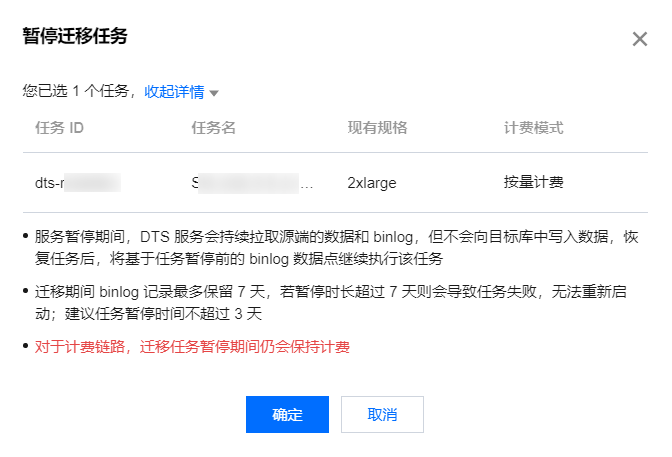
After a task is paused, DTS will continue to pull the source database data but will not write data to the target database. After the task is resumed, DTS will continue the task.
In the full export stage, after a task is resumed, the checkpoint restart is not supported, and DTS needs to export all the source database data again.
In the full import and incremental sync stages, after a task is resumed, DTS will continue with the data transfer based on the offset of the binlog synced before the task is paused.
During migration, binlog records are retained for up to seven days. If the pause lasts longer than seven days, the task will fail and cannot be restarted. We recommend that you keep the pause period below three days.
Because DTS continues to pull the data and binlog of the source database during the task pause, billable links will still be billed when the migration task is paused.

Directions

1. Log in to the DTS console, select Data Migration on the left sidebar, select the target migration task, and click Pause in the Operation column.
2. In the pop-up window, confirm that everything is correct and click OK.

Help and Support

Was this page helpful?

Help us improve! Rate your documentation experience in 5 mins.

Feedback