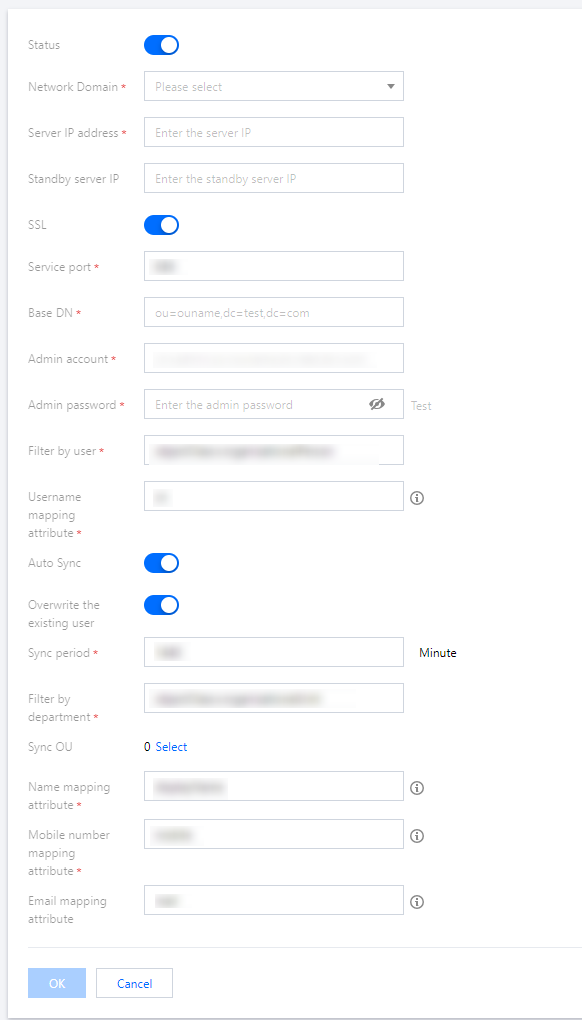
When an enterprise uses LDAP, users can log in to the BH with their LDAP accounts. Administrators can also directly synchronize users from LDAP to the BH, eliminating the need to separately maintain the user management system of the BH and simplifying the management process.
Note
If you require LDAP authentication, Contact Us to enable this feature.
2. In the left sidebar, choose System Settings > LDAP.
3. On the LDAP page, click Edit in the upper-right corner. By default, the LDAP status is disabled. Click the
icon to enable LDAP and configure the following LDAP information.
Note
Fields marked with * on the page are mandatory.
Parameter Name
Parameter Description
Network domain
Select the network domain.
Server IP address
Enter the IP address of the LDAP server.
Backup server IP address
If your LDAP server has multiple IP addresses, enter a backup IP address.
SSL
Configure whether to enable SSL.
Server port
Enter the port of the LDAP server.
Base DN
Enter the Base DN information of the LDAP server in the format: ou=ouname,dc=test,dc=com.
Admin account
Enter the administrator account information in the format: cn=admin,ou=ouname,dc=test,dc=com.
Admin password
Enter the password for the administrator account.
Filter by user
Enter the user filter condition.
Username mapping attribute
Enter the attribute that represents the username in LDAP.
Auto Sync
Configure whether to enable automatic user synchronization.
Overwrite the existing user
Configure whether to overwrite existing user information in the BH when usernames match LDAP user information.
Sync period
Enter the interval for automatic synchronization of LDAP users.
Filter by department
Set the filter condition for departments.
Synchronize OU
Select the OU in which the users to be synchronized are located.
Name mapping attribute
Enter the attribute that represents the user's name in LDAP.
Mobile number mapping attribute
Enter the attribute that represents the user's phone number in LDAP.
Email mapping attribute
Enter the attribute that represents the user's email in LDAP.
4. After entering the required information, click OK to save the settings.
5. If automatic synchronization is enabled, after clicking OK, a prompt will appear asking whether to synchronize immediately. Choose Yes or No based on your actual needs.