The time filter provides content filtering against time type fields, commonly used for filtering time ranges, such as user behavior data by access date.
The time filter supports two types of interaction: "custom time range" and "commonly used time".
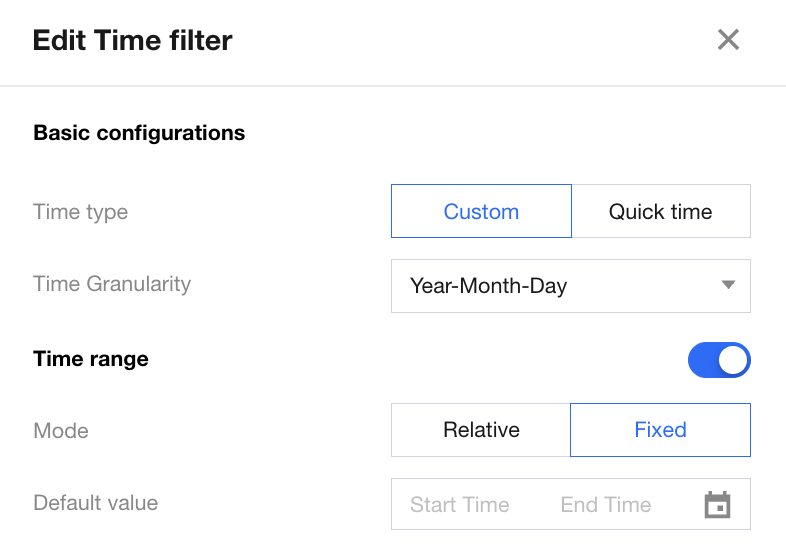
Custom time: Support various time granularities for filtering, convenient for users to select specific time ranges;
Common time: Provide commonly used time period filters, based on the most recent user access time for quick usage.
Custom time
When the time type is set to "custom time range", you can configure different time granularities according to business needs:
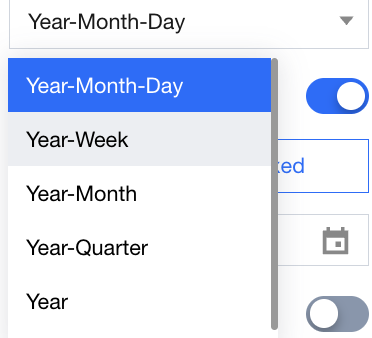
The time component supports the following types of time granularity:
Year-Month-Day: Selectable for a certain day in a specific year and month
Year-Week: Selectable for a specific week in a year
Year and month: Selectable for a specific year and month
Year-Quarter: Selectable for a specific year and quarter
Year: Selectable for a specific year
By default, the time interval is not enabled. To select a time period, you need to enable range selection. Once enabled, users can choose two time points as the time interval to complete the entire filtering action.
The time component supports two default time selection methods.
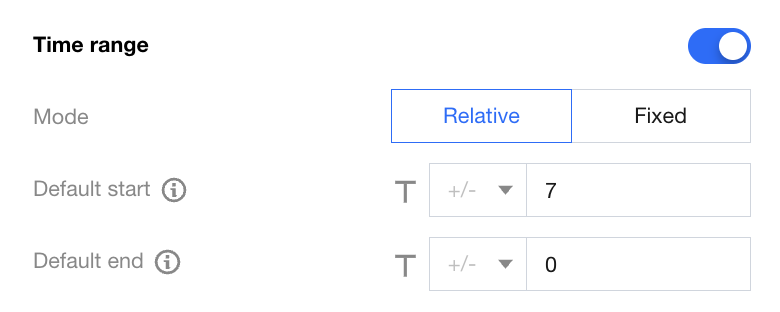
Relative time: The origin point is the access time of the webpage, showing time nodes before and after, such as T+1, which means the next day after the user access date. Relative time is dynamic.
Fixed time: A clear fixed time that does not change with user access.
If relative time is selected, the appropriate relative span value needs to be set. As shown in the figure below, it means data from the last 7 days is displayed by default:
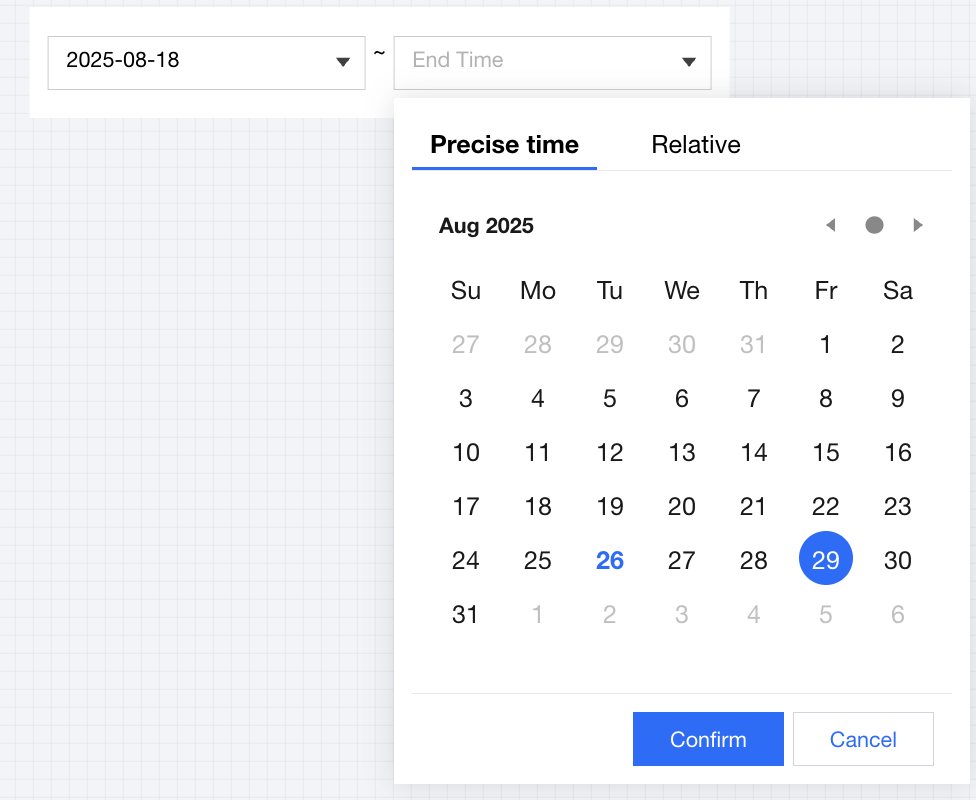
When viewing the dashboard, users can select the corresponding time using the calendar, year, and month selectors to filter data, as shown in the figure below:
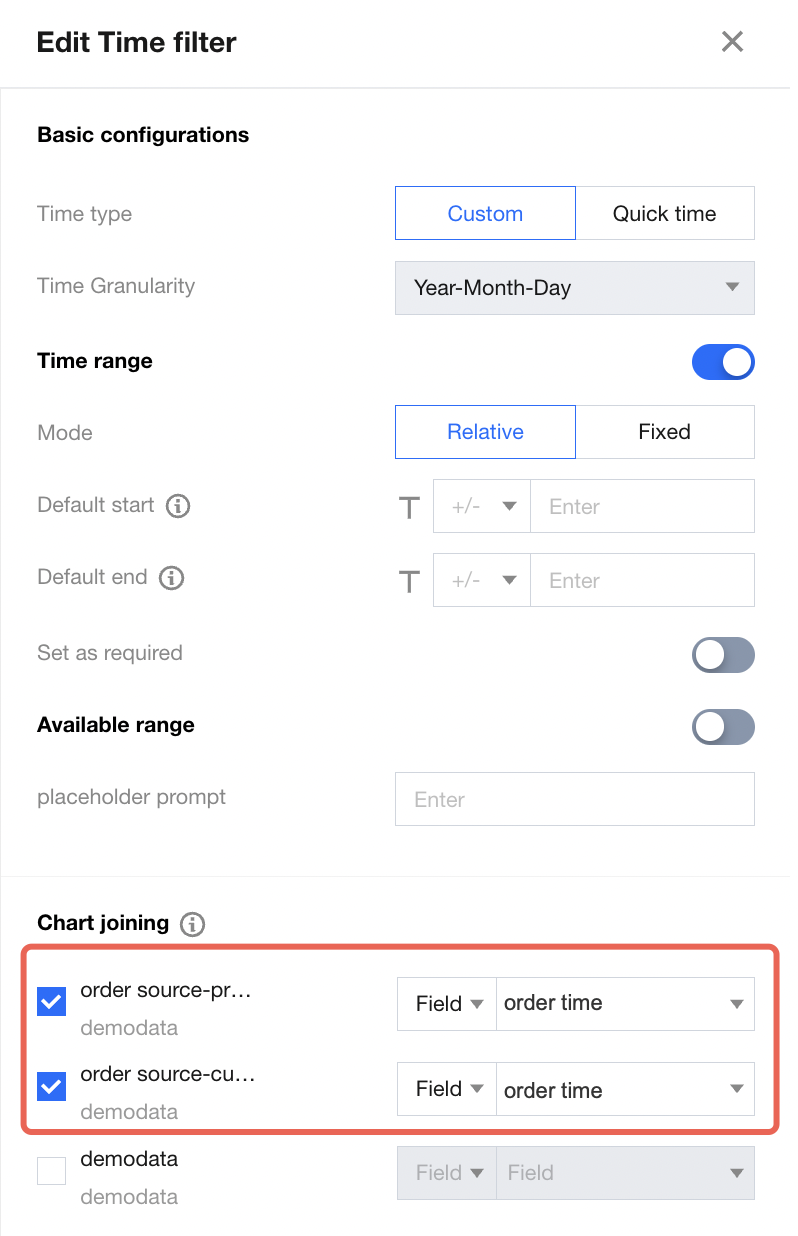
In the associated chart settings, you can choose charts that the current component can impact. For example: order time "start with Jan 1, 2022, end with Jan 10, 2022". Expect charts "order source-product type-income" and "order source-customer level-income" to use the "order time" field as the associated field to filter out data that meets the criteria. Then set as follows:
Commonly Used Time
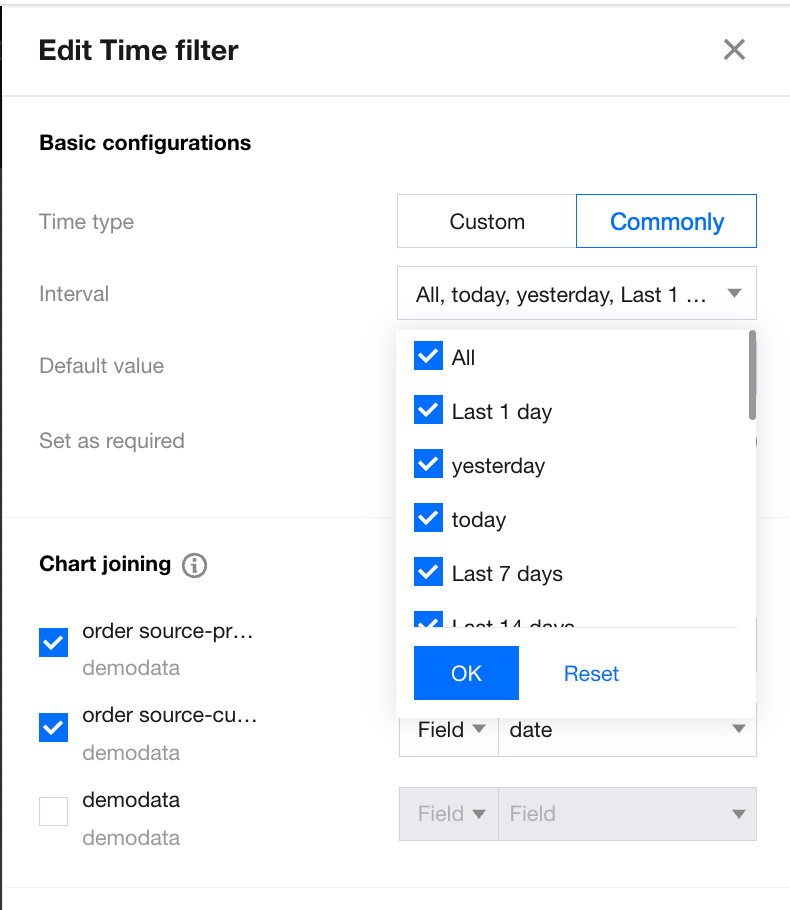
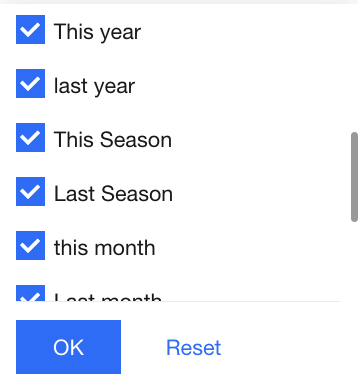
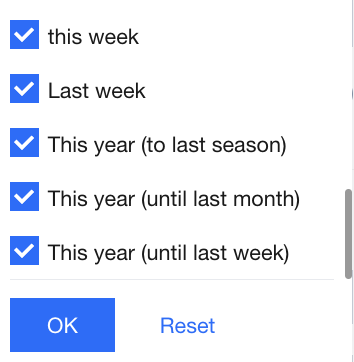
When the time type is set to "commonly", users can quickly select commonly used time, including the following categories:
Last N days: For example, last 7 days means the period starting from 7 days before the current time, equivalent to 2023-05-20 13:34:30 ~ 2023-05-27 13:34:30 (non-calendar days).
YTD/QTD/MTD/WTD: For example, this month to date means from the first day of the month to today, equivalent to 2023-05-01 00:00:00 ~ 2023-05-27 23:59:59 (calendar days).
The recent period supports the following granularity (suppose the current time is 2023-05-27 13:34:30):
Granularity
Note
Example
All
All time
2023-05-26 00:00:00 ~ 2023-05-26 23:59:59
Yesterday
Previous day
2023-05-26 00:00:00 ~ 2023-05-27 23:59:59
Today
Today
2023-05-27 00:00:00 ~ 2023-05-27 23:59:59
Last 1 day
Last 1 day to Current Time
2023-05-26 13:34:30 ~ 2023-05-27 13:34:30
Last 7 days
Last 7 days to Current Time
2023-05-20 13:34:30 ~ 2023-05-27 13:34:30
Last 14 days
Last 14 days to Current Time
2023-05-13 13:34:30 ~ 2023-05-27 13:34:30
Last 30 days
Last 30 days to Current Time
2023-04-26 13:34:30 ~ 2023-05-27 13:34:30
Last six months
Last 180 days to Current Time
2022-11-28 13:34:30 ~ 2023-05-27 13:34:30
Last 1 year
Last 365 days to Current Time
2022-05-27 13:34:30 ~ 2023-05-27 13:34:30
this year
first day of the year to last day
2023-01-01 00:00:00 ~ 2023-12-31 23:59:59
Last year
first day of last year to last day
2022-01-01 00:00:00 ~ 2022-12-31 23:59:59
This quarter
first day of the quarter to last day
2023-04-01 00:00:00 ~ 2023-06-30 23:59:59
last quarter
first day of the previous quarter to last day
2023-01-01 00:00:00 ~ 2023-03-31 23:59:59
this month
first day of the month to last day
2023-05-01 00:00:00 ~ 2023-05-31 23:59:59
last month
first day of the month 1 month prior to last day
2023-04-01 00:00:00 ~ 2023-04-30 23:59:59
this week
first day of this week to last day
2023-05-22 00:00:00 ~ 2023-05-28 23:59:59
last week
first day of the week 1 week prior to last day
2023-05-15 00:00:00 ~ 2023-05-21 23:59:59
this year (to last quarter)
first day of this year to last day of the quarter 1 quarter prior
2023-01-01 00:00:00 ~ 2023-03-31 23:59:59
this year (to last month)
first day of this year to last day of the month 1 month prior
2023-01-01 00:00:00 ~ 2023-04-30 23:59:59
this year (to last week)
first day of this year to last day of 1 week prior
2023-01-01 00:00:00 ~ 2023-05-21 23:59:59
When accessing, the user can select the most recent time period from the recent time button. Clicking the option automatically triggers the filter.
The user can also freely select a time in the date filter box.