Downloading Files
This article will guide you on how to download files from the Professional Version through the console.
Preparations
The VOD service has been activated, and a Professional Version application has been created. For instructions on creating a Professional Version application, please refer to Quick Start.
Files have been uploaded. For file upload, please refer to Uploading Files.
The default acceleration domain name has been configured. For configuring the default acceleration domain name, please refer to Quick Start.
Operation Steps
1. Log in to the VOD console, click Application Management on the left sidebar to enter the application list page.
2. Find the application with the file you need to download, click the application name to enter the application storage page.
3. On the application storage page, select the bucket containing the file you need to download, click the bucket name to enter its file list page.
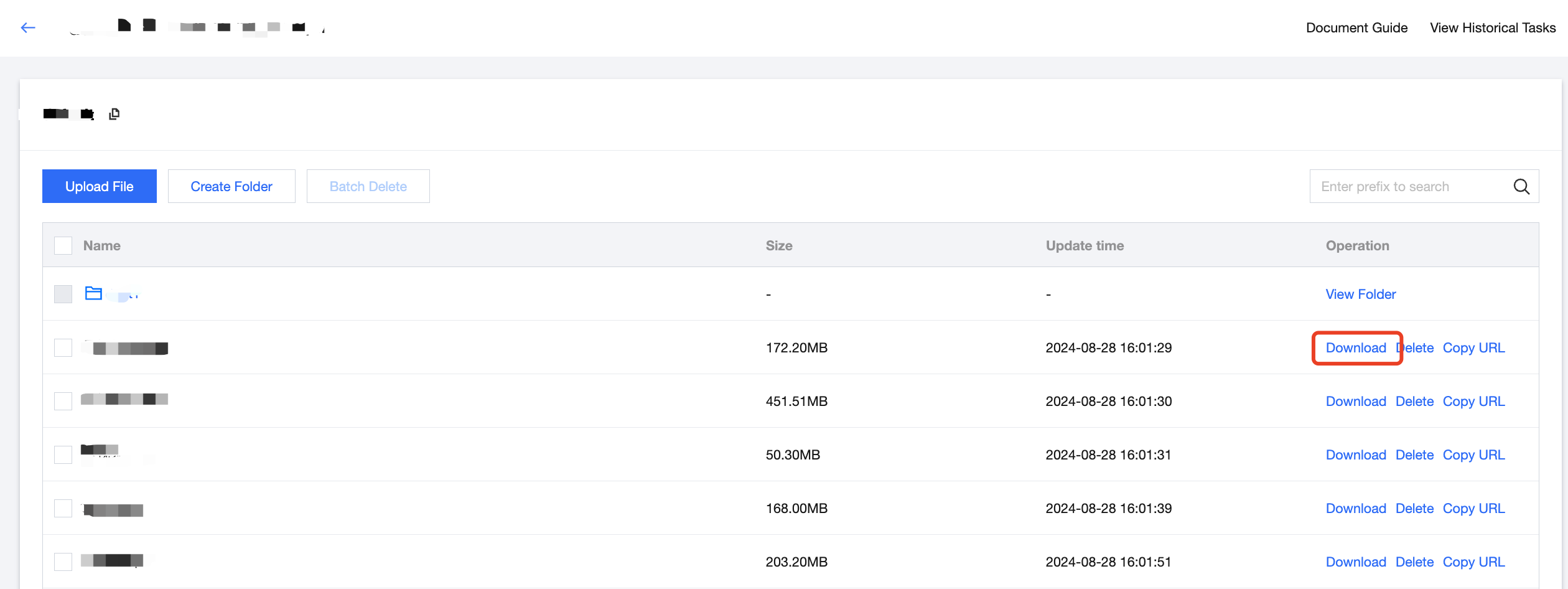
4. On the bucket's file list page, find the file you need to download and click Download in the actions.
Help and Support
Was this page helpful?
You can also Contact sales or Submit a Ticket for help.
Help us improve! Rate your documentation experience in 5 mins.
Feedback