Overview
When you process data inflow and outflow tasks through the TDMQ for CKafka (CKafka) connector, basic data cleansing operations are often required, such as formatting raw data, parsing specific fields, and converting data formats. Developers often need to build their own extract, transform, and load (ETL) pipeline for data cleansing.
Logstash is a free, open-source, server-side data processing pipeline that can collect data from multiple data sources, transform it, and then send it to corresponding targets. Logstash boasts a rich set of filter plugins, making it a widely used and powerful data transformation tool.
However, building, configuring, and maintaining your own Logstash service increases development and Ops complexity. To address this, CKafka provides a data processing service comparable to Logstash. Developers can create their own data processing tasks simply through the console interface. The data processing service allows users to edit corresponding data processing rules, supports building chain processing, and enables previewing data processing results. This helps users easily and efficiently build a data processing service to meet data cleansing and transformation needs.
Feature Comparison List
|
Codec.json | ✔ | |
Filter.grok | ✔ | |
Filter.mutate.split | ✔ | |
Filter.date | ✔ | |
Filter.json | ✔ | |
Filter.mutate.convert | ✔ | |
Filter.mutate.gsub | ✔ | |
Filter.mutate.strip | ✔ | |
Filter.mutate.join | ✔ | |
Filter.mutate.rename | ✔ | |
Filter.mutate.update | ✔ | |
Filter.mutate.replace | ✔ | |
Filter.mutate.add_field | ✔ | |
Filter.mutate.remove_field | ✔ | |
Filter.mutate.copy | ✔ | |
Filter.mutate.merge |
| TODO |
Filter.mutate.uppercase |
| TODO |
Filter.mutate.lowercase |
| TODO |
Introduction to Operation Methods
Data Parsing
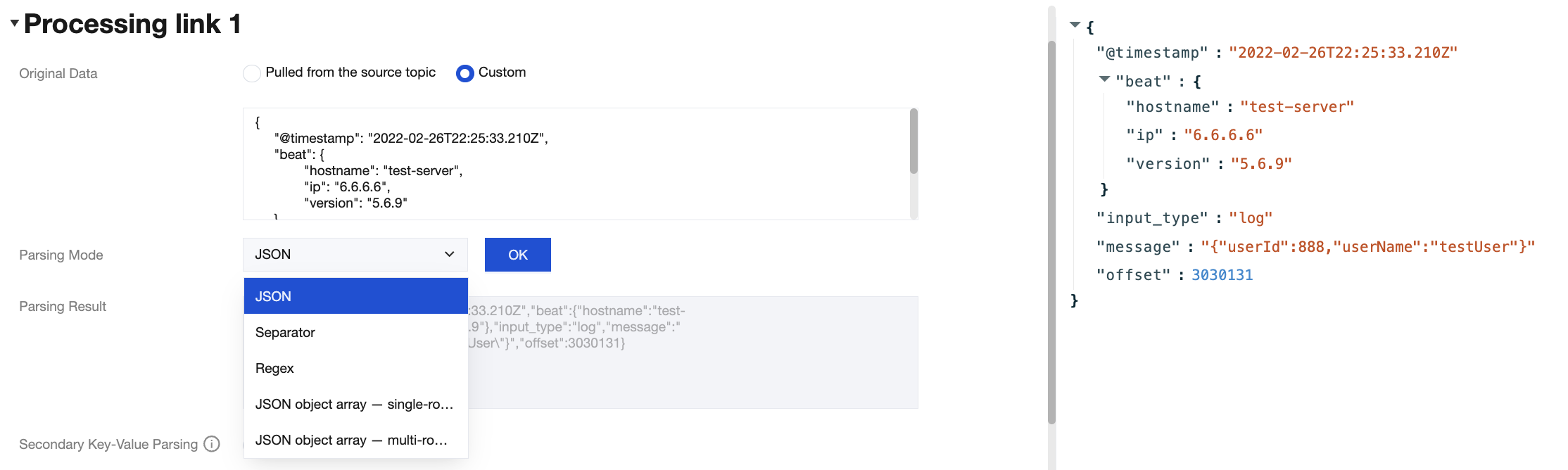
Select the corresponding data parsing mode and click to preview the results.
Date Format Processing
1. Enter raw data that contains a date format. The following is an example.
{
"@timestamp": "2022-02-26T22:25:33.210Z",
"beat": {
"hostname": "test-server",
"ip": "6.6.6.6",
"version": "5.6.9"
},
"input_type": "log",
"message": "{\\"userId\\":888,\\"userName\\":\\"testUser\\"}",
"offset": 3030131
}
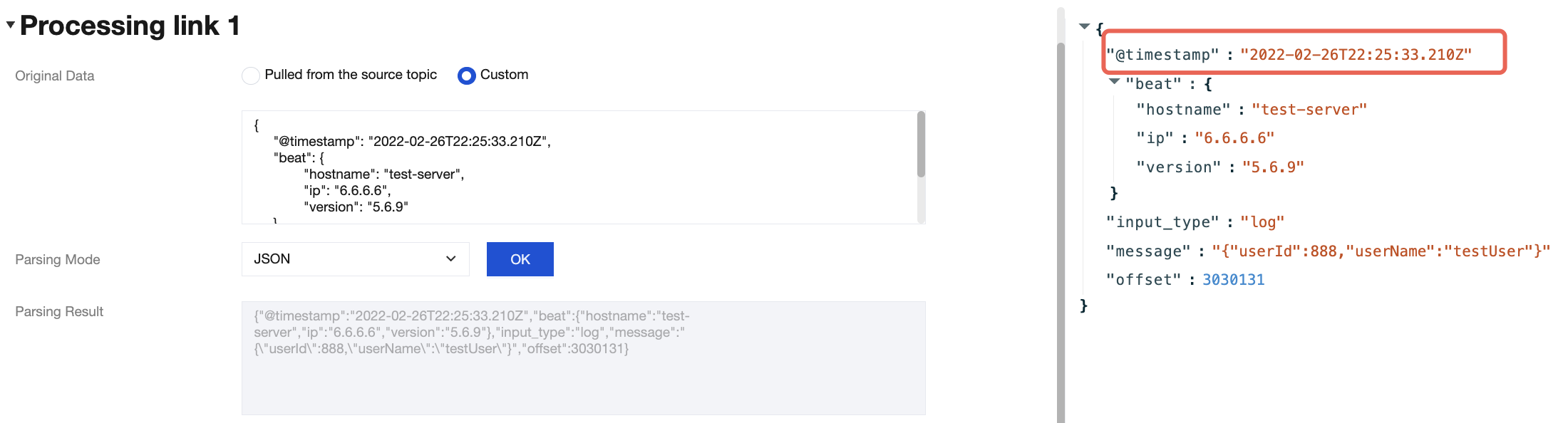
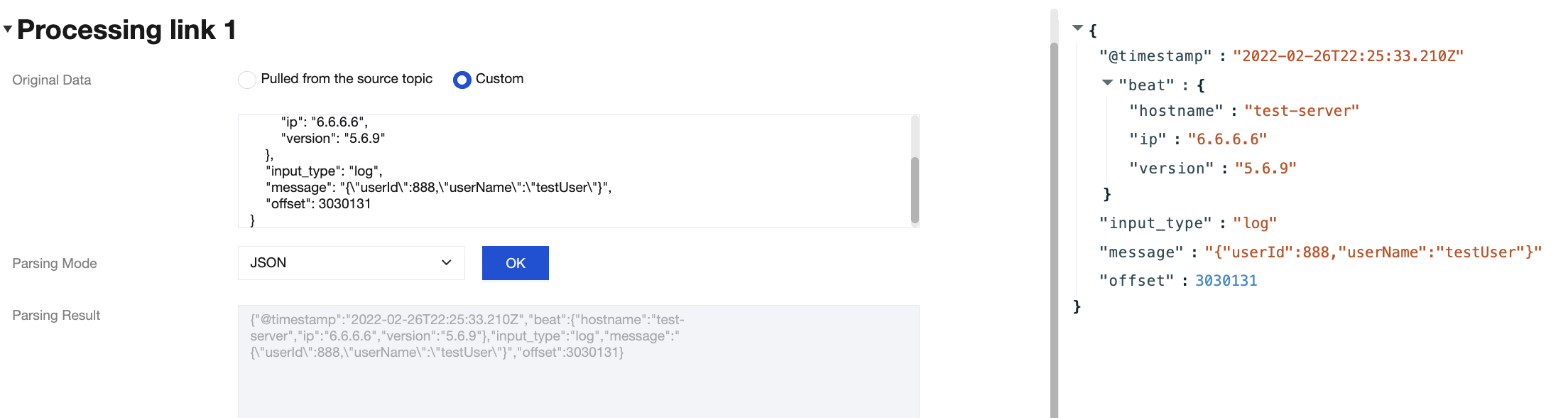
2. The parsing result is as follows:
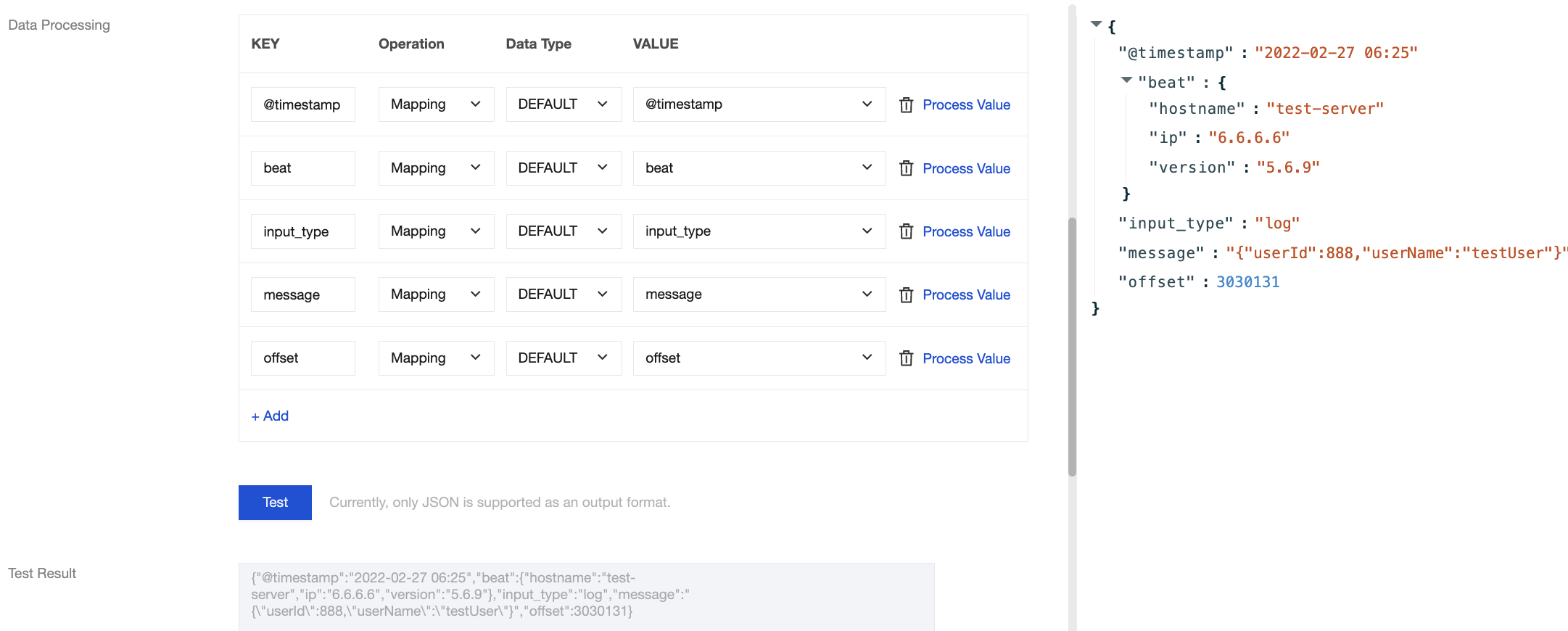
3. Processing method through the CKafka connector:
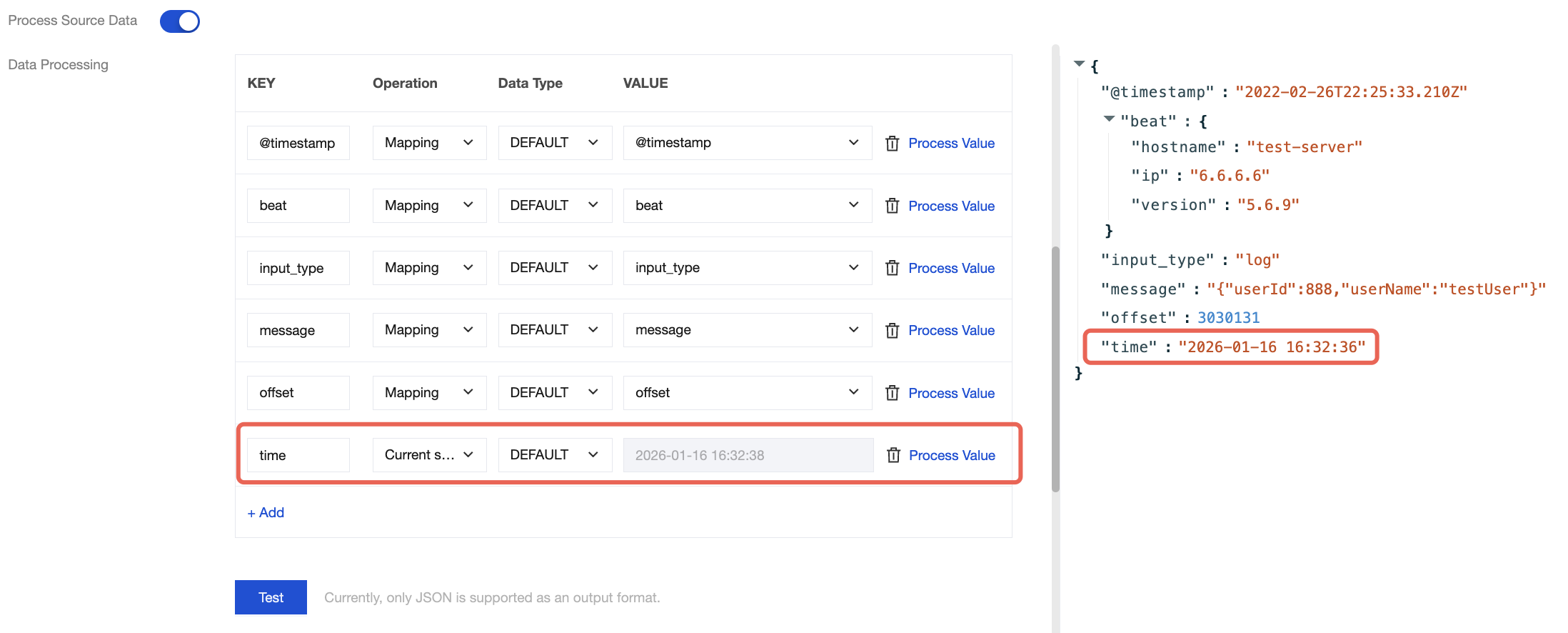
3.1 Assign a value to a specific field by presetting the system's current time.
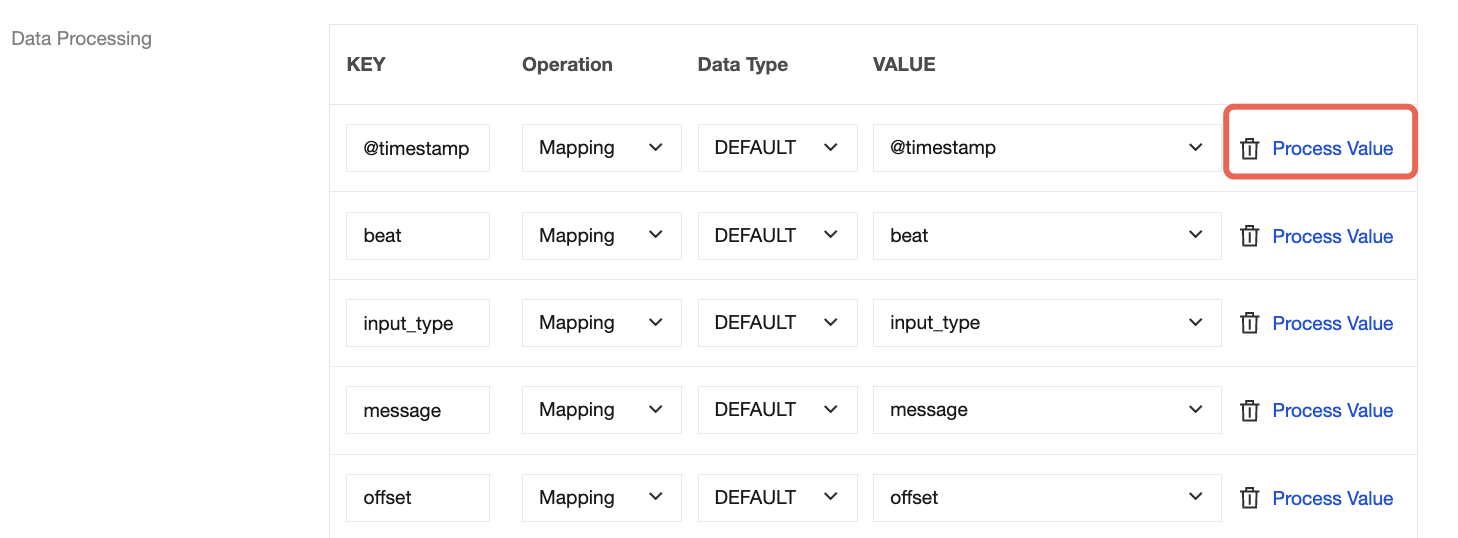
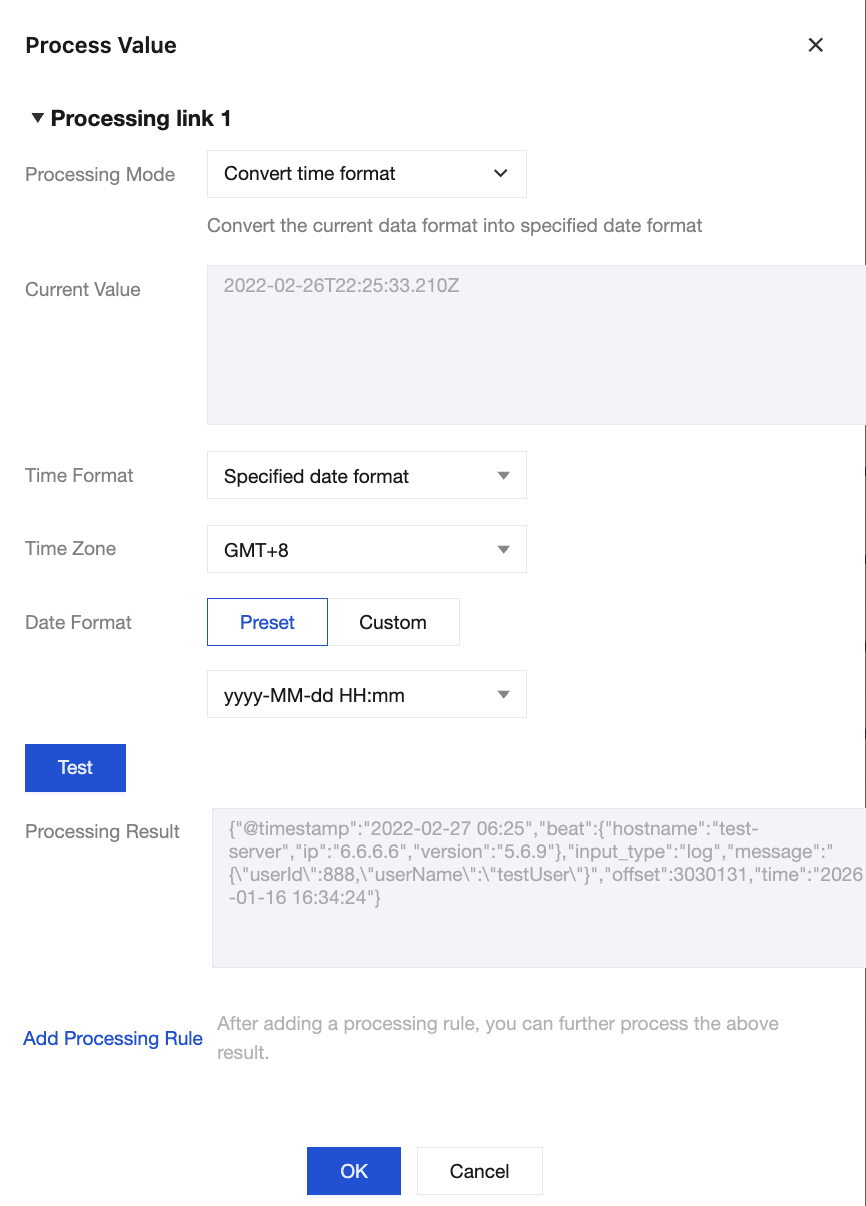
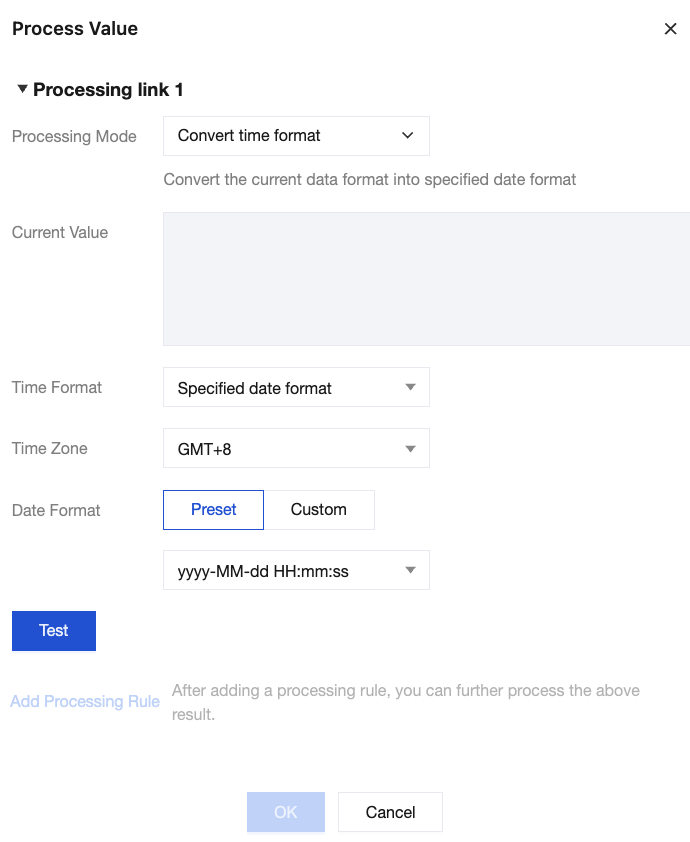
3.2 Process date data using the Process Value feature in the Data Processing module.
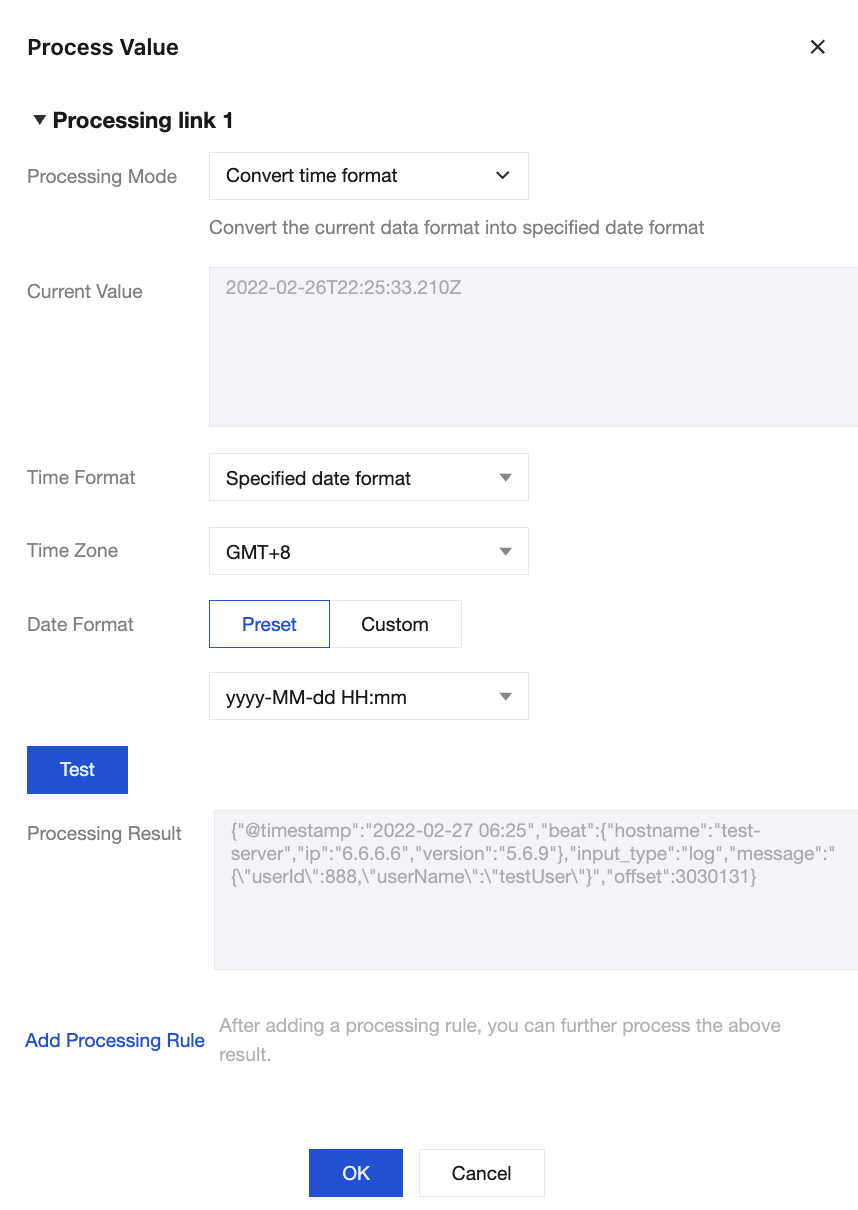
Select Convert Time Format for the processing mode, select the time format, time zone, and date format, and then click OK.
4. Click Test to view the converted time format.
Parsing Nested JSON Structures
1. Enter raw data that contains a nested JSON format. The following is an example.
{
"@timestamp": "2022-02-26T22:25:33.210Z",
"beat": {
"hostname": "test-server",
"ip": "6.6.6.6",
"version": "5.6.9"
},
"input_type": "log",
"message": "{\\"userId\\":888,\\"userName\\":\\"testUser\\"}",
"offset": 3030131
}
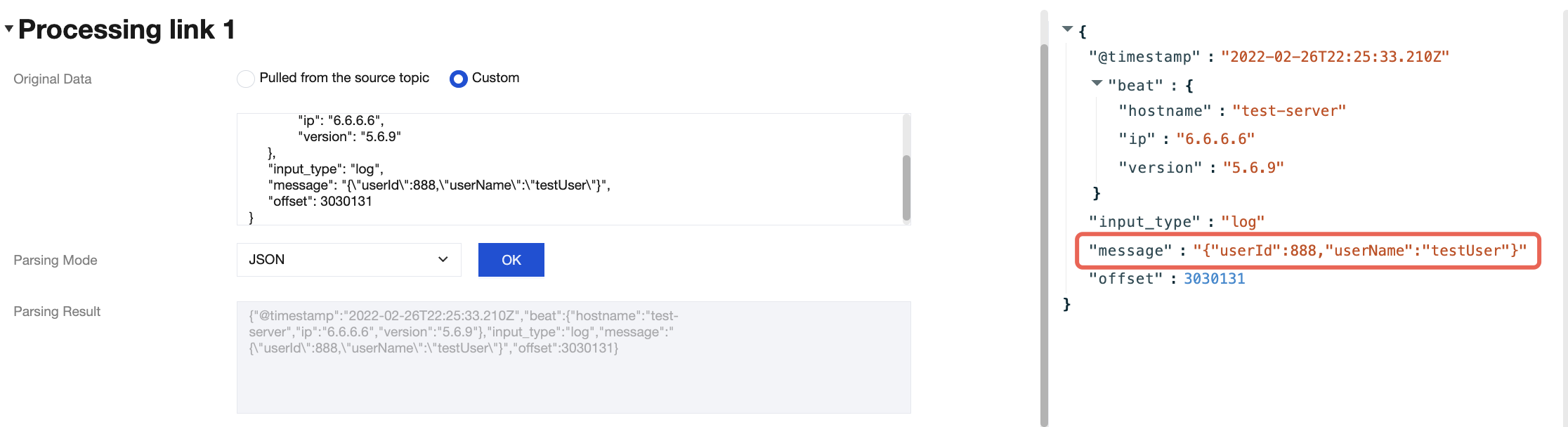
2. The parsing result is as follows:
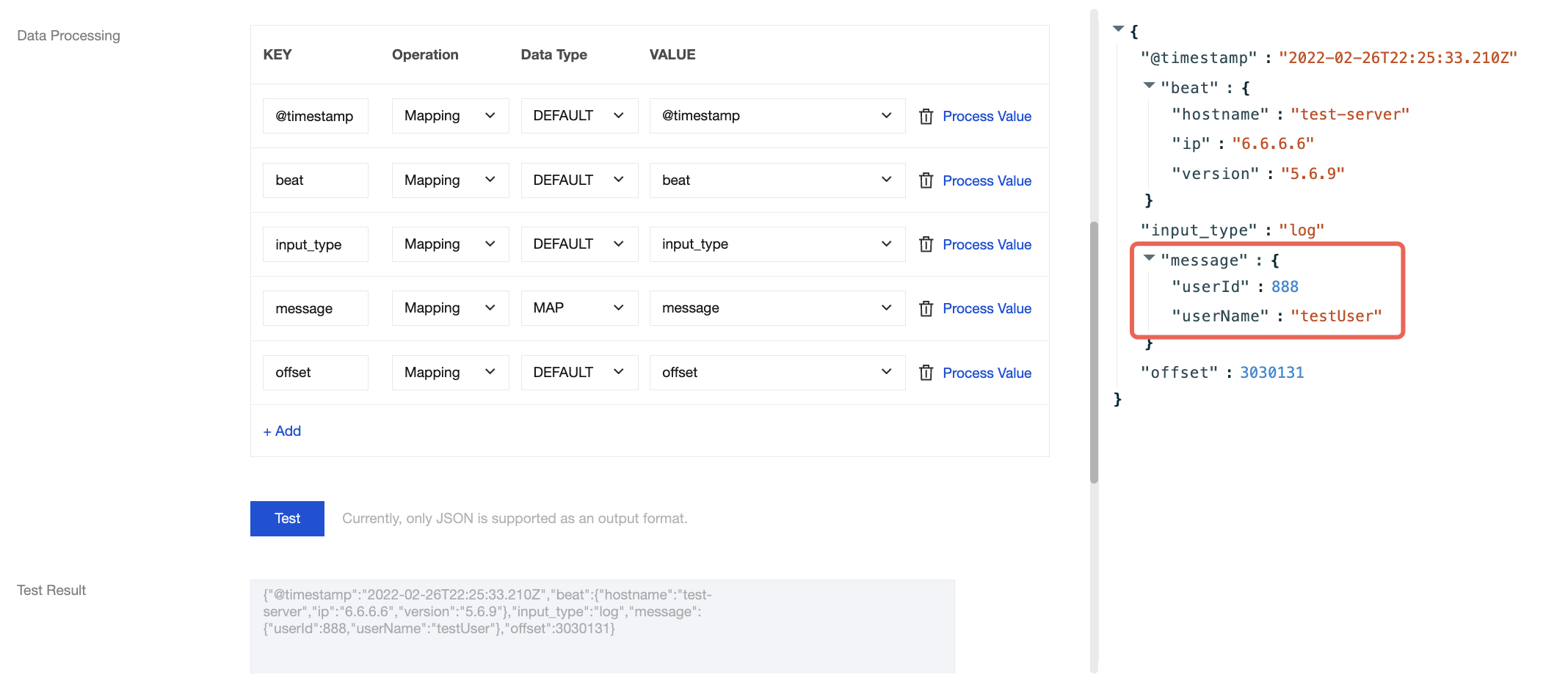
3. Select the MAP operation for this field to parse it into JSON format:
Data Modification
Enter raw data. The following is an example.
{
"@timestamp": "2022-02-26T22:25:33.210Z",
"beat": {
"hostname": "test-server",
"ip": "6.6.6.6",
"version": "5.6.9"
},
"input_type": "log",
"message": "{\\"userId\\":888,\\"userName\\":\\"testUser\\"}",
"offset": 3030131
}
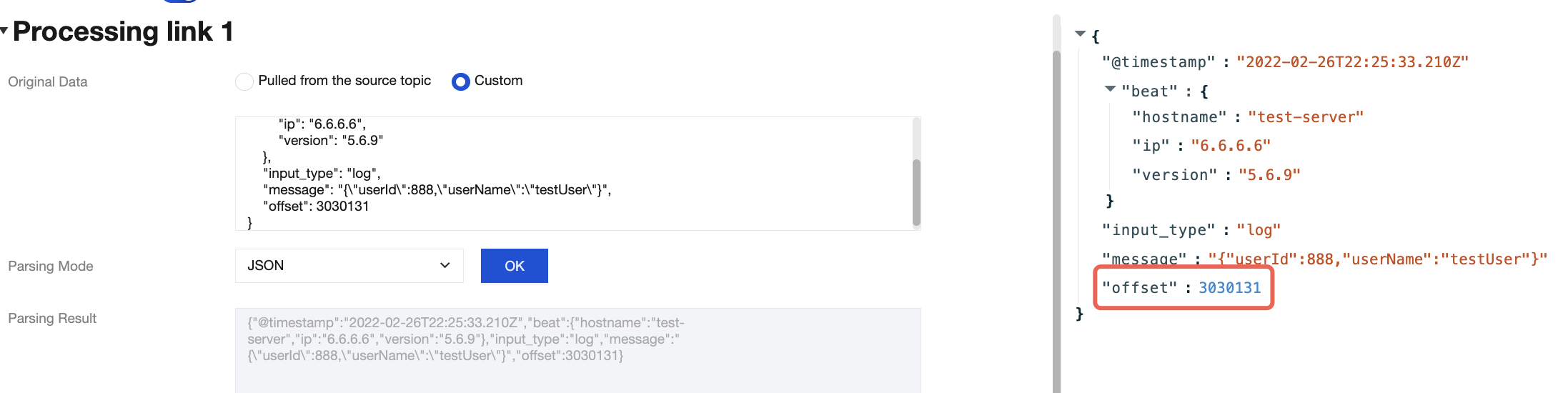
The parsing result is as follows:
Processing methods through the connector:
Method 1: Click Process Value and define rules.
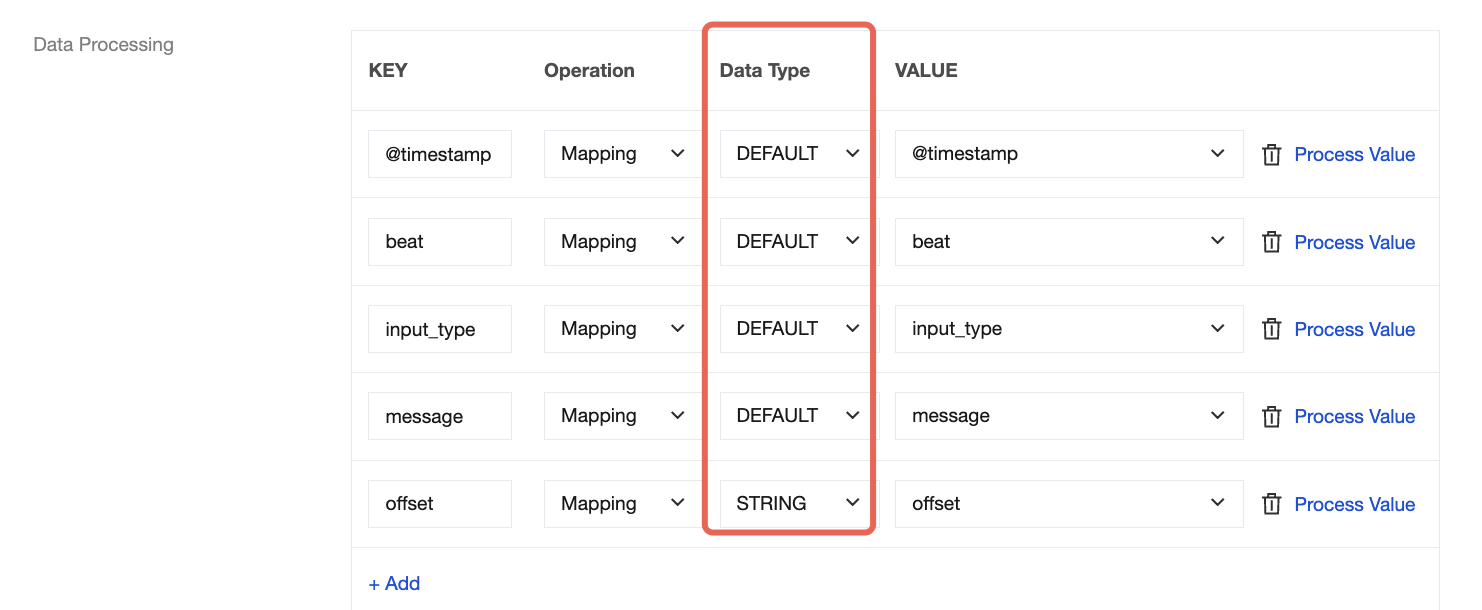
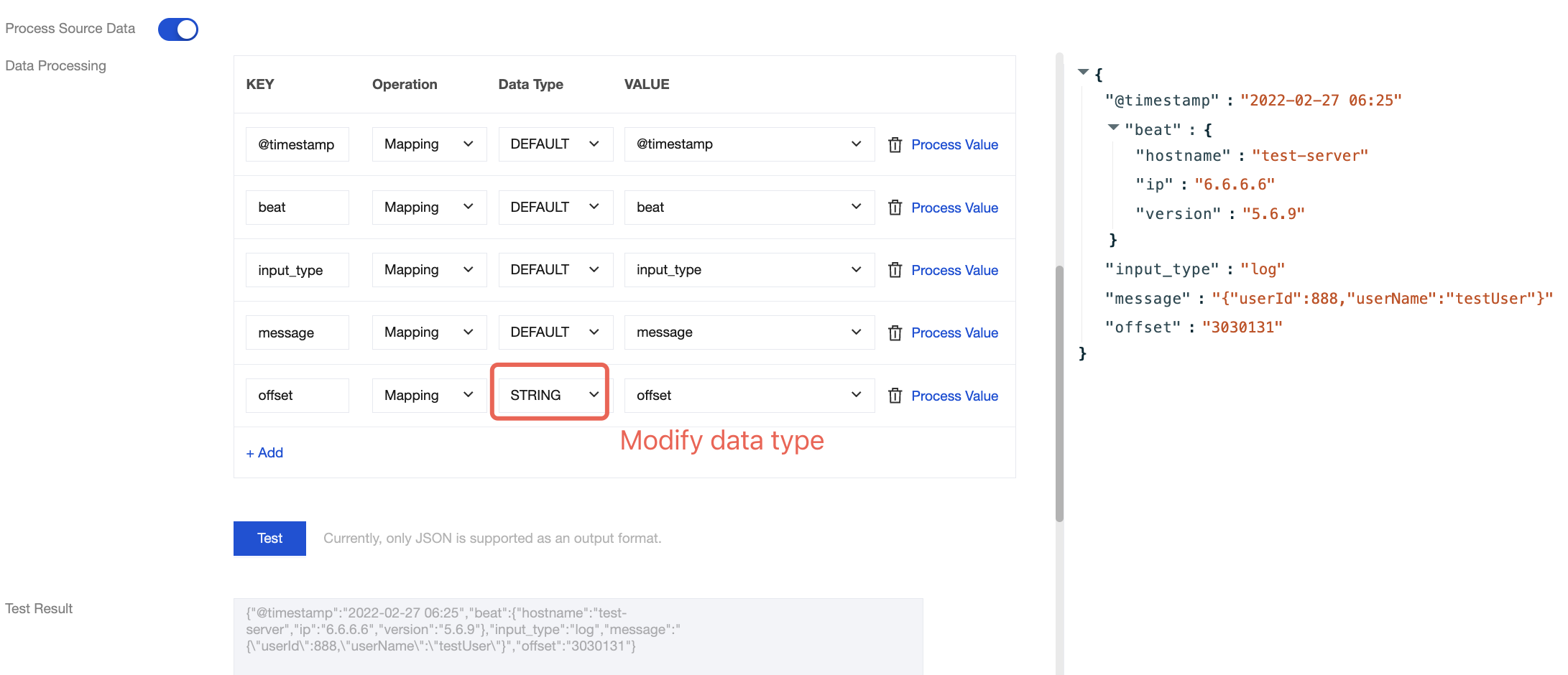
Method 2: Select the data type to change the data format of the corresponding field.
Before the change:
After the change:
Method 3: Implement the join concatenation feature using JSONPath syntax. For example, use the syntax $.concat($.data.Response.SubnetSet[0].VpcId, \\"#\\", $.data.Response.SubnetSet[0].SubnetId, \\"#\\", $.data.Response.SubnetSet[0].CidrBlock) to concatenate Virtual Private Cloud (VPC) and subnet properties, separated by the # character. For more information about JSONPath syntax, see JSONPath.
Field Modification
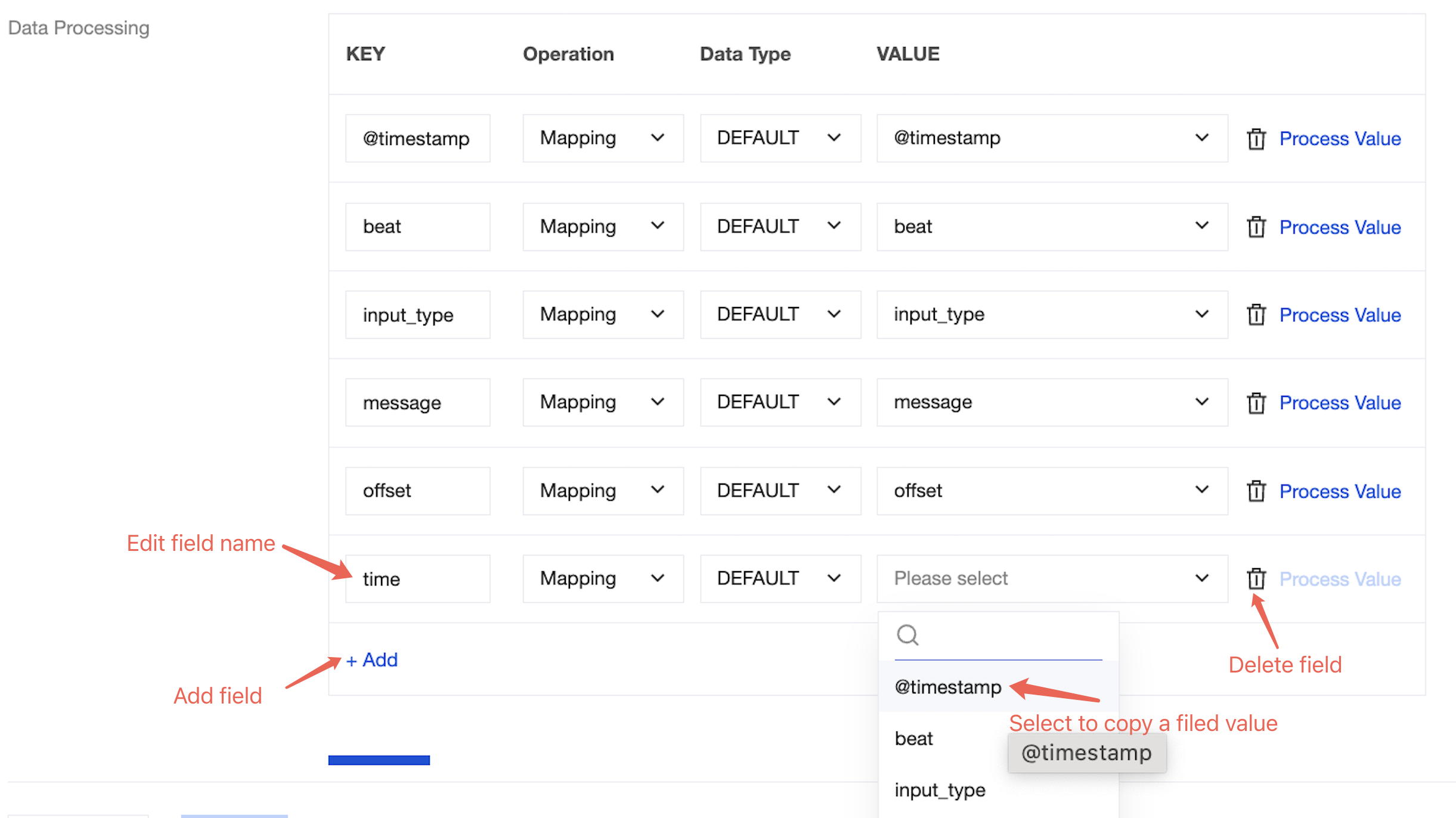
During data processing with the CKafka connector, you can use various methods to edit and modify the parsed data fields to obtain your desired data. For example:
You can modify the field name in the KEY column.
You can choose to copy the value of a field in the VALUE column.
You can click Add at the bottom to add a field.
You can click on the right to delete a field.
Practical Case Demonstrations
Case 1: Multi-Level Field Parsing
Input message:
{
"@timestamp": "2022-02-26T22:25:33.210Z",
"beat": {
"hostname": "test-server",
"ip": "6.6.6.6",
"version": "5.6.9"
},
"input_type": "log",
"message": "{\\"userId\\":888,\\"userName\\":\\"testUser\\"}",
"offset": 3030131
}
Target message:
{
"@timestamp": "2022-02-26T22:25:33.210Z",
"input_type": "log",
"hostname": "test-server",
"ip": "6.6.6.6",
"userId": 888,
"userName": "testUser"
}
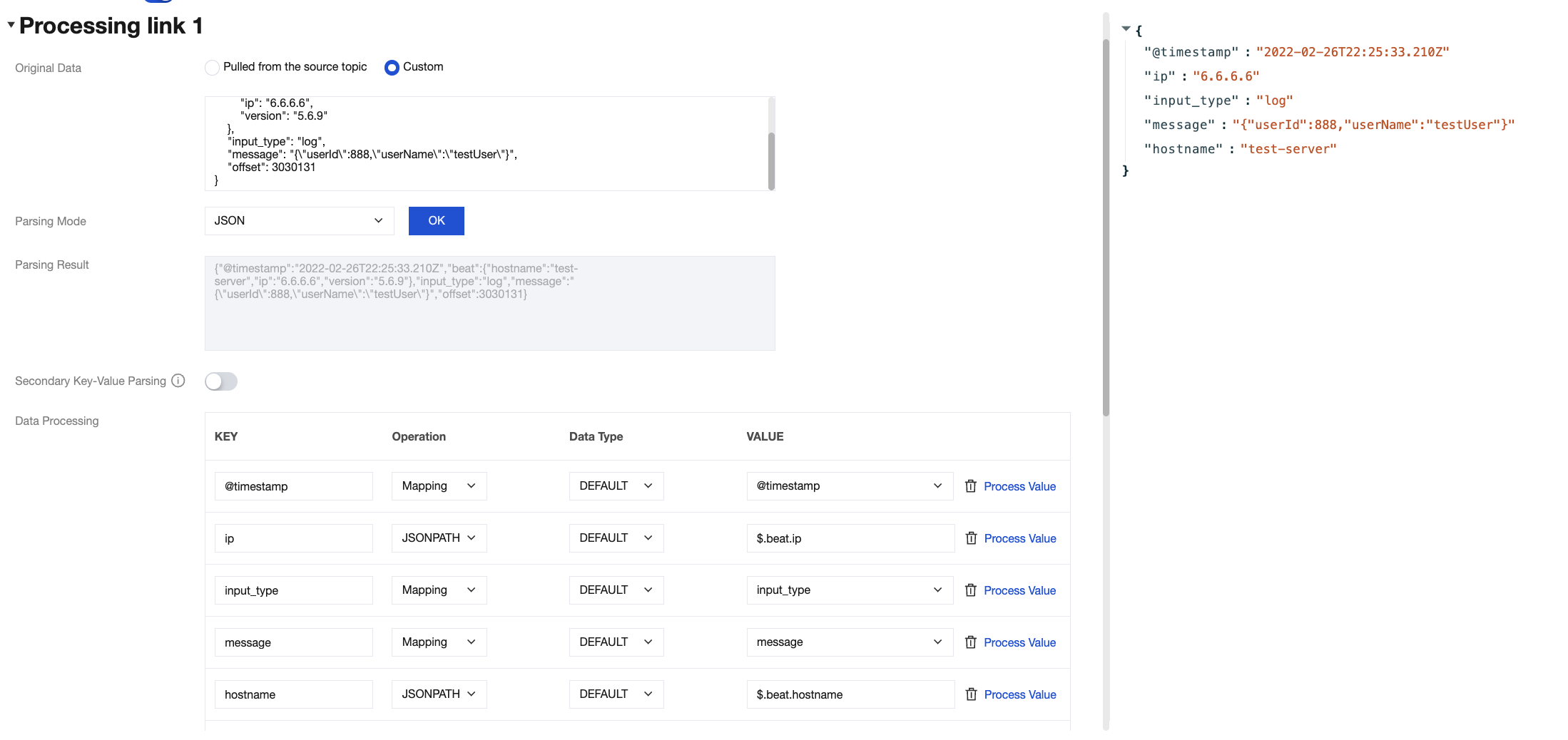
Configuration method through the connector:
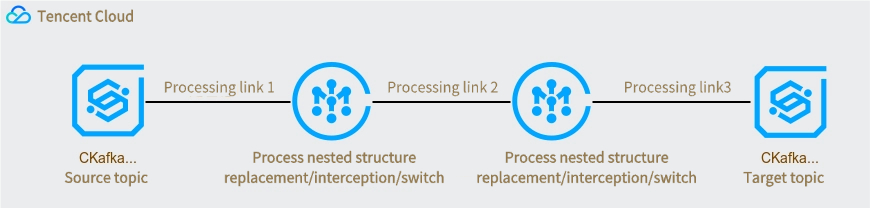
1.1 Processing chain 1 is configured as follows:
1.2 The result of processing chain 1 is as follows:
{
"@timestamp": "2022-02-26T22:25:33.210Z",
"input_type": "log",
"message": "{\\"userId\\":888,\\"userName\\":\\"testUser\\"}",
"hostname": "test-server",
"ip": "6.6.6.6"
}
1.3 Processing chain 2 is configured as follows:
1.4 The result of processing chain 2 is as follows:
{
"@timestamp": "2022-02-26T22:25:33.210Z",
"input_type": "log",
"hostname": "test-server",
"ip": "6.6.6.6",
"userId": 888,
"userName": "testUser"
}
Case 2: Non-JSON Data Parsing
Input message:
region=Shanghai$area=a1$server=6.6.6.6$user=testUser$timeStamp=2022-02-26T22:25:33.210Z
Target message:
{
"region": "Shanghai",
"area": "a1",
"server": "6.6.6.6",
"user": "testUser",
"timeStamp": "2022-02-27 06:25:33",
"processTimeStamp": "2022-06-27 11:14:49"
}
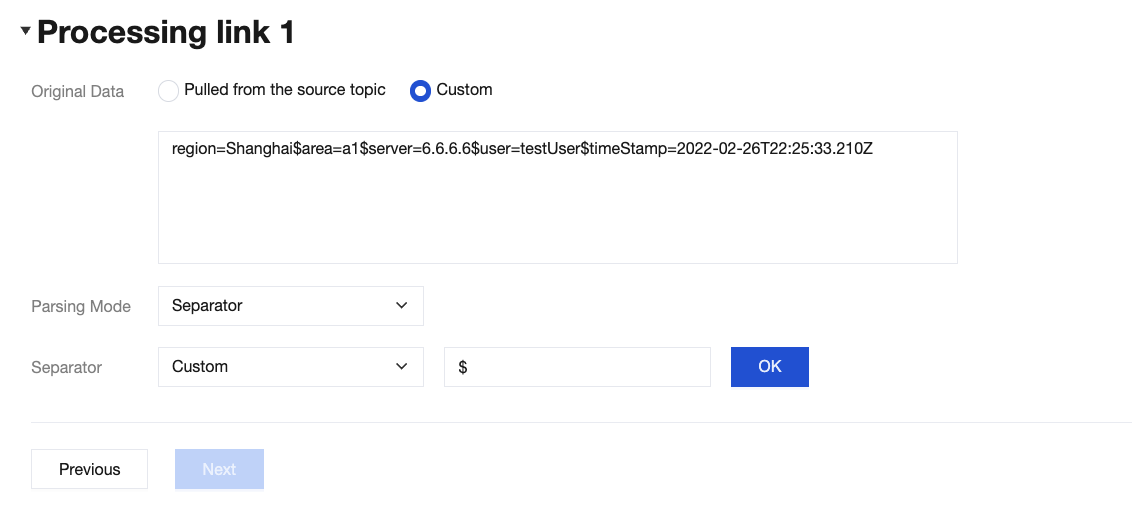
Configuration method through the connector:
1.1 Use the delimiter $ to parse the original message.
1.2 Initial parsing result:
{
"0": "region=Shanghai",
"1": "area=a1",
"2": "server=6.6.6.6",
"3": "user=testUser",
"4": "timeStamp=2022-02-26T22:25:33.210Z"
}
1.3 Use the delimiter = to perform secondary parsing on the result:
1.4 Secondary parsing result:
{
"0": "region=Shanghai",
"1": "area=a1",
"2": "server=6.6.6.6",
"3": "user=testUser",
"4": "timeStamp=2022-02-26T22:25:33.210Z",
"0.region": "Shanghai",
"1.area": "a1",
"2.server": "6.6.6.6",
"3.user": "testUser",
"4.timeStamp": "2022-02-26T22:25:33.210Z"
}
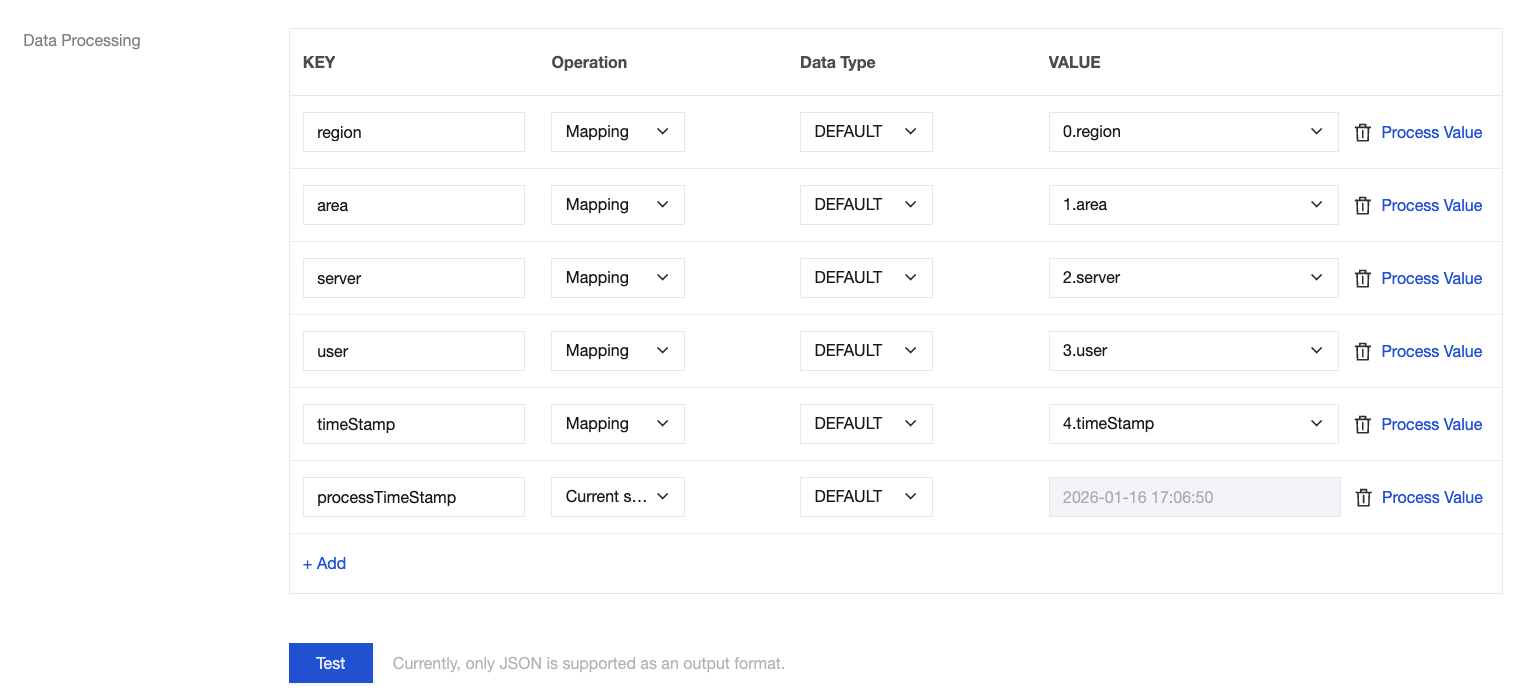
1.5 Edit and delete fields, adjust the timestamp format, and add a field for the current system time.
Final result:
{
"region": "Shanghai",
"area": "a1",
"server": "6.6.6.6",
"user": "testUser",
"timeStamp": "2022-02-27 06:25:33",
"processTimeStamp": "2022-06-27 11:14:49"
}