tencent cloud

Data Lake Compute

Release Notes
Product Introduction
Overview
Strengths
Use Cases
Purchase Guide
Billing Overview
Refund
Payment Overdue
Configuration Adjustment Fees
Getting Started
Complete Process for New User Activation
DLC Data Import Guide
Quick Start with Data Analytics in Data Lake Compute
Quick Start with Permission Management in Data Lake Compute
Quick Start with Partition Table
Enabling Data Optimization
Cross-Source Analysis of EMR Hive Data
Standard Engine Configuration Guide
Configuring Data Access Policy
Operation Guide
Console Operation Introduction
Development Guide
Runtime Environment
SparkJar Job Development Guide
PySpark Job Development Guide
Query Performance Optimization Guide
UDF Function Development Guide
System Restraints
Client Access
JDBC Access
TDLC Command Line Interface Tool Access
Third-party Software Linkage
Python Access
Practical Tutorial
Accessing DLC Data with Power BI
Table Creation Practice
Using Apache Airflow to Schedule DLC Engine to Submit Tasks
Direct Query of DLC Internal Storage with StarRocks
Spark cost optimization practice
DATA + AI
Using DLC to Analyze CLS Logs
Using Role SSO to Access DLC
Resource-Level Authentication Guide
Implementing Tencent Cloud TCHouse-D Read and Write Operations in DLC
DLC Native Table
SQL Statement
SuperSQL Statement
Overview of Standard Spark Statement
Overview of Standard Presto Statement
Reserved Words
API Documentation
History
Introduction
API Category
Making API Requests
Data Table APIs
Task APIs
Metadata APIs
Service Configuration APIs
Permission Management APIs
Database APIs
Data Source Connection APIs
Data Optimization APIs
Data Engine APIs
Resource Group for the Standard Engine APIs
Data Types
Error Codes
General Reference
Error Codes
Quotas and limits
Operation Guide on Connecting Third-Party Software to DLC
FAQs
FAQs on Permissions
FAQs on Engines
FAQs on Features
FAQs on Spark Jobs
DLC Policy
Privacy Policy
Data Privacy And Security Agreement
Service Level Agreement
Contact Us

SELECT Task

PDF
Focus Mode
Font Size
Last updated: 2024-07-17 16:04:41
You can query, analyze, and compute the data in a created database or data table with SQL statements.

Running a SELECT query task

1. Select the default database and compute resource.
You can select a default database. Then, when there is no database specified in a SQL statement, the statement will be executed in the default database.
You can select a public or private cluster as the compute resource.
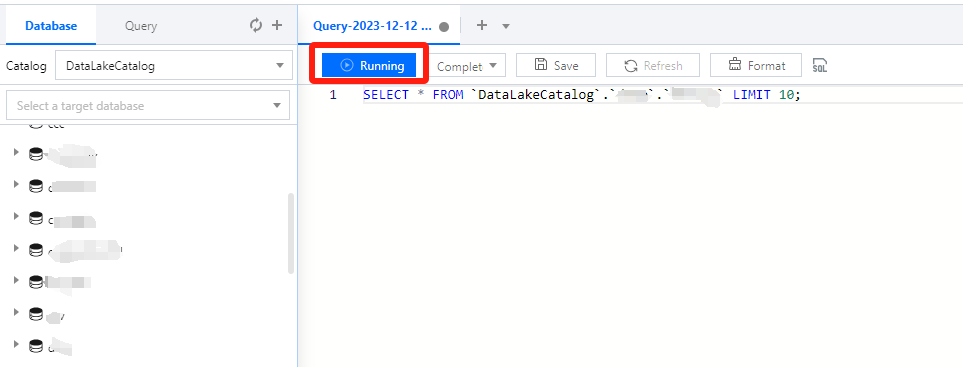
2. Write a standard SQL statement and click Running.


In Data Lake Compute, a task can run for up to 30 minutes.
Data Lake Compute is serverless, so compute resources will be scheduled temporarily. It may take longer than usual to return the result of the first DML task.
3. The query result will be displayed in the console after the task is completed.
If you exit the console page, you cannot view the query result of a historical task there again. In this case, you can view the task result file in Run history or the query result COS bucket you configured.

Canceling a running query task

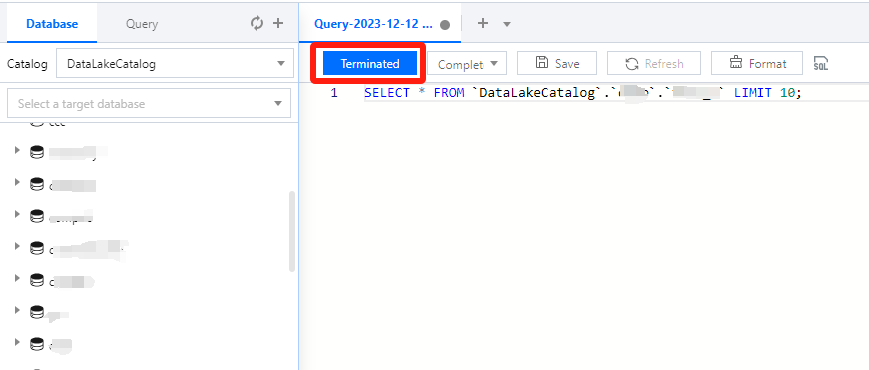
During task running, the Run button becomes Terminated, which you can click to cancel the task. Then, Data Lake Compute will not return the query result but will calculate the scanned data volume. If you use the public engine, the scanned data volume will incur fees. For billing details, see Billing Overview.

Help and Support

Was this page helpful?

Help us improve! Rate your documentation experience in 5 mins.

Feedback