Virtual Gifts (Flutter)
GiftStore is a module in AtomicXCore specialized in managing the gift function of live streaming rooms. With it, you can build a complete gift system for your live stream application to achieve various revenue and interactive scenarios.Gift Panel | Barrage Gift | Full-Screen Gift |
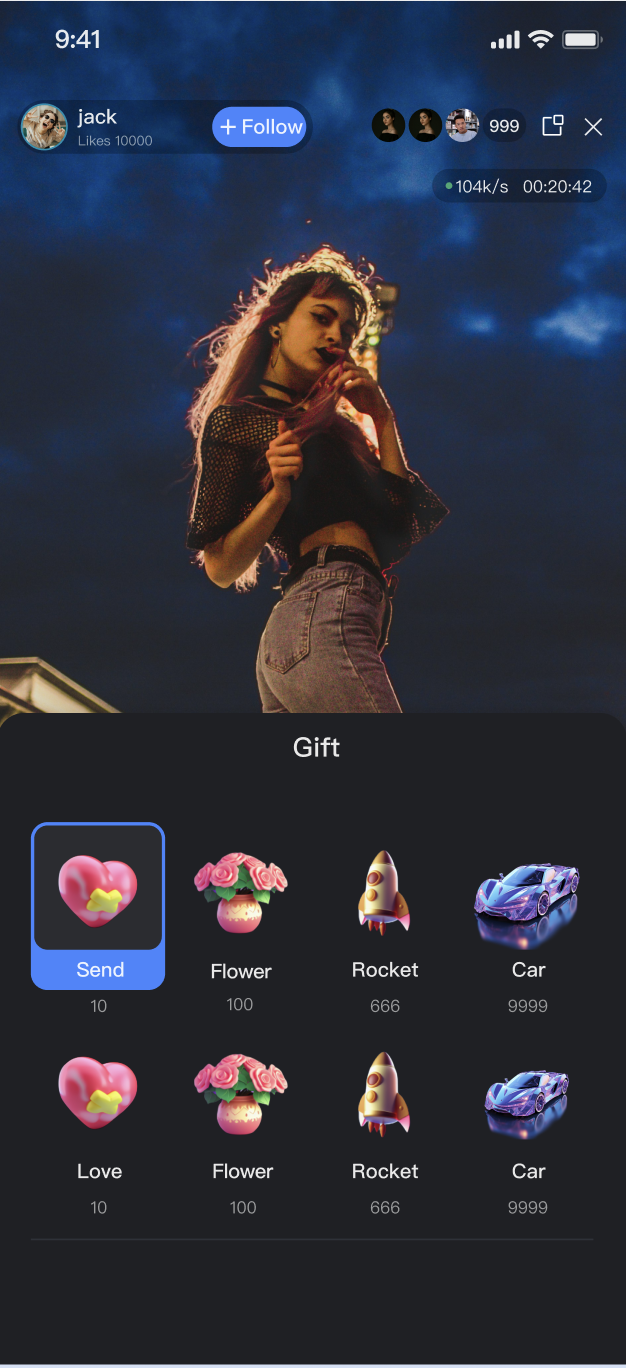 |  | 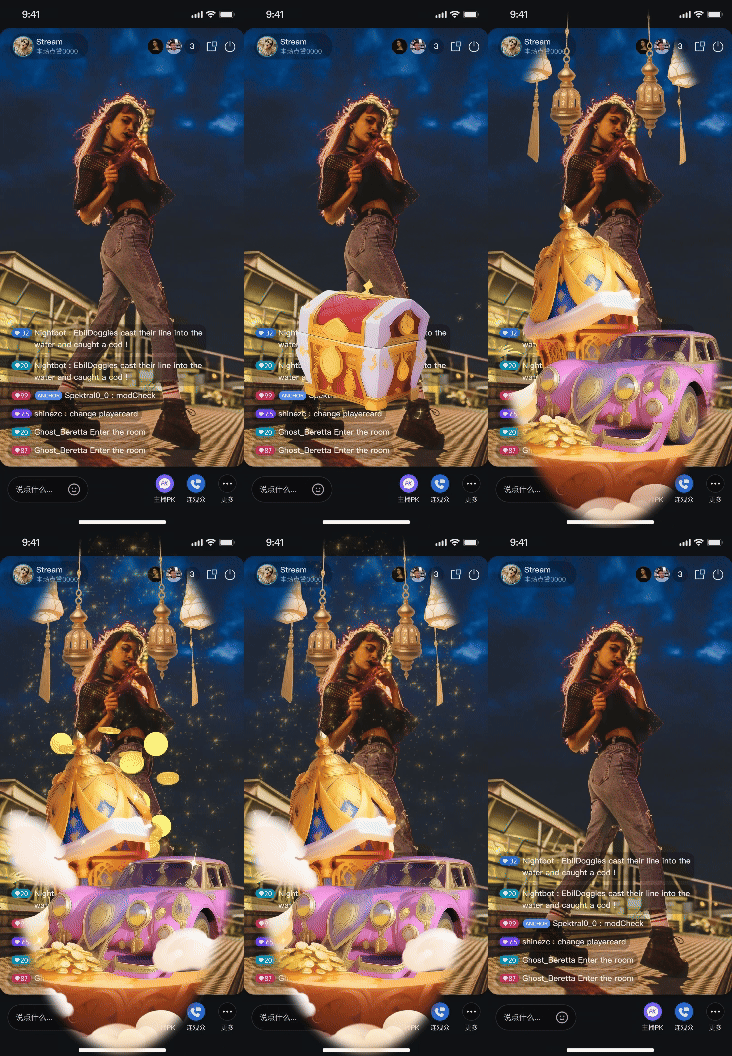 |
Core Features
Gift List Retrieval: Obtain the required data for the gift panel from the server, including gift categories and gift details.
Send a Gift: The audience can send a selected gift to the Anchor with quantity.
Gift Event Broadcast: Receive gift giveaway events inside the room in real time for showing gift animation and bullet screen notification.
Core Concepts
Before starting integration, let's learn about several core concepts related to
GiftStore in the following table:Core Concepts | Type | Core Responsibilities and Description |
class | Represents a specific gift data model. It contains the gift ID, name, icon address, animation resource URL and price (coins). | |
class | Represents a gift category, such as "popular" and "luxury". It contains the category name as well as the Gift list under this category. | |
class | Represents the current status of the gift module. Its core attribute usableGifts is a ValueListenable<List<GiftCategory>>, storing the complete gift list fetched from the server. | |
class | Gift event listener, receive gift giveaway event through the onReceiveGift callback. When anyone (including itself) sends a gift, all people in the room will receive this event. | |
class | This is the core management class for interacting with the gift function. Through it, you can fetch the gift list, send a gift, and receive gift events via addGiftListener. |
Implementation Steps
Step 1: Integrate the Component
Note:
To use the gifting system, activate either the Free Trial, or Pro edition. The number of configurable gifts depends on the selected package. For details, see the Gift System section in Feature and Billing Description and choose the package that fits your needs.
Live streaming: Refer to Quick Integration for seamless integration with AtomicXCore.
Voice chat room: Refer to Quick Integration for seamless integration with AtomicXCore.
Step 2: Initialize and Listen for Gift Events
Get the
GiftStore instance and set a listener for receiving gifts and list update events.1. Get instance: Use
GiftStore.create(liveId) to get the GiftStore instance bound to the current live streaming room.2. Subscribe to events: Add a gift event listener via
giftStore.addGiftListener(listener).3. Subscription status: Listen to
giftStore.giftState.usableGifts to get gift list updates.Sample code:
import 'package:flutter/foundation.dart';import 'package:atomic_x_core/atomicxcore.dart';class GiftManager {final String liveId;late final GiftStore giftStore;late final GiftListener _giftListener;late final VoidCallback _giftListChangedListener = _onGiftListChanged;// Expose gift event callback externallyvoid Function(String liveID, Gift gift, int count, LiveUserInfo sender)? onReceiveGift;// Expose the gift list externallyValueNotifier<List<GiftCategory>> giftListNotifier = ValueNotifier([]);GiftManager({required this.liveId}) {// 1. Get the instance of GiftStore by liveIdgiftStore = GiftStore.create(liveId);_subscribeToGiftState();_subscribeToGiftEvents();}/// 2. Subscribe to gift eventsvoid _subscribeToGiftEvents() {_giftListener = GiftListener(onReceiveGift: (liveID, gift, count, sender) {// After receiving the event, forward it to external processingonReceiveGift?.call(liveID, gift, count, sender);},);giftStore.addGiftListener(_giftListener);}/// 3. Subscribe to gift list statusvoid _subscribeToGiftState() {giftStore.giftState.usableGifts.addListener(_giftListChangedListener);}void _onGiftListChanged() {giftListNotifier.value = giftStore.giftState.usableGifts.value;}// Call the dispose method to reclaim resources when exiting the live streaming roomvoid dispose() {giftStore.removeGiftListener(_giftListener);giftStore.giftState.usableGifts.removeListener(_giftListChangedListener);giftListNotifier.dispose();}}
Gift List Structure Parameter
GiftCategoryParametersParameter | Type | Description |
categoryID | String | Unique ID of the gift category. |
name | String | Display name of the gift category. |
desc | String | Description of the gift category. |
extensionInfo | Map<String, String> | Extended information field. |
giftList | List<Gift> | Array of Gift objects under this category. |
GiftParametersParameter | Type | Description |
giftID | String | Unique ID of the gift. |
name | String | Display name of the gift. |
desc | String | Description of the gift. |
iconURL | String | Icon URL of the gift. |
resourceURL | String | Resource URL of the gift animation. |
level | int | Gift level. |
coins | int | Gift price. |
extensionInfo | Map<String, String> | Extended information. |
Step 3: Obtain the Gift List
Call the
refreshUsableGifts method to fetch gift data from the server.1. API call: Call
giftStore.refreshUsableGifts() at the appropriate timing (such as after entering the live room).2. Processing result: Optionally process the returned results to fetch the pull results.
3. Receive Data: After the update, the gift list is automatically received by listening to
giftStore.giftState.usableGifts in Step 2.Sample code:
extension GiftManagerFetch on GiftManager {/// Refresh the gift list from the serverFuture<void> fetchGiftList() async {final result = await giftStore.refreshUsableGifts();if (result.isSuccess) {debugPrint("Gift list success message");// Upon success, the data is auto-updated via usableGifts listen} else {debugPrint("Gift list failed to pull: ${result.errorMessage}");}}}
Step 4: Send a Gift
When a user selects a gift in the gift panel and clicks send, call the
sendGift API to send the gift.1. Get parameter: Obtain the
giftID selected by the user and the number of messages sent (count) from the UI.2. API call: Call
giftStore.sendGift(giftID:, count:).3. Handle result: Handle failure cases (such as insufficient account balance notification) in the returned result. UI updates (animation, bullet screen) after successful sending should be event-driven by
onReceiveGift.Sample code:
extension GiftManagerSend on GiftManager {/// User sends a giftFuture<void> sendGift(String giftID, int count) async {final result = await giftStore.sendGift(giftID: giftID, count: count);if (result.isSuccess) {debugPrint("Gift $giftID sent successfully");// After the message is sent successfully, everyone including the sender will receive the onReceiveGift event} else {debugPrint("Gift sending failed: ${result.errorMessage}");// You can prompt user here, such as "Insufficient balance" or "Network error"}}}
SendGift API Parameters
Parameter Name | Type | Description |
giftID | String | Unique ID of the gift to send. |
count | int | The number of sent. |
Advanced Usage
GiftStore feature heavily depends on your business backend service. This chapter will guide you on how to build a feature-rich, outstanding experience interactive system through server configuration and client implementation.Gift Asset Configuration
Customize your live room's available gifts, categories, names, icons, prices, and animation effects to fit your operational and branding needs.
1. Server-Side Configuration: Use the LiveKit server REST API to manage gift information, categories, and multi-language support. See the Gift Configuration Guide.
2. Client Fetch: On the client, call
refreshUsableGifts to retrieve configuration data.3. UI Display: Use the retrieved
List<GiftCategory> to render the gift panel.Configuration Sequence Diagram

Related REST API Interfaces Overview
Interface Category | Interface | Request Example |
Gift Management | Add Gift Information. | |
| Delete Gift Information. | |
| Query Gift Information. | |
Gift Category Management | Add Gift Category Information. | |
| Delete Specific Gift Category Information. | |
| Get Specific Gift Category Information. | |
Gift Relationship Management | Add Relationship between a Specific Gift Category and Gift. | |
| Delete Relationship between a Specific Gift Category and Gift. | |
| Get Gift Relationships under a Specific Gift Category. | |
Gift Multi-language Management | Add Gift Multi-language Information. | |
| Delete Specific Gift Multi-language Information. | |
| Get Gift Multi-language Information. | |
| Add Gift Category Multi-language Information. | |
| Delete Specific Gift Category Multi-language Information. | |
| Get Gift Category Multi-language Information. | |
Billing and Gift Deduction Workflow
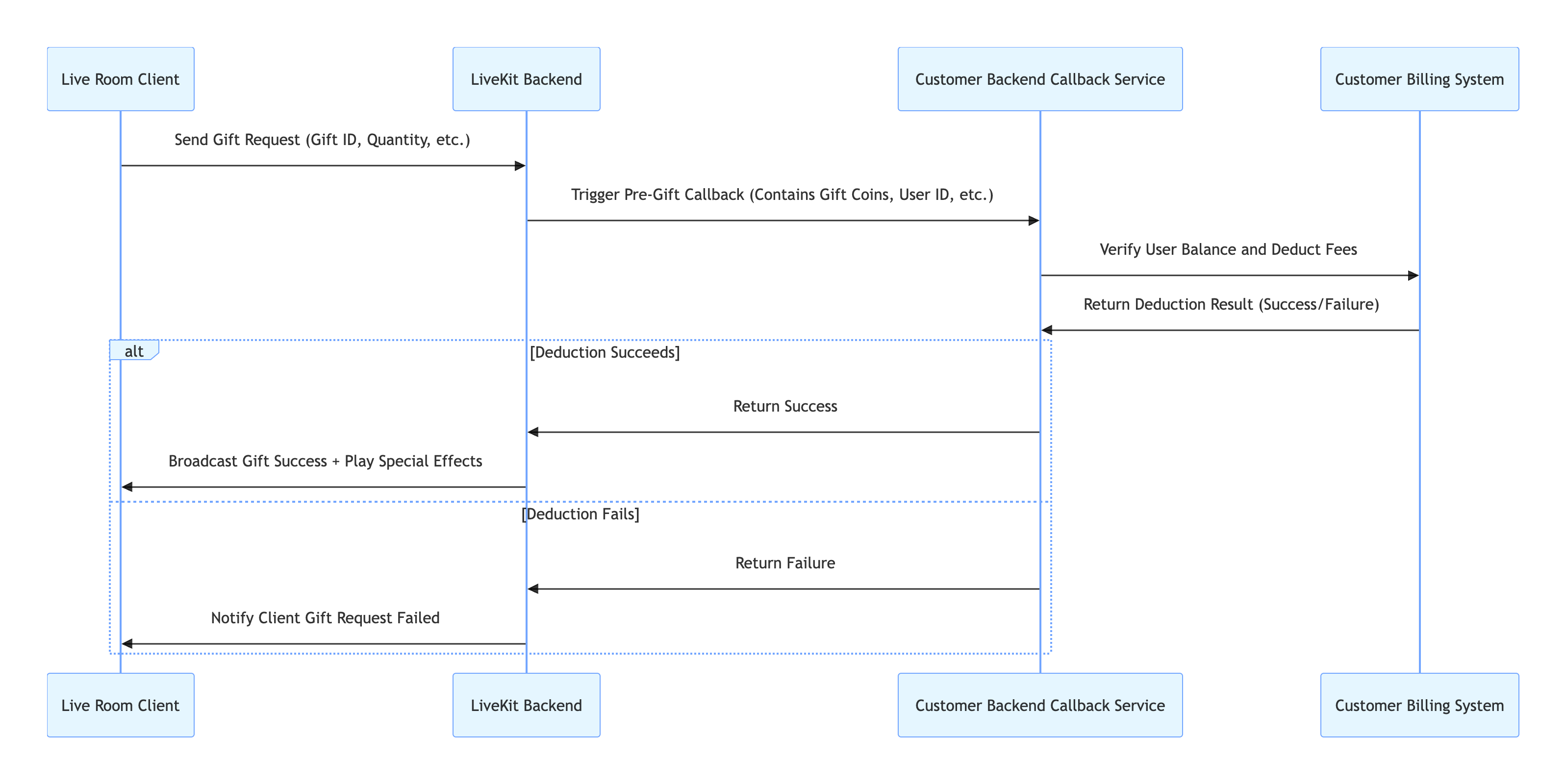
When the audience sends gifts, ensure sufficient account balance and complete the actual deduction before triggering the gift effect playback and broadcast.
Workflow
1. Configure Backend Webhook: Configure your billing system's callback URL in the LiveKit backend. See Callback Configuration Documentation.
2. Client Request: The client calls
sendGift.3. Backend Verification: The LiveKit backend calls your callback URL; your billing system processes the deduction and returns the result.
4. Result Synchronization: If succeeds, AtomicXCore broadcasts the
onReceiveGift event; if fails, the completion callback of sendGift receives an error.Call Flow
REST API Overview
Interface | Description | Request Example |
Webhook Configuration - Pre-send Gift Webhook | Allows your backend to validate and approve gift sending (e.g., pre-send checks). |
Play Full-Screen Gift Animations
When a user sends a "Rocket", "Carnival", or other luxury gift, display a full-screen animation (e.g., SVGA) to boost engagement.
Implementation Steps
AtomicXCore itself does not include a gift animation player. You need to select and integrate a third-party library based on business requirements. The following is a comparison of two solutions:Comparison Item | Basic Solution (Svgaplayer_flutter) | Advanced Plan (TCEffectPlayerKit) |
Billing | Free (open-source library) | |
Integration Method | ||
Animation Format Support | SVGA only | SVGA, PAG, WebP, Lottie, MP4, and other formats |
Performance | Recommend SVGA files ≤ 10MB | Support larger animation files, better performance for complex effects, multi-animation concurrency, and low-end devices |
Recommended scenarios | Gift animation format is unified as SVGA with controllable file size | Support multiple animation formats or higher performance/compatibility requirements |
This section demonstrates the basic solution. If you select the advanced plan, refer to EffectPlayer Flutter integration guide.
Basic Solution: Use Svgaplayer_flutter
1. Integrate svgaplayer_flutter: In your
pubspec.yaml file, add dependency and run flutter pub get.dependencies:svgaplayer_flutter: ^2.0.0
2. Listen for gift events: Add a listener via
GiftStore's addGiftListener.3. Parse and play animation: When the
onReceiveGift event is received, check if gift.resourceURL is valid and points to an SVGA file. If so, use SVGAAnimationController to play the animation.Sample Code:
import 'package:flutter/material.dart';import 'package:atomic_x_core/atomicxcore.dart';import 'package:svgaplayer_flutter/svgaplayer_flutter.dart';class LiveRoomWidget extends StatefulWidget {final String liveId;const LiveRoomWidget({Key? key, required this.liveId}) : super(key: key);@overrideState<LiveRoomWidget> createState() => _LiveRoomWidgetState();}class _LiveRoomWidgetState extends State<LiveRoomWidget> with SingleTickerProviderStateMixin {late GiftManager giftManager;// SVGA playerlate SVGAAnimationController _svgaController;bool _showAnimation = false;@overridevoid initState() {super.initState();_svgaController = SVGAAnimationController(vsync: this);_setupGiftSubscription();}void _setupGiftSubscription() {giftManager = GiftManager(liveId: widget.liveId);giftManager.onReceiveGift = (liveID, gift, count, sender) {if (gift.resourceURL.isNotEmpty) {_playAnimation(gift.resourceURL);}};}Future<void> _playAnimation(String url) async {try {final videoItem = await SVGAParser.shared.decodeFromURL(url);_svgaController.videoItem = videoItem;setState(() {_showAnimation = true;});_svgaController.forward().whenComplete(() {setState(() {_showAnimation = false;});});} catch (e) {debugPrint("SVGA animation parsing failure: $e");}}@overridevoid dispose() {_svgaController.dispose();giftManager.dispose();super.dispose();}@overrideWidget build(BuildContext context) {return Stack(children: [// Live stream// ...// Full-Screen Gift Animationif (_showAnimation)Positioned.fill(child: SVGAImage(_svgaController),),],);}}
Display Gift Messages in Barrage Area
When a user sends a gift, it not only plays the animation but also displays a system message in the on-screen comment area, such as "[Nickname] sent [gift name] x [quantity]", so all audience can see.
Implementation Steps
1. Listen for events: Add a listener via
giftStore.addGiftListener.2. Obtain information: After the
onReceiveGift event is received, extract the sender, gift, and count.3. Retrieve the bullet screen Store: Use
BarrageStore.create(liveId) to get the instance bound to the current room.4. Concatenate messages: Create a
Barrage object, set messageType = BarrageType.text, and textContent as the concatenated string (such as "[sender.userName] sent [gift.name] x [count]").5. Local insertion: Call
barrageStore.appendLocalTip(giftTip) to insert the message into the local list.Sample Code:
// In LiveRoomManager or similar top-level managersvoid _setupGiftToBarrageFlow() {final giftStore = GiftStore.create(liveId);final barrageStore = BarrageStore.create(liveId);final giftListener = GiftListener(onReceiveGift: (liveID, gift, count, sender) {// Concatenate the messagefinal tipText = "${sender.userName} sent ${gift.name} x $count";final giftTip = Barrage(messageType: BarrageType.text,textContent: tipText,);// Optional: Set a special sender// local insertionbarrageStore.appendLocalTip(giftTip);},);giftStore.addGiftListener(giftListener);}
API documentation
For detailed information about all public interfaces, attributes, and methods of GiftStore and its related classes, see the official API documentation of the AtomicXCore framework. The related Stores used in this guide are as follows:
Store/Component | Feature Description | API Reference |
GiftStore | Gift interaction: Get gift list, send/receive gifts, listen to gift events (including sender, gift details). | |
BarrageStore | Danmaku function: send text / custom barrage item, maintain bullet screen list, monitor in real time. |
FAQs
Why is the gift list in GiftStore empty?
You must actively call
refreshUsableGifts() to fetch gift data from your backend. These gift data need to be configured in your backend via server-side REST API.How do I show gifts in multiple languages (e.g., Chinese, English)?
GiftStore provides the setLanguage(String language) API. You can call this method before refreshUsableGifts, input the target language code (such as "en" or "zh-CN"). The server will return the gift name and description in the corresponding language based on this language code.Why does the gift animation play twice after sending a gift?
onReceiveGift is a broadcast to all members in the room (including the sender). If you perform a UI operation in the success callback of sendGift, and simultaneously execute the same UI operation in the onReceiveGift callback, it can lead to duplication.Best practice: UI updates (such as playing animation, bullet screen notification) should only be handled in the callback of the
onReceiveGift event. The returned results of sendGift are only used to process the logic of sending failure (such as prompting the user "sending failure" or "insufficient balance").Where is the gift deduction logic handled?
The gift charge logic is fully handled by your self-built billing system.
AtomicXCore connects with your billing system through a backend callback mechanism. The client calls sendGift to trigger the callback. After your backend service completes the charge, it returns the result to the AtomicXCore backend, thereby determining whether to broadcast the gift event.Are gift notifications affected by mute or message rate limiting?
No. Gift sending notifications (
onReceiveGift event) are not affected by muting or message frequency control, ensuring reliable delivery.What if gift animation playback is laggy?
Please check your SVGA file size. Player SDKs recommend not exceeding 10MB. If the file is too large or the animation is complex, you can consider seamless integration with the advanced effect player provided by TUILiveKit to get better performance.
Help and Support
Was this page helpful?
You can also Contact sales or Submit a Ticket for help.
Help us improve! Rate your documentation experience in 5 mins.
Feedback