This document describes how to quickly integrate RT-Cube's player SDK into your project. Different versions of the SDK can be integrated in the same way.
Environment Requirements
Android Studio 2.0 or above
Android 4.1 (SDK API level 16) or above
Integrating the SDK (AAR)
You can use Gradle to automatically load the AAR file or manually download the AAR file and import it into your project.
Method 1: automatic loading (AAR)
The player SDK has been released to the mavenCentral repository, and you can configure it in Gradle to download LiteAVSDK_Player_Premium updates automatically.
Open your project with Android Studio and modify the build.gradle file as described below to complete the integration.
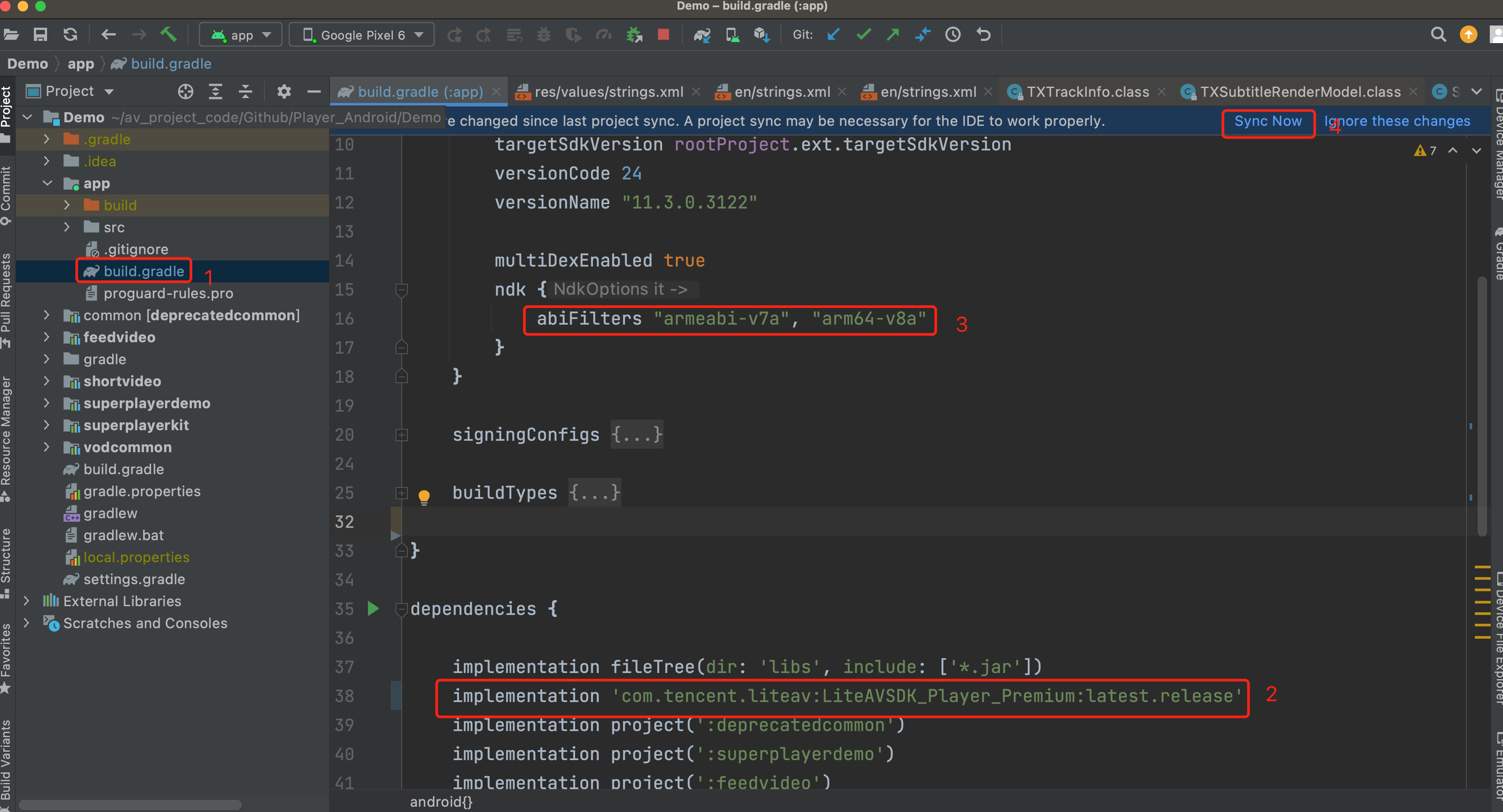
1. Add the mavenCentral repository to the build.gradle in your project's root directory.
repositories {
mavenCentral()
}
2. Open the build.gradle in the app directory and add the LiteAVSDK_Player dependencies to dependencies.
dependencies {
// This configuration integrates the latest version of `LiteAVSDK_Player_Premium` by default.
3. In defaultConfig, specify the CPU architecture to be used by the application. Currently, LiteAVSDK_Player supports armeabi, armeabi-v7a, and arm64-v8a.
defaultConfig {
ndk {
abiFilters "armeabi", "armeabi-v7a", "arm64-v8a"
}
}
4. Click the Sync Now button
to sync the SDK. If you have no problem accessing Maven Central, the SDK will be downloaded and integrated into your project automatically.
Method 2: manual download (AAR)
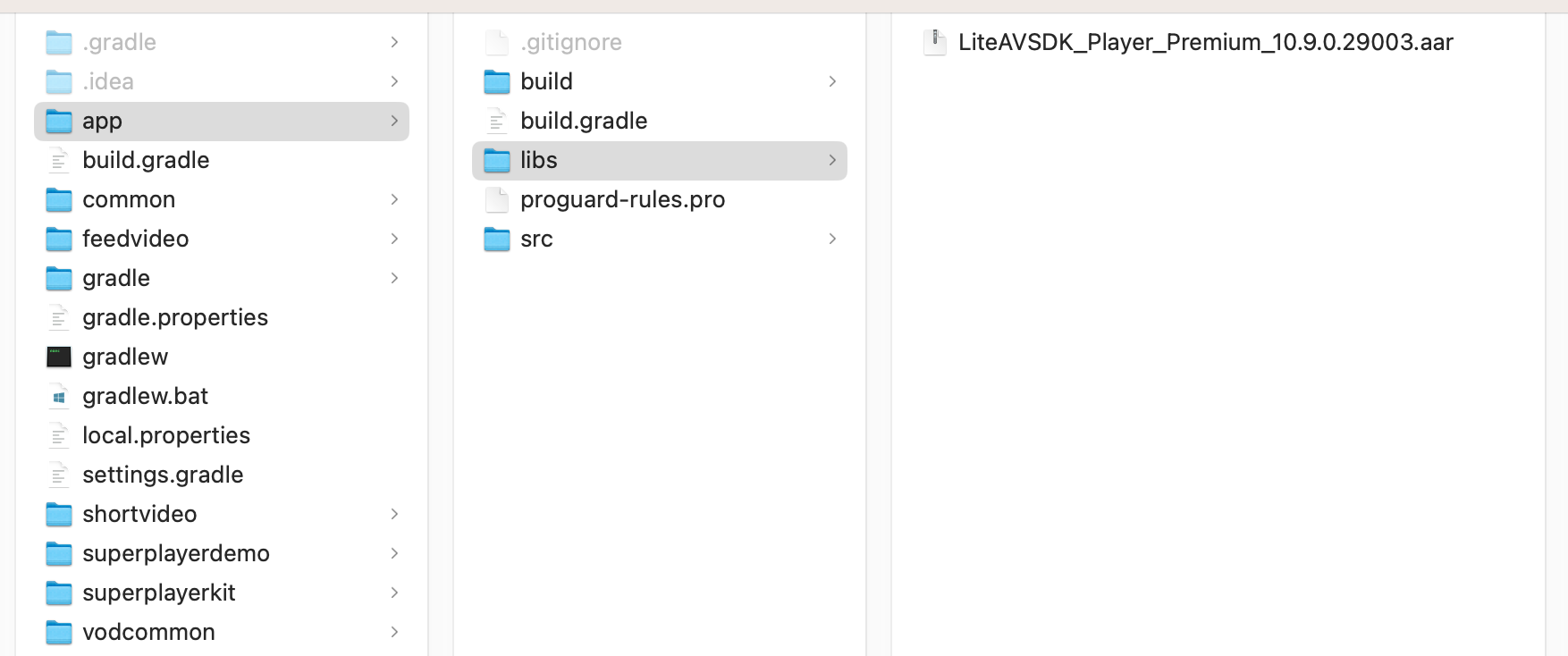
If you have problem accessing Maven Central, you can manually download the SDK and integrate it into your project.
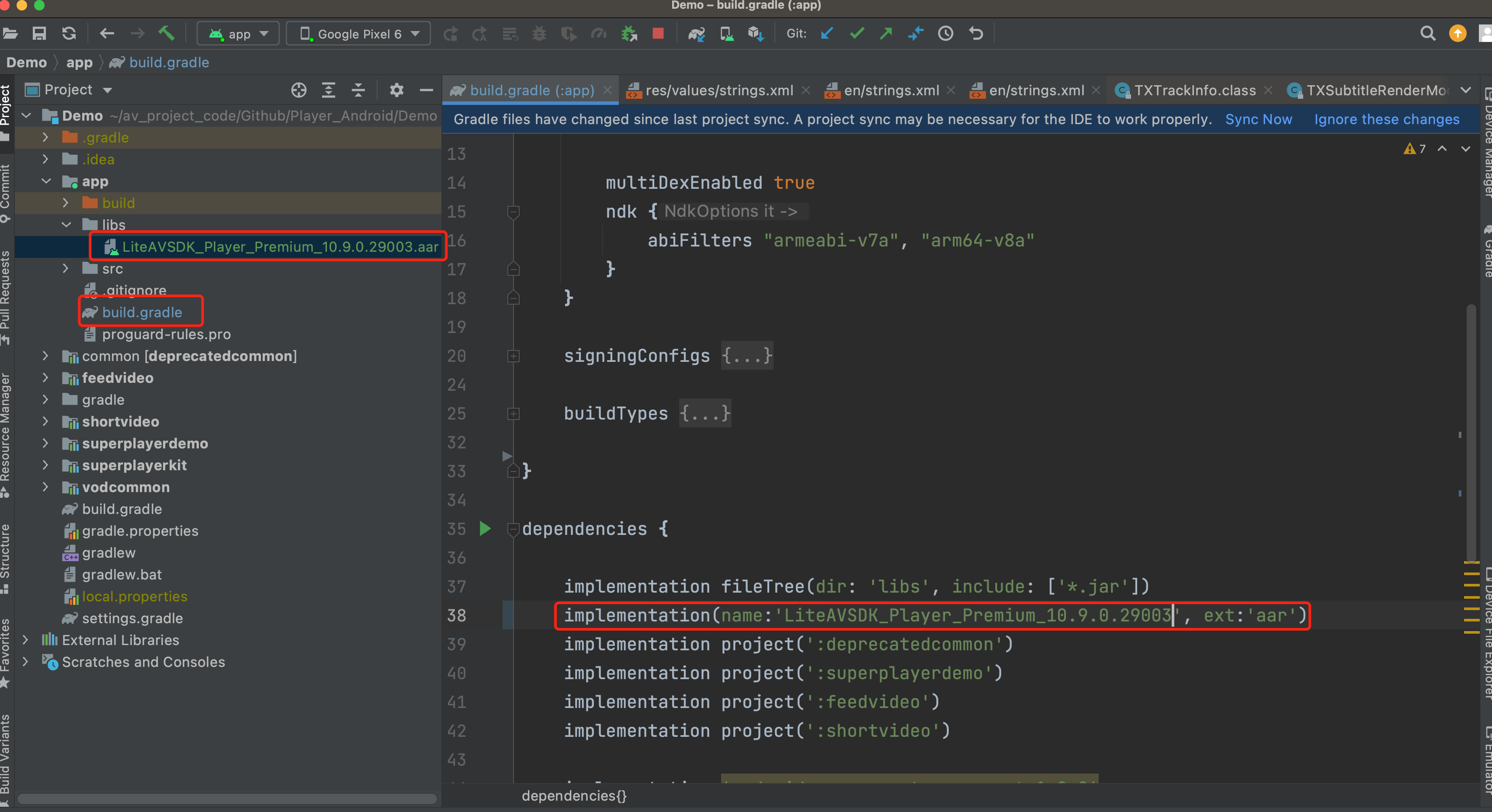
5. In defaultConfig of app/build.gradle, specify the CPU architecture to be used by the application. Currently, LiteAVSDK_Player supports armeabi, armeabi-v7a, and arm64-v8a.
defaultConfig {
ndk {
abiFilters "armeabi", "armeabi-v7a", "arm64-v8a"
}
}
6. Click Sync Now to complete the integration of LiteAVSDK.
Integrating the SDK (JAR)
If you do not want to import the AAR library, you can also integrate LiteAVSDK by importing JAR and SO libraries.
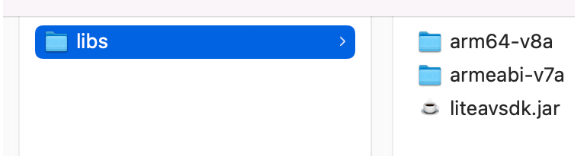
1. Download LiteAVSDK_Player_Premium and decompress it. Find LiteAVSDK_Player_Premium_xxx.zip (xxx is the version number) in the SDK directory. After decompression, you can get the libs directory, which contains the JAR file and folders of SO files as listed below:
If you also need the .so file for the armeabi architecture, copy the armeabi-v7a directory and rename it armeabi.
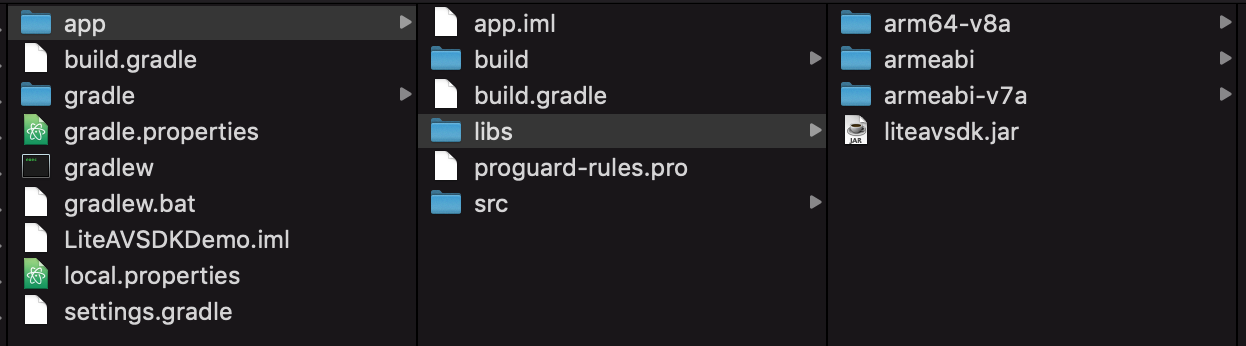
2. Copy the JAR file and armeabi, armeabi-v7a, and arm64-v8a folders to the app/libs directory.
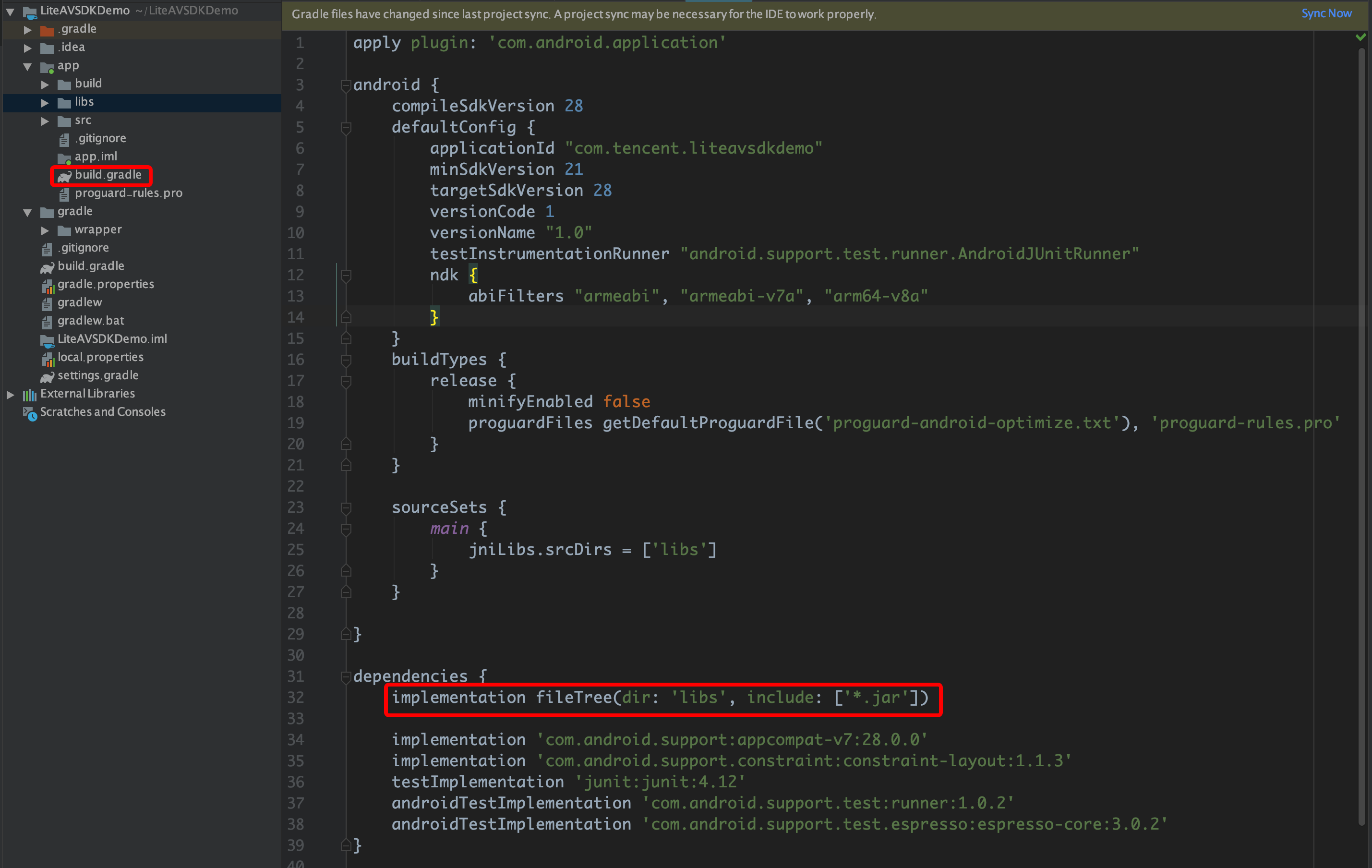
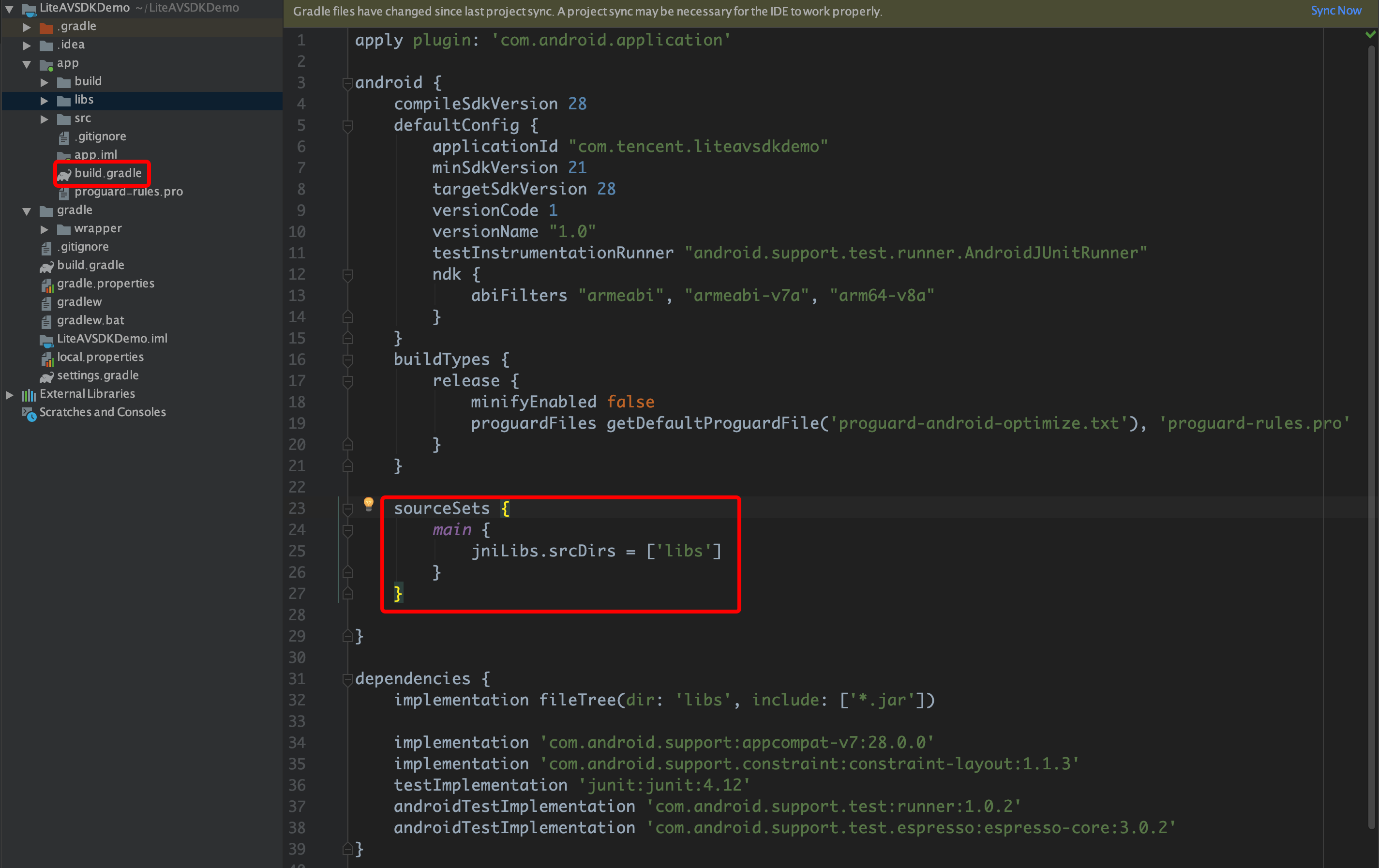
3. Add code that references the JAR library in app/build.gradle.
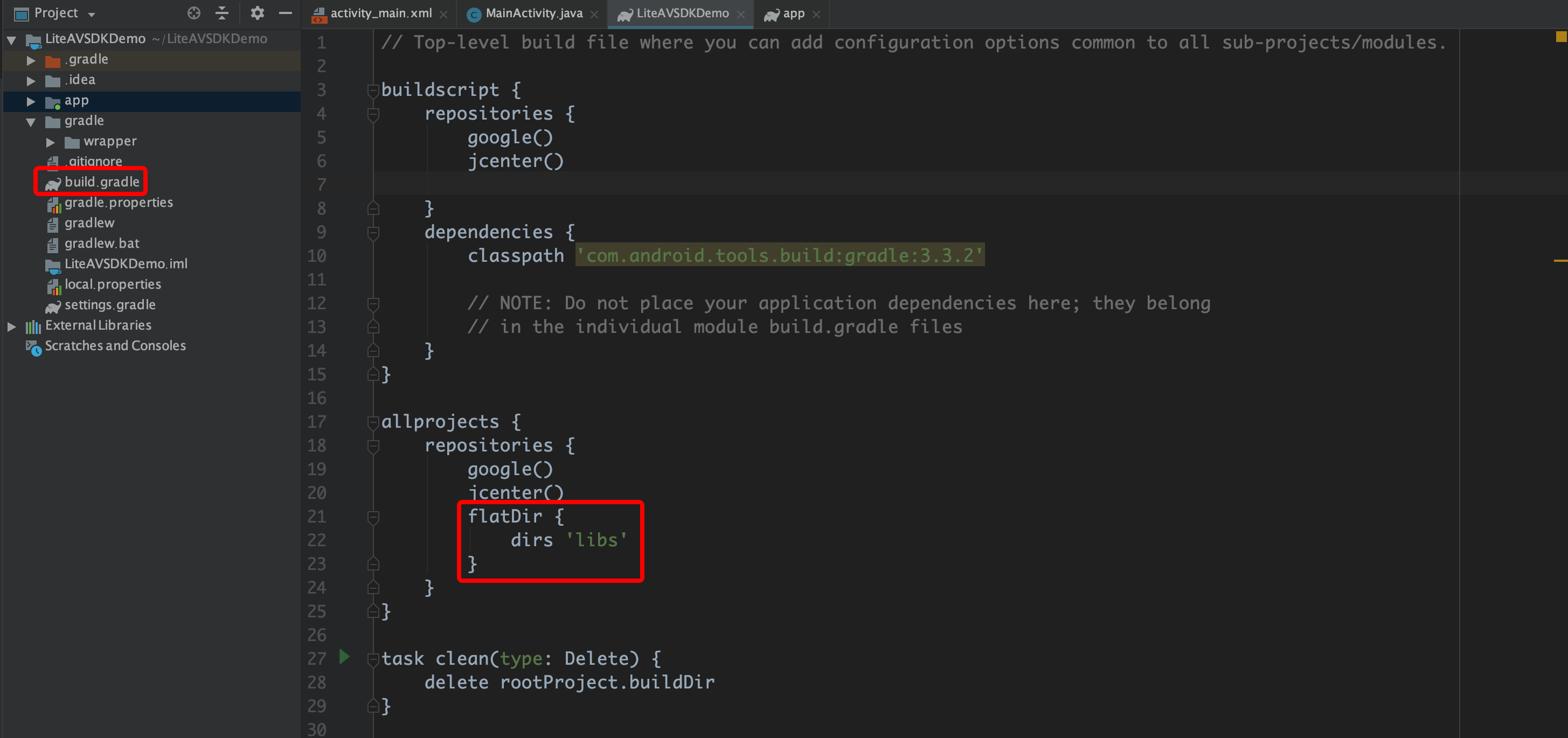
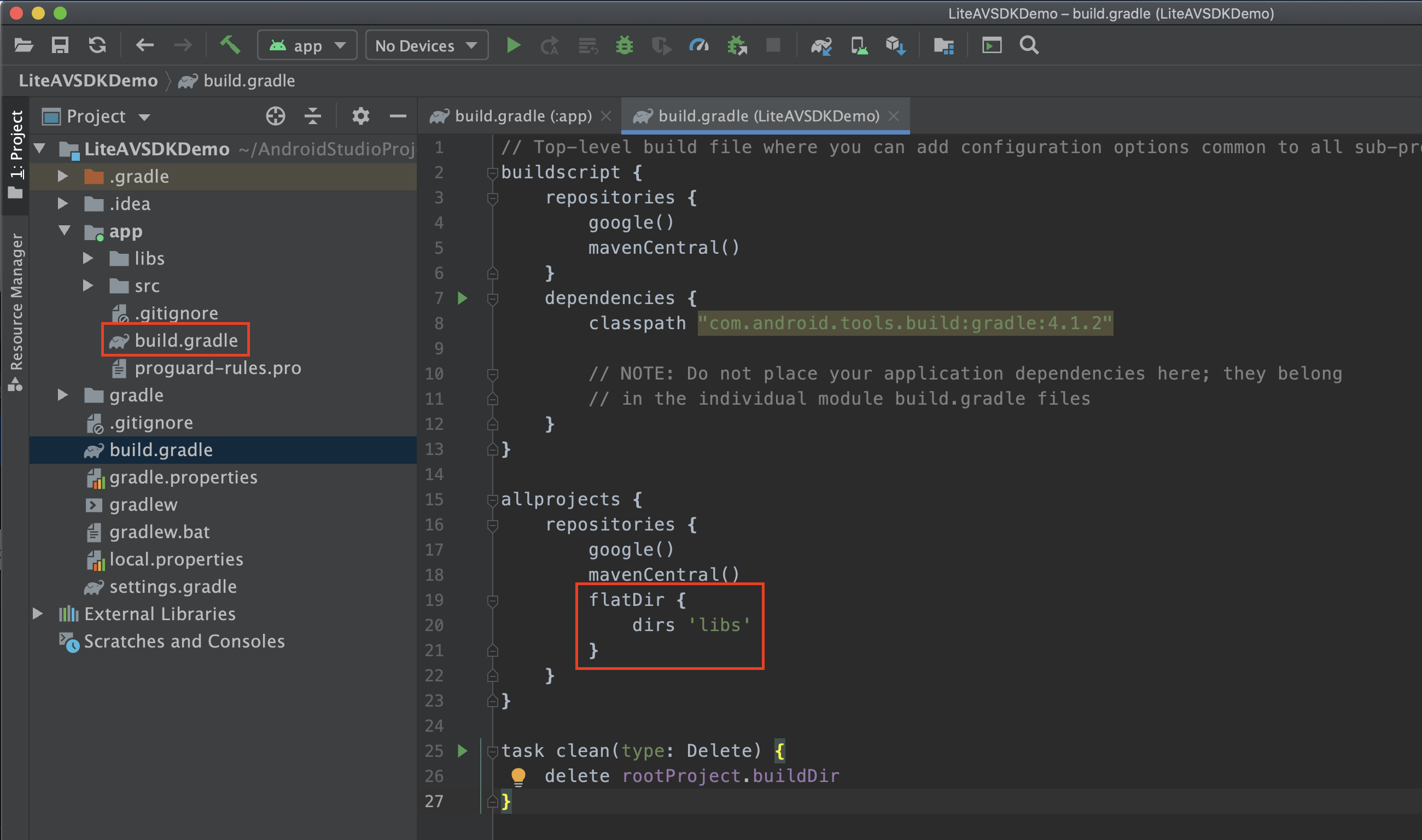
4. Add flatDir to build.gradle under the project’s root directory to specify the local path for the repository.
5. In app/build.gradle, add code that references the SO libraries.
6. In the defaultConfig of app/build.gradle, specify the CPU architecture to be used by the application (currently, LiteAVSDK supports armeabi, armeabi-v7a, and arm64-v8a).
defaultConfig {
ndk {
abiFilters "armeabi", "armeabi-v7a", "arm64-v8a"
}
}
7. Click Sync Now to complete the integration.
Configuring Permissions
Configure permissions for your application in AndroidManifest.xml. LiteAVSDK needs the following permissions:
Network security configuration allows the app to send HTTP requests
For security reasons, starting from Android P, Google requires that requests from apps use encrypted connections. The player SDK will start a localsever to proxy HTTP requests. If your app's targetSdkVersion is greater than or equal to 28, you can enable sending HTTP requests to 127.0.0.1 through network security configuration. Otherwise, an error 'java.io.IOException: Cleartext HTTP traffic to 127.0.0.1 not permitted' will occur during playback, causing video playback to fail. The configuration steps are as follows:
1. Create a res/xml/network_security_config.xml file in the project and set the network security configuration.
In the proguard-rules.pro file, add LiteAVSDK classes to the "do not obfuscate" list.
-keep class com.tencent.** { *;}
Configuring License
Enter VOD console. to apply for a trial license as instructed in Adding and Renewing a License. If no license is configured, video playback will fail. You will get two strings: a license URL and a decryption key.
After obtaining the License information, you need to initialize and configure the License before calling the relevant interfaces of the SDK. For detailed tutorials, please see Configuring View License.
FAQs
What should I do if a duplicate symbol error occurs because my project integrates multiple editions of LiteAVSDK such as CSS, TRTC, and Player?
If you integrate two or more editions of LiteAVSDK (MLVB, Player, TRTC, UGSV), a library conflict error will occur when you build your project. This is because some symbol files are shared among the underlying libraries of the SDKs. To solve the problem, we recommend you integrate the All-in-One SDK, which includes the features of MLVB, Player, TRTC, and UGSV. For details, see SDK Download.