This document describes how to enable domain-level configuration capabilities after domain onboarding, including access log shipping, request source configuration, traffic tagging, BOT protection information delivery, and access logging. These features help customers meet the requirements of the Cybersecurity Classified Protection Compliance Service.
Enable CLS
Note:
Only users who have purchased the Log Storage Package can enable the access log recording switch.
1. Log in to the WAF console. In the left sidebar, choose Connection Management > Domain Onboarding.
2. On the domain onboarding page, select the desired domain, click
in the Access logs section. After enabling, access logs will be automatically recorded for daily quick search and traceability analysis.
Enable the Access Log Shipping Feature
Note:
The attack log shipping feature is enabled by default.
Only users who have enabled the Log Shipping Service can enable access log shipping.
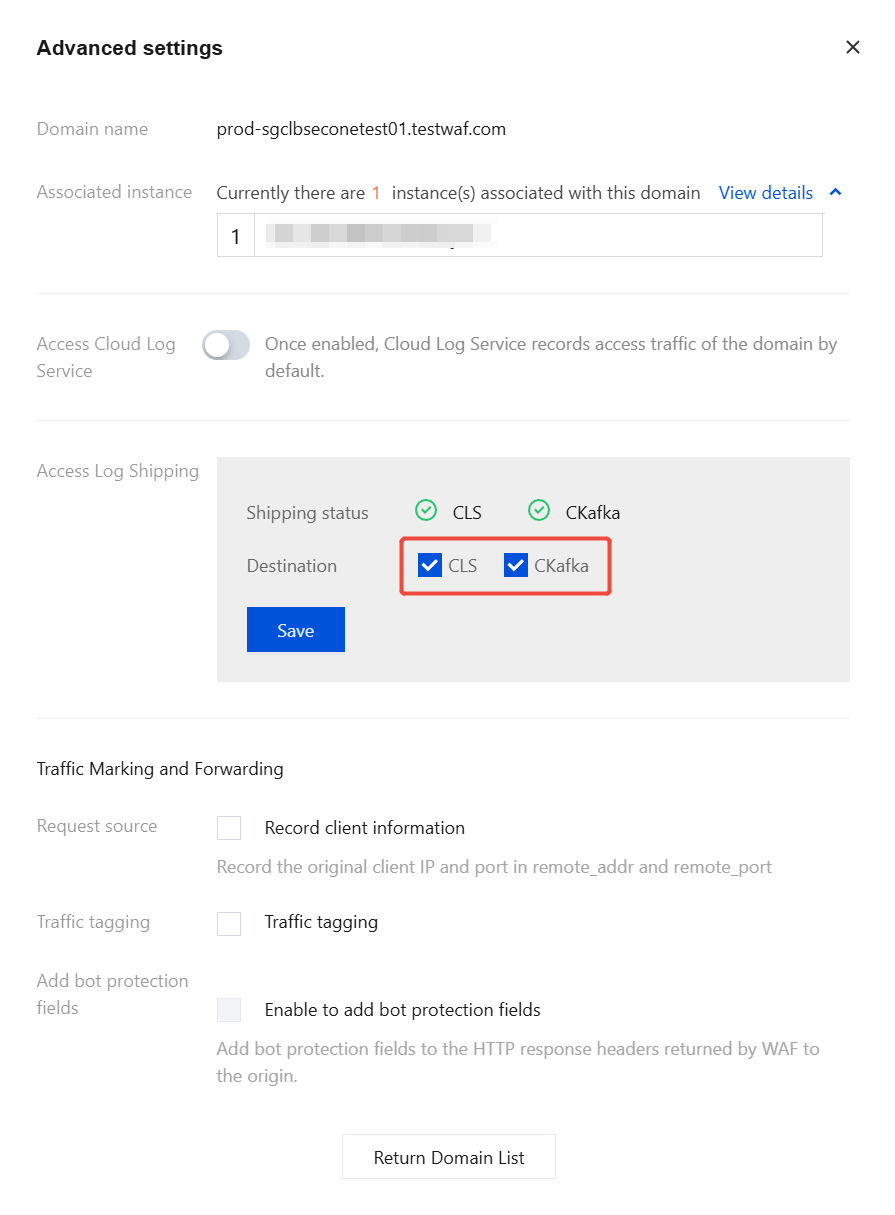
The access log shipping feature is used to ship log data to CLS (Log Service) and CKafka (Message Queue). For details, see Log Shipping.
1. Log in to the WAF console. In the left sidebar, choose Connection Management > Domain Onboarding.
2. On the domain onboarding page, click Operation column > Other Configurations > Access Cloud Log Service.
3. In the Advanced Settings window, select the shipping destination, click Save to enable the access log shipping feature.
Enable Request Source Configuration
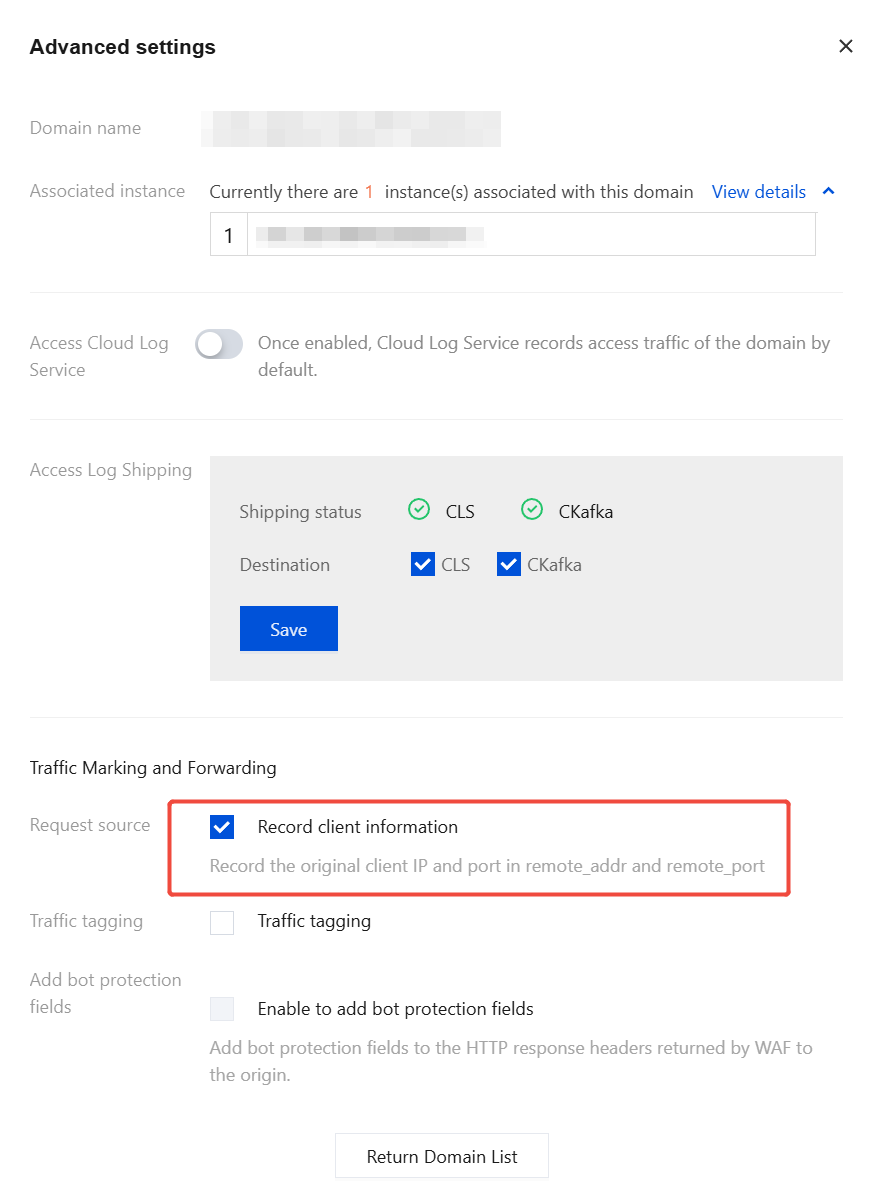
The request source configuration indicates that WAF will pass through the IP address and port information of the previous hop when forwarding client requests to the origin server.
Note:
Only Enterprise Edition, Ultimate Edition, and Dedicated Edition users are supported to use this feature.
1. On the domain onboarding page, select the desired domain, then choose Operation column > Other configurations > Access Cloud Log Service.
2. In the Advanced Settings window, select Record client information. Once enabled, the original client IP address and port of the connection will be recorded in remote_addr and remote_port.
Enable Traffic Tagging
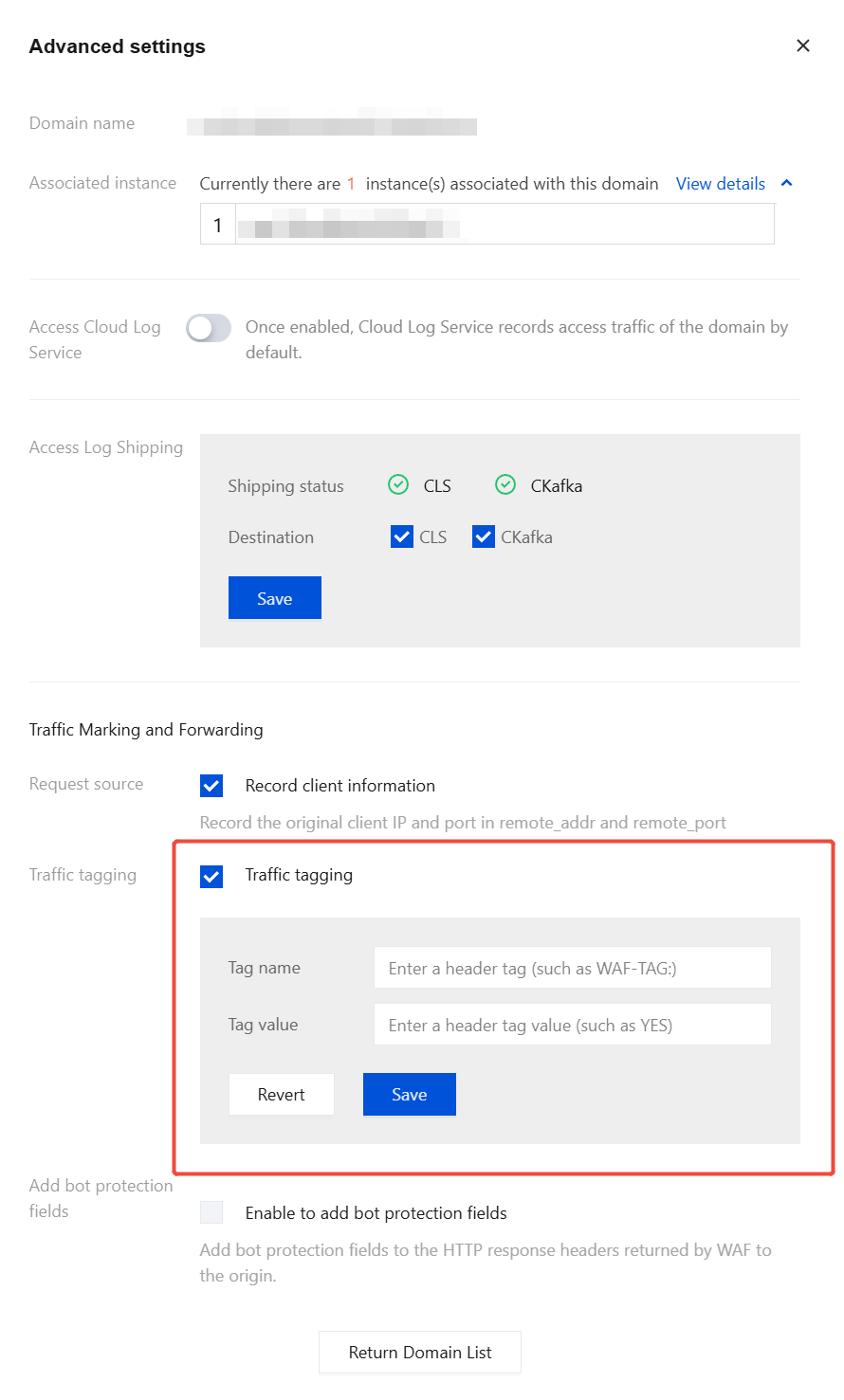
Traffic tagging indicates that WAF adds or modifies custom fields specified by you in the request headers when forwarding client requests to the origin server, to identify that the request has been forwarded by WAF.
Note:
Only Enterprise Edition, Ultimate Edition, and Exclusive Edition users are supported to use this feature.
1. Log in to the WAF console. In the left sidebar, choose Connection Management > Domain Onboarding.
2. On the domain onboarding page, select the desired domain, then choose Operation column > Other configurations > Access Cloud Log Service.
3. In the Advanced Settings window, select Traffic tagging, fill in the relevant parameters, and click Save.
Field description:
Traffic name: custom header tag name.
Traffic value: custom header tag value.
4. After the configuration is complete, click Back to return to the Domain Onboarding page.
Enable BOT protection information delivery
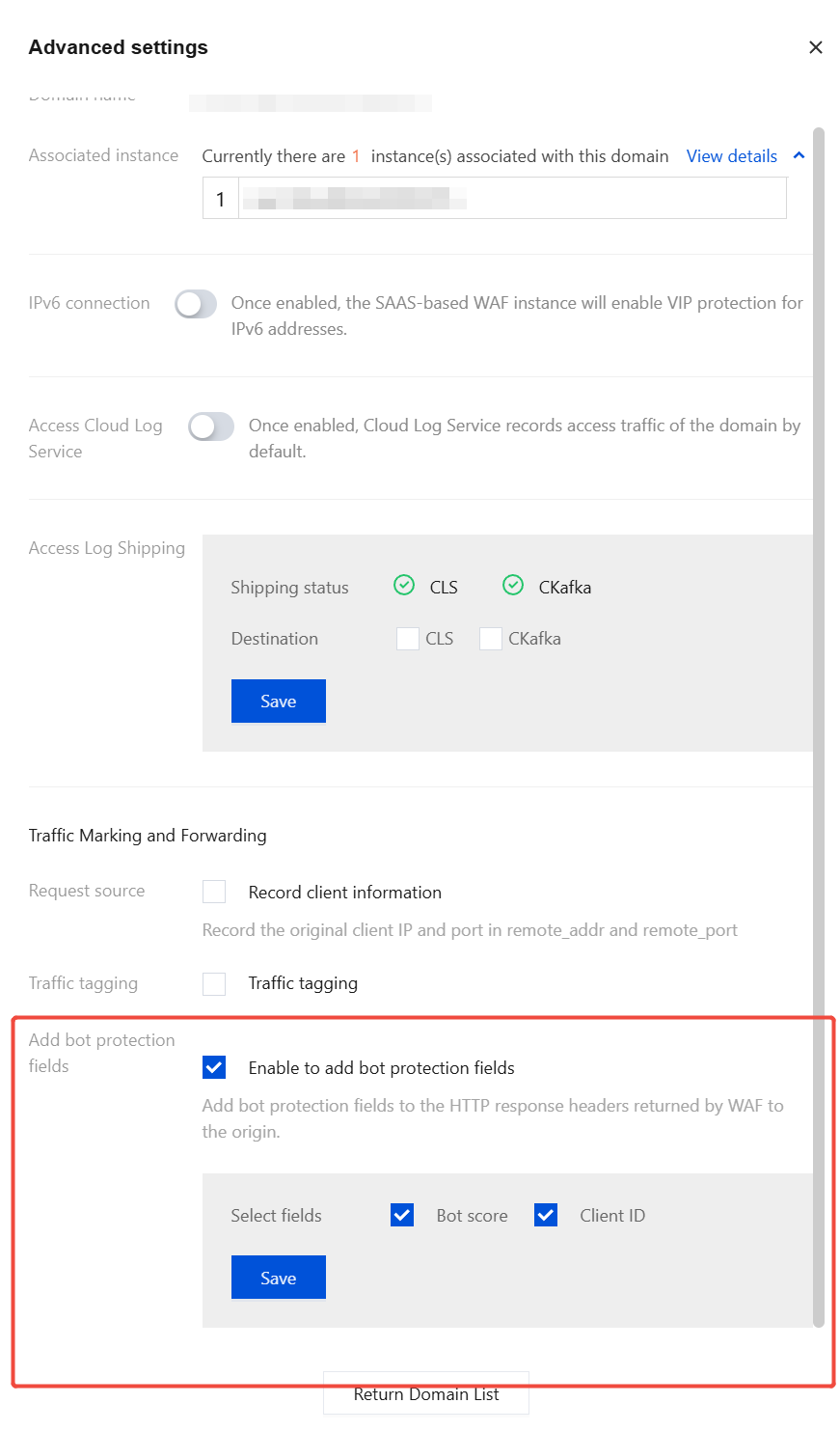
BOT protection information delivery supports inserting BOT scores and client unique IDs into HTTP headers returned to the origin server. After obtaining this information, the origin server can define custom secondary handling policies or perform secondary analysis to meet business protection requirements.
Note:
This feature is only supported for domains that are connected to SaaS-type instances and have the BOT switch enabled.
1. Log in to the WAF console. In the left sidebar, choose Connection Management > Domain Onboarding.
2. On the domain onboarding page, select the desired domain, then choose Operation column > Other configurations > Access Cloud Log Service.
3. In the advanced settings pop-up window, select Enable to add bot protection fields, choose the information content to be delivered, and click Save.
Field description:
BOT score: After selecting, five BOT score evaluation items will be added to the returned header information.
x-bot-total-score: The total BOT score calculated based on the weights of each module.
x-bot-ua-score: The abnormal score derived from the evaluation of the UA policy module.
x-bot-ti-score: The abnormal score derived from the evaluation of the threat intelligence module.
x-bot-ai-score: the abnormal score derived from the evaluation of the AI policy module.
x-bot-stat-score: The abnormal score derived from the evaluation of the intelligent statistics module.
Client ID: After selecting, the client unique ID x-bot-client-id identified by frontend defense will be added to the returned header information.
4. After the configuration is complete, click Return Domain List to return to the Domain Onboarding page.