tencent cloud

Content Delivery Network

Updates and Announcements
Release Notes
Announcements
User Tutorial
Product Introduction
Product Overview
Strengths
Use Cases
Term
Use Limits
CDN Performance Descriptions (Spot-check)
Purchase Guide
CDN Purchase Guide
ECDN Purchase Guide
Getting Started
Configuring CDN from Scratch
Adding Domain Names
CNAME Configuration
Domain Name Ownership Verification
FAQs about Domain Name Connection
Configuration Guide
Domain Management
Domain Name Configurations
Statistical Analysis
Purge and Prefetch
Log Management
EdgeOne
Service Query
Offline Cache
Permission Management
Permission Configuration
Console Permissions
Activate Real-time Logging as Sub-account/Collaborator
Use Cases
Accelerating Resources on COS with CDN
Practical Tutorial
Guide to Using the EdgeOne Tool for Migrating Content Delivery Network (CDN) Related Services
CDN - CVM
CDN - COS
Configuring CNAME via DNSPod
Regularly Storing CDN Logs
API Documentation
History
Introduction
API Category
Content Management APIs
Real-time Log APIs
Service Query APIs
Data Query APIs
Making API Requests
Log Query APIs
StopCdnDomain
Configuration Management APIs
Obsoleted APIs
Other APIs
Data Types
Error Codes
FAQ
Features
Billing
FAQs about Domain Name Connection
Cache Configuration FAQs
Purge and Prefetch
Statistical Analysis
FAQs about HTTPS
Connection
Errors
Troubleshooting Methods
Status Codes and Solutions
Node Cache Inconsistency
Slow Access Speed After CDN Activation
Low Traffic Hit Rate
404 Status Code
Page Display - CORS error
Resource Cache Failure
Service Level Agreement
Glossary

Step 4. Verifying the Domain Name

PDF
Focus Mode
Font Size
Last updated: 2024-12-30 21:55:17
After you add and configure a domain name in the CDN console, we recommend that you test the connection by using the following method.
1. Check the CNAME domain, www.qcdntest.cn.cdn.dnsv1.com.cn
2. Obtain the cache node IP. Open a command window and run the following command. The returned IP address is the IP address of the CDN acceleration node. ping www.qcdntest.cn.cdn.dnsv1.com.cn
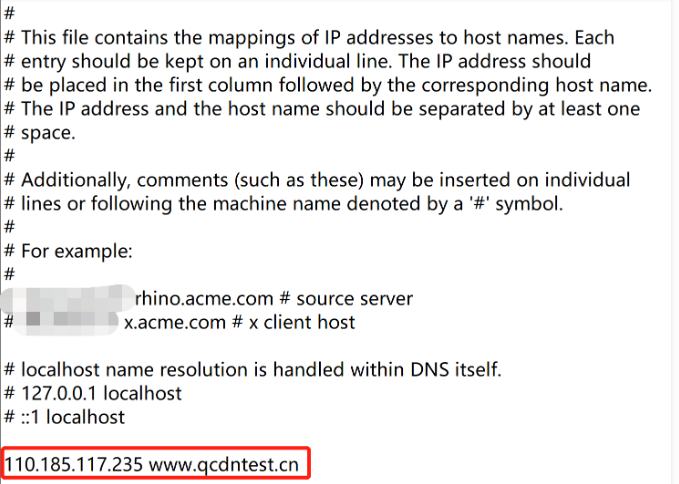
3. Configure the `hosts` file.
Add the CDN cache node IP (110.185.117.235) and the accelerated domain name (www.qcdntest.cn) obtained in Step 2 to your local hosts file in the format of “110.185.117.235 www.qcdntest.cn”. On Windows, the hosts file is stored in this directory: C:\\Windows\\System32\\drivers\\etc. The following figure shows an example:


On macOS, open the command window, enter sudo vi /etc/hosts, press the Enter key, enter the password, and press the Enter key again. After you open the hosts file, enter i to start editing the file. The content and format are the same as instructed for Windows users.
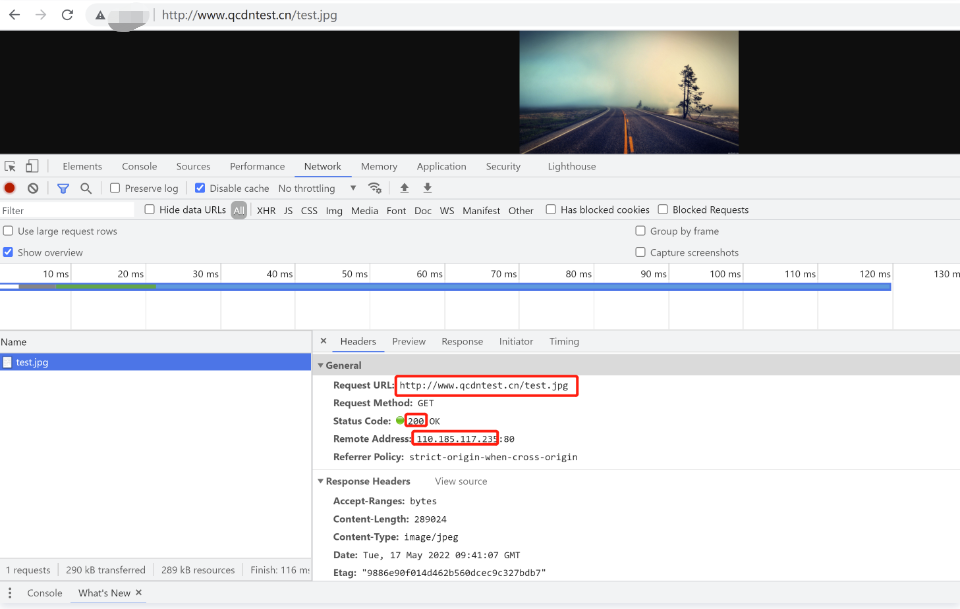
4. Access the domain name. If the response is the same as that of the origin server, the access succeeds.

Help and Support

Was this page helpful?

Help us improve! Rate your documentation experience in 5 mins.

Feedback