tencent cloud

Tencent Real-Time Communication

Release Notes and Announcements
Release Notes
Recent Product Announcement
TRTC Live (TUILiveKit) Product Launch Announcement
TRTC Conference Official Editions Launched
The commercial version of Conference is coming soon
Terms and Conditions Applicable to $9.9 Starter Package
Rules for the "First Subscription $100 Discount" Promotion
Announcement on the Start of Beta Testing for Multi-person Audio and Video Conference
TRTC Call Official Editions Launched
License Required for Video Playback in New Version of LiteAV SDK
TRTC to Offer Monthly Packages
Product Introduction
Overview
Concepts
Features
Strengths
Use Cases
Performance Statistics
Tencent RTC Quickplay: Experience Ultimate Real-Time Audio and Video Interaction!
Purchase Guide
Billing Overview
Free Minutes
Monthly subscription
Pay-as-you-go
TRTC Overdue and Suspension Policy
FAQs
Refund Instructions
User Tutorial
Free Demo
Call
Overview
Activate the Service
Run Demo
Integration
Offline Call Push
Conversational Chat
On-Cloud Recording
AI Noise Reduction
UI Customization
Calls integration to Chat
Additional Features
No UI Integration
Server APIs
Client APIs
Solution
ErrorCode
Release Notes
FAQs
Conference
Overview(TUIRoomKit)
Activate the Service (TUIRoomKit)
Run Demo(TUIRoomKit)
Integration(TUIRoomKit)
Screen Sharing (TUIRoomKit)
Schedule a meeting (TUIRoomKit)
In-meeting Call (TUIRoomKit)
UI Customization(TUIRoomKit)
Virtual Background (TUIRoomKit)
Conference Control (TUIRoomKit)
Cloud Recording (TUIRoomKit)
AI Noise Reduction (TUIRoomKit)
In-Conference Chat (TUIRoomKit)
Robot Streaming (TUIRoomKit)
Enhanced Features (TUIRoomKit)
Client APIs (TUIRoomKit)
Server APIs (TUIRoomKit)
FAQs (TUIRoomKit)
Error Code (TUIRoomKit)
SDK Update Log (TUIRoomKit)
Live
Billing of Video Live Component
Overview
Activating the Service (TUILiveKit)
Run Demo
No UI Integration
UI Customization
Live Broadcast Monitoring
Video Live Streaming
Voice Chat Room
Advanced Features
Client APIs
Server APIs
Error Codes
Release Notes
FAQs
RTC Engine
Activate Service
SDK Download
API Examples
Usage Guidelines
API Reference Manual
Advanced Features
AI Integration
Overview
Configure MCP Server
Install Skills
Integration Guide
FAQ
RTC RESTFUL API
History
Introduction
API Category
Room Management APIs
Stream mixing and relay APIs
On-cloud recording APIs
Data Monitoring APIs
Pull stream Relay Related interface
Web Record APIs
AI Service APIs
Cloud Slicing APIs
Cloud Moderation APIs
Making API Requests
Call Quality Monitoring APIs
Usage Statistics APIs
Data Types
Appendix
Error Codes
Console Guide
Application Management
Package Management
Usage Statistics
Monitoring Dashboard
Development Assistance
Solution
Real-Time Chorus
FAQs
Migration Guide
Billing
Features
UserSig
Firewall Restrictions
How to Downsize Installation Package
Android and iOS
Web
Flutter
Electron
TRTCCalling for Web
Audio and Video Quality
Others
Legacy Documentation
RTC RoomEngine SDK(Old)
Integrating TUIRoom (Web)
Integrating TUIRoom (Android)
Integrating TUIRoom (iOS)
Integrating TUIRoom (Flutter)
Integrating TUIRoom (Electron)
TUIRoom APIs
On-Cloud Recording and Playback (Old)
RTC Analytics Monthly Packages (Previous Version)
Protocols and Policies
Compliance
Security White Paper
Notes on Information Security
Service Level Agreement
Apple Privacy Policy: PrivacyInfo.xcprivacy
TRTC Policy
Privacy Policy
Data Processing And Security Agreement
Glossary

Flutter

PDF
Focus Mode
Font Size
Last updated: 2024-02-02 18:48:51
This document primarily delineates the process of sharing system sounds. At present, TRTC defaults not to collect the audio of the local application.

Call Guidelines

Android
iOS
This document primarily delineates the process of sharing system sounds. At present, TRTC defaults not to collect the audio of the local application.
Note:
Only Android 10.0 or higher supports sharing system audio.

Initiate system sound sharing

Step 1: Initiate Screen Sharing

Follow the steps in Enable screen sharing - Based on Android platform to turn on screen sharing.

Step 2: Initiate Share System Audio

By invoking the TRTCCloud's startSystemAudioLoopback interface, the collected system audio will be automatically mixed into the upstream.

Step 3: Terminate Share System Audio

Invoke the TRTCCloud's stopSystemAudioLoopback interface.

Step 1: Enable the microphone

Within the App, invoke startLocalAudio to kickstart microphone collection, and it's suggested to utilize TRTCAudioQualityDefault for audio quality.
Note:
This action is indispensable; by initiating microphone collection, the App can preserve its functioning even when relegated to the background.

Step 2: Initiate screen sharing

Due to the restrictions of iOS, system sounds can only be collected during screen recording. Therefore, to implement this feature, the iOS screen sharing function must be connected first.
Follow the steps in Enable Screen Sharing - Based on iOS platform to start screen recording, and system sound will be automatically collected.
Note:
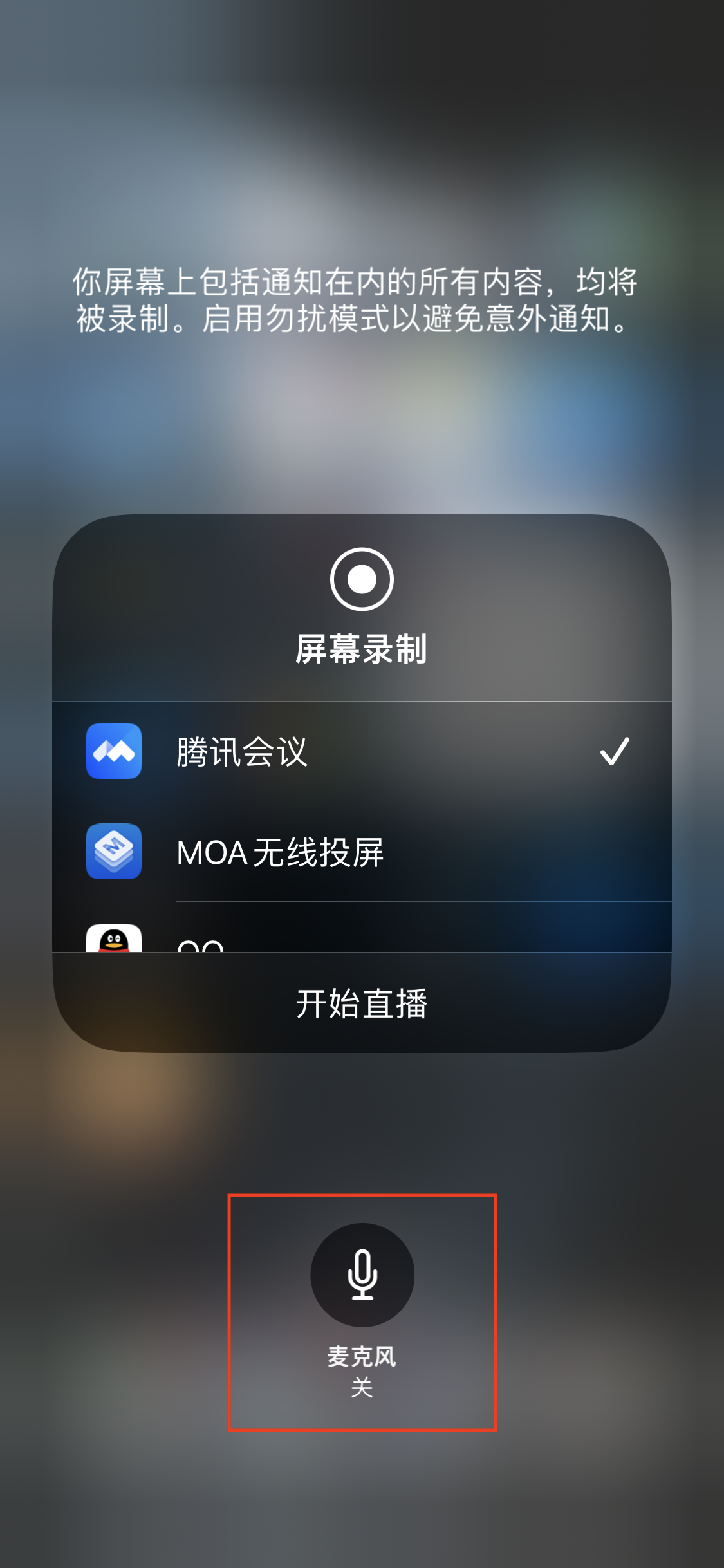
When starting screen recording, do not light up the microphone icon. Voice collection has already been started in the app.


Step 3: Midway open and close system sound

The system audio capture and screen recording are done concurrently, initiating automatically with the start of the recording and ceasing alongside the recording termination. It is not feasible to independently switch on or mute the system audio.
TRTCCloud proffers the setSystemAudioLoopbackVolume method for system audio volume conditioning. When there is no desire to output the system audio, the volume can be set to 0.


Help and Support

Was this page helpful?

Help us improve! Rate your documentation experience in 5 mins.

Feedback