tencent cloud

Tencent Real-Time Communication

Release Notes and Announcements
Release Notes
Recent Product Announcement
TRTC Live (TUILiveKit) Product Launch Announcement
TRTC Conference Official Editions Launched
The commercial version of Conference is coming soon
Terms and Conditions Applicable to $9.9 Starter Package
Rules for the "First Subscription $100 Discount" Promotion
Announcement on the Start of Beta Testing for Multi-person Audio and Video Conference
TRTC Call Official Editions Launched
License Required for Video Playback in New Version of LiteAV SDK
TRTC to Offer Monthly Packages
Product Introduction
Overview
Concepts
Features
Strengths
Use Cases
Performance Statistics
Tencent RTC Quickplay: Experience Ultimate Real-Time Audio and Video Interaction!
Purchase Guide
Billing Overview
Free Minutes
Monthly subscription
Pay-as-you-go
TRTC Overdue and Suspension Policy
FAQs
Refund Instructions
User Tutorial
Free Demo
Call
Overview
Activate the Service
Run Demo
Integration
Offline Call Push
Conversational Chat
On-Cloud Recording
AI Noise Reduction
UI Customization
Calls integration to Chat
Additional Features
No UI Integration
Server APIs
Client APIs
Solution
ErrorCode
Release Notes
FAQs
Conference
Overview(TUIRoomKit)
Activate the Service (TUIRoomKit)
Run Demo(TUIRoomKit)
Integration(TUIRoomKit)
Screen Sharing (TUIRoomKit)
Schedule a meeting (TUIRoomKit)
In-meeting Call (TUIRoomKit)
UI Customization(TUIRoomKit)
Virtual Background (TUIRoomKit)
Conference Control (TUIRoomKit)
Cloud Recording (TUIRoomKit)
AI Noise Reduction (TUIRoomKit)
In-Conference Chat (TUIRoomKit)
Robot Streaming (TUIRoomKit)
Enhanced Features (TUIRoomKit)
Client APIs (TUIRoomKit)
Server APIs (TUIRoomKit)
FAQs (TUIRoomKit)
Error Code (TUIRoomKit)
SDK Update Log (TUIRoomKit)
Live
Billing of Video Live Component
Overview
Activating the Service (TUILiveKit)
Run Demo
No UI Integration
UI Customization
Live Broadcast Monitoring
Video Live Streaming
Voice Chat Room
Advanced Features
Client APIs
Server APIs
Error Codes
Release Notes
FAQs
RTC Engine
Activate Service
SDK Download
API Examples
Usage Guidelines
API Reference Manual
Advanced Features
AI Integration
Overview
Configure MCP Server
Install Skills
Integration Guide
FAQ
RTC RESTFUL API
History
Introduction
API Category
Room Management APIs
Stream mixing and relay APIs
On-cloud recording APIs
Data Monitoring APIs
Pull stream Relay Related interface
Web Record APIs
AI Service APIs
Cloud Slicing APIs
Cloud Moderation APIs
Making API Requests
Call Quality Monitoring APIs
Usage Statistics APIs
Data Types
Appendix
Error Codes
Console Guide
Application Management
Package Management
Usage Statistics
Monitoring Dashboard
Development Assistance
Solution
Real-Time Chorus
FAQs
Migration Guide
Billing
Features
UserSig
Firewall Restrictions
How to Downsize Installation Package
Android and iOS
Web
Flutter
Electron
TRTCCalling for Web
Audio and Video Quality
Others
Legacy Documentation
RTC RoomEngine SDK(Old)
Integrating TUIRoom (Web)
Integrating TUIRoom (Android)
Integrating TUIRoom (iOS)
Integrating TUIRoom (Flutter)
Integrating TUIRoom (Electron)
TUIRoom APIs
On-Cloud Recording and Playback (Old)
RTC Analytics Monthly Packages (Previous Version)
Protocols and Policies
Compliance
Security White Paper
Notes on Information Security
Service Level Agreement
Apple Privacy Policy: PrivacyInfo.xcprivacy
TRTC Policy
Privacy Policy
Data Processing And Security Agreement
Glossary

Flutter

PDF
Focus Mode
Font Size
Last updated: 2025-07-30 12:02:50

Overview

Unlike the ubiquitous vertical screen experience of mobile live streaming, Tencent Real-Time Communication (TRTC) must accommodate both landscape and portrait viewing modes, thereby requiring extensive handling of screen orientation. This article primarily discusses:
The implementation of the portrait mode pattern, for instance: WeChat's video calling is a typical example of the portrait experience pattern.
The execution of the landscape mode pattern, for example: Multi-person audio-video room applications (like Little Fish Easy Connection) typically adopt the landscape mode pattern.
How to customize the control of the rotation direction and fill pattern for both local and remote images.


Supported Platforms

iOS
Android
macOS
Windows
Electron
Flutter
Web
×

Portrait pattern

To realize a WeChat-like video call experience pattern, two tasks must be performed:

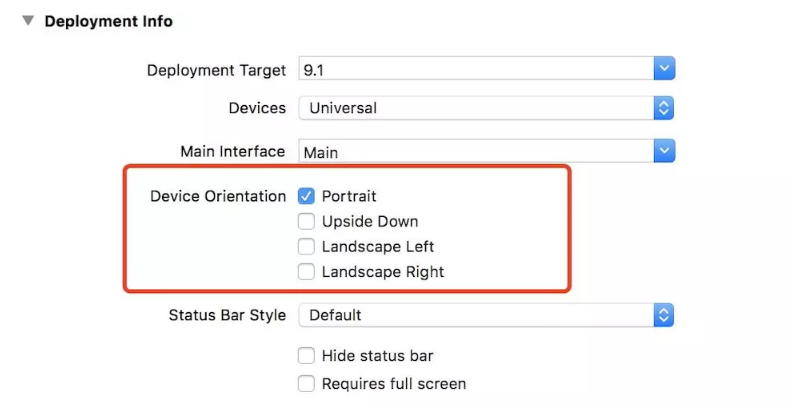
1. Configure the App's UI to display in portrait mode

iOS platform
Android platform
You can directly set this in Xcode's General > Deployment Info > Device Orientation:


By setting the screenOrientation attribute of the activity to portrait, one can specify that this interface is in portrait pattern
<activity android:name=".trtc.TRTCMainActivity" android:launchMode="singleTask" android:windowSoftInputMode="adjustPan"
android:screenOrientation="portrait" />

2. Configuration SDK utilizing vertical screen resolution

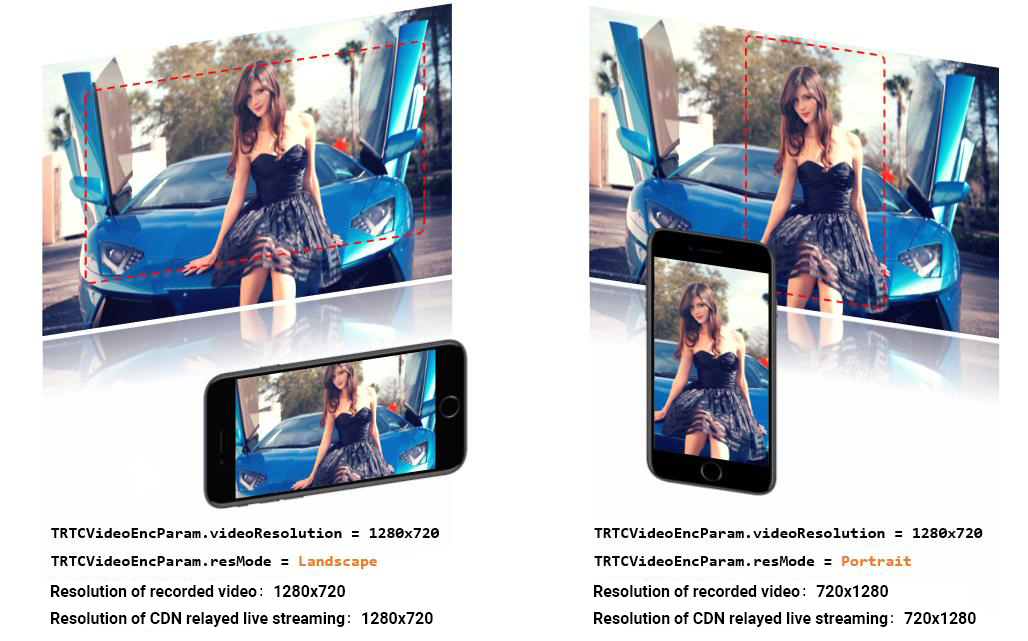
Whilst utilizing the TRTCCloud's setVideoEncoderParam setting for video coding parameters, specifying videoResolutionMode as TRTCVideoResolutionMode.portrait will suffice. Below is the exemplar code:
_trtcCloud.setVideoEncoderParam(
TRTCVideoEncParam(
videoFps: 15,
videoResolution: TRTCVideoResolution.res_640_360,
videoBitrate: 600,
videoResolutionMode: TRTCVideoResolutionMode.portrait,
)
);

Landscape mode

If you wish for the App to have a landscape orientation experience, the work you need to carry out is similar to that of the portrait pattern. You simply need to adjust the parameters in the first and second steps accordingly.
Specifically in the second step, the value of videoResolutionMode in TRTCVideoEncParam should be: TRTCVideoResolutionMode.landscape.

Tailored Control

The TRTC SDK provides interface functions to manipulate both the local and remote screen's rotation direction and fill pattern:
Interface Function
Functionality
Annotation Note
Establishing the clockwise rotation angle of the encoder output display
Supports rotation in two directions: 0 and 180 degrees clockwise

GSensorMode

Given the various compatibility issues involved in screen rotation, recording, and CDN live streaming, TRTC SDK only provides a simple gravity-sensing adaptive function. You can enable this via the setGravitySensorAdaptiveMode interface of TRTCCloud.
This function supports 90-degree, 180-degree and 270-degree rotation adaptation. That is, when the user's own phone rotates, the orientation of the image seen by others remains unchanged. Furthermore, this adaptation is based on adjustments to the encoder's direction. Therefore, recorded videos, as well as images viewed on mini-programs and H5 end, can maintain the original orientation.
Note:
Another implementation of gravity-sensing adaptation involves encoding the gravity direction of each video frame, and then adaptively adjusting the rendering direction at the end of the remote user. However, this embodiment requires the introduction of additional transcoding resources to solve the problem of keeping the direction of the recorded video consistent with the expected video direction. Therefore, it is not recommended.

Help and Support

Was this page helpful?

Help us improve! Rate your documentation experience in 5 mins.

Feedback