Overview
A secret is a key-value pair that can store sensitive information such as passwords, tokens, and keys to help you lower the risk of information exposure. You can create a secret object using kubectl in the console, and use a secret by mounting a volume, through environment variables, or in the container's run command.
Using the Console
Creating a Secret
1. Log in to the TKE console and select Cluster in the left sidebar. 2. Select the ID of the cluster where you want to create a Secret to enter the cluster management page.
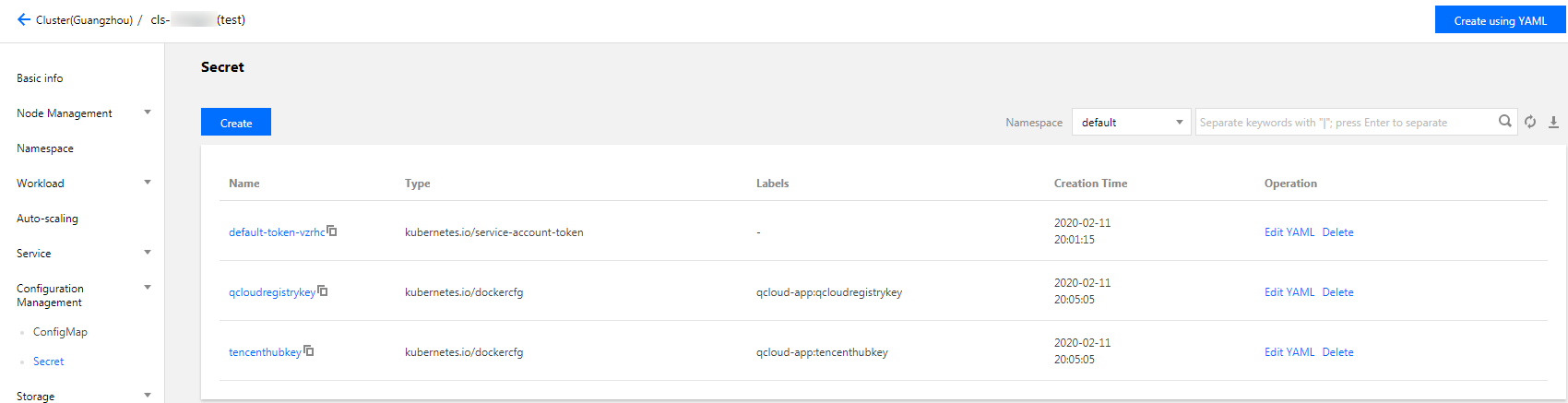
3. Select Configuration Management > Secret in the left sidebar to go to the Secret page as shown below:
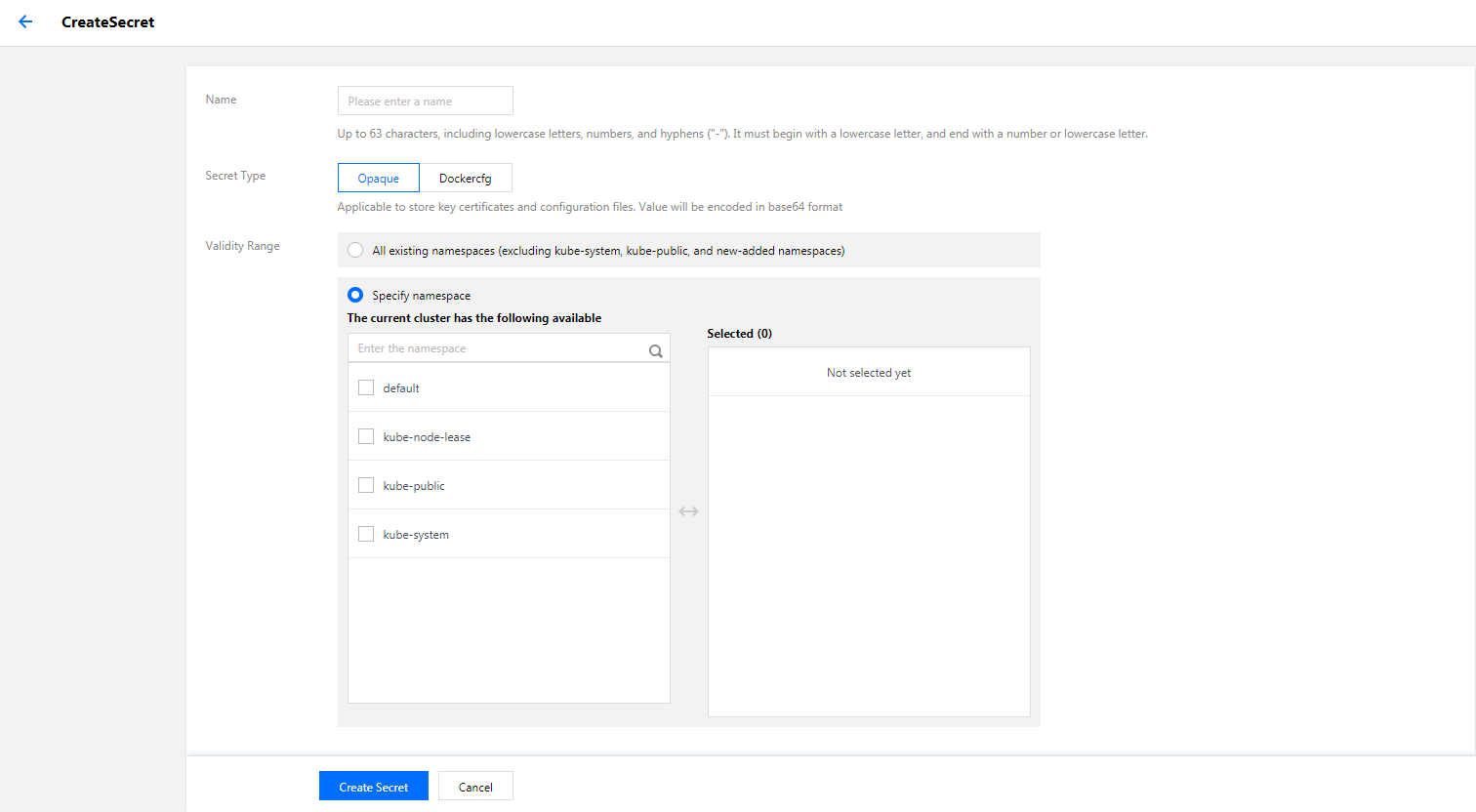
4. Click Create. On the Create Secret page, configure parameters as needed.
Name: enter a name.
Secret Type: select Opaque or Dockercfg as needed.
Opaque: suitable for storing key certificates and configuration files. The value will be base64-encoded.
Dockercfg: suitable for storing the verification information of private Docker Registry.
Effective Scope: please select one from the following two options based on your needs.
All existing namespaces: excluding kube-system, kube-public, and new namespaces added hereafter.
Specific namespaces: you can specify one or more available namespaces in the current cluster.
Content: make configuration according to your secret type.
If the secret type is Opaque: set the variable name and value as needed.
If the secret type is Dockercfg:
Repository domain name: enter the domain name or IP as applicable.
Username: enter the username for the third-party repository according to your needs.
Password: enter the login password for the third-party repository according to your needs.
Note:
If this is the first time you log in to the system, an account will be created and the related information will be written to the ~/.dockercrg file.
5. Click Create Secret to complete the creation.
Using a Secret
Method 1: Using Secret as a volume
1. Log in to the TKE console and select Cluster in the left sidebar. 2. Click the ID of the cluster where you want to deploy the workload to enter the cluster management page.
3. Under Workload, select a workload type to go to the corresponding information page.
For example, select Workload > DaemonSet to go to the DaemonSet information page. See the figure below:
4. Click Create to open the Create Workload page.
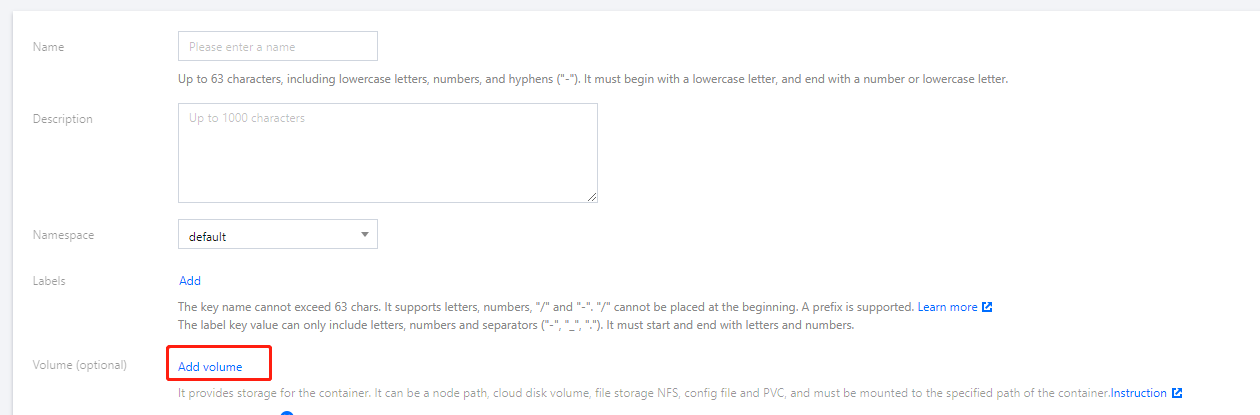
5. Set the workload name, namespace and other information as instructed. In Volume, click Add Volume.
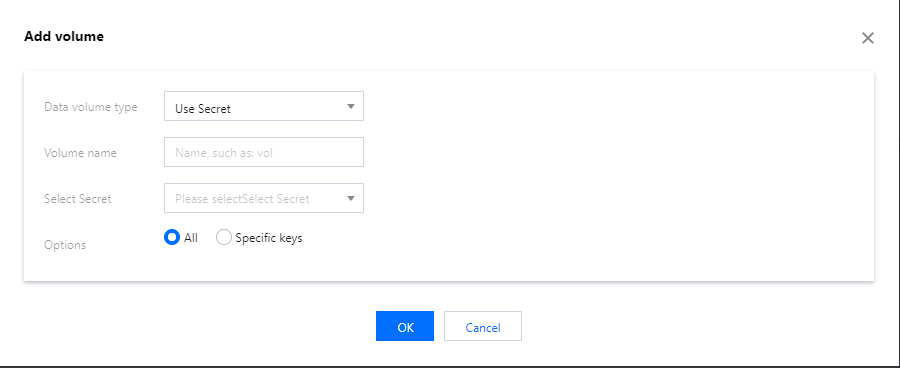
6. Select Use Secret in the drop-down menu, enter a name, and click Select Secret.
Select a secret: select a Secret as needed.
Options: All and Specific keys are available.
Items: if you select the Specific keys option, you can mount the Secret to a specific path by adding an item. For example, if the mounting point is /data/config, the sub-path is dev, it will finally be saved under /data/config/dev.
7. Click Create Workload to complete the process.
Method 2: Using a Secret as an environmental variable
1. Log in to the TKE console and select Cluster in the left sidebar. 2. Click the ID of the cluster where you want to deploy the workload to enter the cluster management page.
3. Under Workload, select a workload type to go to the corresponding information page.
For example, select Workload > DaemonSet to go to the DaemonSet information page. See the figure below:
4. Click Create to open the Create Workload page.
5. Set the workload name, namespace and other information as instructed. In Environment Variable under Containers in the Pod, select Secret for the environment variable and select resources as needed.
6. Click Create Workload to complete the process.
Method 3: Referencing a Secret when using third-party image repositories
1. Log in to the TKE console and select Cluster in the left sidebar. 2. Click the ID of the cluster where you want to deploy the workload to enter the cluster management page.
3. Under Workload, select a workload type to go to the corresponding information page.
For example, select Workload > DaemonSet to go to the DaemonSet information page. See the figure below:
4. Click Create to open the Create Workload page.
5. Set the workload name, namespace and other information as instructed, and select Image access credential as needed.
6. Click Create Workload to complete the process.
Updating a Secret
1. Log in to the TKE console and select Cluster in the left sidebar. 2. Select the ID of the cluster for which you want to update the YAML to go to the cluster management page.
3. Select Configuration Management > Secret to go to the Secret information page.
4. In the row of the Secret for which you want to update the YAML, click Edit YAML to go to the Secret updating page.
5. On the Update Secret page, edit the YAML and click Complete.
Note:
To modify key-values, edit the parameter values of data in YAML and click Finish to complete the update.
Via kubectl
Creating a Secret
Method 1: Creating a Secret with a specified file
1. Run the following commands to obtain the username and password of the Pod.
$ echo -n 'username' > ./username.txt
$ echo -n 'password' > ./password.txt
2. Run the following kubectl command to create a Secret.
$ kubectl create secret generic test-secret --from-file=./username.txt --from-file=./password.txt
secret "testSecret" created
3. Run the following command to view the details about the Secret.
kubectl describe secrets/ test-secret
Method 2: Manually creating a Secret with a YAML file
Note:
To manually create a Secret using YAML, you need to Base64-encode the data of the Secret in advance.
apiVersion: v1
kind: Secret
metadata:
name: test-secret
type: Opaque
data:
username: dXNlcm5hbWU= ## Generated by echo -n 'username' | base64
password: cGFzc3dvcmQ= ## Generated by echo -n 'password' | base64
Using a Secret
Method 1: Using a Secret as a volume
apiVersion: v1
kind: Pod
metadata:
name: nginx
spec:
containers:
- name: nginx
image: nginx:latest
volumeMounts:
name: secret-volume
mountPath: /etc/config
volumes:
name: secret-volume
secret:
name: test-secret
restartPolicy: Never
Method 2: Using a Secret as an environmental variable
apiVersion: v1
kind: Pod
metadata:
name: nginx
spec:
containers:
- name: nginx
image: nginx:latest
env:
- name: SECRET_USERNAME
valueFrom:
secretKeyRef:
name: test-secret
key: username
restartPolicy: Never
Method 3: Referencing a Secret when using third-party image repositories
apiVersion: v1
kind: Pod
metadata:
name: nginx
spec:
containers:
- name: nginx
image: nginx:latest
imagePullSecrets:
- name: test-secret
restartPolicy: Never