tencent cloud

Tencent Kubernetes Engine

Release Notes and Announcements
Release Notes
Announcements
Release Notes
Product Introduction
Overview
Strengths
Architecture
Scenarios
Features
Concepts
Native Kubernetes Terms
Common High-Risk Operations
Regions and Availability Zones
Service Regions and Service Providers
Open Source Components
Purchase Guide
Purchase Instructions
Purchase a TKE General Cluster
Purchasing Native Nodes
Purchasing a Super Node
Getting Started
Beginner’s Guide
Quickly Creating a Standard Cluster
Examples
Container Application Deployment Check List
Cluster Configuration
General Cluster Overview
Cluster Management
Network Management
Storage Management
Node Management
GPU Resource Management
Remote Terminals
Application Configuration
Workload Management
Service and Configuration Management
Component and Application Management
Auto Scaling
Container Login Methods
Observability Configuration
Ops Observability
Cost Insights and Optimization
Scheduler Configuration
Scheduling Component Overview
Resource Utilization Optimization Scheduling
Business Priority Assurance Scheduling
QoS Awareness Scheduling
Security and Stability
TKE Security Group Settings
Identity Authentication and Authorization
Application Security
Multi-cluster Management
Planned Upgrade
Backup Center
Cloud Native Service Guide
Cloud Service for etcd
TMP
TKE Serverless Cluster Guide
TKE Registered Cluster Guide
Use Cases
Cluster
Serverless Cluster
Scheduling
Security
Service Deployment
Network
Release
Logs
Monitoring
OPS
Terraform
DevOps
Auto Scaling
Containerization
Microservice
Cost Management
Hybrid Cloud
AI
Troubleshooting
Disk Full
High Workload
Memory Fragmentation
Cluster DNS Troubleshooting
Cluster kube-proxy Troubleshooting
Cluster API Server Inaccessibility Troubleshooting
Service and Ingress Inaccessibility Troubleshooting
Common Service & Ingress Errors and Solutions
Engel Ingres appears in Connechtin Reverside
CLB Ingress Creation Error
Troubleshooting for Pod Network Inaccessibility
Pod Status Exception and Handling
Authorizing Tencent Cloud OPS Team for Troubleshooting
CLB Loopback
API Documentation
History
Introduction
API Category
Making API Requests
Elastic Cluster APIs
Resource Reserved Coupon APIs
Cluster APIs
Third-party Node APIs
Relevant APIs for Addon
Network APIs
Node APIs
Node Pool APIs
TKE Edge Cluster APIs
Cloud Native Monitoring APIs
Scaling group APIs
Super Node APIs
Other APIs
Data Types
Error Codes
TKE API 2022-05-01
FAQs
TKE General Cluster
TKE Serverless Cluster
About OPS
Hidden Danger Handling
About Services
Image Repositories
About Remote Terminals
Event FAQs
Resource Management
Service Agreement
TKE Service Level Agreement
TKE Serverless Service Level Agreement
Contact Us
Glossary

Using KMS for Kubernetes Data Source Encryption

PDF
Mode fokus
Ukuran font
Terakhir diperbarui: 2024-12-13 17:23:09

Overview

Tencent Cloud TKE-KMS Plugin integrates the rich key management features of Key Management Service (KMS) to provide powerful encryption/decryption capabilities for Secret in Kubernetes cluster. This document describes how to encrypt data for Kubernetes cluster via KMS.

Concepts

Key Management Service (KMS)

Key Management Service (KMS) is a security management solution that leverages a third-party certified hardware security module (HSM) to generate and protect keys so you can easily create and manage keys, helping you to meet your key management and compliance needs in multi-application and multi-business scenarios.

Prerequisites

You have created a TKE self-deployed cluster that meets the following conditions:
Kubernetes v1.10.0 or later.
Etcd v3.0 or later.
Note:
If you want to check the version, you can go to Cluster Management page and select the cluster ID to go to the Basic Information page to view.

Directions

Creating a KMS key and obtaining the ID

1. Log in to the KMS Console, and go to Customer Managed CMK page.
2. At the top of the Customer Managed CMK page, select the region for which you want to create a key, and click Create.
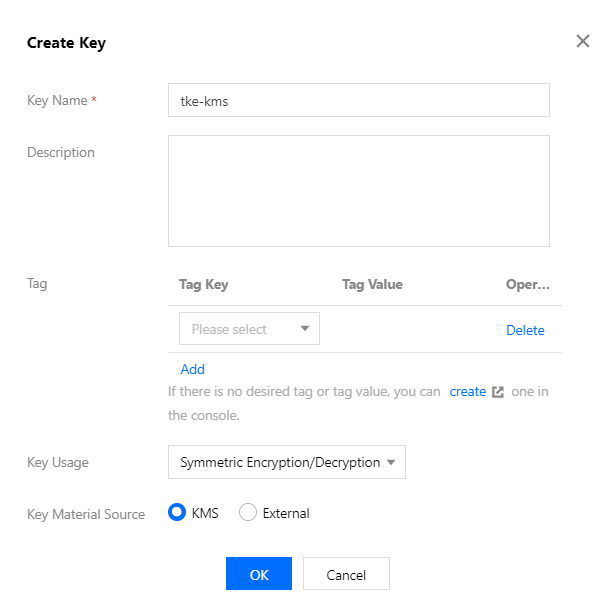
3. On the pop-up window, configure the parameters according to the following information, as shown below:

The key parameters are as follows. Retain the default settings for other parameters.
Key Name: this is required and must be unique within the region. It can contain letters, numbers, _, -, and cannot begin with KMS-. In this document, we take tke-kms as an example.
Description: this is optional and used to specify the type of data to be protected, or the application to be used in conjunction with the CMK.
Key Usage: select Symmetric encryption and decryption.
Key Material Source: select KMS or External based on the actual needs. In this document, we take KMS as an example.
4. Click OK to go back to Customer Managed CMK page to view the created keys.
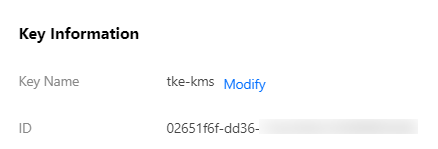
5. Click the key ID to go to Key Information page, you can view the complete ID of the key on this page. See the figure below:


Creating and obtaining access key

Before using TKE for the first time, go to the TencentCloud API Key page to apply for SecretId and SecretKey. If you already have them, skip this procedure.
1. Log in to the CAM console and select Access Key > Manage API Key in the left sidebar to go to the Manage API Key page.
2. On the Manage API Key page, click Create Key to create a pair of SecretId/SecretKey.
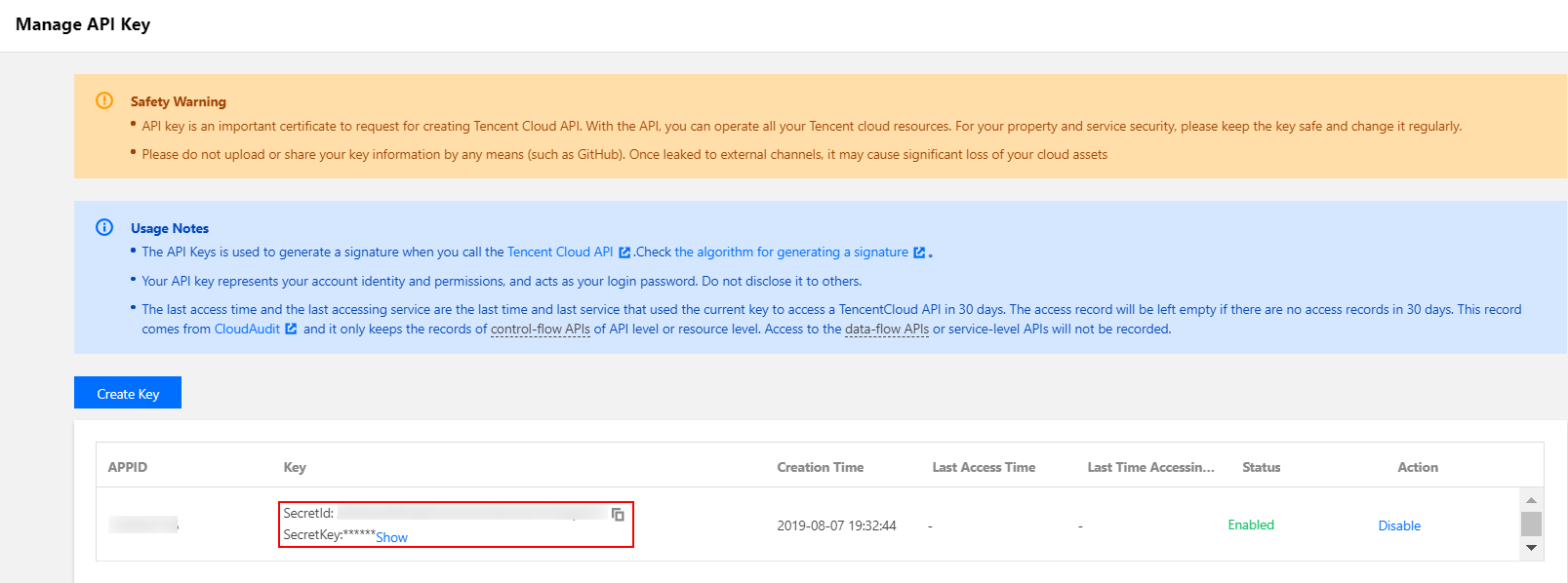
3. You can check the key’s information including SecretId and SecretKey on Manage API Key page when the creation is completed. See the figure below:


Creating a DaemonSet and deploying tke-kms-plugin

1. Log in to the TKE console and click Cluster in the left sidebar.
2. On the Cluster Management page, click the ID of the cluster that meet the conditions to go to the cluster details page.
3. Select Create Via YAML at the top right corner on any interface of the cluster to go to Create Via YAML page. Enter the parameters for tke-kms-plugin.yaml, as shown below:
Note:
Enter values for the following parameters based on the actual needs:
{{REGION}}: the region where KMS key resides. You can check Region List for the valid values.
{{KEY_ID}}: enter the KMS key ID obtained in the step of creating a KMS key and obtaining the ID.
{{SECRET_ID}} and {{SECRET_KEY}}: enter the SecretID and SecretKey created in the step of creating and obtaining access key.
images: ccr.ccs.tencentyun.com/tke-plugin/tke-kms-plugin:1.0.0: tke-kms-plugin image address. If you want to use the self-created tke-kms-plugin image, you can replace it.
apiVersion: apps/v1
kind: DaemonSet
metadata:
name: tke-kms-plugin
namespace: kube-system
spec:
selector:
matchLabels:
name: tke-kms-plugin
template:
metadata:
labels:
name: tke-kms-plugin
spec:
nodeSelector:
node-role.kubernetes.io/master: "true"
hostNetwork: true
restartPolicy: Always
volumes:
- name: tke-kms-plugin-dir
hostPath:
path: /var/run/tke-kms-plugin
type: DirectoryOrCreate
tolerations:
- key: node-role.kubernetes.io/master
effect: NoSchedule
containers:
- name: tke-kms-plugin
image: ccr.ccs.tencentyun.com/tke-plugin/tke-kms-plugin:1.0.0
command:
- /tke-kms-plugin
- --region={{REGION}}
- --key-id={{KEY_ID}}
- --unix-socket=/var/run/tke-kms-plugin/server.sock
- --v=2
livenessProbe:
exec:
command:
- /tke-kms-plugin
- health-check
- --unix-socket=/var/run/tke-kms-plugin/server.sock
initialDelaySeconds: 5
failureThreshold: 3
timeoutSeconds: 5
periodSeconds: 30
env:
- name: SECRET_ID
value: {{SECRET_ID}}
- name: SECRET_KEY
value: {{SECRET_KEY}}
volumeMounts:
- name: tke-kms-plugin-dir
mountPath: /var/run/tke-kms-plugin
readOnly: false
4. Click Done and wait for the DaemonSet to be created.

Configuring kube-apiserver

1. Log in to each Master node of the cluster by referring to Logging in to Linux Instance Using Standard Login Method.
Note:
Master node security group defaults to close port 22. You need to open port 22 on the security group interface before logging in to the node. For more information, see Adding a Security Group Rule.
2. Run the following command to create and open the YAML file.
vim /etc/kubernetes/encryption-provider-config.yaml
3. Press i to switch to the edit mode and edit the YAML file. Enter the followings according to the K8s version that you actually use:
K8S v1.13+:
apiVersion: apiserver.config.k8s.io/v1
kind: EncryptionConfiguration
resources:
- resources:
- secrets
providers:
- kms:
name: tke-kms-plugin
timeout: 3s
cachesize: 1000
endpoint: unix:///var/run/tke-kms-plugin/server.sock
- identity: {}
K8S v1.10 - v1.12:
apiVersion: v1
kind: EncryptionConfig
resources:
- resources:
- secrets
providers:
- kms:
name: tke-kms-plugin
timeout: 3s
cachesize: 1000
endpoint: unix:///var/run/tke-kms-plugin/server.sock
- identity: {}
4. After editing is completed, press Esc and enter :wq to save the file and go back.
5. Run the following command to edit the YAML file.
vi /etc/kubernetes/manifests/kube-apiserver.yaml
6. Press i to switch to the edit mode and add the followings to args according to the K8s version you actually use.
Note:
Self-deployed cluster of K8s v1.10.5. You need to remove kube-apiserver.yaml from the /etc/kubernetes/manifests directory and move it back to the directory after you have completed the editing.
K8S v1.13+:
--encryption-provider-config=/etc/kubernetes/encryption-provider-config.yaml
K8S v1.10 - v1.12:
--experimental-encryption-provider-config=/etc/kubernetes/encryption-provider-config.yaml
7. Add Volume command to /var/run/tke-kms-plugin/server.sock. The location and content for adding is as follows:
Note:
/var/run/tke-kms-plugin/server.sock is a unix socket that is listened when tke kms server is launched. kube apiserver will access tke kms server by accessing the socket.
Add the followings for volumeMounts::
- mountPath: /var/run/tke-kms-plugin
name: tke-kms-plugin-dir
Add the followings for volume::
- hostPath:
path: /var/run/tke-kms-plugin
name: tke-kms-plugin-dir
8. When the editing is finished, press Esc, enter :wq and save the /etc/kubernetes/manifests/kube-apiserver.yaml file. Wait for kube-apiserver to restart.

Verification

1. Log in to the node of the cluster and run the following command to create a Secret.
kubectl create secret generic kms-secret -n default --from-literal=mykey=mydata
2. Run the following command to verify if the Secret has been decrypted correctly.
kubectl get secret kms-secret -o=jsonpath='{.data.mykey}' | base64 -d
3. If the output value is mydata, i.e. it is equal to the value of Secret, it means Secret has been decrypted correctly. See the figure below:


References

For more information about Kubernetes KMS, see Using a KMS provider for data encryption.

Bantuan dan Dukungan

Apakah halaman ini membantu?

masukan