tencent cloud

Cloud Virtual Machine

Release Notes and Announcements
Release Notes
Public Image Release Notes
Official End of Support Plan for the Operating System
Announcements
Product Introduction
CVM Overview
Strengths
Basic Concepts
Regions and Zones
Tutorial
Service Regions and Service Providers
Billing
Billing Overview
Billing Modes
Billing Items
Billing Mode Conversion Overview
Purchasing Instances
Configuration Adjustment Billing Guide
Overdue Payments
Getting Started
Purchasing a Customized Linux Instance
Purchasing a Customized Windows Instance
User Guide
Operation Guide Overview
Use Limits
Instances
Spot Instances
Reserved Instances
Images
Storage
Backup and Restoration
Network
Security
Passwords/Keys
Monitoring and Alarms
Ops Management
Convenience Features
Migrating a Server
Online Migration
Migration Consultation
Troubleshooting
CVM Login Failures
Windows Instance Login Failures
Linux Instance Login Failures
Other Login Failures
Instance Running Failures
Linux Instance Memory Failures
Network Failures
Use Cases
Suggestions on CVM Model Selection
Environment Building
Website Building
Application Building
Visual GUI Building
Uploading Local Files to CVM
Network Performance Test
Other Practical Tutorials
API Documentation
History
Introduction
API Category
Making API Requests
Region APIs
Instance APIs
Cloud Hosting Cluster APIs
Image APIs
Instance Launch Template APIs
Placement Group APIs
Key APIs
Security Group APIs
Network APIs
Data Types
Error Codes
Security and Compliance
CAM
Network
FAQs
Regions and Zones
Billing
Instances
Storage
Images
Server Migration
Network
Security
Operating Systems
Ops and Monitoring
CAM
NTP Service
Scenarios
Agreements
CVM Service Level Agreements
Red Hat Enterprise Linux Image Service Agreement
Public IP Service Level Agreement
Glossary

Linux Login Failure: Port Issues

PDF
Focus Mode
Font Size
Last updated: 2024-01-06 17:32:18
This document describes how to diagnose and troubleshoot remote login failures caused by port problems.
Note:
The following operations use a CVM instance with the CentOS 7.8 operating system as an example.

Tools

You can use the following tools to check whether the login issues are related to port or security group configuration:
If the problem is indeed caused by security group configurations, click Open all ports in Port Verification and try to log in again. If you still cannot log in after opening the ports, refer to the following for troubleshooting.

Troubleshooting

Checking network connectivity

You can use the Ping command to test network connectivity from your PC. You should run the test from computers in different network environments (such as different IP ranges or ISPs) to check whether it is a local network problem or a server problem.
1. Open the command line tool on your local computer.
Windows: click Start > Run and enter cmd. A Command Prompt window appears.
MacOS: open a Terminal window.
2. Run the following command to test network connection.
ping [CVM instance’s public IP address]
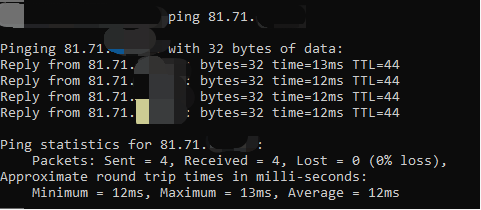
You should first obtain the public IP address of the CVM instance. For example, ping 81.71.XXX.XXX.
If the result similar to the following is returned, your network connection to the CVM instance is normal.

If Request Timeout appears, your network connection to the CVM instance is not working properly. In this case, refer to Instance IP Address Ping Failure for troubleshooting instructions.

Checking port connectivity

2. Run the following command and press Enter to check whether the remote port is open and accessible.
telnet [CVM instance’s public IP address] [Port number]
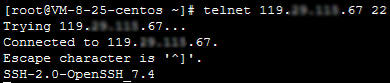
For example, run the telnet 119.XX.XXX.67 22 command to check whether the port 22 is open.
If information similar to what is shown below is returned, the port 22 is accessible.

If information similar to what is shown below is returned, the port 22 is unaccessible. Check the corresponding network configuration. For example, check whether the port 22 is open in the firewall or security group of the instance.


Checking the SSHD service

If you are unable to log in to a Linux instance via SSH key due to connection failures, it may be because the SSHD port is not being listened on or the SSHD service is not started. In this case, refer to Unable to Log into a Linux Instance via SSH for troubleshooting instructions.

Help and Support

Was this page helpful?

Help us improve! Rate your documentation experience in 5 mins.

Feedback