tencent cloud

Cloud Virtual Machine

Release Notes and Announcements
Release Notes
Public Image Release Notes
Official End of Support Plan for the Operating System
Announcements
Product Introduction
CVM Overview
Strengths
Basic Concepts
Regions and Zones
Tutorial
Service Regions and Service Providers
Billing
Billing Overview
Billing Modes
Billing Items
Billing Mode Conversion Overview
Purchasing Instances
Configuration Adjustment Billing Guide
Overdue Payments
Getting Started
Purchasing a Customized Linux Instance
Purchasing a Customized Windows Instance
User Guide
Operation Guide Overview
Use Limits
Instances
Spot Instances
Reserved Instances
Images
Storage
Backup and Restoration
Network
Security
Passwords/Keys
Monitoring and Alarms
Ops Management
Convenience Features
Migrating a Server
Online Migration
Migration Consultation
Troubleshooting
CVM Login Failures
Windows Instance Login Failures
Linux Instance Login Failures
Other Login Failures
Instance Running Failures
Linux Instance Memory Failures
Network Failures
Use Cases
Suggestions on CVM Model Selection
Environment Building
Website Building
Application Building
Visual GUI Building
Uploading Local Files to CVM
Network Performance Test
Other Practical Tutorials
API Documentation
History
Introduction
API Category
Making API Requests
Region APIs
Instance APIs
Cloud Hosting Cluster APIs
Image APIs
Instance Launch Template APIs
Placement Group APIs
Key APIs
Security Group APIs
Network APIs
Data Types
Error Codes
Security and Compliance
CAM
Network
FAQs
Regions and Zones
Billing
Instances
Storage
Images
Server Migration
Network
Security
Operating Systems
Ops and Monitoring
CAM
NTP Service
Scenarios
Agreements
CVM Service Level Agreements
Red Hat Enterprise Linux Image Service Agreement
Public IP Service Level Agreement
Glossary

Linux VNC/SSH Failure: "Permission denied"

PDF
Focus Mode
Font Size
Last updated: 2025-06-09 18:30:12

Error Description

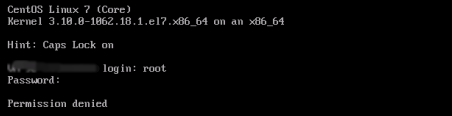
The error message “Permission denied” is reported when I log in using VNC or SSH key.
The VNC login error is shown below:


The SSH login error is shown below:


Possible Reasons

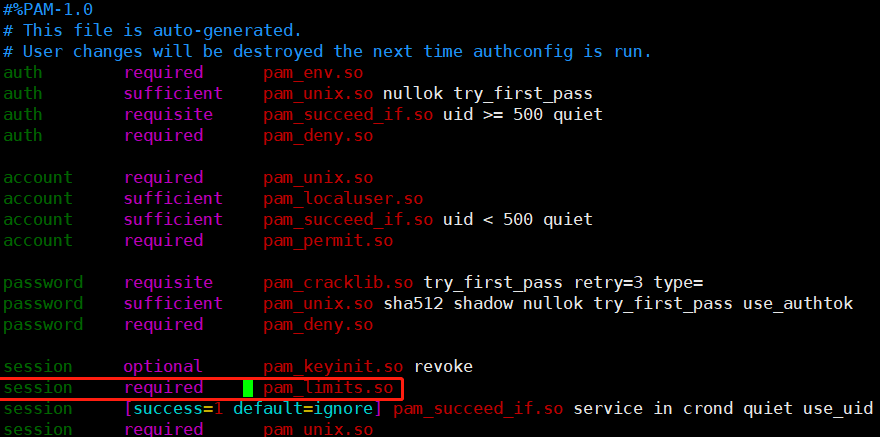
Using the VNC or SSH login will call system-auth for authentication if this module is configured in the /etc/pam.d/login configuration file. By default, the system-auth module introduces the pam_limits.so module. The default system-auth configuration is as shown below:

The pam_limits.so module is mainly used to limit the use of system resources during the user session. Its default configuration file /etc/security/limits.conf specifies the maximum number of files, the maximum number of threads, the maximum memory and other resources that a user can use. See the table below for details.
Parameter
Description
soft nofile
The maximum number of open file descriptors (soft limit)
hard nofile
The maximum number of open file descriptors (hard limit), which cannot be exceeded.
fs.file-max
The maximum number of open file handles (struct file in the kernel) at the system level.
fs.nr_open
The maximum number of file descriptors (fd) assigned to a process
The login failure may be caused by incorrect configurations of the maximum number of open file descriptors for the root account in the /etc/security/limits.conf configuration file. The set value of soft nofile should be no more than hard nofile, and hard nofile should be no more than fs.nr_open.

Solutions

Perform the troubleshooting procedure to correct the relationship configurations of soft nofile, hard nofile and fs.nr_open.

Troubleshooting Procedure

If login succeeded, proceed to the next step.
If login failed, use single user mode.For more information, see Booting into Linux Single User Mode.
2. Check whether the set values meet the relationship soft nofile ≤ hard nofile ≤ fs.nr_open.
Run the following command to obtain the values of soft nofile and hard nofile.
cat /etc/security/limits.conf
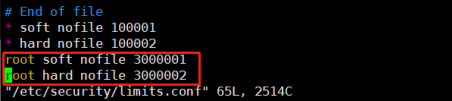
In this example, their values are 3000001 and 3000002 respectively, as shown below.


Run the following command to check the fs.nr_open value.
sysctl -a 2>/dev/null | grep -Ei "file-max|nr_open"
In this example, its value is 1048576, as shown below.


3. Edit the /etc/security/limits.conf file to add or modify the following configurations at the end of the file.
root soft nofile: 100001
root hard nofile: 100002
4. Edit the /etc/sysctl.conf file to add or modify the following configurations at the end of the file.
Note:
This step is optional when the relationship soft nofile ≤ hard nofile ≤ fs.nr_open is met. Perform this step to increase the system limit.
fs.file-max = 2000000
fs.nr_open = 2000000
5. Run the following command for the configuration to take effect immediately. Then you can log in normally.
sysctl -p


Help and Support

Was this page helpful?

Help us improve! Rate your documentation experience in 5 mins.

Feedback